Audit trail
The audit trail is a permanent record of important actions in your organisation: members invited or removed, roles changed, settings saved, apps installed, records posted. Use it to answer “who changed this, and when?”.
Before you start
- Needs the Administrator role (View the organisation audit trail).
- Time needed: a few minutes.
Read the audit trail
Open Administration → System → Audit trail.
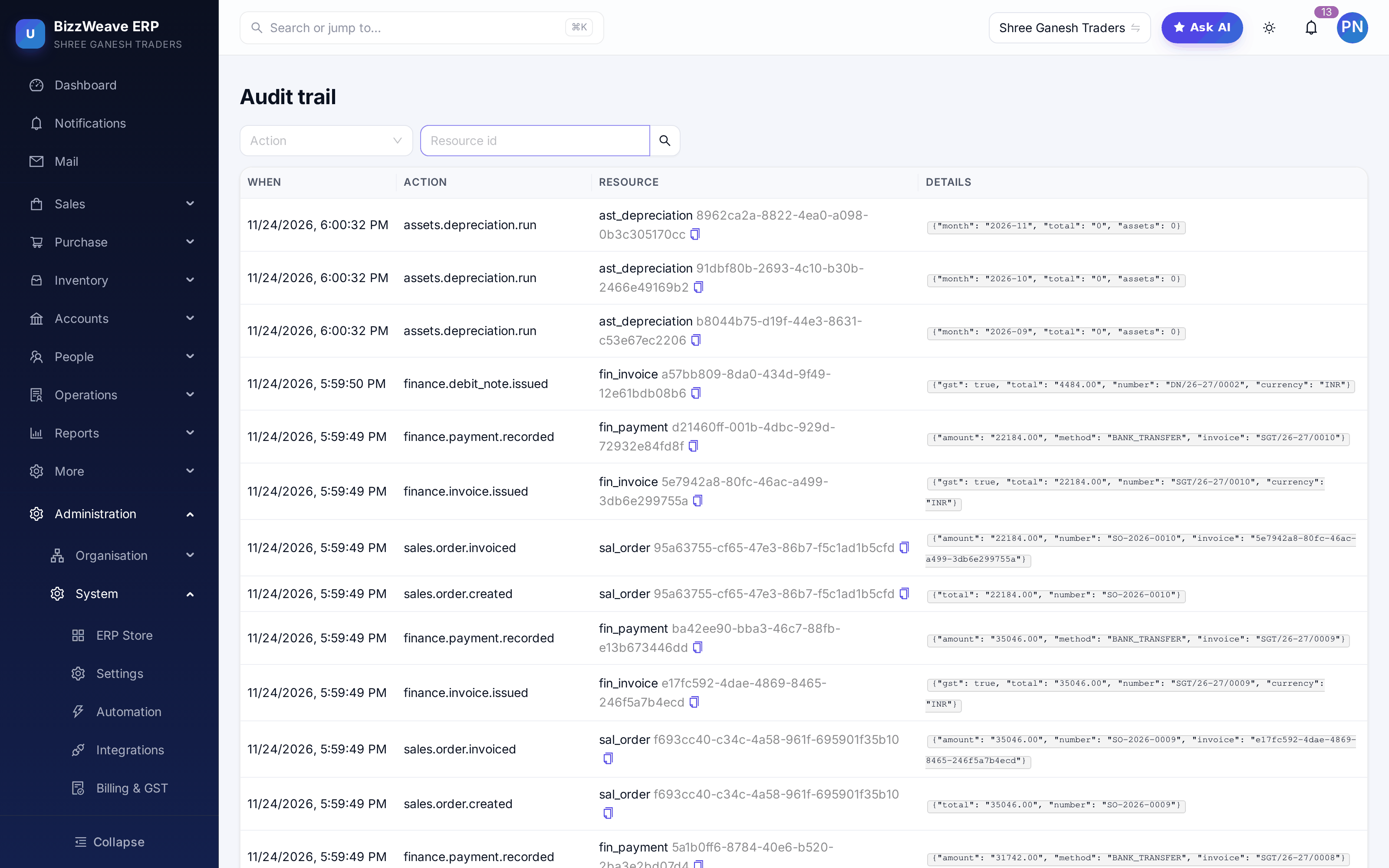
| Column | Meaning |
|---|---|
| When | Date and time of the action. |
| Action | What happened, for example membership.invited, role.updated, settings.updated, ai.settings.updated or printing.profile.saved. |
| Resource | The kind of record and its id. Click the copy icon to copy the id. |
| Details | The data recorded with the action, for example the new role or the permissions added and removed. |
Find something
- Action: choose a group: membership.* (members), role.* (roles), settings.*, department.* or organisation.*.
- Resource id: paste the id of a record (for example from another audit entry) and press Enter to see its whole history.
Keep an eye on it
Look through the audit trail weekly for unexpected changes to members, roles and settings, especially after someone leaves.
Who did it?
In the current release the list doesn't show the name of the person who acted. Use the time, the action and the details to work out what happened.