ERP Store
The ERP Store is where you add categories to your organisation, such as CA Firm ERP, Generic ERP, IT ERP or the Project Management Suite. Try any app free, install it in a few clicks, and deactivate or uninstall it without losing data.
Before you start
- Starting trials, buying, installing, deactivating and uninstalling need the Administrator role. Everyone can browse the Store.
- Time needed: about 5 minutes per app.
Browse the Store
Open Administration → System → ERP Store.
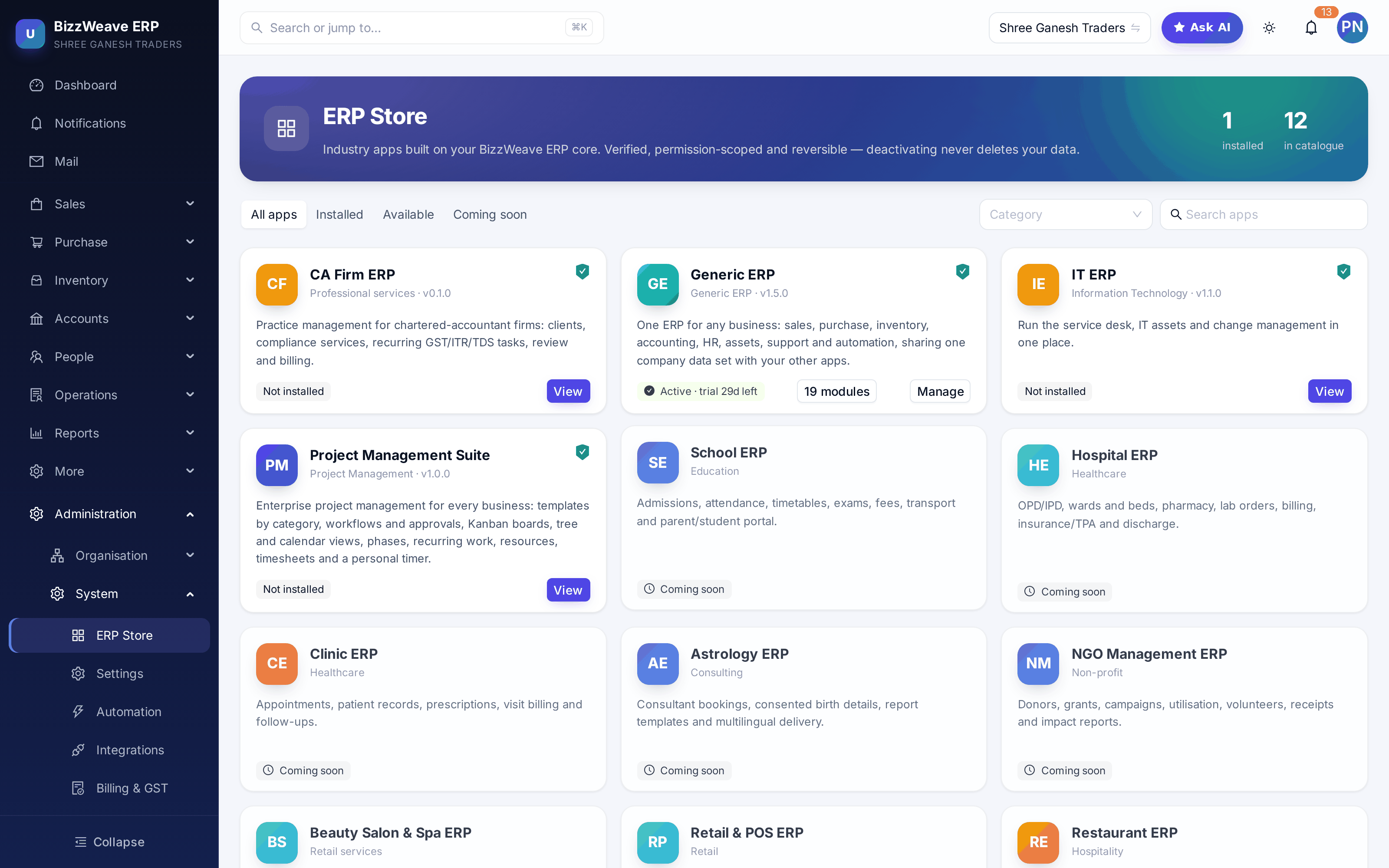
- Tabs: All apps, Installed, Available (not installed yet) and Coming soon.
- Category and Search apps narrow the list.
- Each card shows the app's category, version and a short summary. A green shield means a verified publisher.
- The tag shows the app's state:
| Tag | Meaning |
|---|---|
| Not installed | Available to try or buy. |
| Licensed · ready to install | You have a licence or trial; click Install. |
| Active · trial Nd left / Active | Installed and working. |
| Deactivated | Installed but switched off; data kept. |
| Uninstalled · data retained | Removed; data still stored. |
| Licence expired | The trial or licence has ended. |
| Coming soon | Not available yet. Click N modules to see what it will include. |
Click a card (View or Manage) to open the app's details.
App details
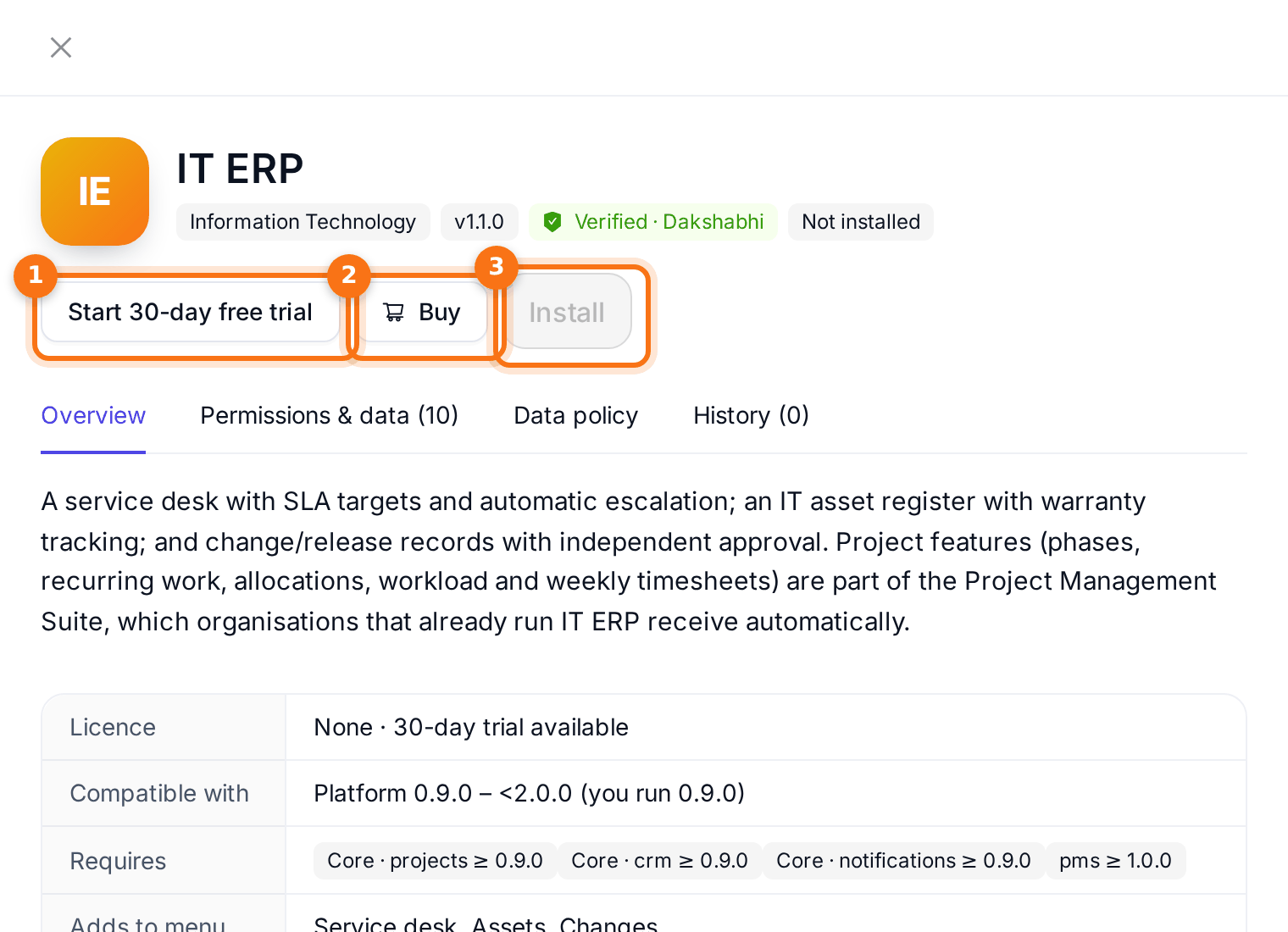
The tabs explain the app before you commit:
- Overview: what it does, your licence, which platform versions it works with, what it Requires (other modules or apps), what it Adds to menu and the plans.
-
Permissions & data: the data the app stores (tagged personal data where it applies) and the permissions it adds, which you then give through roles.

-
Data policy: what happens to data on deactivation, uninstall and deletion.
- History: every install, upgrade, deactivation and uninstall, with its outcome.
Start a free trial and install
- Open the app and click Start N-day free trial (30 days for the current apps). A message says Trial started. Each app has one trial per organisation.
- Click Install. The install wizard has three steps:
- Review: check the data and permissions the app adds and tick I have reviewed the data and permissions this app adds for my organisation. For Generic ERP, you can also tick Import demo data to load a sample business (only for a company with no items yet; not for live use).
- Set up: answer the app's set-up questions, for example Business type (Trading, Distribution, Manufacturing or Services) for Generic ERP.
- Install: click Install now. BizzWeave ERP verifies the publisher's signature, checks the licence, compatibility and dependencies, creates a recovery checkpoint, registers menus and permissions, activates the app and runs health checks. Each step shows a green tick.
- When you see … is ready, click Done.
What happens next
New menus appear for everyone whose role includes the app's permissions, and the app's category appears in the category switcher. If a health check fails, the installation is rolled back: every change is reverted and nothing is left half-installed.
Shared modules, one copy of your data
Many modules (customers, items, invoices, projects…) are shared platform modules. If you install two apps that both use them, both work on the same records: nothing is duplicated.
Buy a licence
- Open the app and click Buy (or Renew for a paid licence).
-
Choose the Plan and Billing (Yearly or Monthly). Add billing details or questions if you like, for example your GSTIN or PO number.

-
Click Request purchase.
Our team confirms the price and e-mails an invoice. The app shows Purchase requested: awaiting payment until payment is recorded; then the licence activates. You can keep using the free trial meanwhile, and Cancel request while it is pending.
Deactivate and reactivate
Deactivating switches an app off without removing it.
-
Open the installed app and click Deactivate.

An installed app: 1 Deactivate and 2 Uninstall. -
Confirm Deactivate this app? with OK.

The app's features and menus are hidden for everyone; all data is kept. Click Reactivate to bring everything back.
Uninstall, and what happens to the data
- Open the installed app and click Uninstall.
-
Confirm Uninstall this app? with OK.
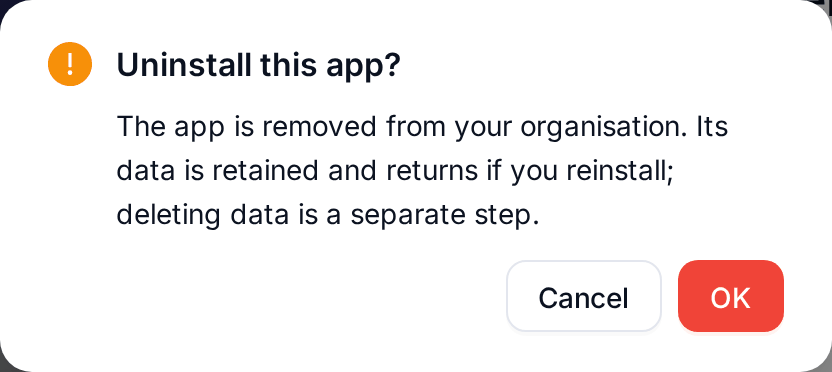
The app is removed from your organisation, but its data is retained and returns if you Reinstall.
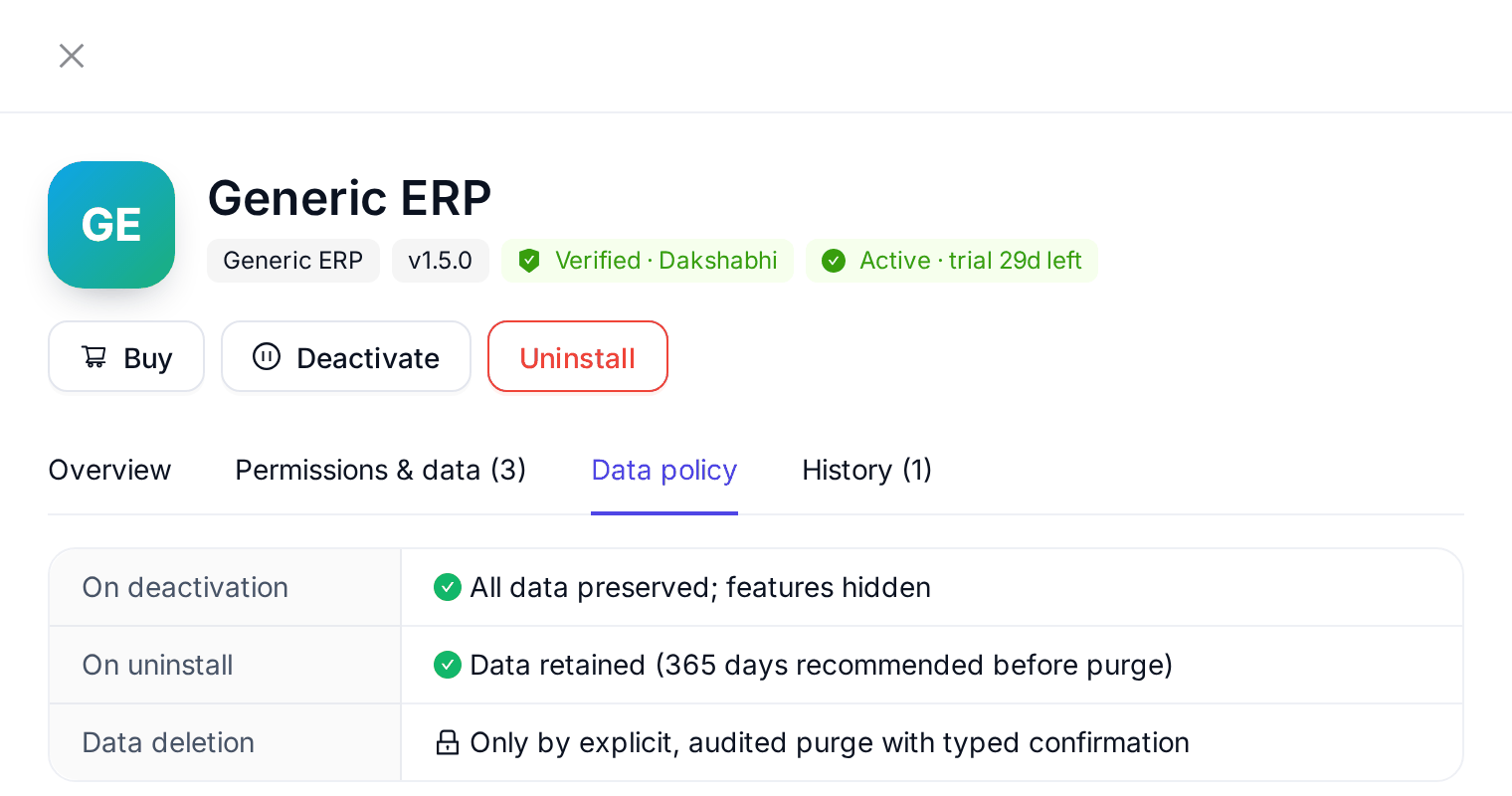
| Action | Menus | Data |
|---|---|---|
| Deactivate | Hidden for everyone | All kept; back on Reactivate |
| Uninstall | Removed | Kept (Generic ERP recommends 365 days before deleting); back on Reinstall |
| Purge data | — | Permanently deleted |
Delete an app's data permanently
Only after uninstalling, an administrator with the Permanently delete an uninstalled app's data permission sees a Danger zone with Purge … data…. You must type the app's id (for example it-erp) to confirm. This can't be undone and is recorded in the audit trail.
Common questions
“… depends on this app” when I deactivate or uninstall.
Another active app needs this one. IT ERP, for example, uses the Project Management Suite. Deactivate or uninstall the dependent app first.
Install is greyed out.
You need a trial or licence first (A licence or trial is required), or the app failed verification (This app cannot be installed, with the reason).
“A trial or licence already exists for this app.”
Each organisation gets one trial per app. Click Buy to continue after the trial.
An app shows “Upgrade to v…”.
A newer version is available. Click it to upgrade; the same checks run as for an installation.