The services catalogue
The catalogue lists every service your firm offers, such as GSTR-3B Monthly Filing or Tax Audit. Each service has a price, a due-date rule and a task template. When you give a service to a client, the ERP uses these settings to create the client's tasks on time.
Before you start
- Everyone can see the catalogue. To add or change services, and to see prices, you need permission to manage services (owners, administrators and managers).
- Time needed: 5 minutes for a new service.
The service list
Open Configuration → Services. The page has two tabs: Services and Categories.
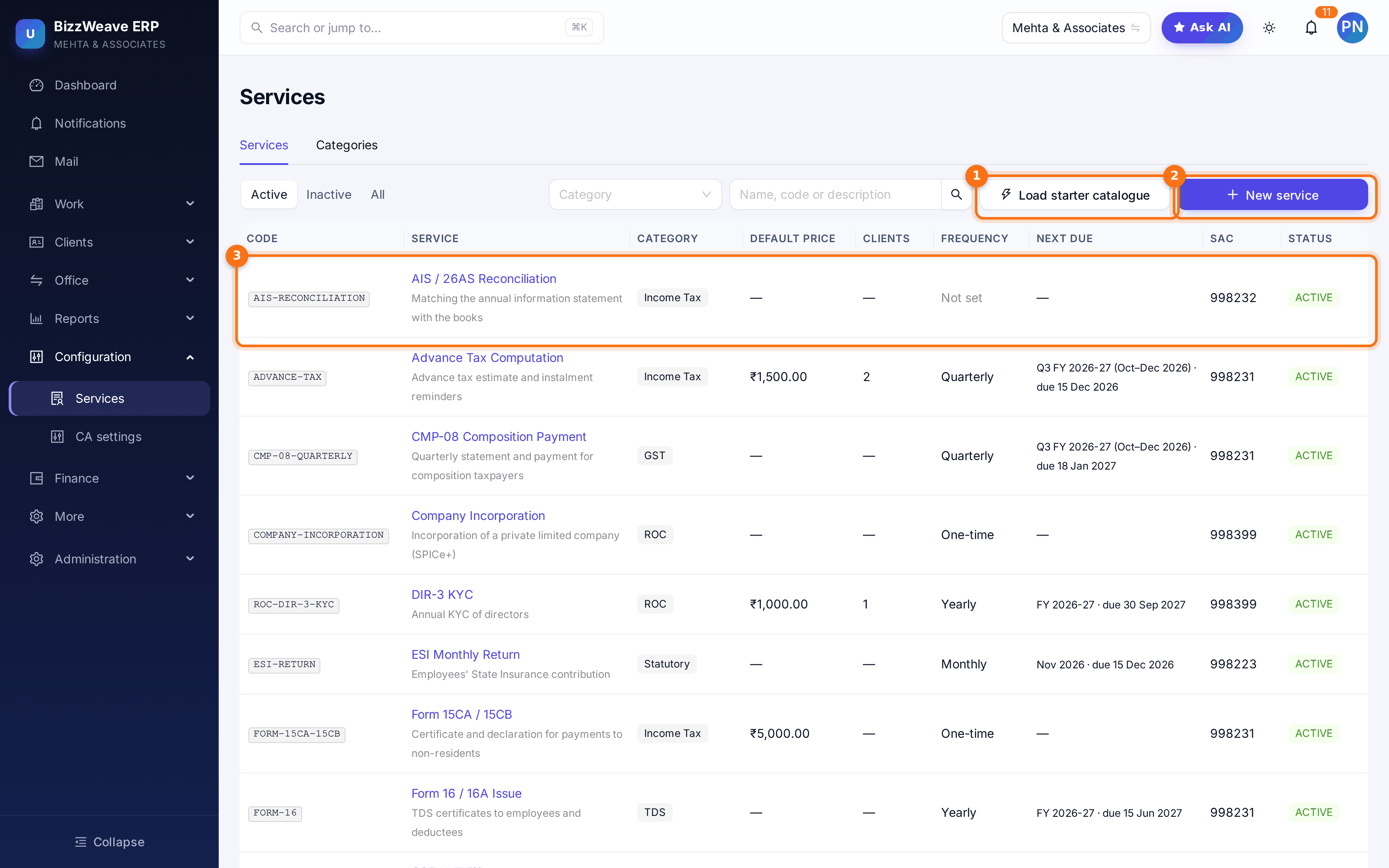
| Column | Meaning |
|---|---|
| Code | A short fixed code, such as GSTR-3B-MONTHLY. Task numbers start with it (GSTR-3B-MONTHLY-0004). |
| Service | The name and description. |
| Category | GST, Income Tax, TDS, ROC, Audit, Bookkeeping, Payroll, Statutory or Others. |
| Default price | The standard fee, used when a client has no fee of its own. |
| Clients | How many clients take the service. |
| Frequency | Monthly, Quarterly, Yearly, Daily, One-time, or Not set. |
| Next due | The next period and its due date, for example Nov 2026 · due 20 Dec 2026. Orange when it is within a week. |
| SAC | The services accounting code printed on GST invoices (6 digits starting with 99). |
Use Active / Inactive / All, the Category box and the search box to narrow the list.
Start with the starter catalogue
A new firm doesn't need to type every service. Click Load starter catalogue 1 and then Load.
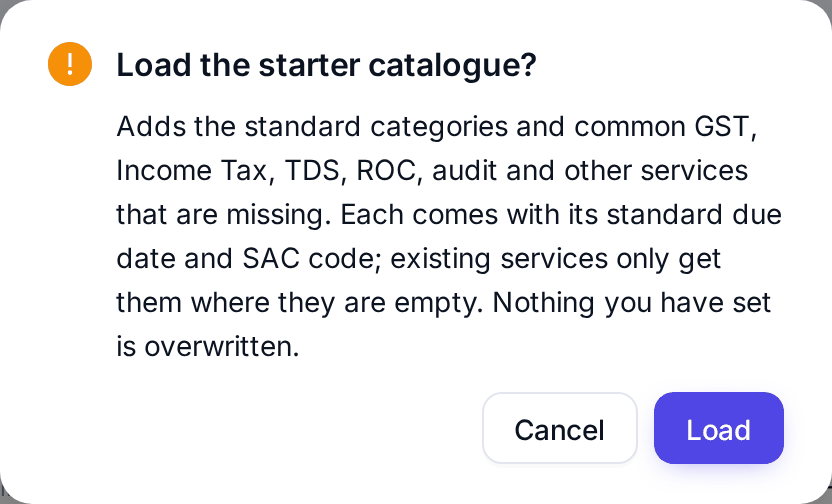
The ERP adds the standard categories and about 45 common services (GST returns, ITRs, TDS returns, ROC forms, audits, bookkeeping, payroll, PF and ESI), each with its standard due date, SAC code and a ready checklist. Services that are already there only get missing due dates and SAC codes. Afterwards, set your own prices.
Add or change a service
- Click New service 2, or click an existing service's row 3.
-
Fill in the basic details:
Field What to enter Example Code (required) Capital letters, digits and hyphens. Fixed after saving, because task numbers use it. GSTR-3B-MONTHLY Name (required) The name staff and clients see. GSTR-3B Monthly Filing Category (required) Where the service is listed. GST Price (₹) The default fee. Each client can have its own fee. 2,000 SAC For GST invoices. 998231 Description A short explanation. Summary return with tax payment -
Set the Frequency & due date:
- Frequency: Monthly (one period per month), Quarterly (Apr–Jun, Jul–Sep, Oct–Dec, Jan–Mar), Yearly (the financial year, April to March), Daily, or One-time (no recurring due date; you set the due date on each task).
- Due day: the day of the month the return is due, 1 to 31. 31 means the last day of shorter months.
- Months after period end: 0 = in the last month of the period, 1 = the month after, and so on. GSTR-3B for October is due on the 20th of the next month: Due day 20, Months after period end 1.
A box shows the Next due dates, so you can check the rule before saving.
-
Optionally fill in Applicable states (for state-wise rules such as QRMP; empty = all states) and the Late fee / day and Maximum late fee. The late fee is for reference only; the ERP doesn't calculate or charge it.
- Click Save.

The task template
When you open an existing service, the Task template section sets how its tasks are created and closed.

| Setting | What it does |
|---|---|
| Task description | Instructions copied into the notes of each new task. |
| Task title | The title of new tasks. Use {service}, {client} and {period}; empty gives {service} - {period}, for example GSTR-3B Monthly Filing - Nov 2026. |
| Priority | Low, Medium, High or Urgent. |
| Reviewer approves before done | When on, a reviewer must approve the work before it can be marked done. See Review and filing. |
| Record ARN and filed date | When on, Mark done asks for the acknowledgement number and the filing date. |
| Record UDIN | When on, the task can't be finished without the 18-character UDIN from the ICAI portal. Use it for audit reports and certificates. |
| Create tasks automatically | When on, the ERP creates each period's task by itself. One-time services are always added by hand. |
| Days before due date | How early the task is created, for example 15 days before the due date. |
| Estimated hours | For planning. |
| Checklist | Steps copied to each new task. Tick Required for steps that must be done before the task goes for review or is marked done. Click Add step to add one. |
| Sub-task flow | Sub-tasks copied to each new task. You build it from a real task with Save as flow. See Inside a task. |
Click Save template. The new settings apply to tasks created from now on; existing tasks keep their checklist.
Give a service to many clients at once
The Clients section at the bottom of a service lists every client who takes it. Click Add clients, choose the clients, fill in the fee, staff member, reviewer and start date as on a client's Services tab, and click Add. The same ⋮ menu lets you edit, pause or end the service for one client. See The Services tab.
Categories
The Categories tab lists the categories with how many services each has.
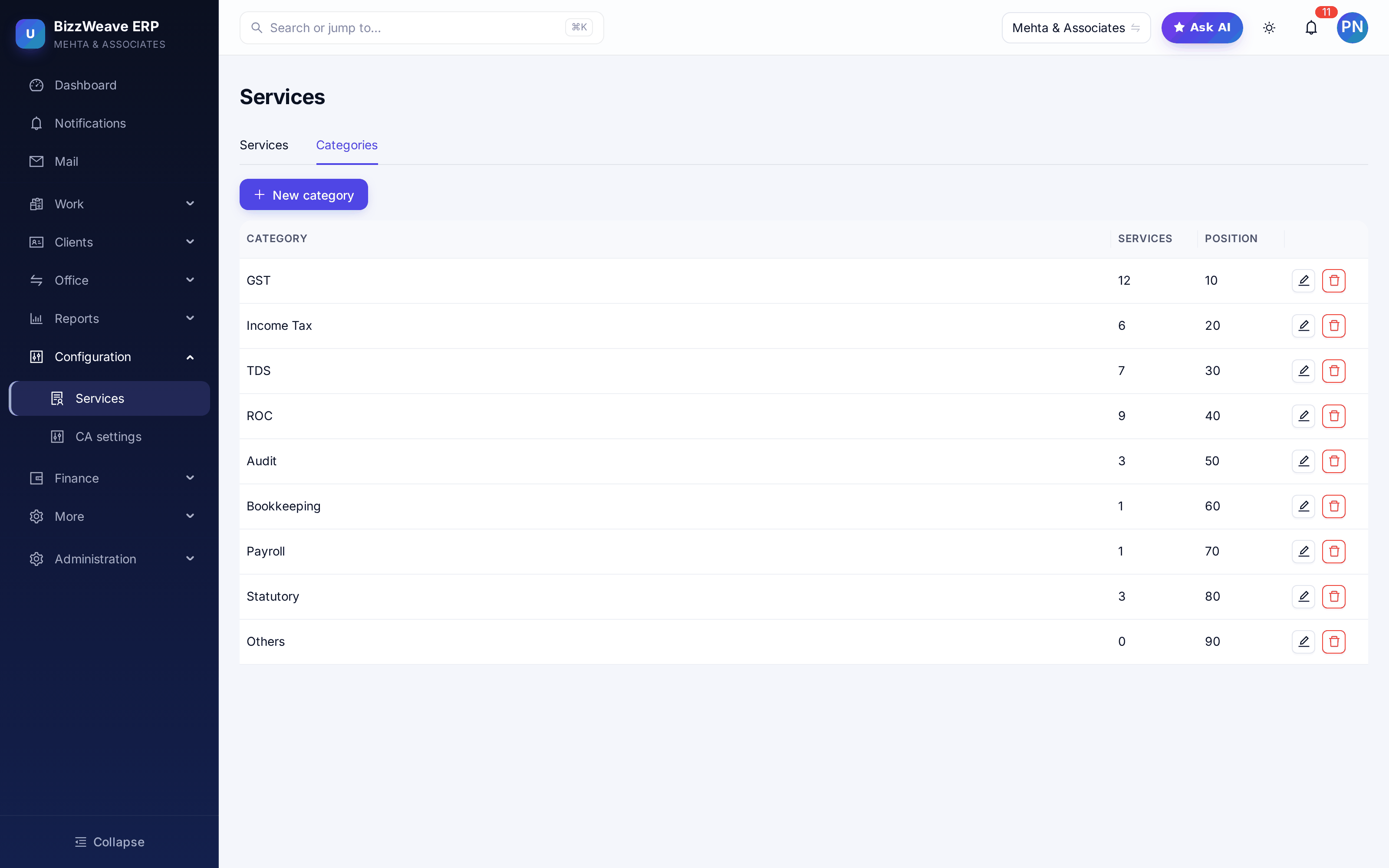
- New category: enter a Name and a Position (lower numbers come first in lists), then click Save.
- Edit (pencil): rename it, change its position, or untick Active so new services can't use it.
- Delete (bin): only for a category without services.
Stop offering a service
Open the service and click Deactivate. It stays on the clients who already take it, but you can't give it to new clients. Click Activate to offer it again.
Common questions
Can I change a service's code?
No. Task numbers are built from it. Create a new service if you really need another code, and deactivate the old one.
I changed the due day. Do existing tasks move?
No. Only tasks created from now on use the new rule. Change the due date of an existing task with Edit on the task.
One client files GSTR-3B on a different date. What do I do?
Set a client-specific due date on that client's service: open the client, Services tab, ⋮ → Edit. See Change, pause or end a service.