Item sets
An item set is a reusable bundle of tasks, such as the six steps to set up a new laptop or the checks before a website goes live. Add the whole bundle to any project in one go, with due dates counted from the day you choose.
Before you start
- Open Configuration → Item sets in the Project Management menu.
- Everyone who can create tasks can add a set to a project. To create, copy or edit sets you need the permission to manage workflows (owners and administrators have it).
- Time needed: about 5 minutes to make a set; a few seconds to use it.
Item set or project template?
A project template creates a whole new project. An item set adds a few tasks to an existing project, as often as you like.
The item sets page

Each card shows the set's name, whether it is for every project or one project, its description, the number of items and the first few titles. The icons edit, copy or delete the set.
Create an item set
- Click “New item set”.
- Type a name and description, for example Website launch checklist and Final checks before a client website or store goes live.
-
Add the items. Click Add item for each row:

One task, Pre-launch checks, with five subtasks under it. Column What to enter Example Title The task title Test checkout with UPI and cards Under Optional: an earlier row this item belongs under (it becomes a subtask) Pre-launch checks Type Task, Subtask, Bug, Story, Deliverable and so on Subtask Priority Low, Medium, High or Urgent Urgent Start (day) / Due (day) Days counted from the start date chosen when the set is added. 0 is the start day itself. 1 Hours The estimate 3 Tags Tags separated by ;testing -
Click “Save”.
You can also build a set from tasks that already exist: in Search, select the tasks and click Save as item set… Give it a name, choose Every project (administrators) or Only one project, and switch on Include their subtasks if you want them too. Titles, types, estimates, tags, acceptance criteria and custom values are kept; dates become days from the start.
Add a set to a project
-
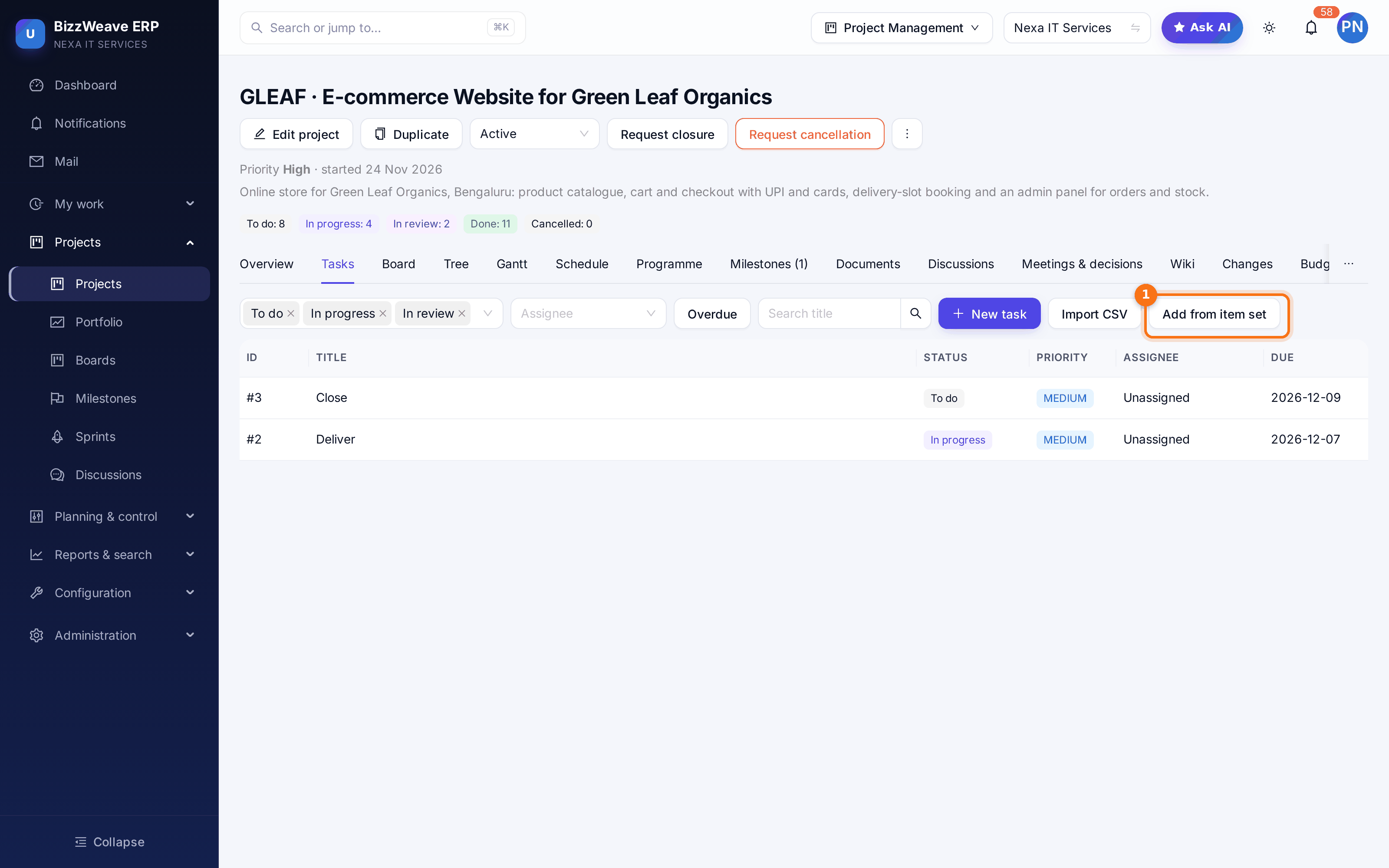
Click “Add to a project” on the set. (Inside a project, you can also click Add from item set on the Tasks tab and choose the set.)

Adding the checklist to the Green Leaf Organics project, starting today, for Kavya Reddy. 1 Check. 2 Add 6 items. -
Choose the project, the Starting date and, if you like, the person to Assign to. Under Under (optional) you can put the new tasks below an existing task or phase.
- Click “Check”. The ERP checks every item first. Everything checks out means all items can be created. If not, it lists the problems and nothing is added.
- Click “Add N items”. The tasks appear in the project at once, with due dates worked out from the start date.
Note
Nobody is notified when a set is added; the new tasks simply appear in the project.
Common questions
Can a set be limited to one project?
Yes. A set saved from Search can be kept for one project; its card then shows the project's code instead of every project, and it can be added only to that project.
If I edit a set, do tasks already added change?
No. Tasks created from a set are ordinary tasks. Editing the set affects only the next time you add it.
Can I use the same set twice in one project?
Yes, for example the Monthly service review set every month for a support client.