Sprints and Scrum teams
Use Sprints when a team works in short, fixed cycles (Scrum). The team picks the most important work from a ranked backlog, commits to it for one to four weeks, meets daily, and at the end shows the result and looks at how to improve.
Before you start
- You need the Project Management category. Everyone in it can open Sprints and see the teams and their reports.
- To create or change a team, and to create, start or complete sprints, you need a manager or administrator role. Ask your administrator if you don't see the New team button.
- Create the project first (see Create a project). A project made from the Scrum product development template is a good start.
- Time needed: about 5 minutes to set up a team.
Scrum in a few words
If you are new to Scrum, these are the words used on the Sprints pages:
| Term | What it means |
|---|---|
| Team | The people who do the work together, for example the five people building a mobile app. A team works on one or more projects. |
| Backlog | The list of all work the team has not planned yet, ranked from most to least important. |
| User story | A piece of work described from the user's point of view, for example “Log in with a 4-digit MPIN”. In BizzWeave ERP a story is a task of type Story. |
| Epic | A large piece of work that groups several stories, for example “Payments”. |
| Story points | A rough size of a story (1, 2, 3, 5, 8, 13 …). Bigger numbers mean more work or more uncertainty. |
| Sprint | A fixed period of one to four weeks in which the team finishes an agreed set of stories. |
| Sprint goal | One sentence that says what the sprint should achieve. |
| Velocity | How many story points the team finishes in a sprint. The ERP uses the average of the last three sprints to warn you when you plan too much. |
| Stand-up | A short daily update: what I did yesterday, what I'll do today, what blocks me. |
| Review and retrospective | At the end of the sprint, the team shows the finished work (review) and discusses how to work better (retrospective). |
The Sprints page
Open Projects → Sprints in the menu. Each card is one team.
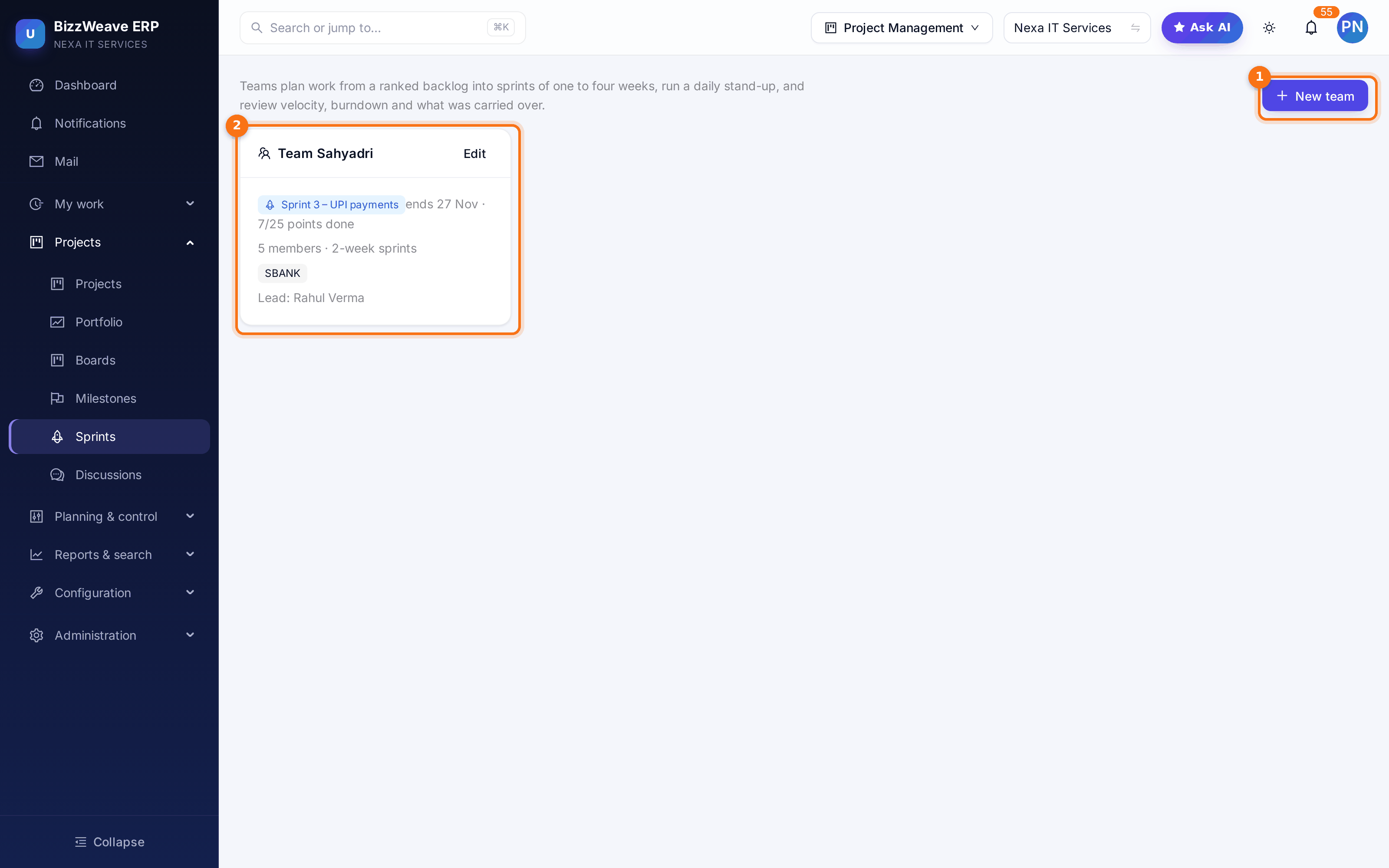
When the team has no running sprint, the card says No active sprint, with the number of planned sprints.
Create a team
-
Click “New team” at the top right of the Sprints page.

The New team window. -
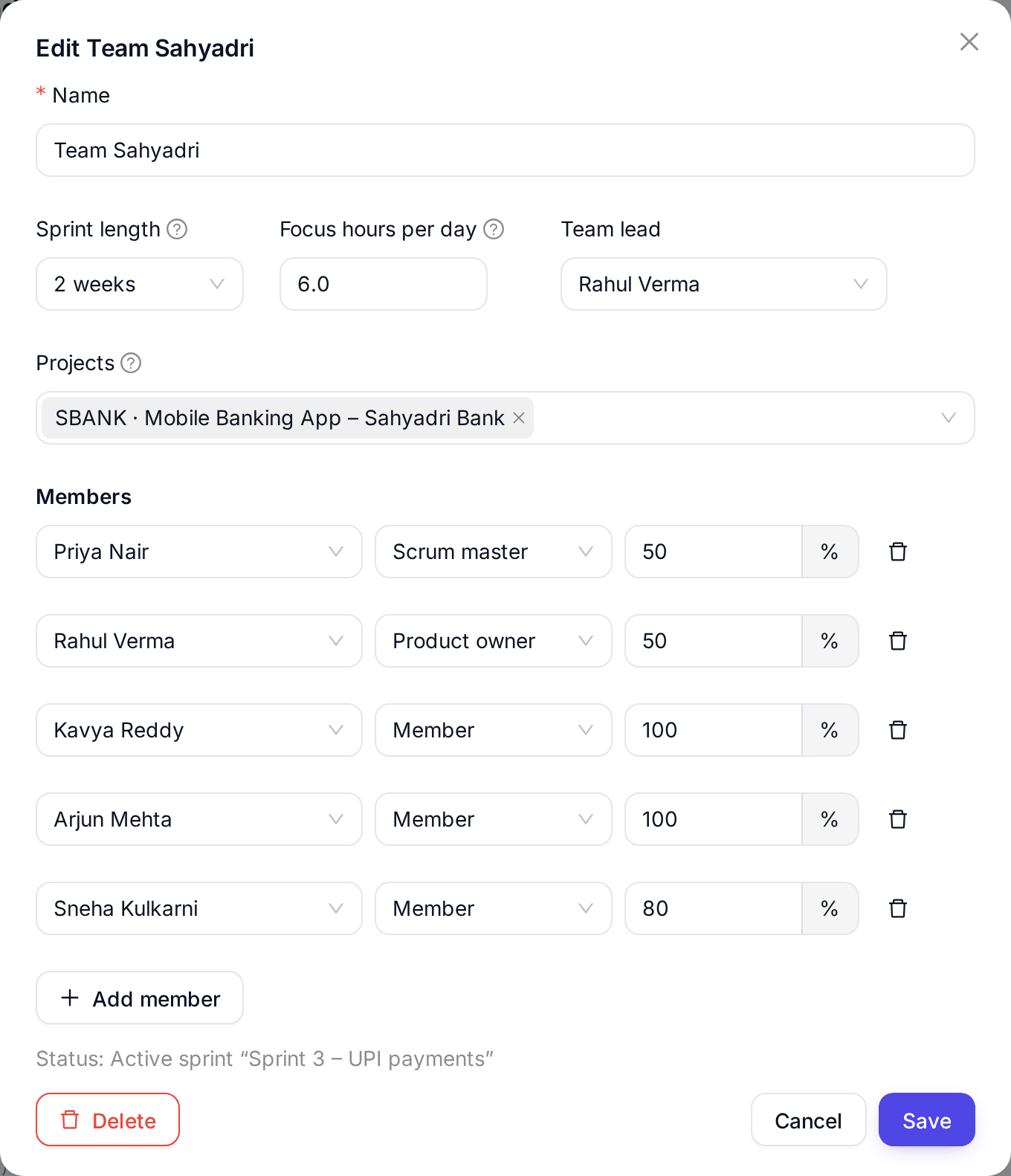
Fill in the team's details.
Field What to enter Example Name (required) A short name that everyone recognises. Each team name must be unique. Team Sahyadri Sprint length The usual length of a sprint: 1, 2, 3 or 4 weeks. New sprints get this length unless you choose other dates. 2 weeks Focus hours per day The hours a full-time member really spends on sprint work each working day (after meetings, e-mail and support). Used to calculate the team's capacity. Between 1 and 12. 6 Team lead The person who leads the team. Rahul Verma Projects The projects the team works on. The team's backlog collects the open work of these projects. SBANK · Mobile Banking App – Sahyadri Bank -
Add the members. Click Add member once for each person. For each one choose:
- the person;
- the role: Member, Scrum master (helps the team follow the process and removes obstacles) or Product owner (decides what is most important and accepts the work);
- the share of their time on this team, in per cent. Someone who also works on another project might be at 50%.
Add the team lead as a member too: only members write stand-up entries.
-
Click “Save”. The team's page opens on the Backlog tab.
What happens next
The team's Backlog tab lists the open work of its projects. Continue with Backlog and sprint planning.
The team's page
Click a team card to open the team. The header shows the team's projects, the number of members and the Scrum roles. Four tabs hold the work:
| Tab | What you do there | Guide |
|---|---|---|
| Backlog | Rank the work, give it story points, create sprints and plan them, start and complete sprints. | Backlog and sprint planning |
| Active sprint | The Scrum board of the running sprint with its goal, days left and burndown. | Scrum board and stand-up |
| Stand-up | Each member's daily update and the items that are blocked. | Scrum board and stand-up |
| Reports | Velocity, the sprint report with burndown and burnup, the sprint review and the retrospective. | Sprint reports and Review and retrospective |
The page opens on Active sprint when a sprint is running, otherwise on Backlog.
Change or delete a team
On the team's page click Team settings (or Edit on the team card). Change the fields and click Save.
To delete the team, click Delete in the same window and confirm. You can only delete a team that has no active sprint: complete the sprint first. Planned sprints are cancelled and their items go back to the backlog; completed sprints stay in the reports of their items.
Common questions
I don't see the New team or Team settings button
Creating and changing teams needs the Manage teams permission, which managers and administrators have. Members and viewers can open the teams and read everything.
Can a team work on several projects?
Yes. Choose several projects in Projects. The backlog then mixes the open work of all of them, and each item shows its project key (for example SBANK-55).
Can one person be in two teams?
Yes. Use the percentage to say how much of their time each team gets, so the capacity in sprint planning stays realistic.
Do I have to use sprints?
No. Sprints are for teams that work in Scrum. Projects that run on a plan with dates use the Gantt chart, and support work often runs on a Kanban board.