Approvals
Some changes need a second pair of eyes: a finished task submitted for review, a budget, a change request, a milestone gate, a resource booking or closing a project. Every request waiting for you lands in one inbox, where you approve or reject it with a comment.
Before you start
- Open Planning & control → Approvals. The Waiting for my approval tile on Project home also opens this page.
- Most members can approve requests addressed to them. Editing the Policies (who approves what) needs the workflow-management right (an administrator).
- You cannot decide on your own request; someone else must approve it.
- Time needed: under a minute per request.
How a task review works
Projects created from templates use the Task with review workflow: New → Assigned → In progress → Under review → Approved → Completed. When the person doing the work clicks Submit for review on an item, the ERP creates an approval request for the project's reviewers (by default any project manager, team lead or QA of the team).
- Approved: the item moves to Approved, and the assignee clicks Complete.
- Rejected: the item moves to Rework with your comment. The assignee fixes it, clicks Resume work, then submits it again.
An item cannot be submitted while it has open subtasks or is blocked. See Workflows to design your own states and transitions.

Decide a request
-
Open Approvals. The Waiting for me view lists the requests you can decide.

Two work items waiting for Priya's review. Column Meaning Item What is to be approved. Click it to open the item or project and check the work first. Kind Work item review, Budget, Change request, Project start / closure, Resource booking, Reassignment or Milestone gate. Requested Who asked, and when. Step For multi-step policies, which step it is at (for example 1/2). Status pending, approved, rejected or cancelled. Click + at the start of a row to see the history, including the requester's note.
-
To approve, click Approve. The request moves to the next step or, at the last step, is approved.
-
To reject, click Reject, write what needs to change (required) and click Reject.

A rejection always needs a reason; the requester sees it.
What happens next
The requester is notified. For a work item, it moves to Approved or Rework. Requests nobody decides are escalated after two working days to the approvers and then to their line manager (see Escalations).
Track your own requests and past decisions
-
Requested by me lists requests you raised and their status.

Requests Priya raised: task reviews and change requests, pending, approved and rejected. -
Closed lists decided requests. Click + to see who requested, who decided and the comments.

An approved review with its history.
To take back a request you raised, open the item and click Withdraw.
Going away? Delegate your approvals
-
Click Delegation.
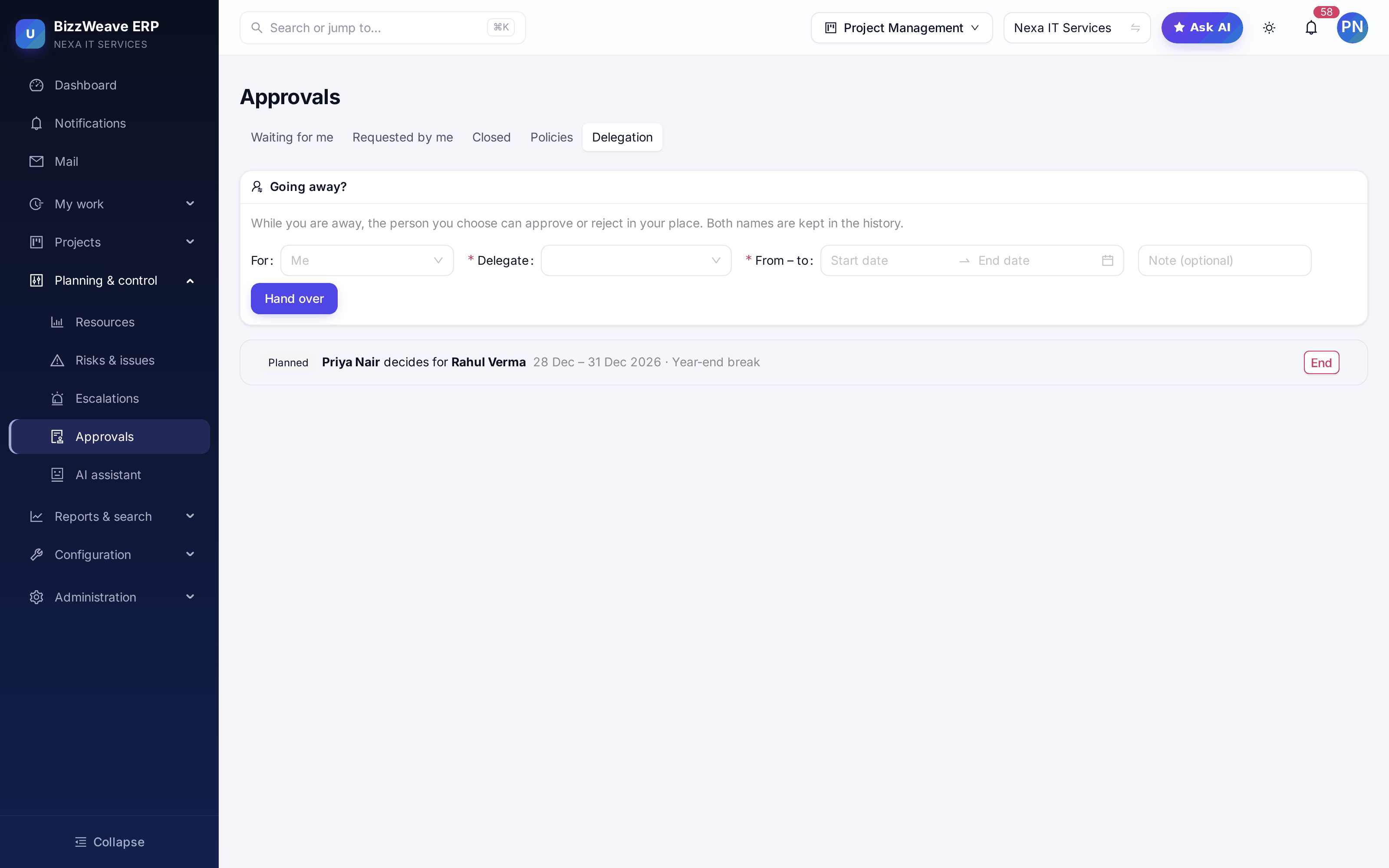
Priya will decide for Rahul during his year-end break. -
Choose the Delegate, the From – to dates and an optional note. Administrators can also choose For whom the delegation is made.
- Click Hand over.
During that period the delegate can approve or reject in your place; the history records both names (Priya Nair (for Rahul Verma) approved). The list shows each delegation as Planned or Active; click End to stop it early.
Approval policies
A policy says who approves each kind of request, in one or more steps. Click Policies to see them.
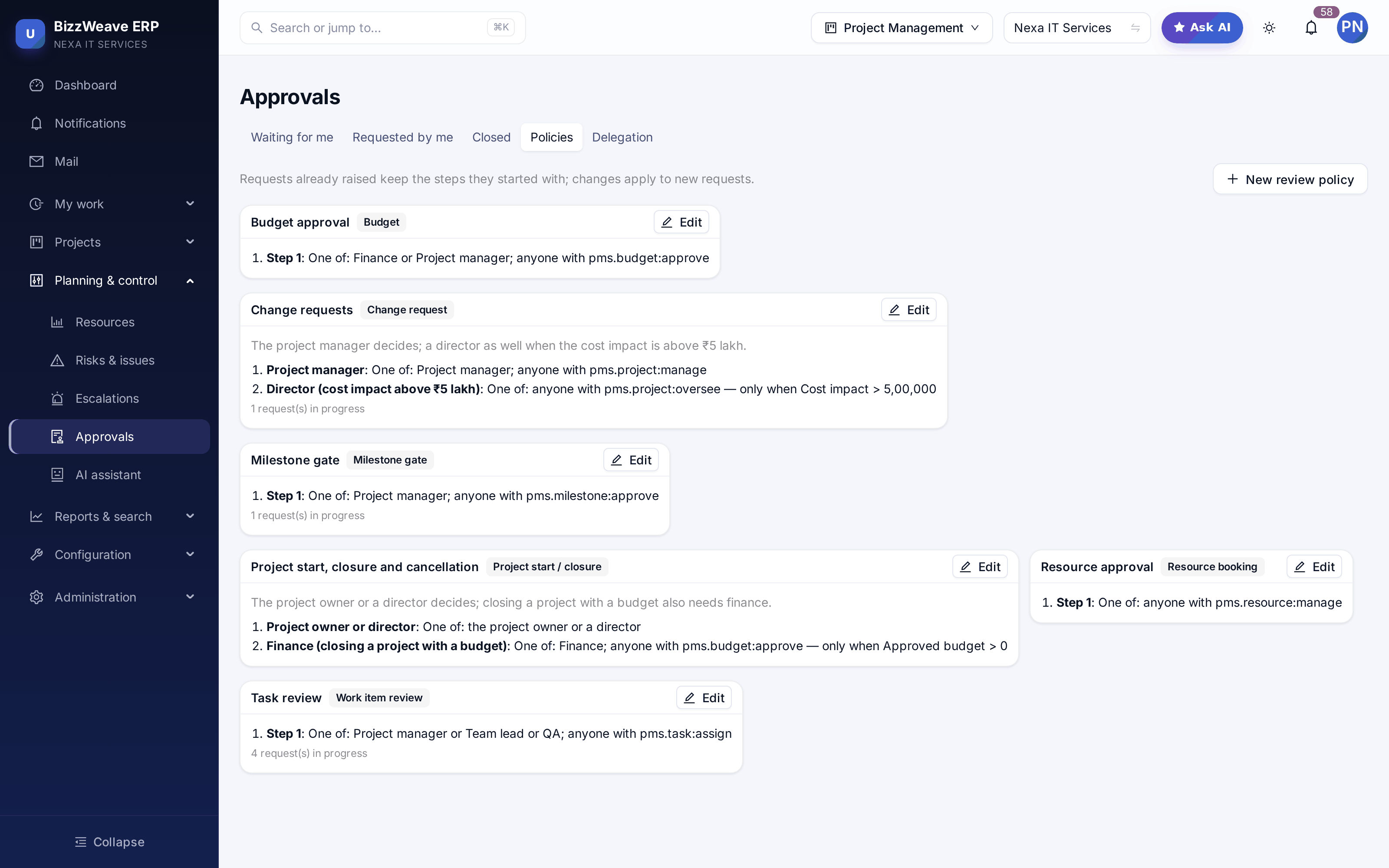
| Policy | Default approvers |
|---|---|
| Budget approval | Finance or the project manager, or anyone with budget approval rights. |
| Change requests | The project manager; a director as well when the cost impact is above ₹5 lakh. |
| Milestone gate | The project manager, or anyone who may approve milestones. |
| Project start, closure and cancellation | The project owner or a director; finance too when closing a project with a budget. |
| Resource approval | Resource managers (used when resource approval is switched on in Resources). |
| Task review | The project manager, team lead or QA of the team, or anyone allowed to assign work. |
Change a policy
-
Click Edit on the policy card (or New review policy to create another review policy for your own workflows).

The change request policy: a director's step is added only when the cost impact is above ₹5,00,000. -
For each step, set:
Setting Meaning Step name Optional, for example Director. Project roles Project manager, team lead, QA, finance and so on, on that project's team. Named people Specific people. Line manager The requester's line manager (from the employee profile). Or anyone with permission For example pms.project:overseefor directors.Decided by Any one of them, or All of them. Only when For budgets, change requests and project gates: apply this step only when a figure is above or below a value, for example Cost impact > 500000. -
Use Add step for another level, or the bin icon to remove one.
- Click Save. Requests already raised keep the steps they started with; the change applies to new requests.
Common questions
I submitted my own task. Why can't I approve it?
Nobody can decide their own request. Another reviewer on the project (or your delegate) must approve it.
There is no Approve button on a row
You can see the request but it is not addressed to you at its current step, for example it is waiting for a director.
Can I approve from the item itself?
Decisions are made on the Approvals page. The item shows the request and its history, and the requester can withdraw it there.