Milestones and gates
A milestone marks an important point in a project, such as "Design approved" or "Go-live". Link the work that leads to it, add the conditions it must meet, ask for sign-off at a gate, and see across all projects which milestones are on time, at risk or missed.
Before you start
- You need the Project Management category. To create, change or achieve milestones you must be a manager of the project.
- Projects created from a template already have milestones. See Create a project.
- Time needed: about 5 minutes per milestone.
Words used on this page
| Term | Meaning |
|---|---|
| Linked items | Tasks whose Milestone field is set to this milestone. Their progress is the milestone's progress. |
| Exit criteria | Conditions that must be ticked before the milestone is achieved, for example No open severity-1 defects. |
| Depends on | Other milestones or items that must be done first (finish-to-start). |
| Gate | A milestone that needs approval from named people before it counts as achieved. |
| Baseline | The due date you agreed at the start. Slip is how many days the milestone is late (or early) against it. |
Each milestone has a stage, worked out by the ERP:
| Stage | When |
|---|---|
| Planned | No linked item has started yet. |
| In progress | Work on linked items has started. |
| At risk | A linked item is overdue or due after the milestone. |
| Ready | All linked items, exit criteria and predecessors are done. |
| Awaiting approval | Gate approval was requested and is waiting for a decision. |
| Achieved | The milestone is achieved. |
| Missed | The due date has passed and the milestone is not achieved. |
Milestones across all projects
Open Projects → Milestones in the menu.
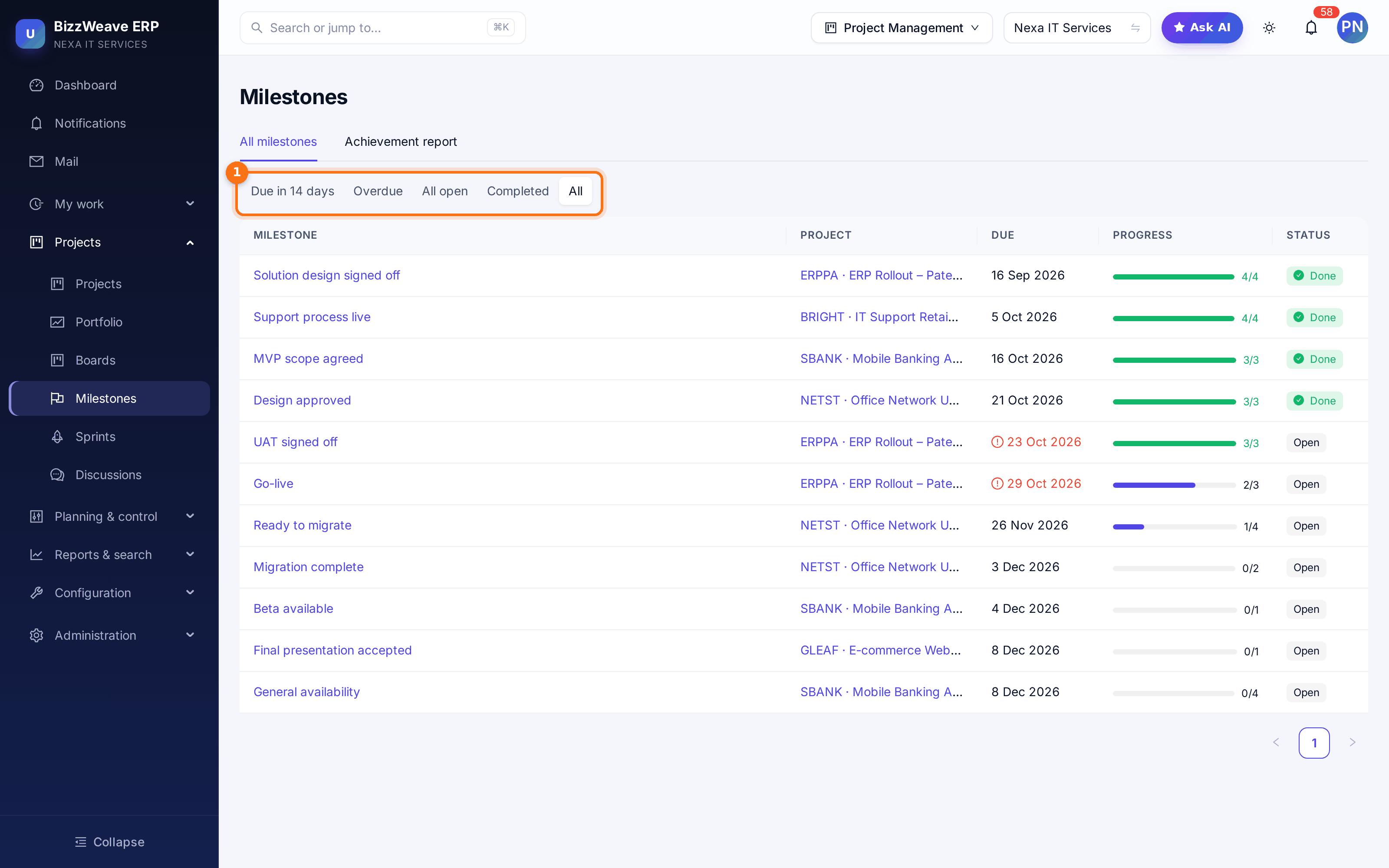
The Progress column shows how many linked items are done (for example 3/4). Click a milestone to open it in its project, or click the project to open the project.
Achievement report
Click the Achievement report tab to see how well your projects hit their milestones. You need permission to read project reports.
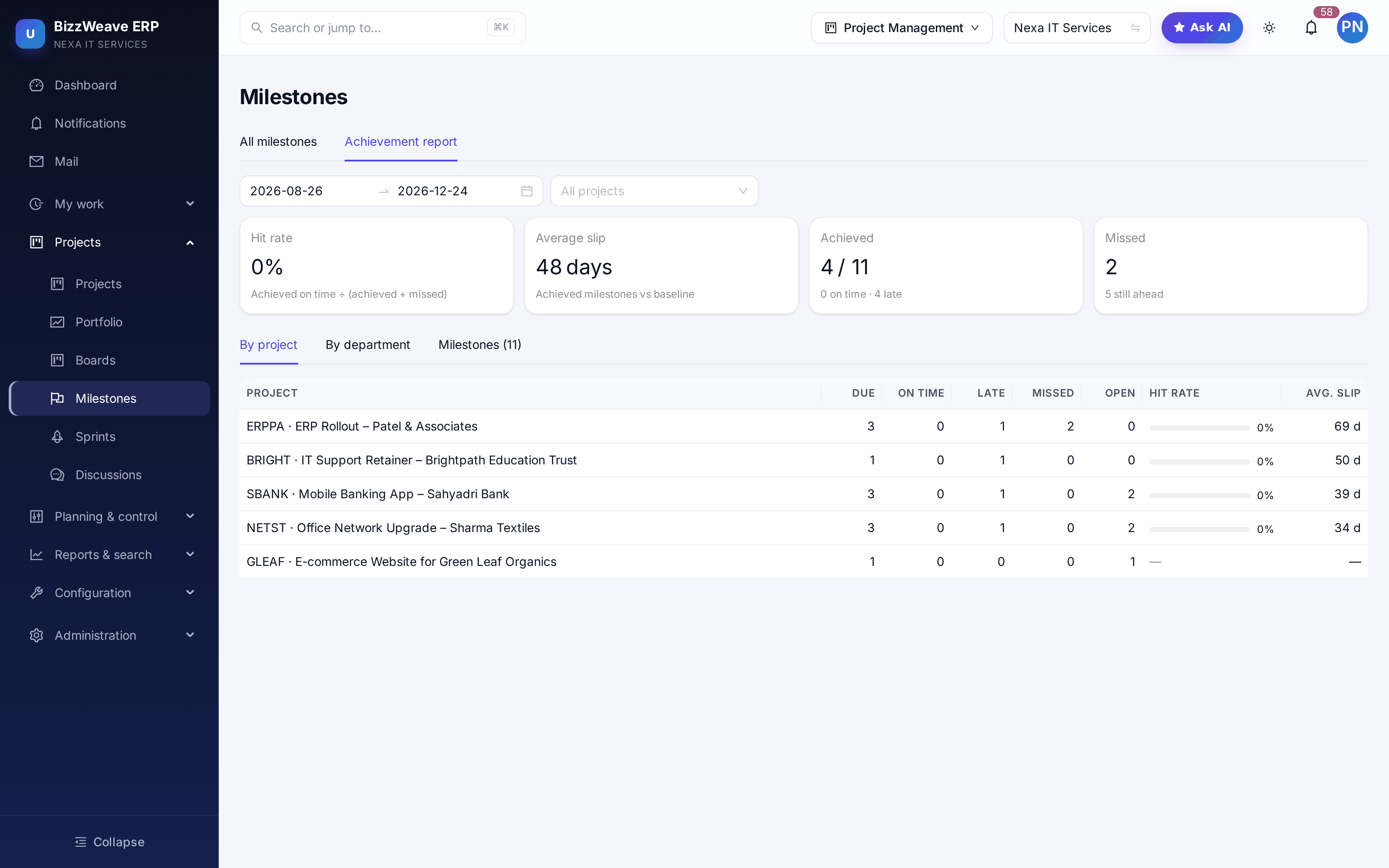
- Choose the date range (milestones due in that period) and, if you like, one project or department.
- Hit rate = milestones achieved on time ÷ (achieved + missed).
- Average slip = how many days late achieved milestones were, against their baseline.
- Achieved and Missed count the milestones; still ahead are open milestones not yet due.
- The tabs By project, By department and Milestones break the figures down. Click a row in Milestones to open that milestone.
Achieved on the day you mark it
The ERP records the day you mark a milestone achieved (or the day its gate is approved) as the achieved date. It can't be back-dated, so mark milestones as soon as they are reached, or the report counts them as late. In the example data the milestones were marked on 24 November, which is why they all show as late.
A project's milestones
Open a project and click the Milestones tab. The number in the tab name is how many milestones the project has.
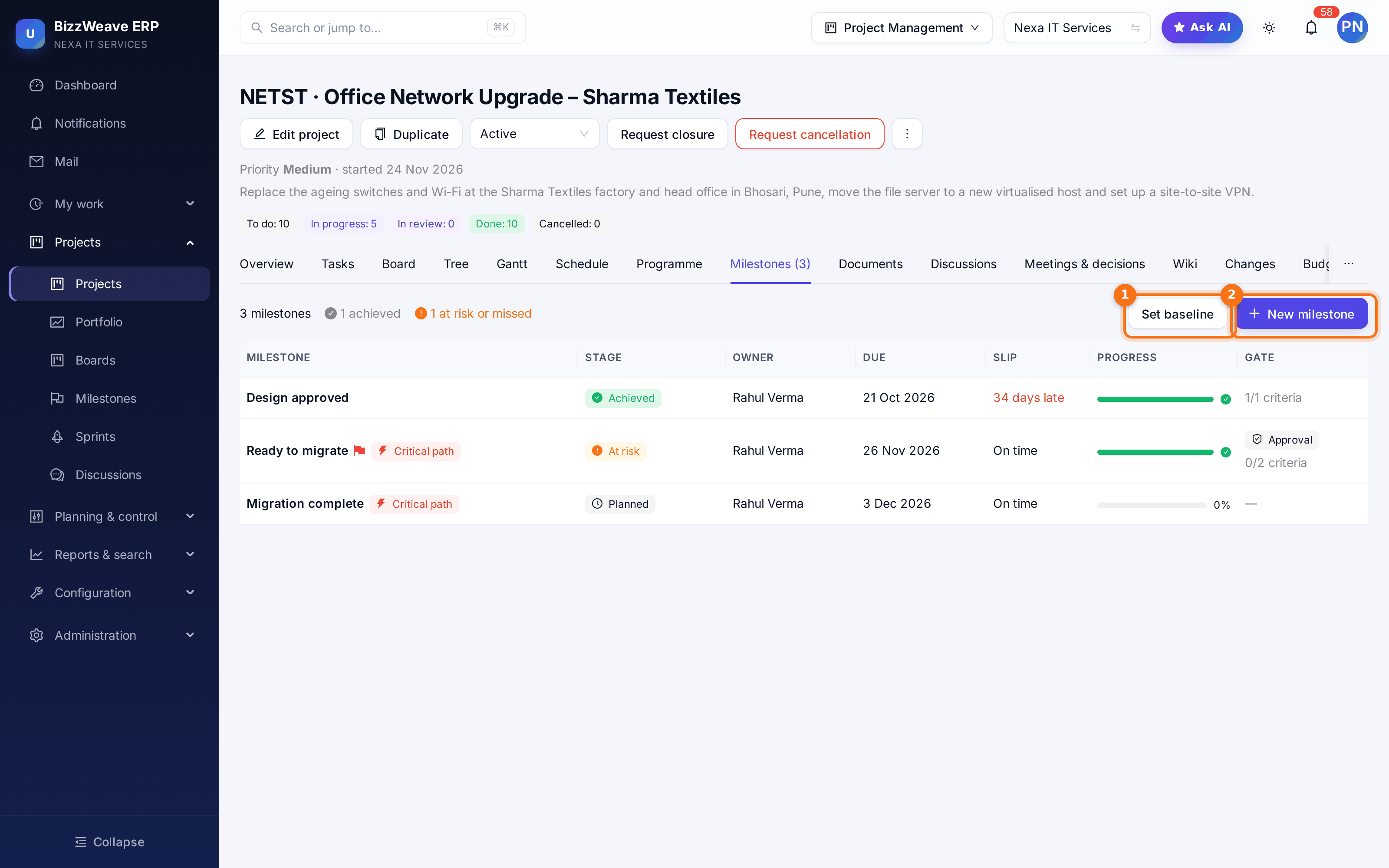
The line above the table counts the milestones achieved, at risk or missed, and awaiting approval. In the table:
- A red flag next to the name means the milestone is marked critical; a Critical path tag means one of its linked items is on the project's critical path (the chain of work that decides the end date; see Gantt and schedule).
- Due shows the current due date and, below it, the baseline date if it is different.
- Slip shows N days late, N days early or On time.
- Gate shows Approval when the milestone needs sign-off, and how many exit criteria are ticked.
Add a milestone
-
Click “New milestone”.

Only the name is required. -
Fill in the form.
Field What to enter Example Name (required) What has been reached. Wi-Fi survey signed off Planned start When the work towards it starts (optional). 30 Nov 2026 Due date When it must be reached. 4 Dec 2026 Owner The person accountable. Rahul Verma Description Any notes. Critical milestone Tick it for a milestone the client or management watches closely. -
Click “Create”. The milestone window opens so you can add the details below.
Link items to the milestone
A milestone's progress comes from its linked items. Open each task (for example from the project's Tasks tab) and choose the milestone in its Milestone field, then save. When you create a task with New task, you can choose the milestone straight away. See Tasks, board and tree.
Set the baseline
When the plan is agreed, click Set baseline and confirm. From then on:
- Slip is measured against the baseline date.
- Moving a due date later asks for a Reason for moving the due date, which is kept in the milestone's History.
The milestone window
Click a milestone in the table to open its window.

The four tabs on the left:
| Tab | What you do there |
|---|---|
| Linked items | See every linked task with its status, assignee and due date. Click an item to open it. |
| Exit criteria | Add conditions (type one and click Add) and tick them when they are met. The person and date are recorded. Criteria are locked once the milestone is achieved or waiting for approval. |
| Depends on | Link a Milestone or an Item that must be done first, then click Link. A warning appears if a predecessor is due after this milestone. |
| History | Every change of due date, start, baseline and status, with who made it and why, plus gate requests and decisions. |
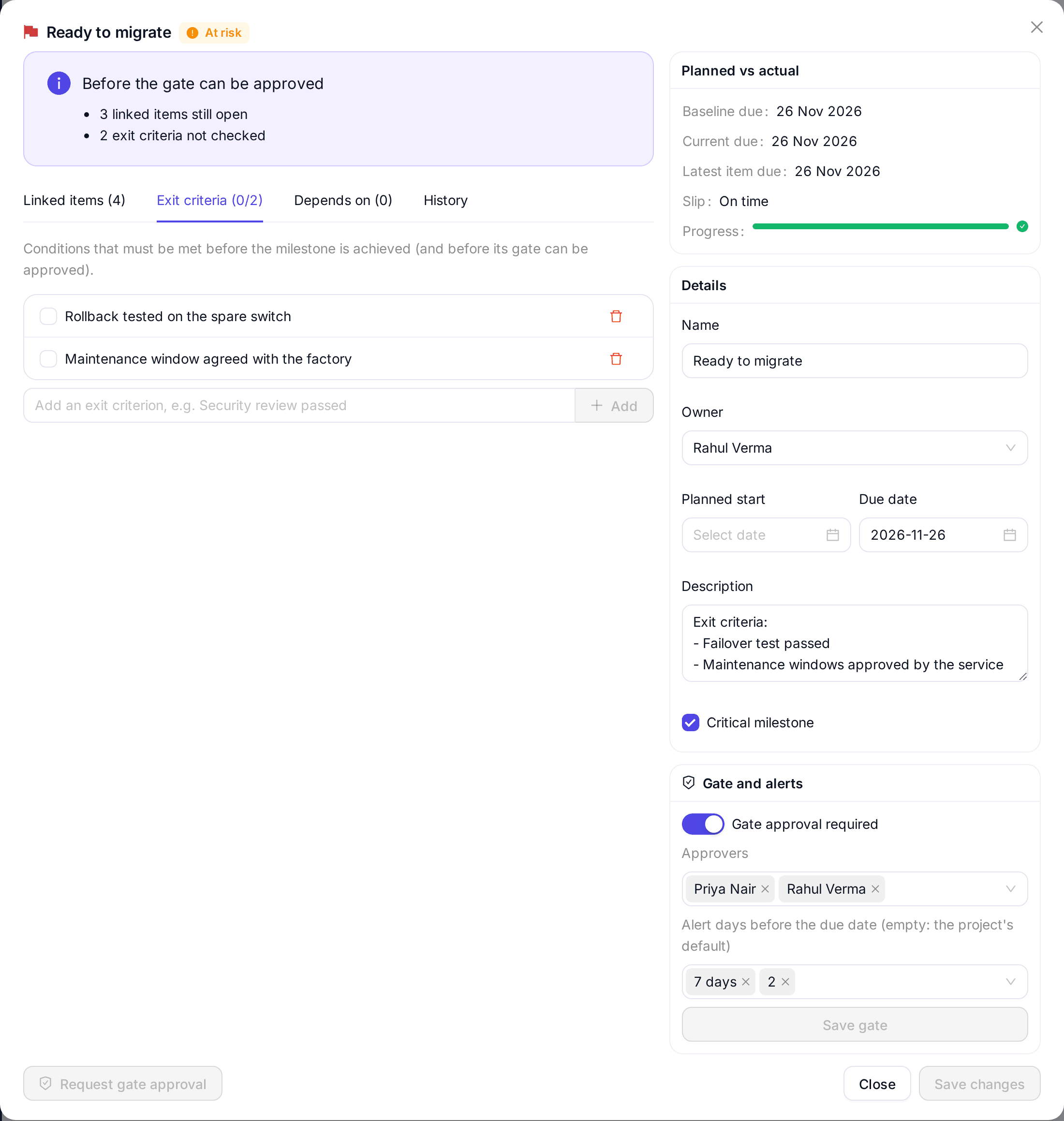
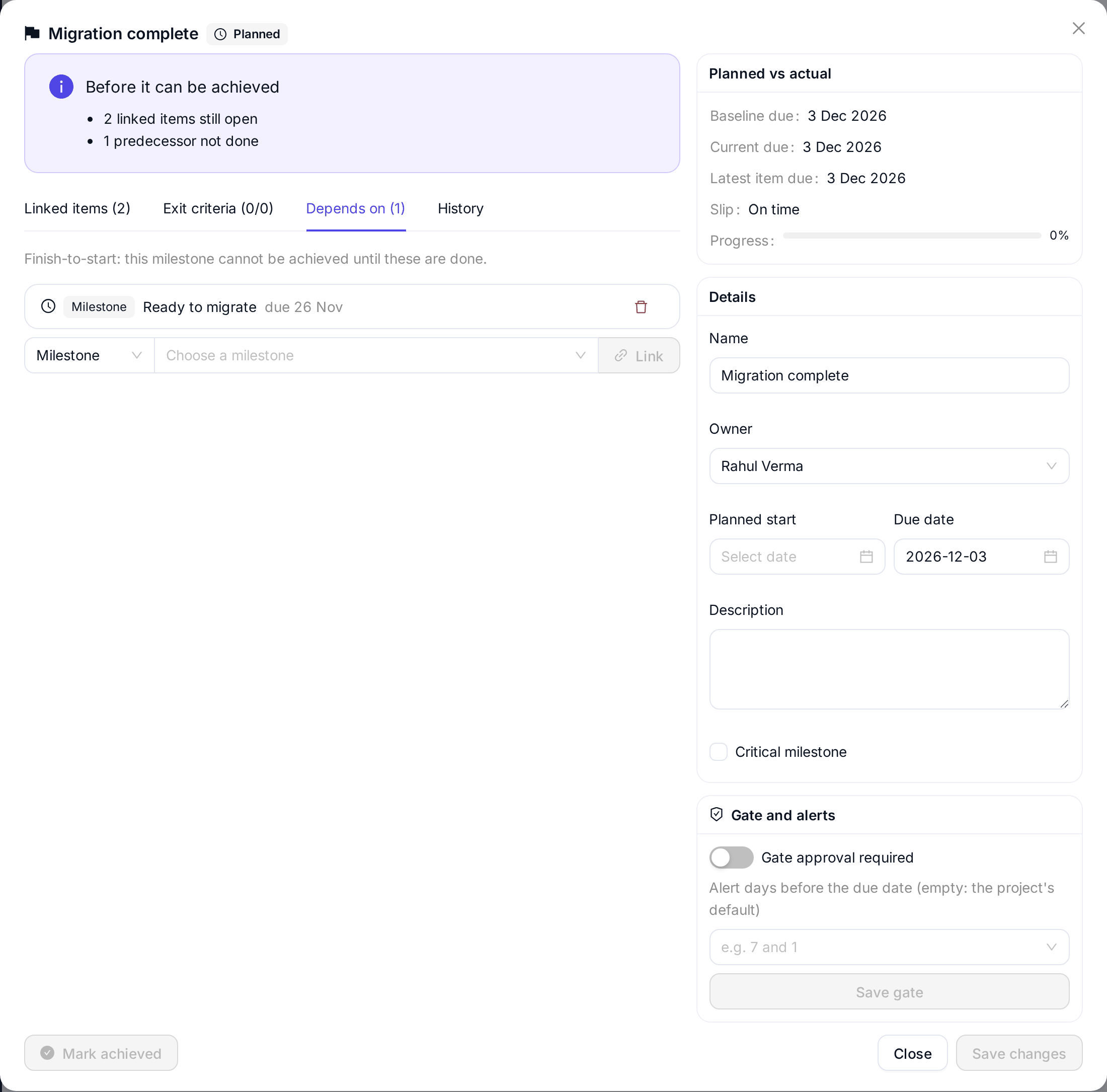
On the right:
- Planned vs actual shows the Baseline due, the Current due, the Latest item due (or Achieved on), the Slip and the Progress.
- Details lets managers change the name, owner, dates, description and the Critical milestone tick. Click Save changes at the bottom.
- Gate and alerts is explained below.
Gates: milestones that need approval
Use a gate when someone must sign off before the project moves on, for example the client approving user acceptance testing.
- Open the milestone and find Gate and alerts on the right.
- Switch on “Gate approval required”.
- Choose the approvers. If you leave it empty, the project managers decide.
- Optional: alert days. Enter how many days before the due date people are reminded, for example 7 and 1. Leave it empty to use the project's default.
- Click “Save gate”.
When the linked items, exit criteria and predecessors are all done, the stage becomes Ready and the Request gate approval button is enabled.
- Click “Request gate approval”. The window shows who the approvers are.
- Add a note for the approvers (optional) and click Request approval.
-
The stage changes to Awaiting approval, and the approvers are notified.
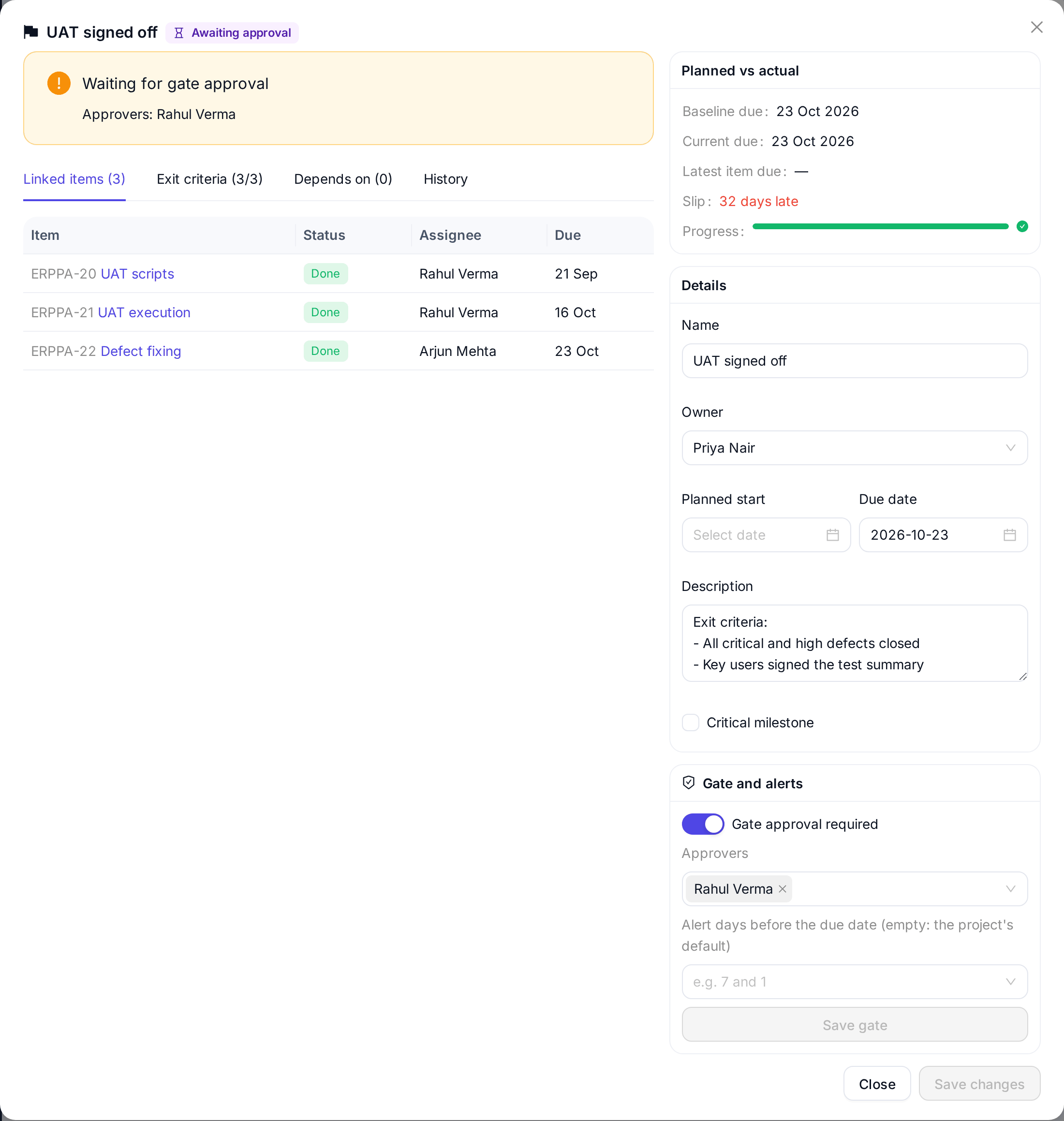
UAT signed off on the ERP project waits for Rahul Verma's decision.
The approvers see the request in Planning & control → Approvals (an approver who opens the milestone also sees Decide in Approvals). See Approvals.
What happens next
When the gate is approved, the milestone becomes Achieved automatically and the decision is written to its History. If it is rejected, it stays open so the team can fix what is missing and ask again.

Mark a milestone achieved
For a milestone without a gate, a project manager clicks Mark achieved at the bottom of the window. The button is disabled while exit criteria are unticked or predecessors are not done. To undo, click Reopen on an achieved milestone.
A milestone with no linked items can be deleted with Delete.
Common questions
Why is my milestone “Missed” although the work is done?
The stage is Missed when the due date has passed and nobody has marked the milestone achieved (or approved its gate). Mark it achieved, or request gate approval.
Why does it ask me for a reason when I change the due date?
The milestone has a baseline. Moving a baselined date needs a reason so the re-plan history is complete.
Can I request gate approval before all the criteria are ticked?
No. Request gate approval stays disabled until the box at the top of the window is empty.
Where else do milestones appear?
On the project's Gantt chart, on the Portfolio roadmap as diamonds, on the Calendar and as Next milestone on the Project home page and the portfolio table.