Changes and releases
A change is any planned work that could disrupt people: a firmware upgrade, a server move, a new security policy, a software release. Record it, have someone else approve it, then record how it went.
Before you start
- Everyone can see changes. Raising, submitting and running a change needs Raise, submit and execute changes (managers and owners). Approving needs Approve or reject changes (owners and administrators).
- Prepare the time window, the deployment steps and a rollback plan (how you undo the change if it goes wrong).
- Time needed: about 10 minutes to write a change.
How a change moves
There are three types of change:
| Type | Use it for | Approval |
|---|---|---|
| Standard | Routine, low-risk work you do the same way every time, for example monthly patching. | Pre-approved: no approver needed. |
| Normal | Planned work with some risk. | A named approver must approve it. |
| Emergency | Urgent work to fix or prevent an outage. | A named approver must approve it, as for a normal change. |
Each change also has a Risk: Low, Medium or High.
The change list
Open Service management → Changes. The page Changes & releases lists every change, newest first, with its type, risk, planned window, requester and status.
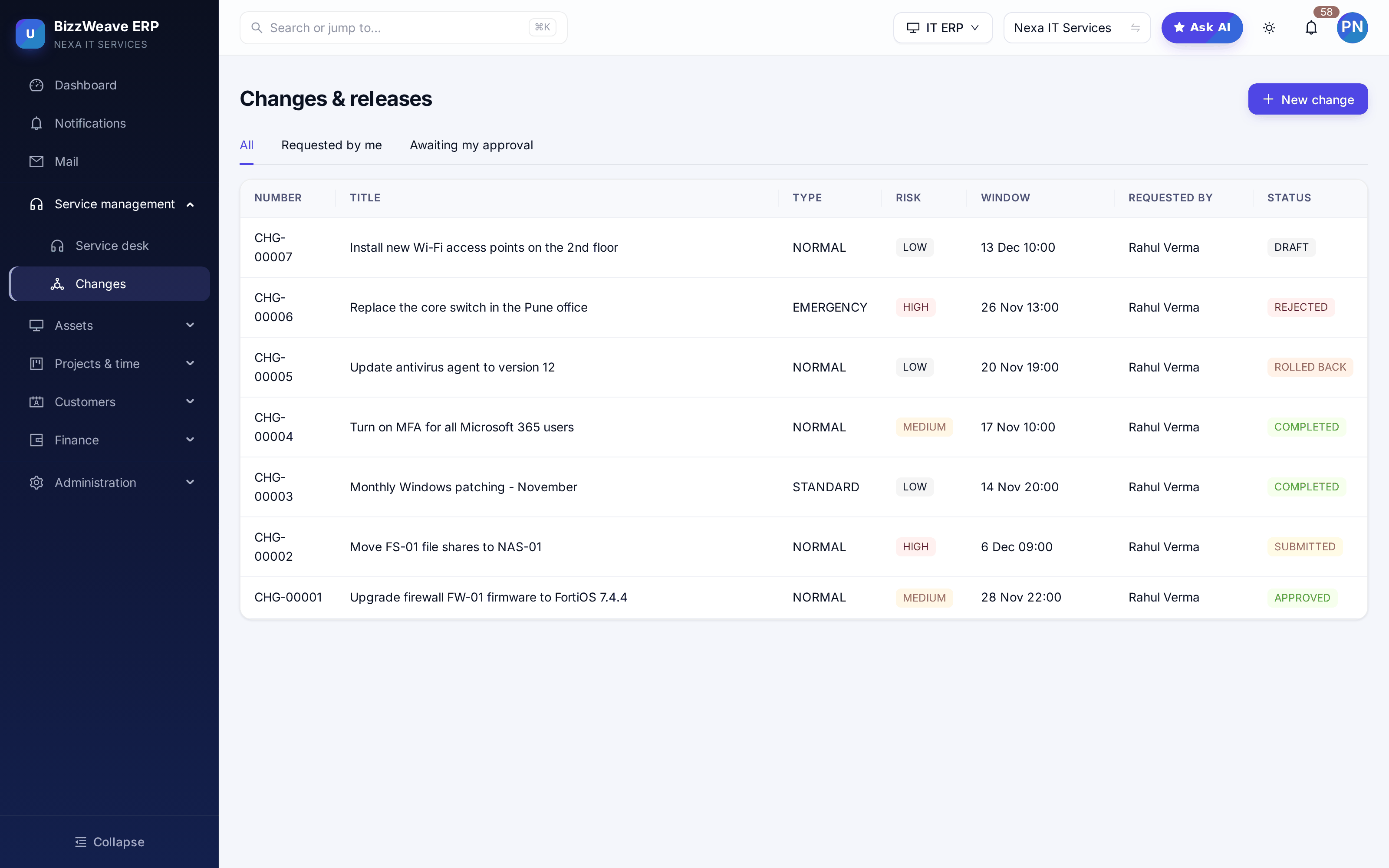
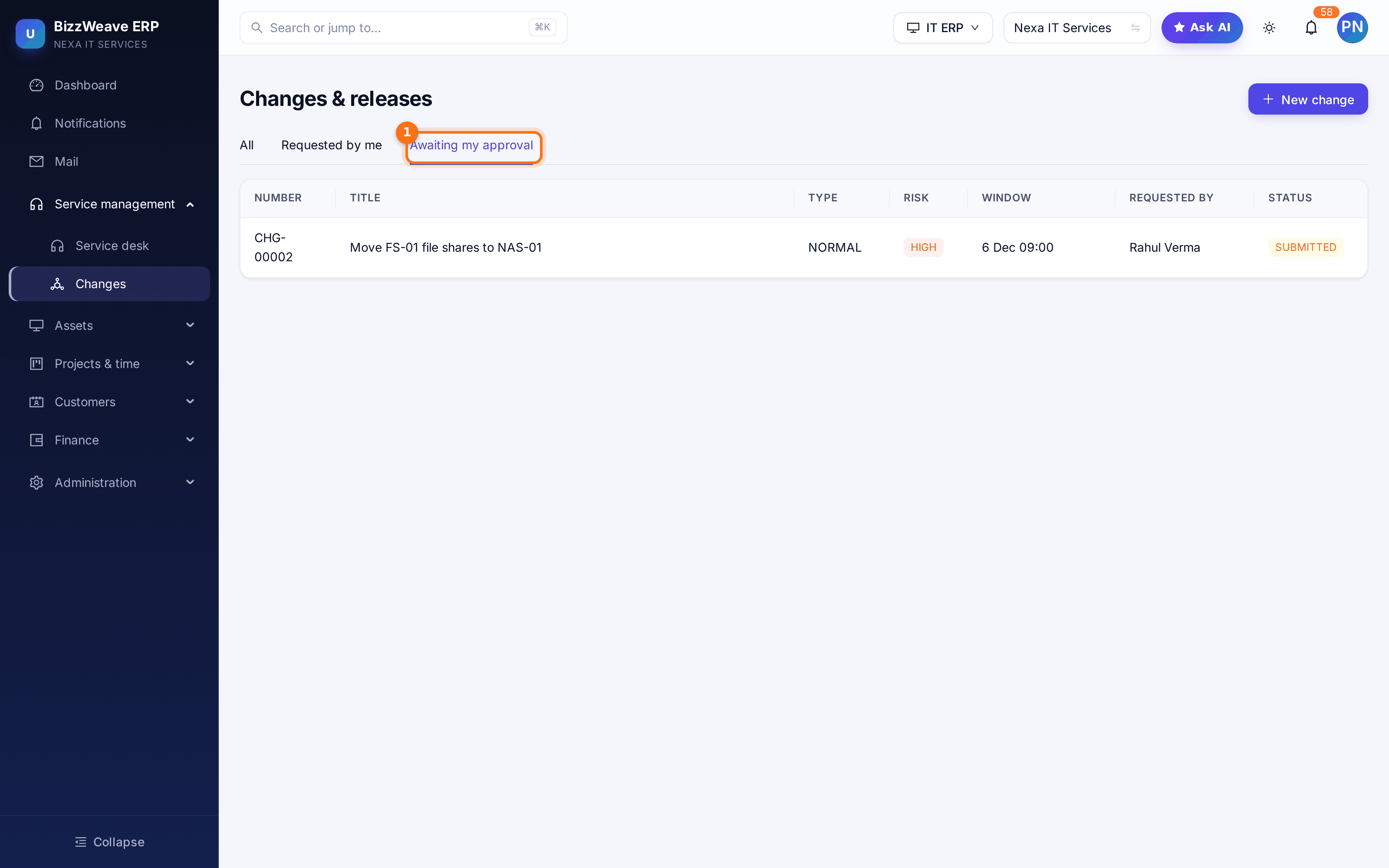
The tabs are All, Requested by me, and, for approvers, Awaiting my approval.
Create a change
- Click “New change” at the top right.
-
Fill in the form.
Field What to enter Example Title (required) What will change. Renew SSL certificate for the client portal Type Standard, Normal or Emergency. NORMAL Risk Low, Medium or High. LOW Release version Optional version or release name. 2026-12 Planned window Start and end date and time. The end must be after the start. 13 Dec 10:00 → 13 Dec 14:00 Description & impact Why, and who is affected and how. Users see a certificate warning after 15 December. Deployment plan The steps you will follow. 1. Install the certificate… 2. Check the padlock… Rollback plan How you will undo it. Required for normal and emergency changes. Re-bind the old certificate. 
A new normal change. Add the planned window before you submit it. -
Click “Create draft”. The change gets a number such as CHG-00008 and the status Draft.
You can open your draft and change it as often as you like; click Save after each edit.
Submit it for approval
-
Open your draft. Under the form, the Workflow box shows the next step.

1 Choose the Approver. 2 Submit for approval. -
Choose the Approver 1. You can't approve your own change, so you aren't in the list. Choose someone who holds the approval permission, normally the owner or an administrator.
- Click Submit for approval 2. The status becomes Submitted.
A normal or emergency change can only be submitted when it has a planned window, a deployment plan and a rollback plan. If one is missing, an error message tells you; fill it in, click Save and submit again.
For a standard change there is no approver: the button is Approve (standard), and the change goes straight to Approved with the note Standard (pre-approved) change.
Pick an approver who can approve
The approver list shows everyone in the organisation, but only people with the approval permission see the Approve and Reject buttons. If you choose someone else, the change waits for ever; cancel it and raise it again with the right approver.
Approve or reject a change
The approver finds the change on the Awaiting my approval tab, and the dashboard counts it under Changes awaiting approval.
- Open the change and read the window, the deployment plan and the rollback plan.
- Type a Decision note 1. It's optional when you approve and required when you reject.
-
Click Approve 2 or Reject 3.
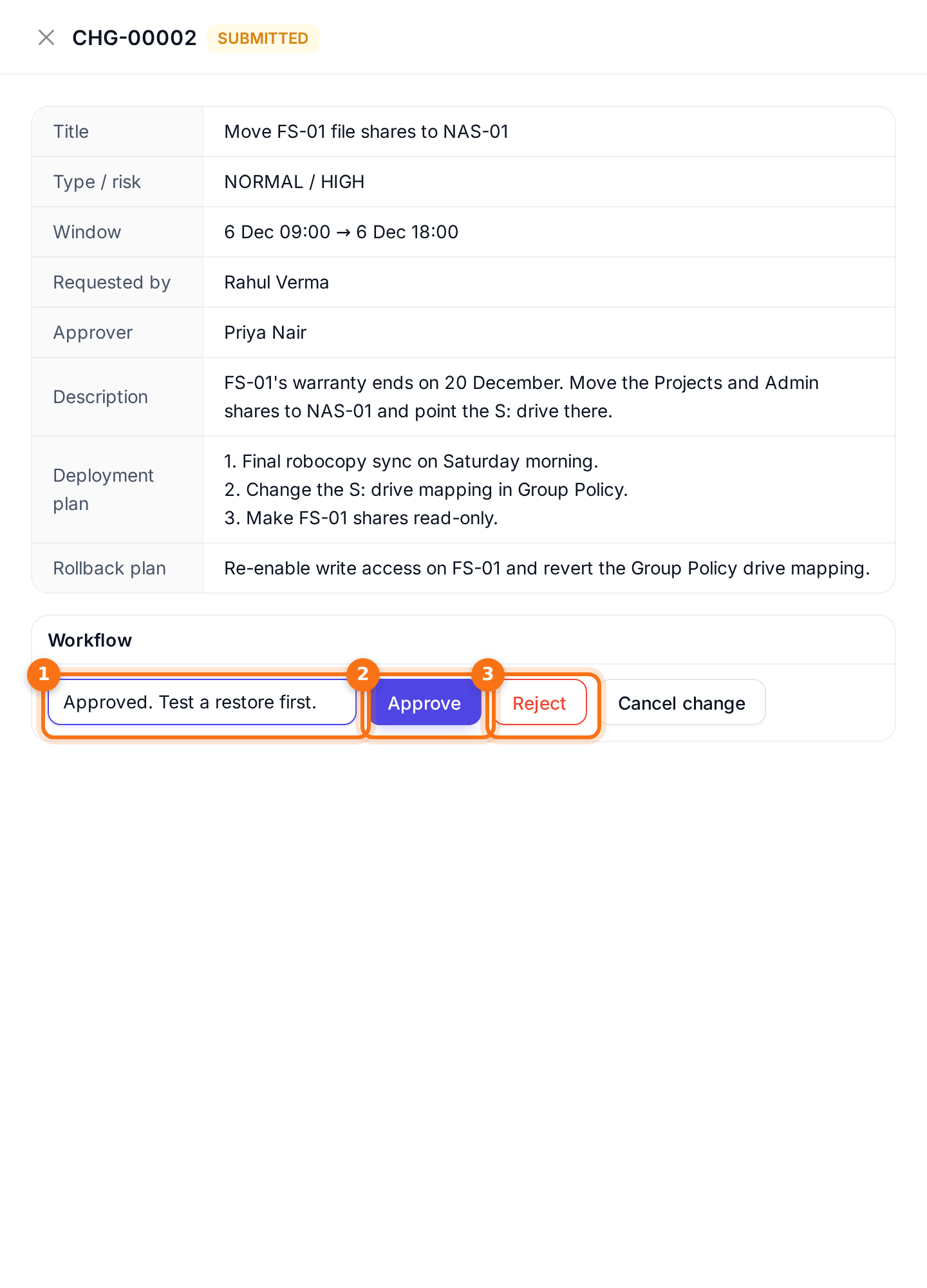
The approver's view of a submitted high-risk change.
Only the chosen approver can decide, and never the person who requested the change. That's the independent approval: two people always look at a risky change.
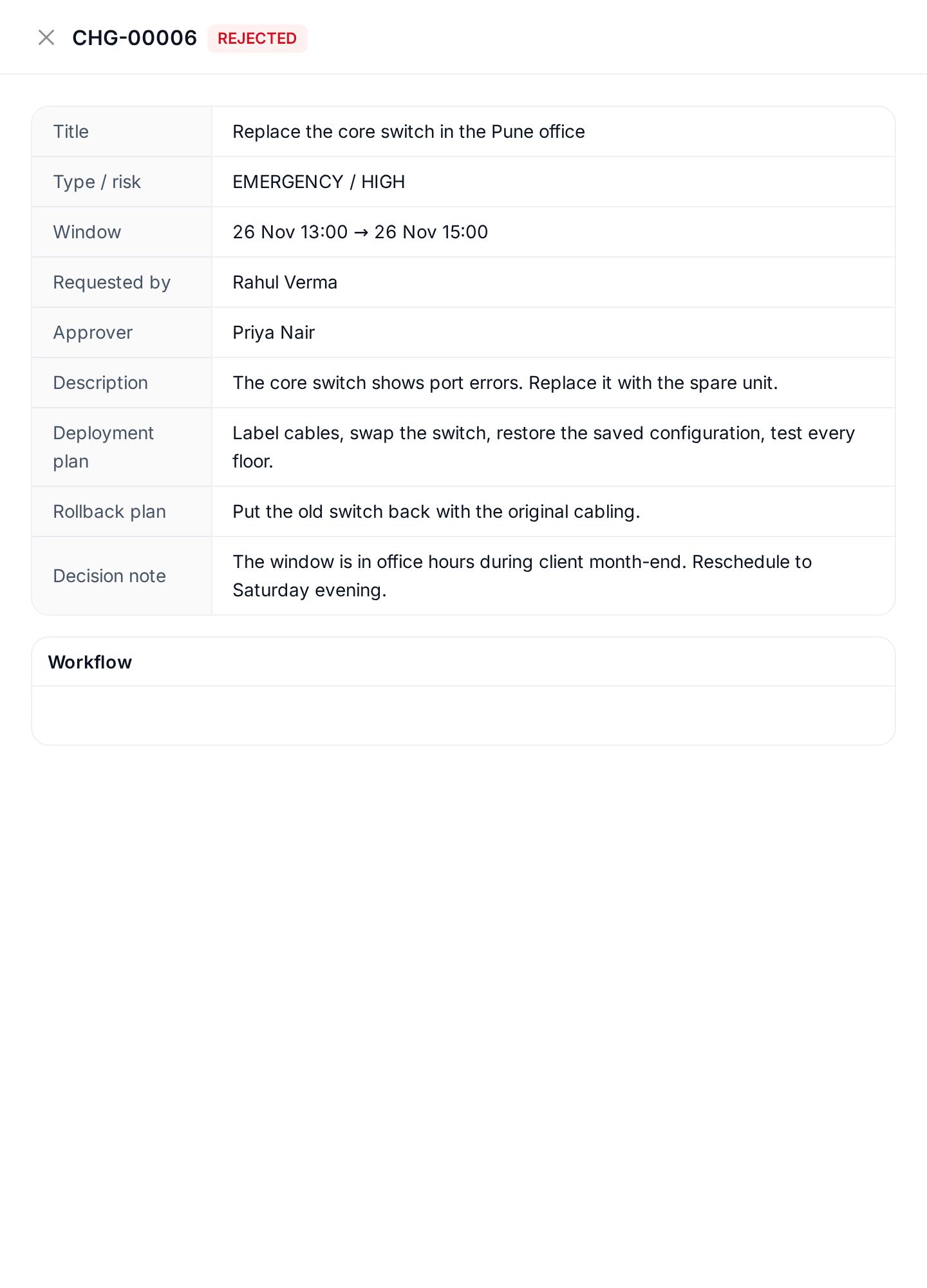
When a change is rejected, the requester sees the reason in Decision note. They can edit the change, which returns it to Draft, and submit it again.
Implement and record the outcome
-
When the window starts, open the approved change and click Start implementation. The status becomes In progress and the actual start time is recorded.

1 Start implementation. -
When you finish, type Outcome notes and click one of:
- Completed: it worked. Outcome notes are optional.
- Rolled back: you undid it using the rollback plan. Notes are required.
- Failed: it went wrong and couldn't be fully undone. Notes are required.
The actual end time is recorded and the outcome appears on the change.
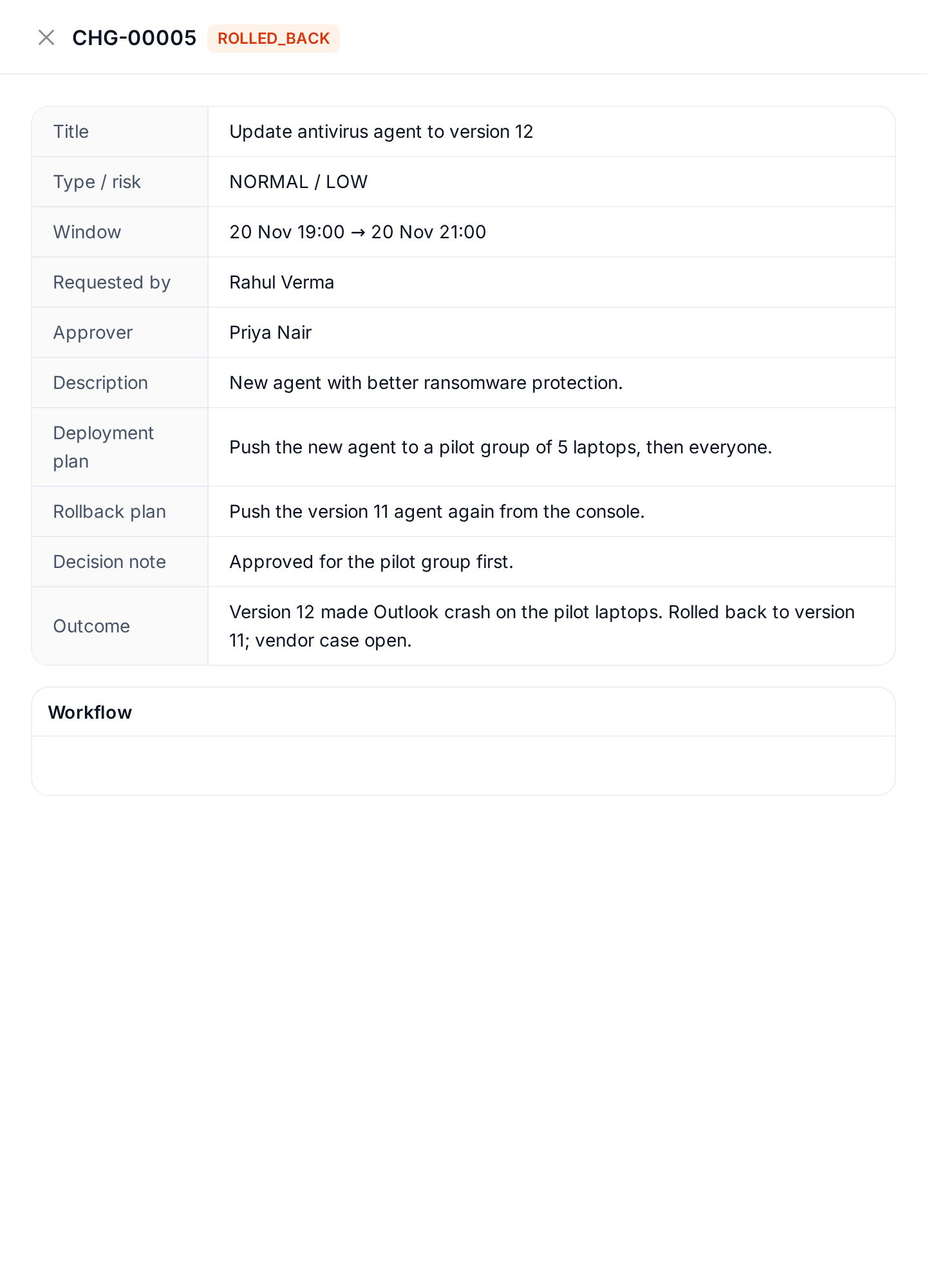
To stop a change that hasn't started (Draft, Submitted or Approved), click Cancel change.
What happens next
The dashboard tile Changes approved / in progress counts the changes that are approved or running, and the list's Window column shows when each one is planned.
Common questions
Can I edit a change after submitting it?
No. Only drafts and rejected changes can be edited. To change a submitted change, ask the approver to reject it with a note, then edit and resubmit it.
Can the owner approve their own change?
No. Nobody can approve a change they requested. If the owner raises a change, another person with the approval permission must approve it.
Can I link a change to a ticket or project?
Not on screen yet. Mention the ticket number (for example TCK-00003) or the project in Description & impact.