Tasks across all projects
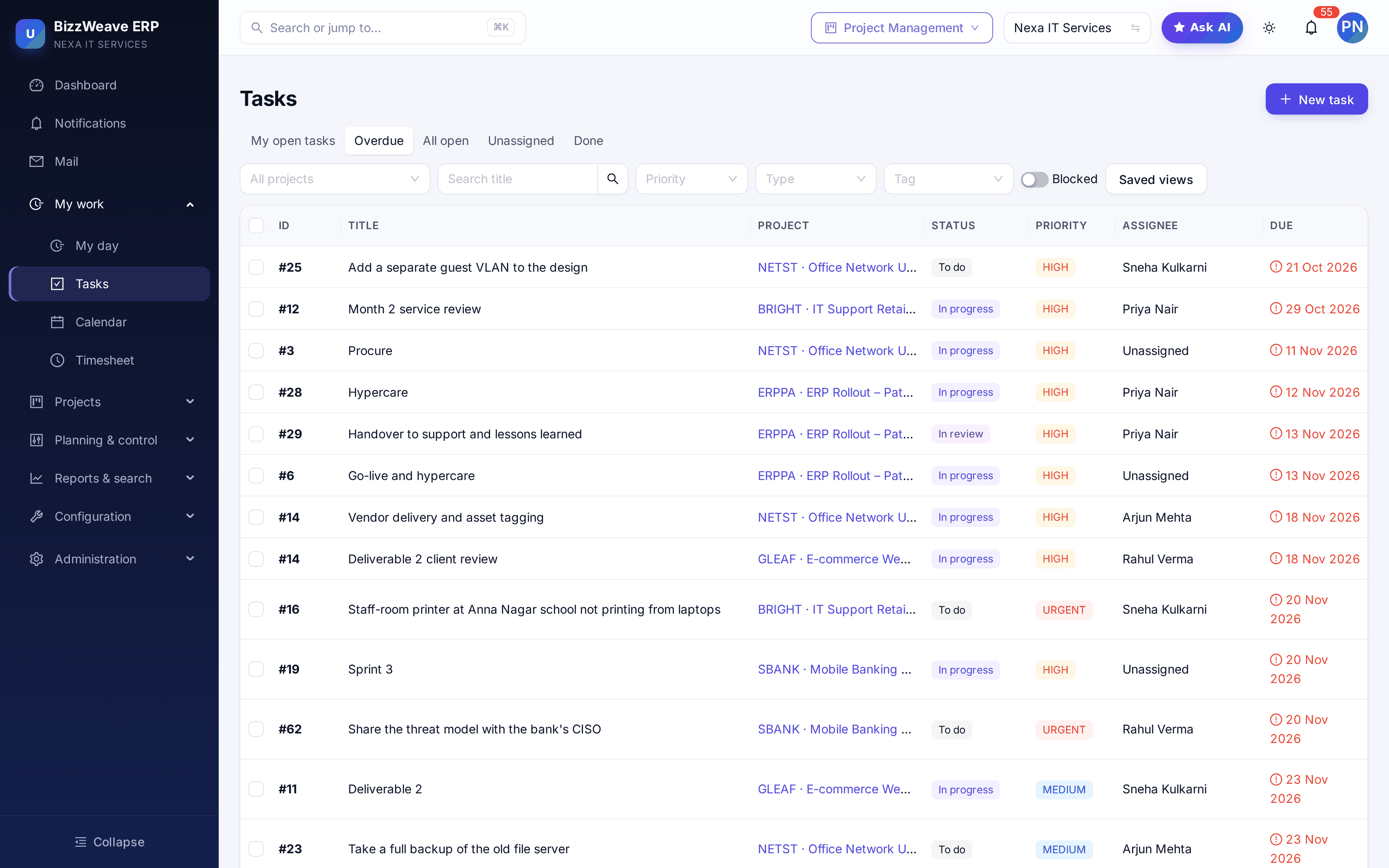
The Tasks page lists work items from every project you can see in one table. Use it to find your own work, chase overdue items, hand out unassigned work and change many tasks at once.
Before you start
- Choose Project Management in the category switcher, then open My work → Tasks.
- To create or change tasks you need permission to edit tasks in the project. Viewers can only look.
- Time needed: about 5 minutes to learn the page.
The task list

Ready-made views 1: click one to switch the list.
| View | Shows |
|---|---|
| My open tasks | Items assigned to you that are To do, In progress or In review (the page opens here). |
| Overdue | Every open item past its due date, whoever it belongs to. |
| All open | Every open item in the projects you can see. |
| Unassigned | Open items with nobody assigned. Use it to hand out work. |
| Done | Finished items, most recently finished first. |
Filters 2: narrow the list by project, by words in the title (type and press Enter), by Priority, Type (task, bug, story and so on) or Tag. Turn on Blocked to see only items that are flagged as blocked.
The table shows the item number, title, project, status, priority, assignee and due date. A red due date with a icon means the item is overdue. Click a row to open the task; click the project name to open the project.
Create a task
- Click “New task” at the top right.
-
Fill in the form.

A new task in the project Office Network Upgrade – Sharma Textiles. Field What to enter Example Project (required) The project the work belongs to. Only projects you may add work to are listed. NETST · Office Network Upgrade – Sharma Textiles Title (required) A short description of the work, up to 300 characters. Label all patch cords on floor 2 Description Details, steps or links. Use the colour code from the network design… Assignee The person who does the work. Leave empty to put it in Unassigned. Arjun Mehta Priority Low, Medium (default), High or Urgent. High Due The date the work must be finished. 27 Nov 2026 Milestone Appears when the project has open milestones. Links the task to one. Ready to migrate Parent Optional. Makes this task a subtask of another item in the same project. Build -
Click “Create task”. The task opens so you can add more detail.
Many tasks at once
To add a ready-made group of tasks, open the project and use Add from item set (see Item sets). To load a spreadsheet, use Import CSV on the project's Tasks tab.
Open a task
Click a task to open it. The task window has the title and description on the left, and Details, People, Dates and effort and Planning on the right.
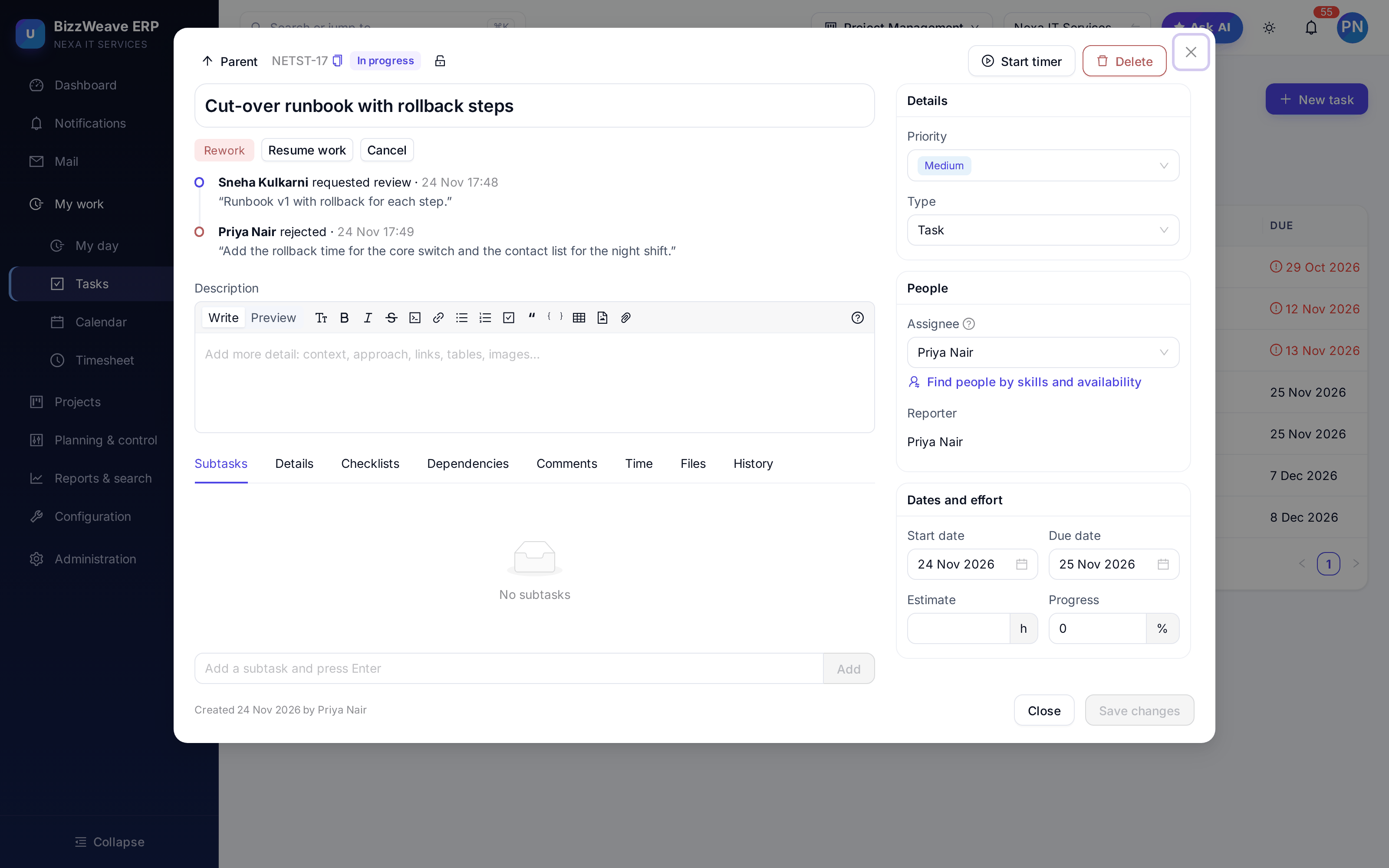
- Workflow buttons: when the project uses a workflow, the current state and the next steps (for example Start, Submit for review, Resume work) appear under the title instead of a Status field. See Workflows.
- Header: the item key (click the copy icon to copy it), the status, red Overdue or Blocked tags, the lock icon to make the item confidential (only its assignees, owner, reporter, watchers and the project managers see it), Start timer and Delete.
- Tabs: Subtasks, Details, Checklists, Dependencies, Comments, Time, Files and History.
- People: the Assignee, the Reporter and Co-assignees. Find people by skills and availability suggests team members who are free (see Resources).
- Dates and effort: Start date, Due date, Estimate (hours) and Progress (%).
Change what you need and click Save changes. If you close the window with unsaved changes, the ERP asks before discarding them.
Log time on a task
-
Open the task and click the Time tab.

1 The Log time form, 2 the Start timer button. -
Choose the date, enter the hours and minutes, and type a short note of what you worked on.
- Tick Billable if the client is charged for this time.
- Click Log. The entry appears in the list below and on your timesheet.
Instead of typing the time, click Start timer 2 when you begin and stop it when you finish (see My day). To remove a wrong entry, click the bin icon on its row.
Submitted weeks are locked
Once your timesheet for a week is submitted or approved, you can't add or change time in that week. Withdraw the timesheet first (see Timesheet).
Change many tasks at once
-
Tick the boxes in front of the tasks you want to change. A bar appears above the table.

1 The bulk bar: Set priority, Assign to, Set due date, Delete and Clear. -
Choose a new priority, a person in Assign to (or Unassigned), or a due date. The change is applied straight away.
- To delete the selected tasks, click Delete and confirm. Deleted tasks can be restored from the project's Recently deleted tab.
Each task is changed separately. If some can't be changed (for example because you lack rights in that project, or because the project's workflow controls the status), the ERP tells you how many were refused and why.
Saved views
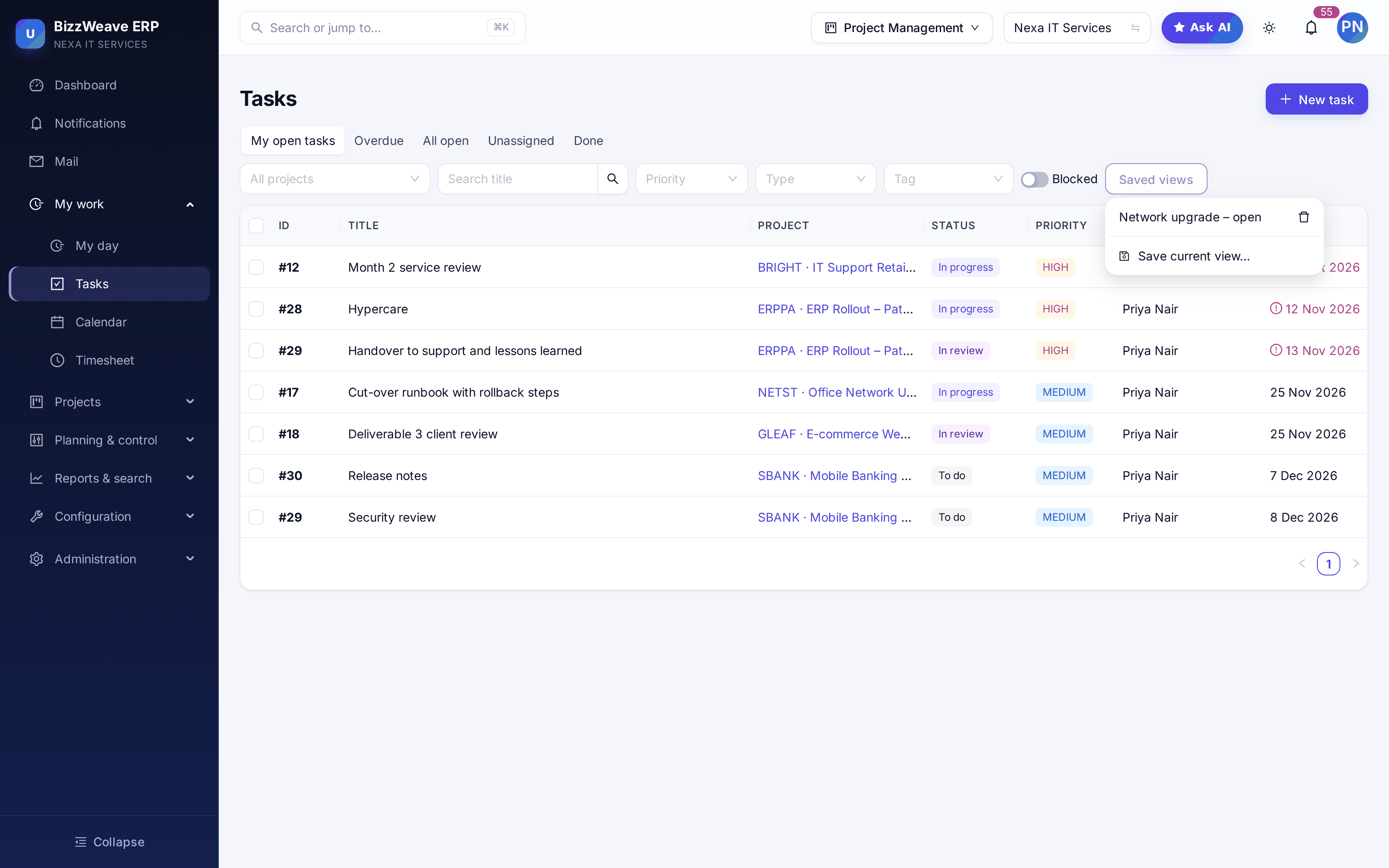
A saved view remembers the current filters so you can return to them in one click.
- Set the view and filters you want, for example All open and project NETST.
- Click Saved views → Save current view….
- Type a name, for example Network upgrade – open, and choose who sees it: Only me, This project's team (only when a project is chosen in the filter) or Everyone (needs permission to export reports).
- Click Save.
For more powerful filters (for example all open items due in the next 7 days across every project), use Search.
Common questions
Why can't I change the status of a task?
The project uses a workflow. Use the buttons under the task title instead (for example Start or Submit for review). Some steps need an approval first; see Approvals.
Two rows show the same number, for example #29
The ID column shows only the number of the item inside its project. Hover over it to see the full key, for example ERPPA-29 or SBANK-29, or look at the Project column.
I deleted a task by mistake
Open the project, click the Recently deleted tab and click Restore next to the task. Right after deleting, you can also click Undo in the message at the top of the screen.
Can I see tasks of a project I'm not a member of?
Only if the project is visible to the whole organisation. Private projects and confidential items are hidden from people outside them.