Project home and My day
Start every working day here. Project home shows the health of your projects and the work waiting for you; My day lists what is overdue, due today and in progress, and lets you track time with one click.
Before you start
- Choose Project Management in the category switcher at the top of the screen.
- You see only the projects you belong to, and only the items you can open.
- Time needed: 2 minutes a day.
Project home
Click Dashboard at the top of the menu while Project Management is selected. The page is called Project home.
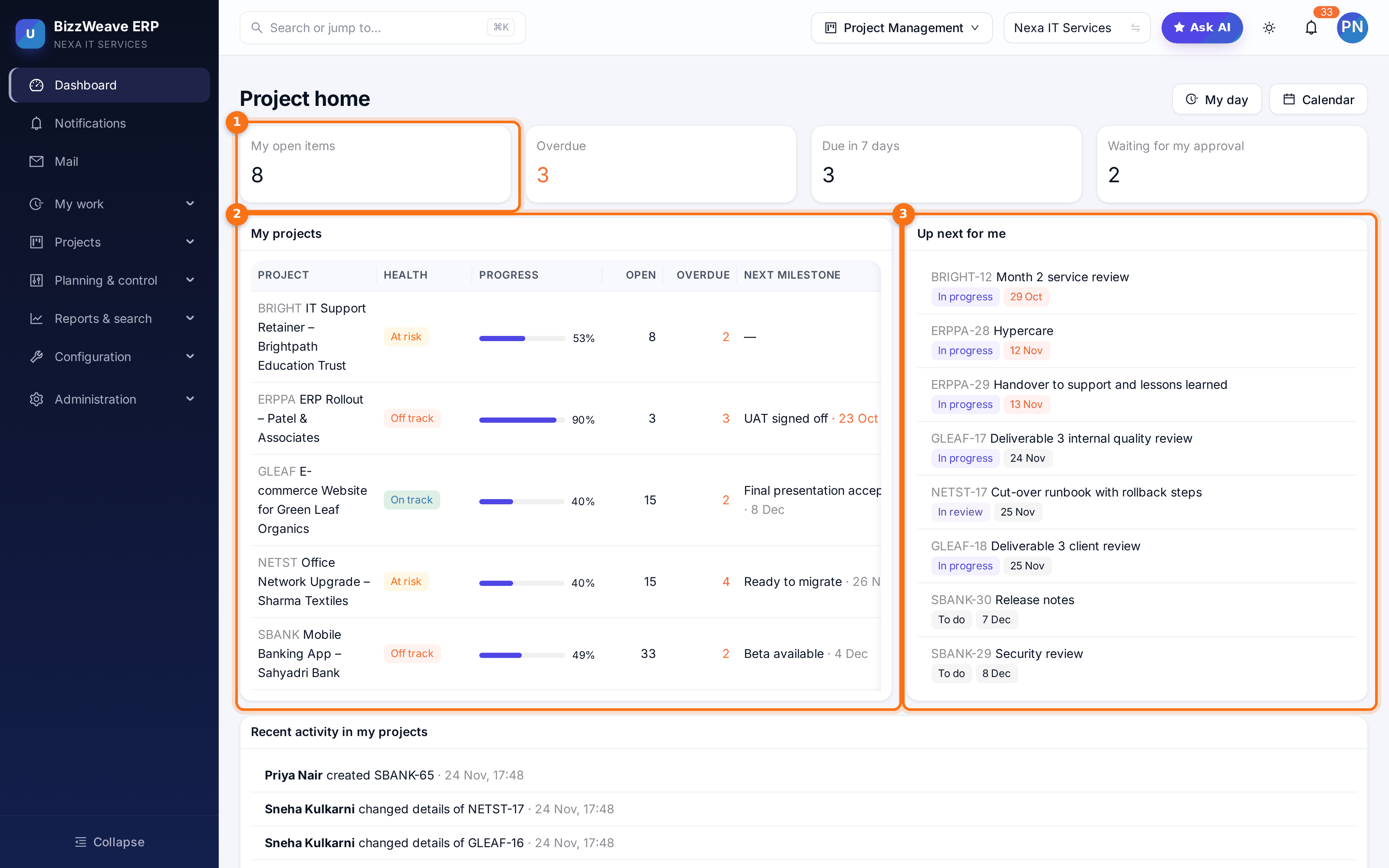
| Part | What it shows |
|---|---|
| My open items | Items assigned to you that are not done. Click the tile to open them in Tasks. |
| Overdue | Your open items whose due date has passed. The number turns red when it is not zero. |
| Due in 7 days | Your open items due in the coming week. |
| Waiting for my approval | Approval requests you need to decide, for example a task submitted for review. Click it to open Approvals. |
| My projects | Each project you belong to with its Health (On track, At risk, Off track), progress, open and overdue items, and the next milestone. Click a row to open the project. |
| Up next for me | Your open items, the most urgent first. Click one to open it. |
| Recent activity in my projects | Who changed what, and when. |
Use the My day and Calendar buttons at the top right to jump to those pages.
What “health” means
Health is calculated from the schedule, risks and issues, and resources. See Project reports for how the score works and how an administrator changes the thresholds.
My day
Open My work → My day. The page has four cards:
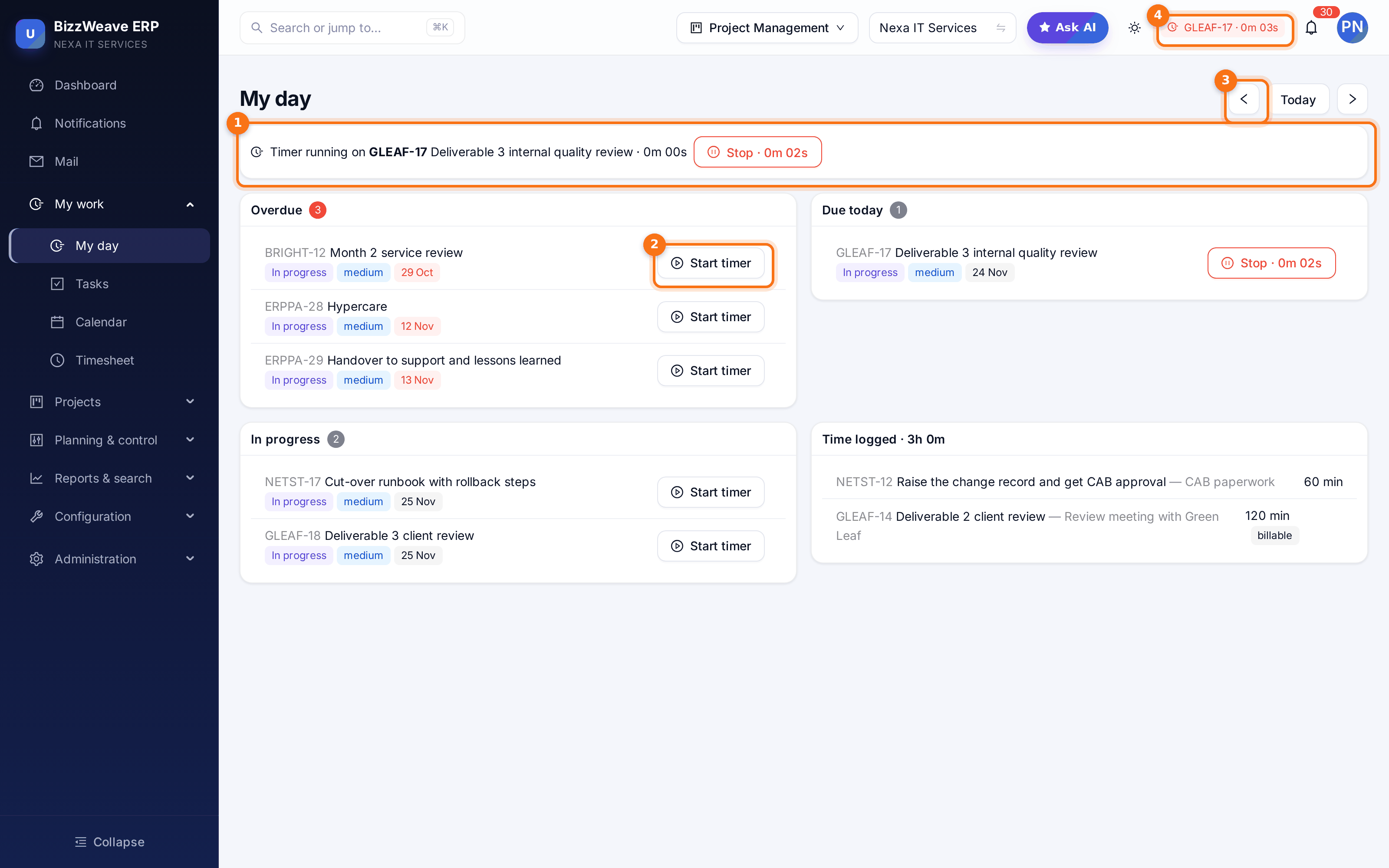
| Card | What it lists |
|---|---|
| Overdue | Your open items whose due date has passed (red badge). |
| Due today | Your open items due on the selected day. |
| In progress | Items you have started. |
| Time logged | The time you logged on the selected day, with notes and a billable tag. The total is in the card title. |
Click any item to open it. Use the ‹ and › arrows to look at an earlier or later day, and Today to come back.
Track time with the timer
The timer records how long you work on an item and turns it into a time entry when you stop.
-
Click “Start timer” next to the item on My day. You can also start it from the top of any task (see Tasks). A bar appears at the top of My day (1) and a red tag with the item key and the elapsed time appears in the page header (4), on every page.
-
Work on the item. You can move to other pages; the timer keeps running.
-
Click “Stop” on the bar, or click the red tag in the header.

Type what you did, tick Billable if the client pays for this time, then click Stop and log. -
Click “Stop and log”. The time is added to the item and to your timesheet. Click Discard instead to throw the time away.
What happens next
The minutes appear under Time logged on My day, in the task's Time tab and on My timesheet.
Only one timer at a time
If you start a timer on another item, the ERP first stops the running timer and logs its time, then starts the new one. A timer that runs longer than 24 hours is logged as 24 hours.
Common questions
An item I work on is not on My day
My day only lists items assigned to you. Ask the project manager to assign the item to you, or open it from Tasks or the project.
Why is “Start timer” missing?
You need permission to log time. People with a read-only (viewer) role don't see the button.
I can't log time on a task in one project
Your role in that project may not allow you to add or change work. In the sample data, a person with the Finance role in a project cannot log time on its tasks. Ask the project manager to change your project role on the project's Team & access tab (see Team and settings).
Can I see the timer on my phone?
Yes. The timer is stored on the server, so it shows wherever you sign in.