Notification preferences
Choose how each kind of alert reaches you: in the app, by e-mail, as a push message on your device, or by SMS. Your choices apply to you only, in the current organisation.
Before you start
- Any role can set its own preferences.
- For SMS alerts: your mobile number.
- Time needed: about 3 minutes.
Open your preferences
Click your initials in the top-right corner and choose My notification preferences. (Or open Notifications in the menu and click the Preferences tab.)
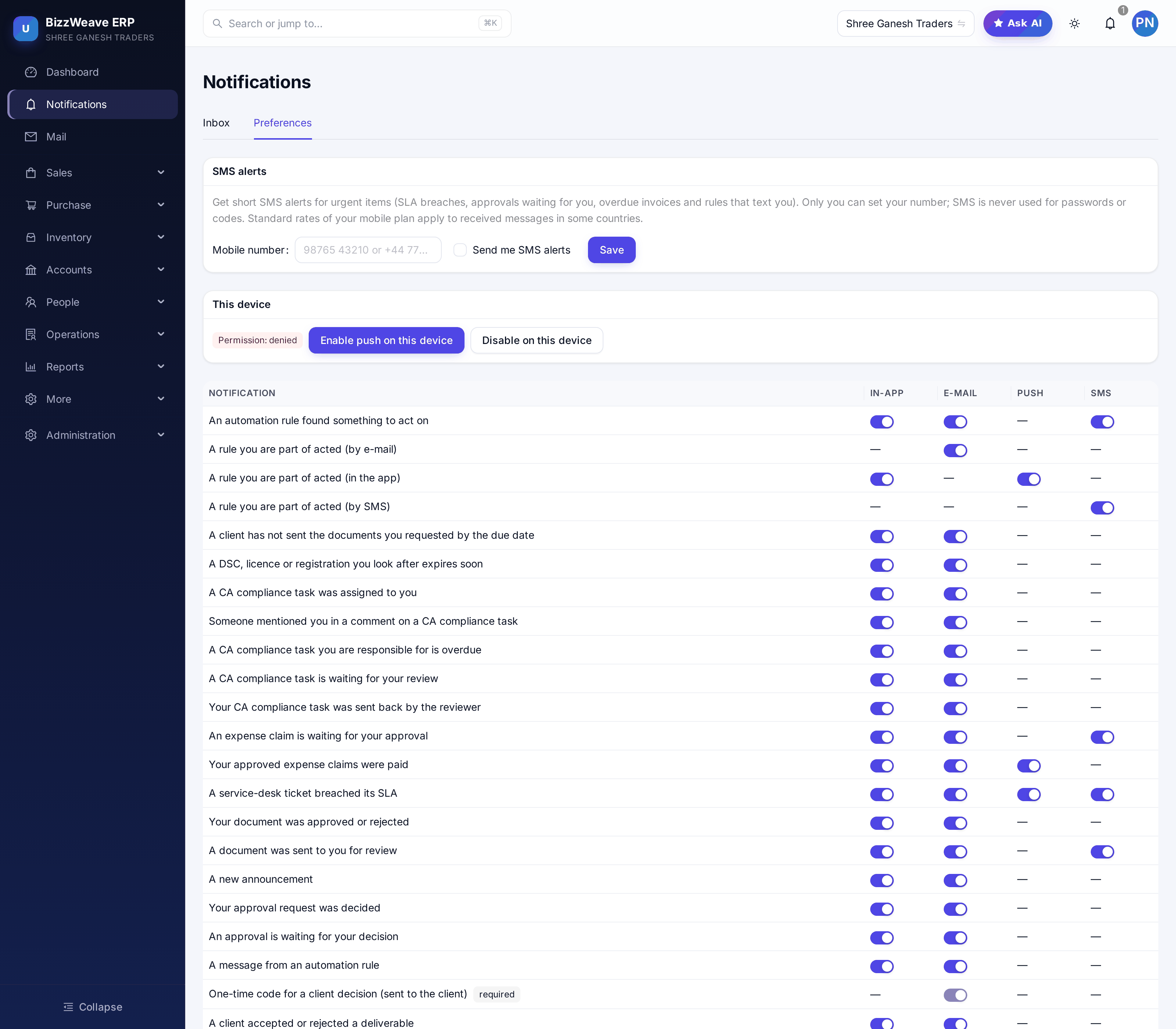
Turn channels on or off
The table lists every kind of notification, for example A task is assigned to you or An expense claim is waiting for your approval. For each one there is a switch per channel:
| Channel | What you get |
|---|---|
| In-app | The alert appears under the bell and on the Notifications page. |
| An e-mail to your sign-in address. | |
| Push | A pop-up message from your browser or phone, even when BizzWeave ERP isn't open. Needs push turned on for the device (see below). |
| SMS | A short text message. Needs your mobile number and Send me SMS alerts (see below). |
- Click a switch to turn that channel on or off. It saves straight away.
- A dash (—) means that channel isn't available for that kind of notification.
- Some notifications are marked required: their in-app and e-mail switches can't be turned off, because you must receive them.
SMS alerts
SMS is used for urgent items only, such as SLA breaches, approvals waiting for you and overdue invoices, and for automation rules that text you. It is never used for passwords or codes.
- In SMS alerts, type your Mobile number, for example 98765 43210 (or with a country code, +44 7700 900123).
- Tick Send me SMS alerts and click Save.
Only you can set your own number. Your organisation must also have an SMS provider; see Notification settings.
Push messages on this device
The This device box turns push messages on or off for the browser you are using now.
- Click Enable push on this device.
- When the browser asks whether BizzWeave ERP may show notifications, click Allow.
- A message confirms Push notifications enabled on this device.
Repeat this on each computer or phone where you want push messages. Disable on this device turns them off again. The tag shows the browser's Permission: granted, denied or default. If it shows denied, allow notifications for this site in the browser's settings first.
If the box says Push notifications are not configured on this server or This browser does not support push notifications, push isn't available there; use e-mail or SMS instead.
Common questions
I turned off e-mail for something, but I still get e-mails.
That notification is probably marked required. Required notifications always arrive in the app and by e-mail.
Do my preferences apply in my other organisation?
No. Preferences are kept per organisation. Switch organisation and set them there too.