Compliance tasks
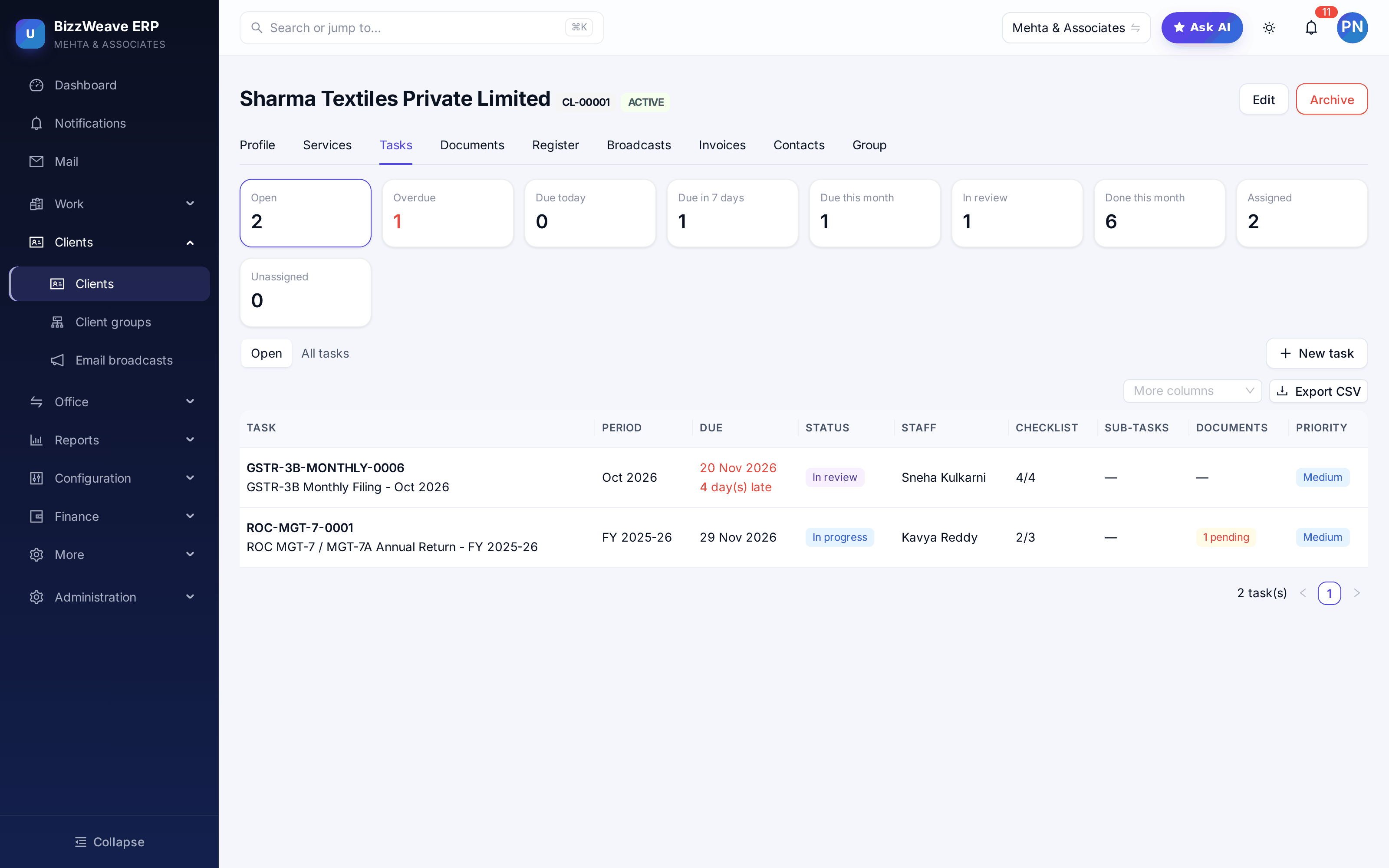
Every return, form and audit your firm prepares is a compliance task: GSTR-3B for October for Rao Constructions, Tax Audit FY 2025-26 for Patel & Associates. This page shows how to find the tasks you need, read the list and add a task by hand.
Before you start
- Everyone can see the tasks. To create and work on tasks you need the Member role or higher.
- Time needed: 5 minutes to learn the list.
Where tasks come from
You rarely create tasks yourself. For each service a client takes, the ERP creates one task per period, for example one GSTR-3B task per month:
- The task is created a number of days before its due date (15 days unless the service's template says otherwise).
- It gets the staff member and reviewer chosen on the client's service, the fee, the priority and the checklist of the service.
- Periods missed in the last 12 months are created too, and show as overdue.
- A task is created only once per client, service and period, even if you cancel it.
The ERP checks for new tasks every hour. An owner or administrator can also click Create due tasks now on the task page to run the check at once.
The task list
Open Work → Compliance tasks.
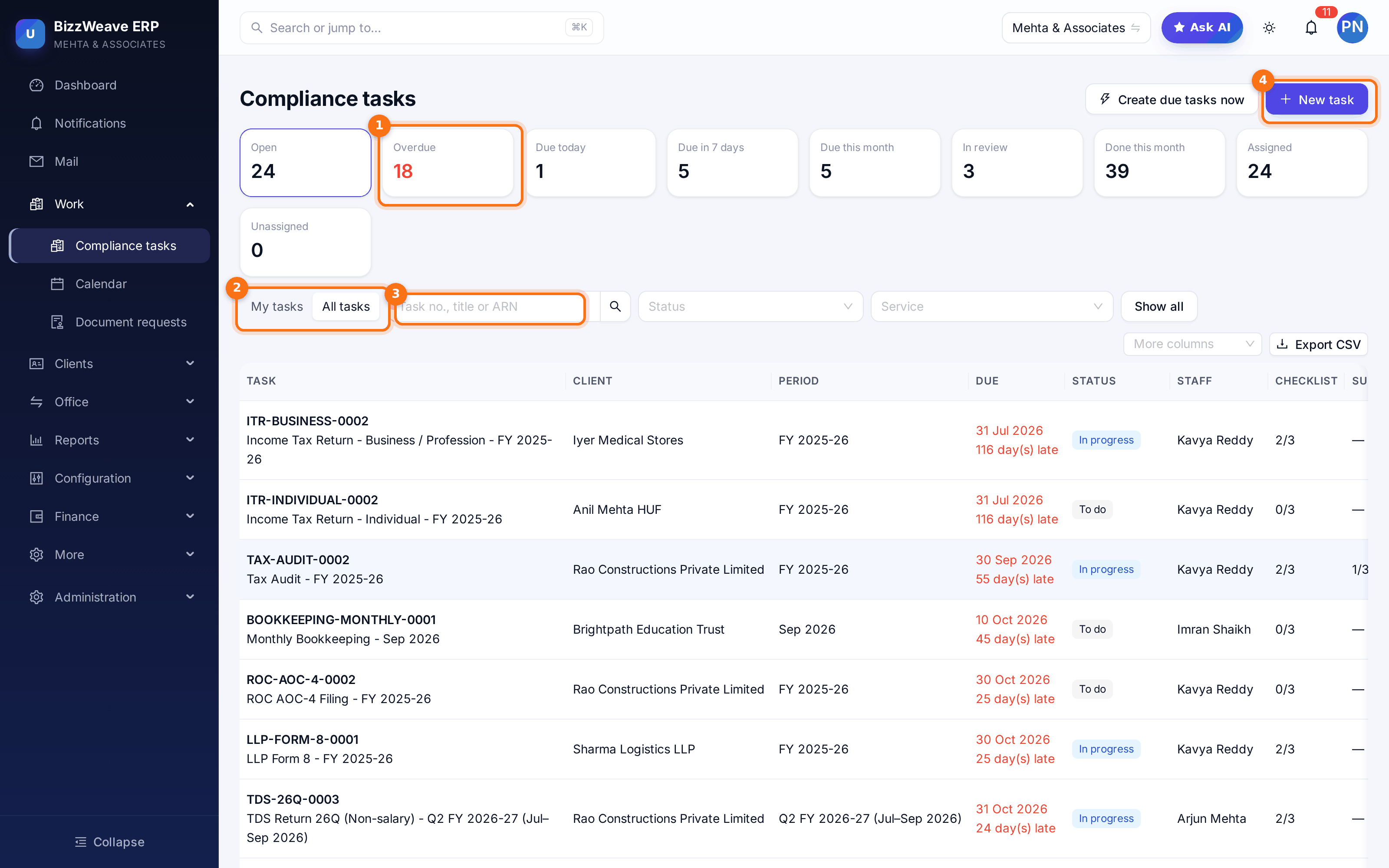
The counters
The tiles at the top count tasks and act as quick filters. Click a tile to show its tasks; the chosen tile has a blue border.
| Tile | Tasks shown |
|---|---|
| Open | Everything not done or cancelled. This is the list you see first. |
| Overdue 1 | Open tasks past their due date (red when above zero). |
| Due today, Due in 7 days, Due this month | Open tasks due in that time. |
| In review | Tasks waiting for a reviewer. |
| Done this month | Tasks finished since the first of the month. |
| Assigned, Unassigned | Open tasks with or without a staff member. Use Unassigned to share out new work. |
Click Show all to remove the tile filter and see every task, including done and cancelled ones.
Search and filters
- 2 My tasks / All tasks: My tasks shows only the tasks where you are the staff member; the counters change too.
- 3 Search: type a task number, part of the title or an ARN and press Enter.
- Status: pick one or more statuses, for example In progress and Rework.
- Service: show only one service, for example GSTR-3B Monthly Filing.

The columns
| Column | Meaning |
|---|---|
| Task | The task number and title. |
| Client, Period | Whose task it is and which month, quarter or year it covers. |
| Due | The due date. In red with N day(s) late when overdue. |
| Status | To do, In progress, In review, Rework, Approved, Done, Invoiced or Cancelled. An orange Waiting tag means the task waits for another task to be done first. |
| Staff | The staff member responsible. |
| Checklist, Sub-tasks | Steps done out of the total, for example 2/4. |
| Documents | Document requests to the client still pending. |
| Priority | Low, Medium, High or Urgent. |
Click any row to open the task. See Inside a task.
One client's tasks
Each client's page has a Tasks tab with the same counters and list, limited to that client. Use Open / All tasks to include finished work.
More columns and export
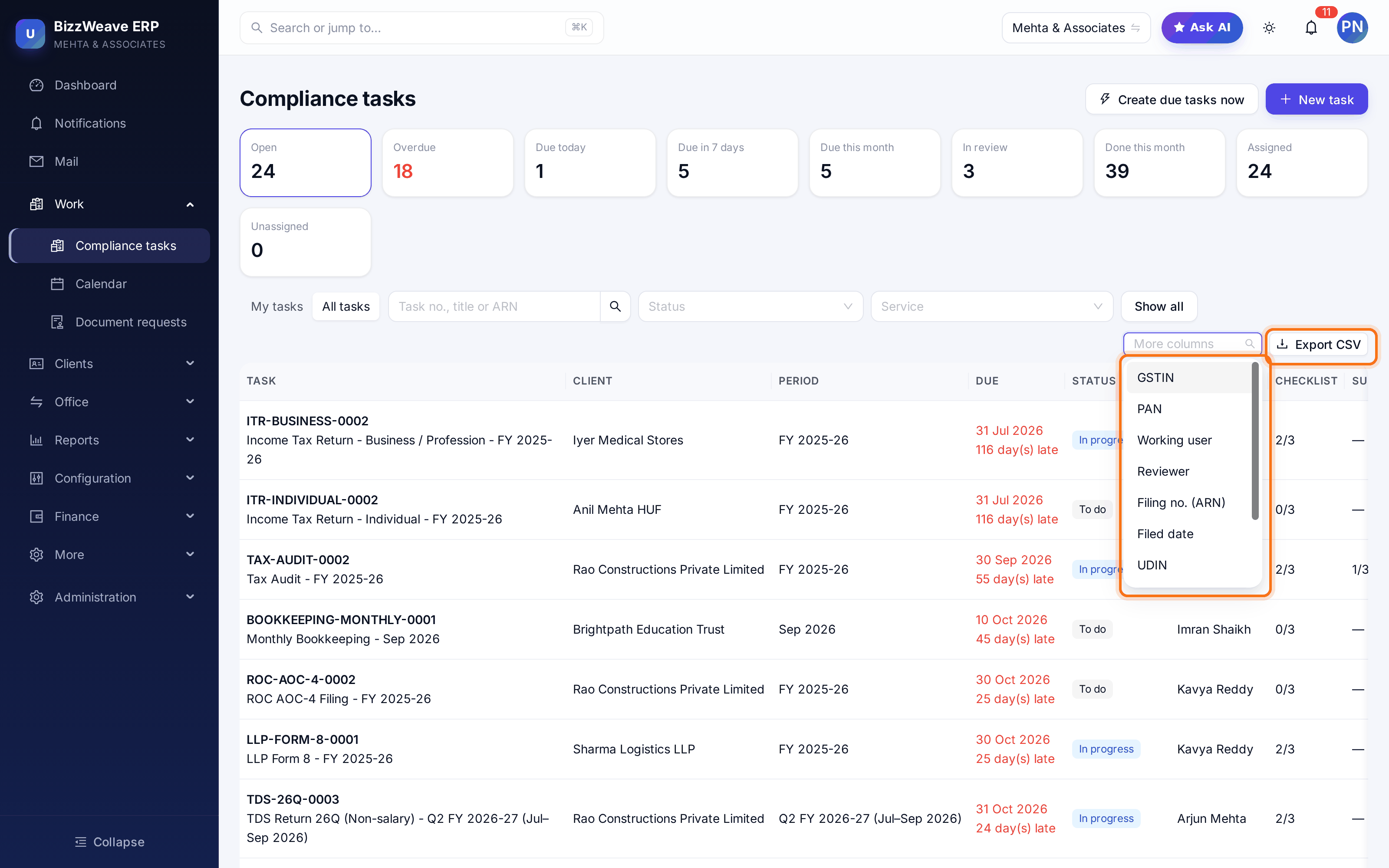
- More columns adds GSTIN, PAN, Working user, Reviewer, Filing no. (ARN), Filed date, UDIN, Invoice, Created and Completed. Your choice is remembered on this computer.
- Export CSV downloads the tasks of the current list and filters (up to 5,000 rows) as a spreadsheet file, with all columns.
Add a task by hand
Add a task yourself for one-time work (such as a GST registration or Form 15CB), for extra work, or for a period the ERP didn't create.
- Click New task 4. (On a client's Tasks tab, the New task button fills in the client for you.)
-
Fill in the window:

A new TDS return task for Desai Infotech. Field What to enter Client (required) Type to search the active clients. Service (required) Services the client takes are listed first; others are marked (not taken by the client). Period For recurring services, the month, quarter or year the task is for. The due date then follows the service's rule. Disabled for one-time services. Due date Required when there is no period. Leave it empty to use the period's due date. Title Leave empty to use the service's task title. Staff member, Reviewer Leave empty to use the ones set on the client's service. Priority, Notes Optional. -
Click Create task. The new task opens.
One task per period
If the client already has a task for that service and period, the ERP refuses and says The client already has a task for …. Open the existing task instead.
Common questions
Why is a task marked Waiting?
Someone set Waits for task in the task's details, for example GSTR-3B waits for GSTR-1. The task can't be started until that other task is done or cancelled. See Inside a task.
A client stopped a service. How do I stop the tasks?
End or pause the service on the client's Services tab. Cancel the open tasks you no longer need. See Review and filing.
Can I delete a task?
Only owners and administrators can delete, and only tasks added by hand that are still To do (or cancelled) and have no files, document requests or ARN. Cancel other tasks instead; cancelled tasks are kept for the record.