SLA targets, categories and escalation
An SLA (service level agreement) is the promise the IT team makes about how fast it reacts and fixes problems. BizzWeave ERP tracks two deadlines on every ticket and warns the team when one is missed.
Before you start
- Changing SLA targets and categories needs the Configure ticket categories and SLA targets permission (owners and administrators).
- Everyone on the IT team sees the deadlines on each ticket.
- Time needed: about 5 minutes.
How the SLA clock works
Every ticket has two deadlines, set when the ticket is raised:
- Respond by: the time for the first response. The response is the IT team's first reply to the requester, or the first time an agent moves the ticket out of New. A ✓ appears next to the date once it's done.
- Resolve by: the time to set the ticket to Resolved.
Both are counted in calendar time from the moment the ticket is raised, including nights, weekends and holidays. The clock doesn't pause while a ticket is Pending. If you change a ticket's priority, both deadlines are recalculated from the time the ticket was raised.
The default targets are:
| Priority | First response | Resolution |
|---|---|---|
| P1 | 30 minutes | 4 hours |
| P2 | 2 hours | 24 hours |
| P3 | 8 hours | 3 days |
| P4 | 1 day | 7 days |
Change the SLA targets
-
Open Service management → Service desk and click the Categories & SLA tab. The tab is only shown to administrators.

1 SLA targets in minutes. 2 Save SLA. 3 Ticket categories. -
For each priority, type the First response and Resolution targets in minutes. Useful values: 60 = 1 hour, 480 = 8 hours, 1440 = 1 day, 2880 = 2 days, 7200 = 5 days. The resolution target can't be shorter than the response target.
-
Click Save SLA. A message confirms SLA saved.
The example company uses P1 30 min / 4 h, P2 1 h / 8 h, P3 4 h / 2 days and P4 1 day / 5 days.
New targets apply to new tickets
Existing tickets keep the deadlines they were given, unless someone changes their priority.
Categories
Categories group tickets by kind of problem and save triage time. New organisations start with Access & accounts (P2), Hardware (P3), Network (P2) and Software (P3).
To add a category, in the Categories box:
- Type the name, for example Printers.
- Choose the default priority. A requester who leaves Priority empty gets this priority.
- Optionally choose a Default assignee. New tickets in this category are assigned to that person automatically.
- Click Add.
The name must be unique. Categories can't be renamed or removed from this screen yet.
What happens when a target is missed
BizzWeave ERP checks the open tickets every minute. When a deadline passes:
- The ticket is escalated: level 1 for a missed first response, level 2 for a missed resolution.
- Conversation & history gets a red entry from System, for example SLA breached: First-response target missed.
- A notification goes to the assignee and to every owner, administrator and manager: TCK-00001 breached its response SLA. People can choose e-mail, SMS or push as well in My notification preferences.
- In the lists, the Resolve by date turns red and shows ⚠. The ticket appears in the SLA breached view and in the SLA breached tile on the dashboard.
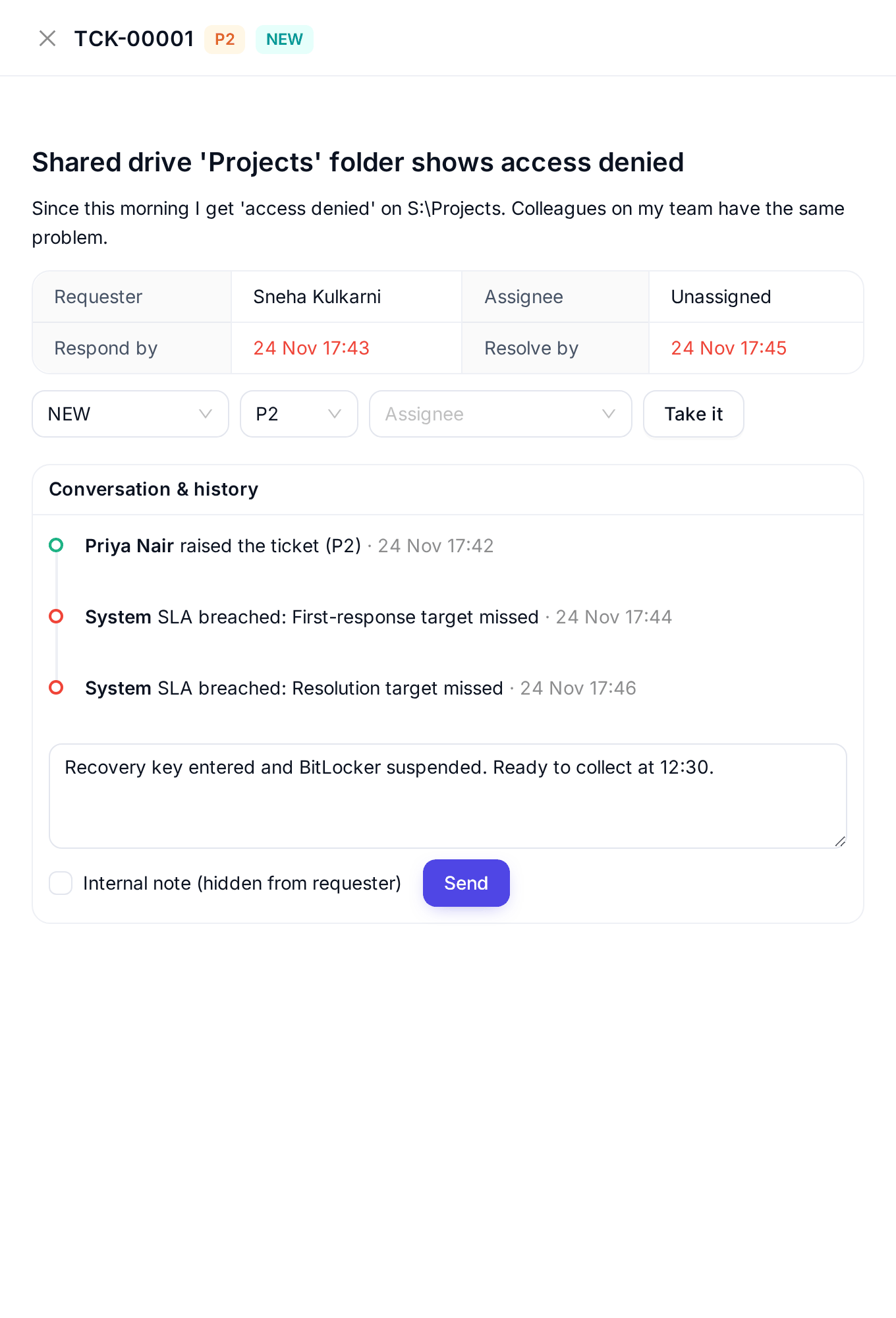
A breached ticket stays marked as breached even after it's resolved, so your reports stay honest.
Common questions
Can the SLA count office hours only?
Not yet. Targets are calendar time. Choose targets that cover nights and weekends, for example 2 days instead of 16 office hours.
Does a requester's reply stop the clock?
No. Only the IT team's first reply counts as the response, and only Resolved stops the resolution clock.
Where do I see SLA compliance over time?
The dashboard shows the current SLA breached count. Use All on the service desk to look back at older tickets; red dates mark the ones that missed their target.