Search, saved views and export
Search finds any work item across all your projects with a short query, such as “everything open and due in the next 7 days”. Choose the columns, save the search as a view to reuse or share, and export the results to a spreadsheet.
Before you start
- Open Reports & search → Search. You see only the items you are allowed to open.
- Exporting to CSV and sharing a view with everyone need the export reports permission.
- Time needed: about 10 minutes to learn the query language.
The search page
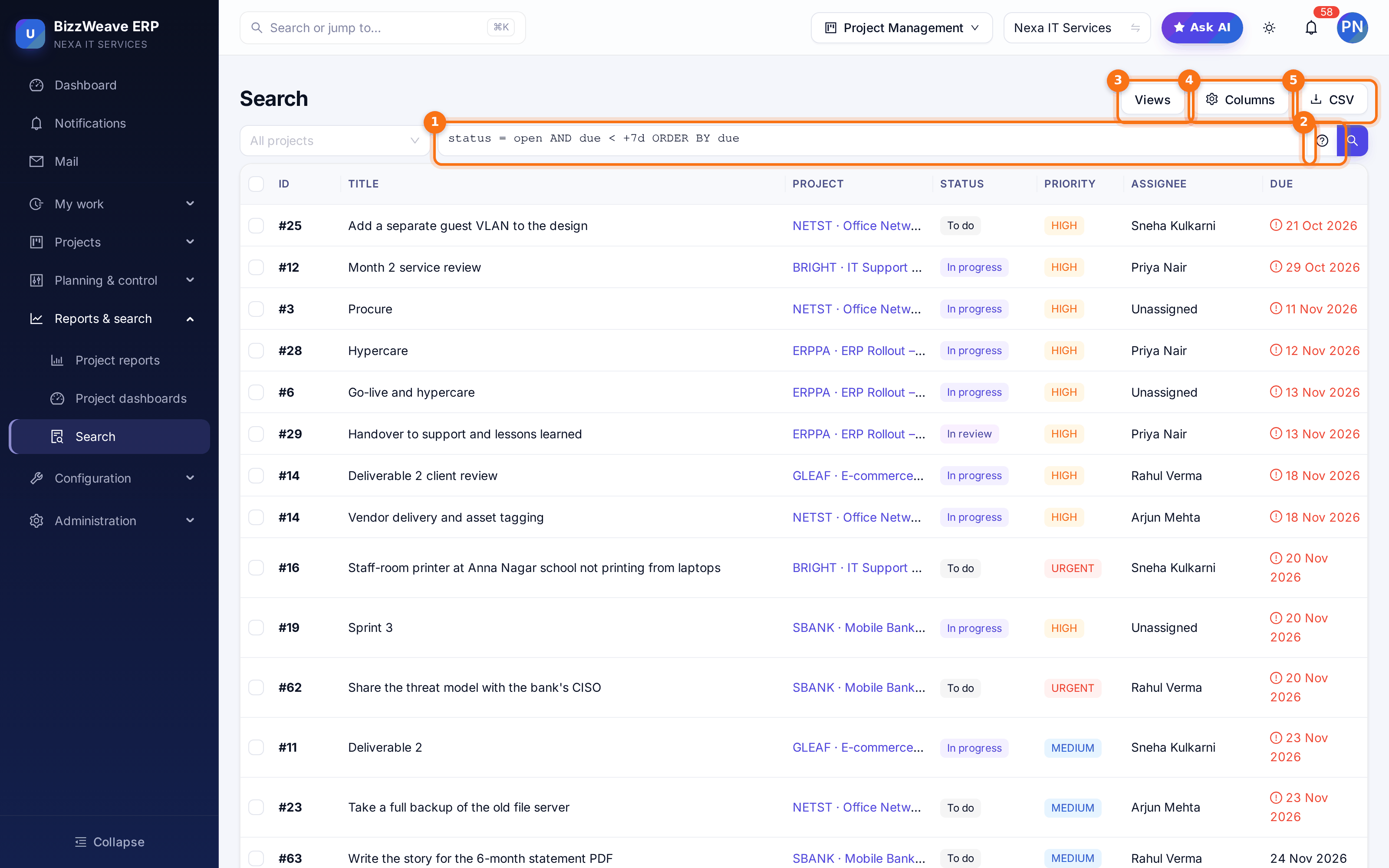
The page opens with the query status = open ORDER BY due: all open items, the earliest due first. Type a query in the box 1 and press Enter or click the search button. Use All projects on the left to limit the search to one project.
Click a row to open the item. Click the project name to open the project.
Write a query
A query is one or more conditions, such as priority = high, joined with AND, OR and NOT. Use brackets to group them and ORDER BY to sort.
| Part | Examples |
|---|---|
| Operators | = != < <= > >=, ~ (contains), IN (a, b), IS EMPTY, IS NOT EMPTY |
| Dates | 2027-01-31, today, +7d (in 7 days), -2w (2 weeks ago), startOfMonth |
| Plain words | Words without a field search titles, descriptions and comments. |
| Sorting | ORDER BY due, ORDER BY priority DESC |
Useful queries:
| You want | Query |
|---|---|
| My open work, by due date | assignee = me AND status = open ORDER BY due |
| Due within a week, not done | due < +7d AND status != done |
| Urgent work that is stuck | priority >= high AND blocked = true |
| Bugs raised in the last two weeks | type = bug AND created >= -2w ORDER BY priority DESC |
| Items mentioning “invoice” in one project | text ~ "invoice" AND project = ERPPA |
| Open items with nobody assigned | assignee IS EMPTY AND status = open |
Fields include project (code or name), status, state (the workflow state), priority, assignee, due, created, type, tag, sprint and blocked. Custom fields can be searched by their key (see Custom fields).
Get help while typing
-
As you type, the box suggests fields, values and keywords. For example, after
assignee =it offersme.
Suggestions after typing assignee =. -
Click the ? button 2 for the full list of operators, examples and fields. Click an example to run it.

Query help. -
If the query has a mistake, a red box explains it, for example Expected a value after < (at character 24).

Fix the query and search again.
Choose columns
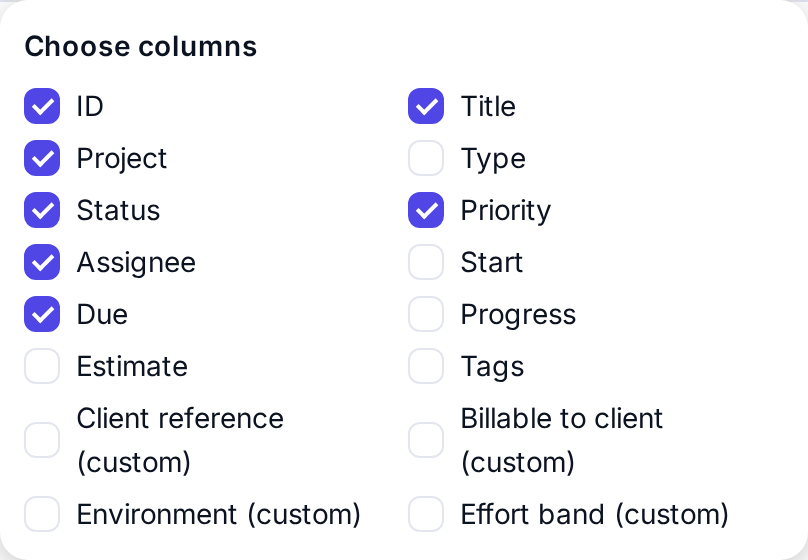
Click Columns 4 and tick the columns you want: ID, Title, Project, Type, Status, Priority, Assignee, Start, Due, Progress, Estimate, Tags, and your custom fields (marked custom).
Save and share a view
A view saves the query, the project filter and the columns.
- Run the query and set the columns.
-
Click Views → Save as a new view….

Name the view and choose who can use it. -
Type a name, for example Open items due this week.
- Choose who sees it:
- Only me;
- A project's team: choose the project. Only that project's managers can share with its team;
- Everyone in the organisation (needs the export permission).
- Click Save.
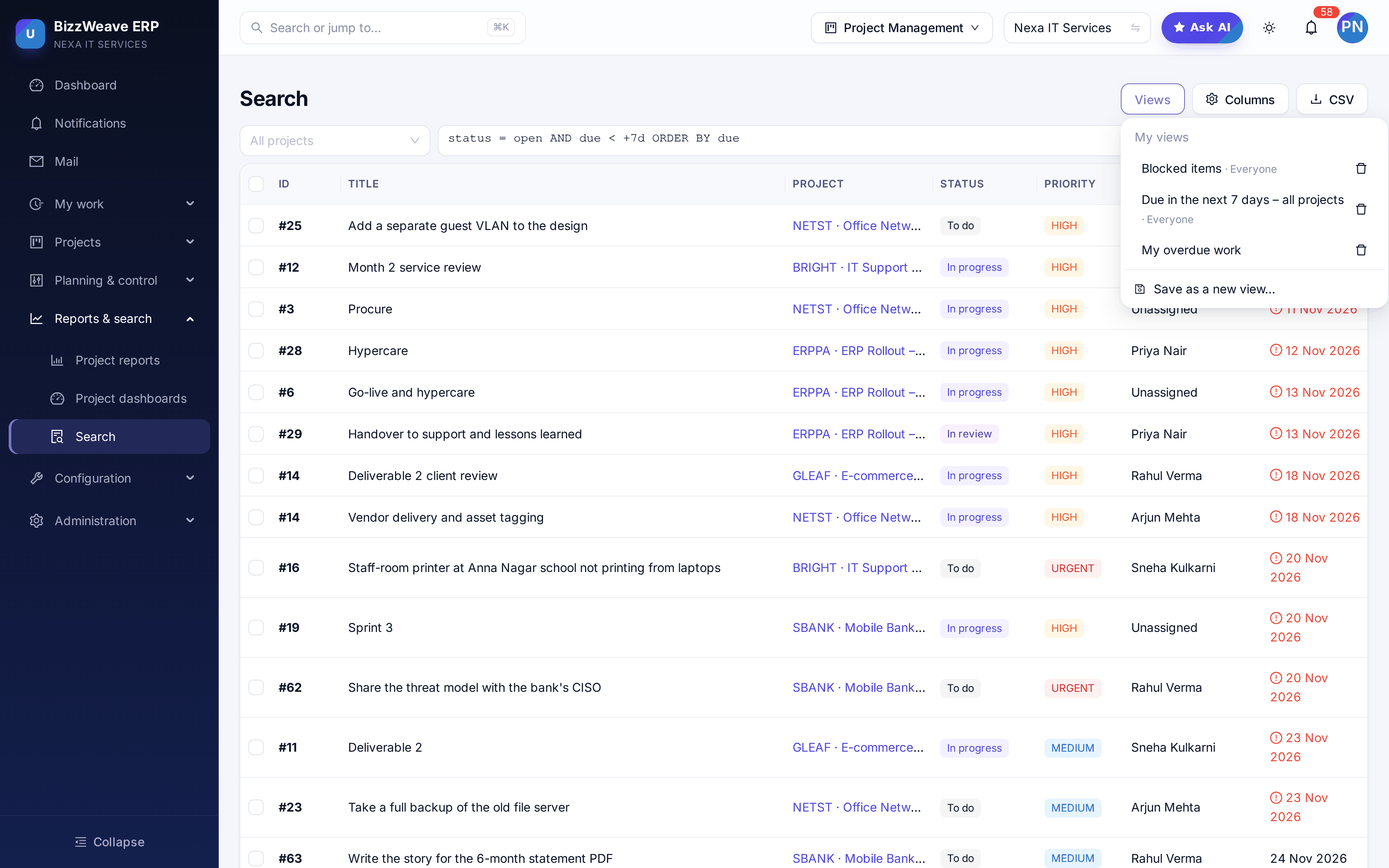
To open a view, click Views and click its name. To change it, open it, change the query or columns, and click Views → Save changes to “…”. To delete one of your views, click the bin icon next to it.
Act on the results
Tick items in the results to show the action bar:
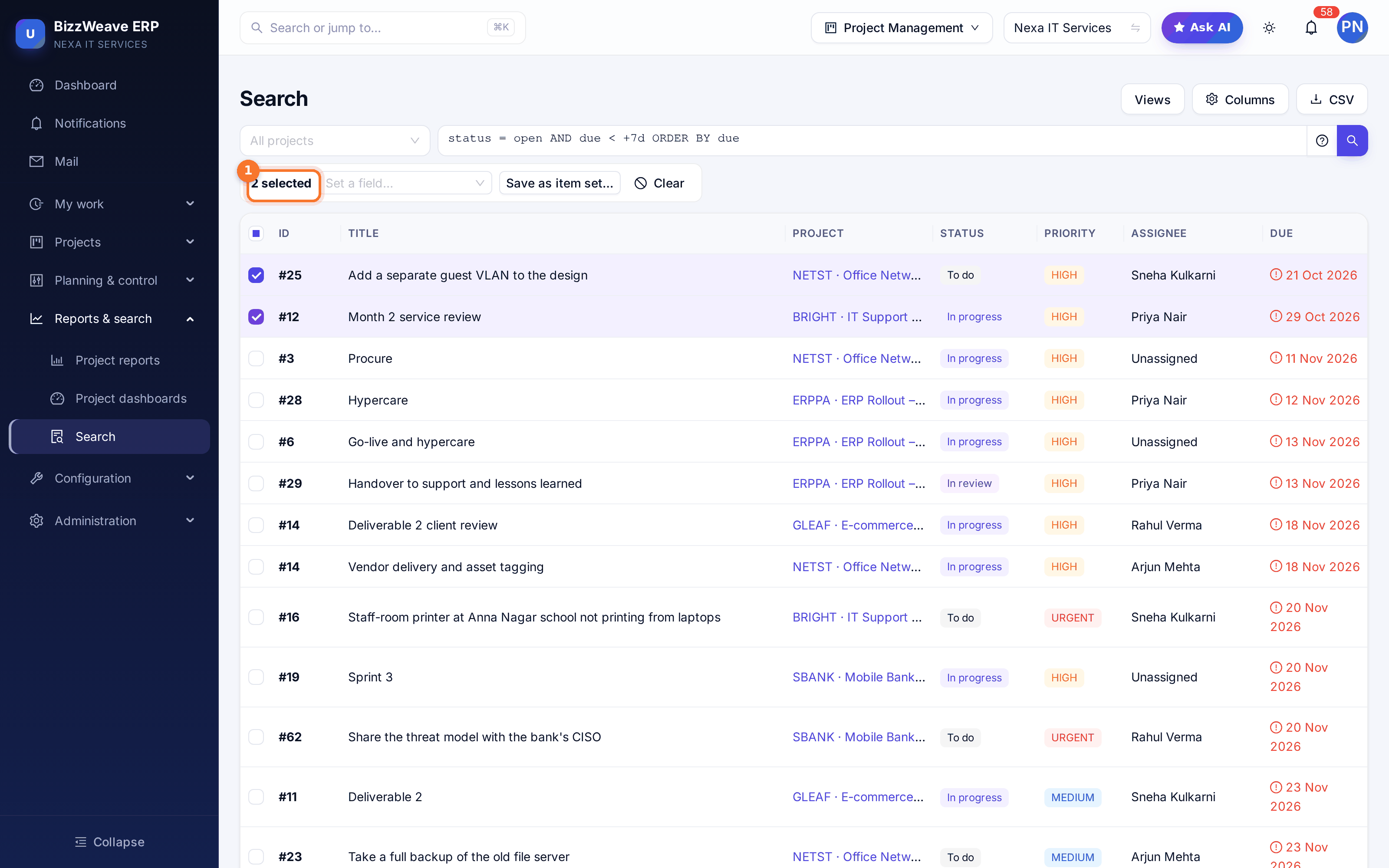
- Set a field…: give all the selected items the same value of a custom field. Leave the value empty to clear it. Items you can't change, or where the field doesn't apply, are skipped.
- Save as item set…: save the selected items (with their subtasks if you like) as a reusable item set. Titles, types, estimates, tags, acceptance criteria and custom values are kept; dates become days from the start.
Export to a spreadsheet
Click CSV 5. The ERP downloads a file named like work-items-2026-11-24.csv with every item that matches the query (not just the current page), including the custom-field columns you chose. Open it in Excel or Google Sheets.
Common questions
What's the difference between Search and the Tasks page?
Tasks has ready-made views and simple filters for day-to-day work. Search lets you combine any conditions, choose columns, share views and export.
Exporting says it needs manager rights
CSV export needs the export reports permission. Ask your administrator.
Do saved views update by themselves?
Yes. A view stores the query, not the results, so it always shows the current items. Relative dates such as today and +7d move with the calendar.