The CA ERP dashboard
The dashboard is the first page you see. In a few seconds it tells you what is late, what is due this week, what is waiting for a reviewer and how much finished work has not been billed yet.
Before you start
- Your organisation has the CA Firm ERP app, and you can see compliance tasks (every role can).
- The billing figure is shown only to people who can see invoices (owners, administrators and managers). The two charts by staff member are shown only to people who can see reports.
- Time needed: 2 minutes.
Open the dashboard
Click Dashboard at the top of the menu. If your organisation also uses other categories, first choose CA ERP in the category switcher next to the logo. The page refreshes itself every two minutes.
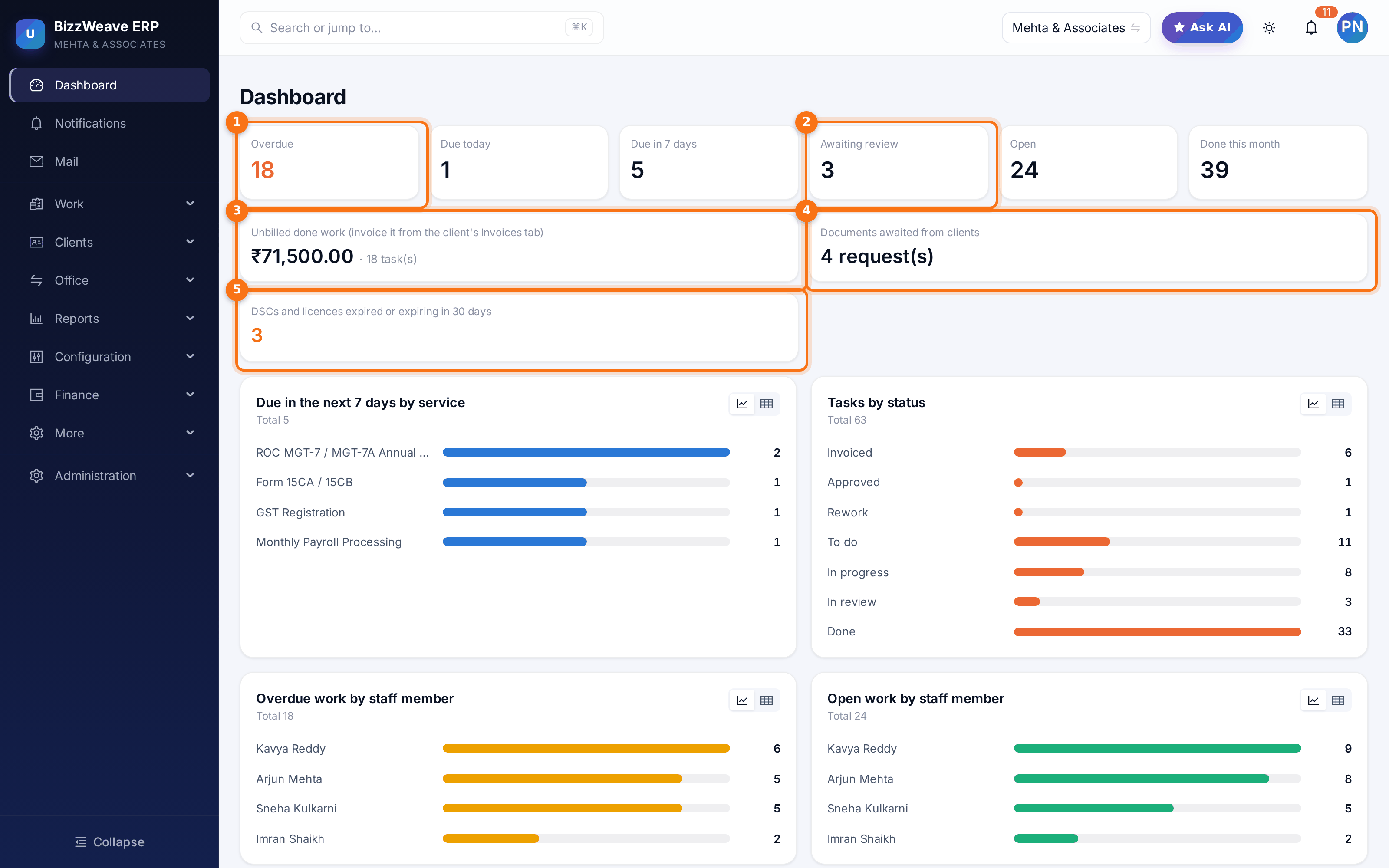
The tiles in the first row
Each tile counts compliance tasks. Click a tile to open Work → Compliance tasks with that list already chosen.
| Tile | What it counts |
|---|---|
| Overdue 1 | Open tasks whose due date has passed. The number turns red when it is above zero. |
| Due today | Open tasks due today. |
| Due in 7 days | Open tasks due today or in the next six days. |
| Awaiting review 2 | Tasks a staff member has sent for review and that a reviewer must approve or send back. |
| Open | All tasks not yet done or cancelled (to do, in progress, in review, sent back and approved). |
| Done this month | Tasks marked done since the first of this month, including tasks already invoiced. |
An open task is one that still needs work: To do, In progress, In review, Rework or Approved (approved but not yet filed).
The second row
| Tile | What it shows | Where to act |
|---|---|---|
| Unbilled done work 3 | The total fee of tasks that are done, billed separately and not yet on an invoice, with the number of tasks. | Open the client and use the Invoices tab. → Billing |
| Documents awaited from clients 4 | Document requests still pending, and how many of them are past their due date. | Click the tile to open Document requests. → Document requests |
| DSCs and licences expired or expiring in 30 days 5 | Items in the DSC register that have expired or expire within 30 days and are not renewed yet. The number is orange when above zero. | Click the tile to open DSC & expiry. → DSC & expiry |
If some active clients take no service at all, a blue note says how many. Those clients get no tasks until you add services on their Services tab.
The charts
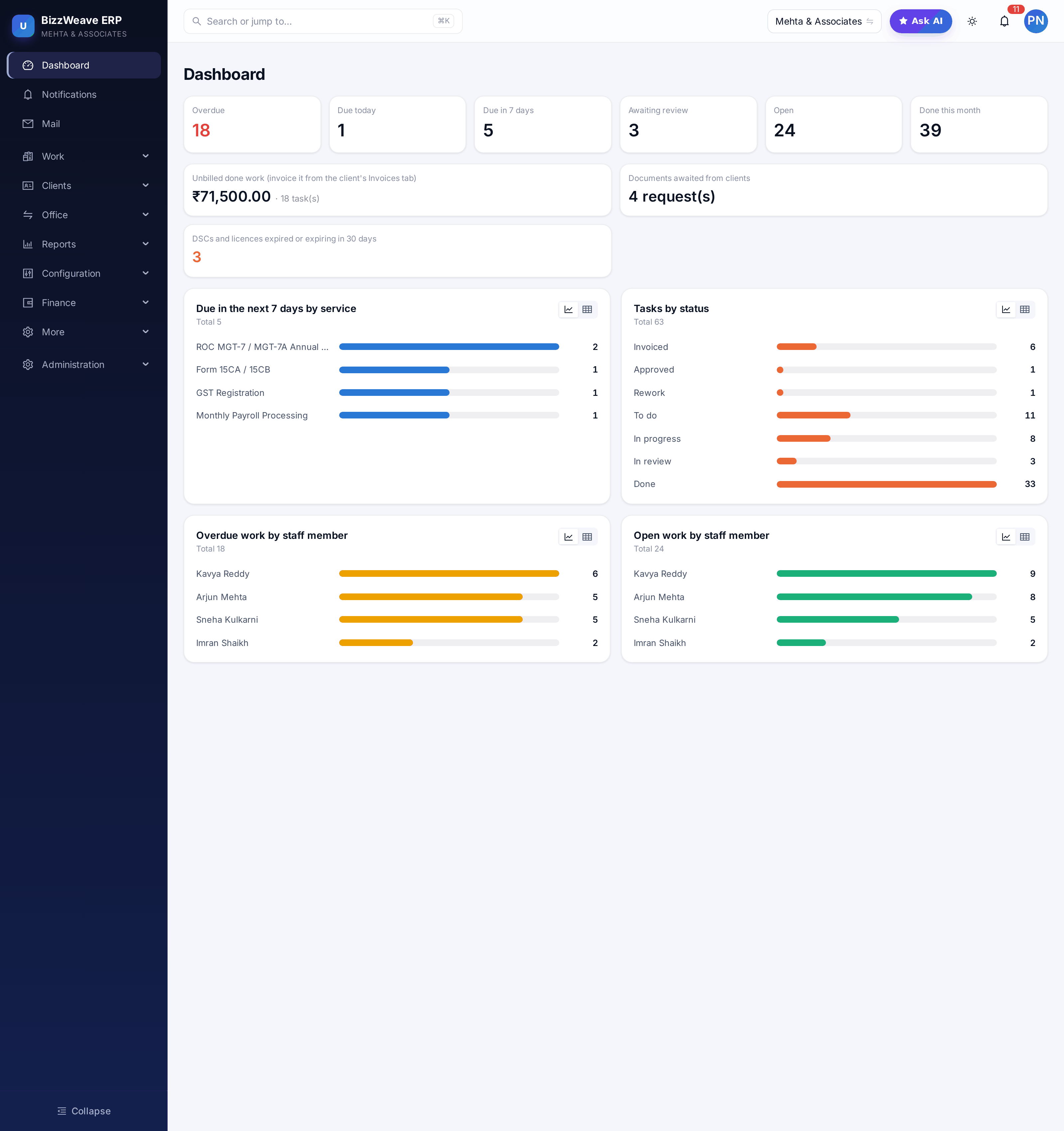
- Due in the next 7 days by service: which kinds of work fall due this week, for example two ROC MGT-7 returns.
- Tasks by status: how many tasks are in each status (cancelled tasks are left out).
- Overdue work by staff member and Open work by staff member: who is behind and who is busy. Use these to move work between people.
Each chart has two small buttons at its top right: one shows the bars, the other shows the same figures as a table.
Common questions
The dashboard shows 0 everywhere
Tasks are created from the services each client takes. Check that your clients have services on their Services tab, and that the services have a frequency and due-date rule. New tasks appear within an hour; an administrator can also click Create due tasks now on the Compliance tasks page. See Services.
Why don't I see the unbilled amount or the charts by staff member?
Your role doesn't include billing or reports. Members see the task tiles and the two other charts only.
Does Overdue include tasks waiting for review?
Yes. A task stays overdue until it is marked done (or cancelled), whatever its status, because the return has not been filed yet.