Invoices, payments, credit and debit notes
Bill your customers with GST tax invoices, print them as PDF, record the payments you receive and correct an issued invoice with a credit or debit note. Every step updates the accounts for you.
Before you start
- Where: in Business ERP, open Accounts → Invoices. In IT ERP and CA ERP the same page is under Finance → Invoices.
- Who: administrators and managers can create invoices and record payments. Members and viewers don't see invoices. Issuing a credit note, voiding an invoice and deleting a payment need administrator rights.
- Set up first: an administrator fills in the business profile and switches on GST billing under Administration → System → Billing & GST (GSTIN, address, logo, bank details and invoice numbering). Without it, invoices print with the organisation's name only.
- Customers: the customer must exist as a company. See Customers: companies and contacts.
- Time needed: about 3 minutes per invoice.
The invoice list
The list shows every invoice, credit note and debit note. Click a row to open it.
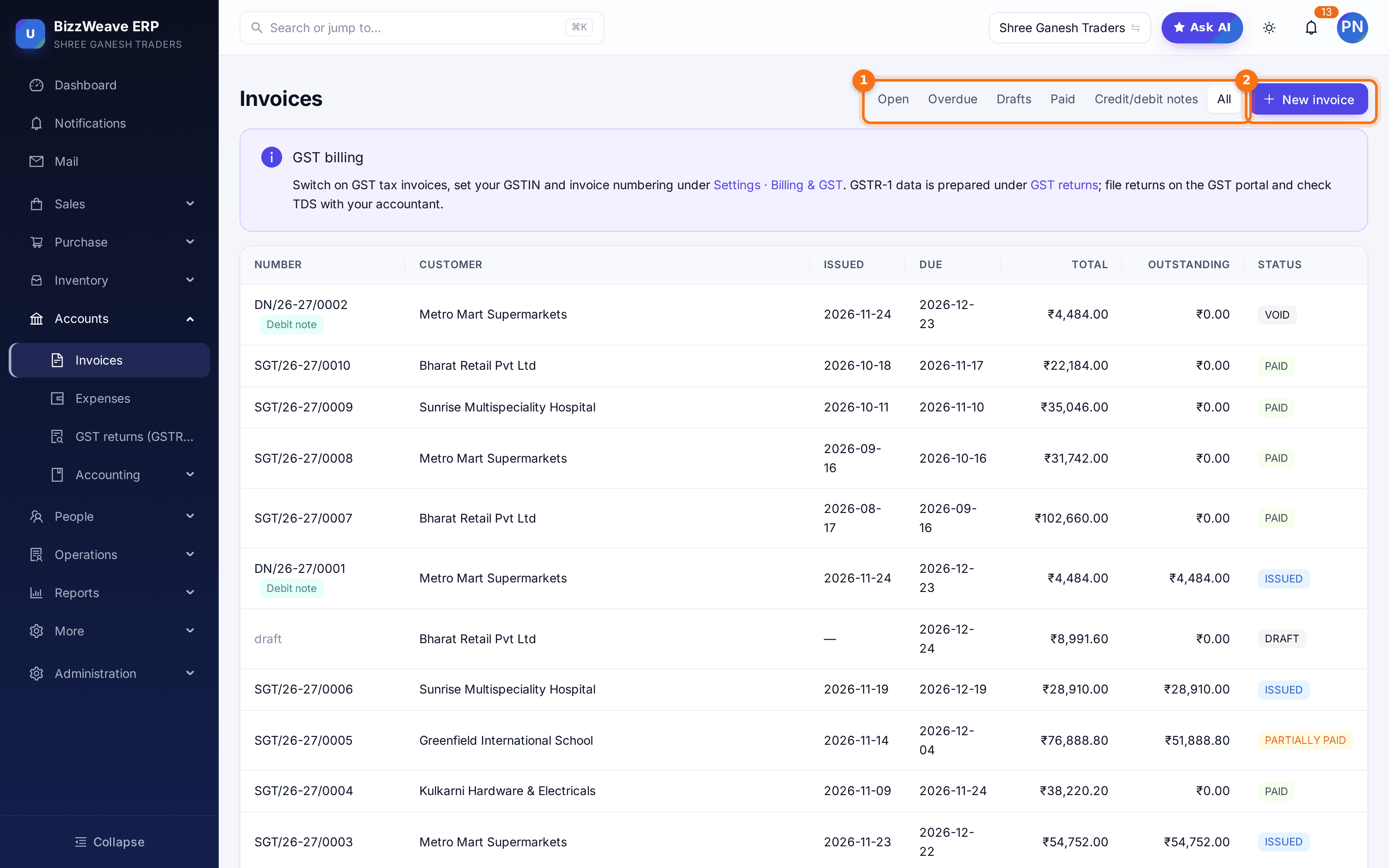
| Filter | What it shows |
|---|---|
| Open | Issued invoices and debit notes that are not fully paid. |
| Overdue | Invoices past their due date that still have money outstanding. Overdue due dates show in red. |
| Drafts | Invoices that are not issued yet. They have no number. |
| Paid | Fully paid invoices. |
| Credit/debit notes | Only credit notes and debit notes. |
| All | Everything. |
The blue box at the top links to Settings · Billing & GST and to the GST returns page.
What the statuses mean
| Status | Meaning |
|---|---|
| DRAFT | Being prepared. You can change or delete it. It has no number and does not count in the accounts or in GST returns. |
| ISSUED | Final. It has a number (for example SGT/26-27/0006) and can no longer be edited. |
| PARTIALLY PAID | Some money received; the rest is still outstanding. |
| PAID | Nothing outstanding. |
| VOID | Cancelled after issue. It keeps its number, and the accounts are reversed. |
Create an invoice
You can create an invoice in two ways:
- From a sales order (recommended when you sell goods): open the order and click Create invoice. The ERP fills in everything delivered and not yet billed. See Sales orders.
- Directly, for example for services or a one-off charge, as described below.
-
Click “New invoice” at the top right of the invoice list.
-
Choose the customer. When GST billing is on, the Customer GSTIN is filled in from the company's Tax ID. Leave it empty for an unregistered customer (a B2C sale, “business to consumer”).

A new invoice for a service. The tag GST next to the title shows that GST billing is on. -
Fill in the header fields.
Field What to enter Example Customer Required. The company you are billing. Kulkarni Hardware & Electricals Due date When payment is due. If you leave it empty, it becomes 30 days after the issue date. 30 days from today Billed from (branch) Only shown when you have branches. The branch's GSTIN and address print on the invoice. Leave empty for the head office. Head office Customer GSTIN The buyer's 15-character GSTIN (GST identification number). Empty for unregistered customers. 27AAJFK5521D1ZJ Place of supply The state where the supply is made. Leave empty: the ERP takes the state from the customer's GSTIN, or your own state. It decides between CGST + SGST (same state) and IGST (another state). 27 - Maharashtra -
Add the lines. For each line, enter:
- Description: what you are billing, for example Annual maintenance contract.
- HSN/SAC: the HSN code (goods) or SAC code (services), 4 to 8 digits. It is required on a GST invoice.
- Qty, Unit (for example pcs, hr, yr) and Unit price (before tax).
- Tax: the GST rate, for example GST 18%.
Click Add line for more lines, or the minus icon to remove one.
-
Add notes (optional). They print on the invoice, for example the contract period.
-
Click “Save draft”. The invoice is saved without a number. The totals appear next to the button: Taxable, the GST split and the Total.
Issue the invoice
A draft is not a bill yet. When it is right, issue it.
-
Open the draft. Check the customer, lines and totals.

1 Issue. 2 Save draft keeps your changes. -
Click “Issue” and confirm. The ERP gives the invoice the next number in the series for the financial year, for example SGT/26-27/0011, records your GSTIN, the buyer's details and the place of supply, and posts the sale to the accounts.
An issued invoice cannot be edited
To correct an issued invoice, raise a credit or debit note. An administrator can also Void an invoice (with a reason, which is kept in the audit trail).
Why does Issue say a line needs an HSN/SAC code?
On a GST invoice every line needs an HSN or SAC code. Open the draft, fill in the HSN/SAC box of the line and save. Tip: give each item its HSN/SAC code under Items & services, so lines created from a sales order get it automatically.
Read an issued invoice
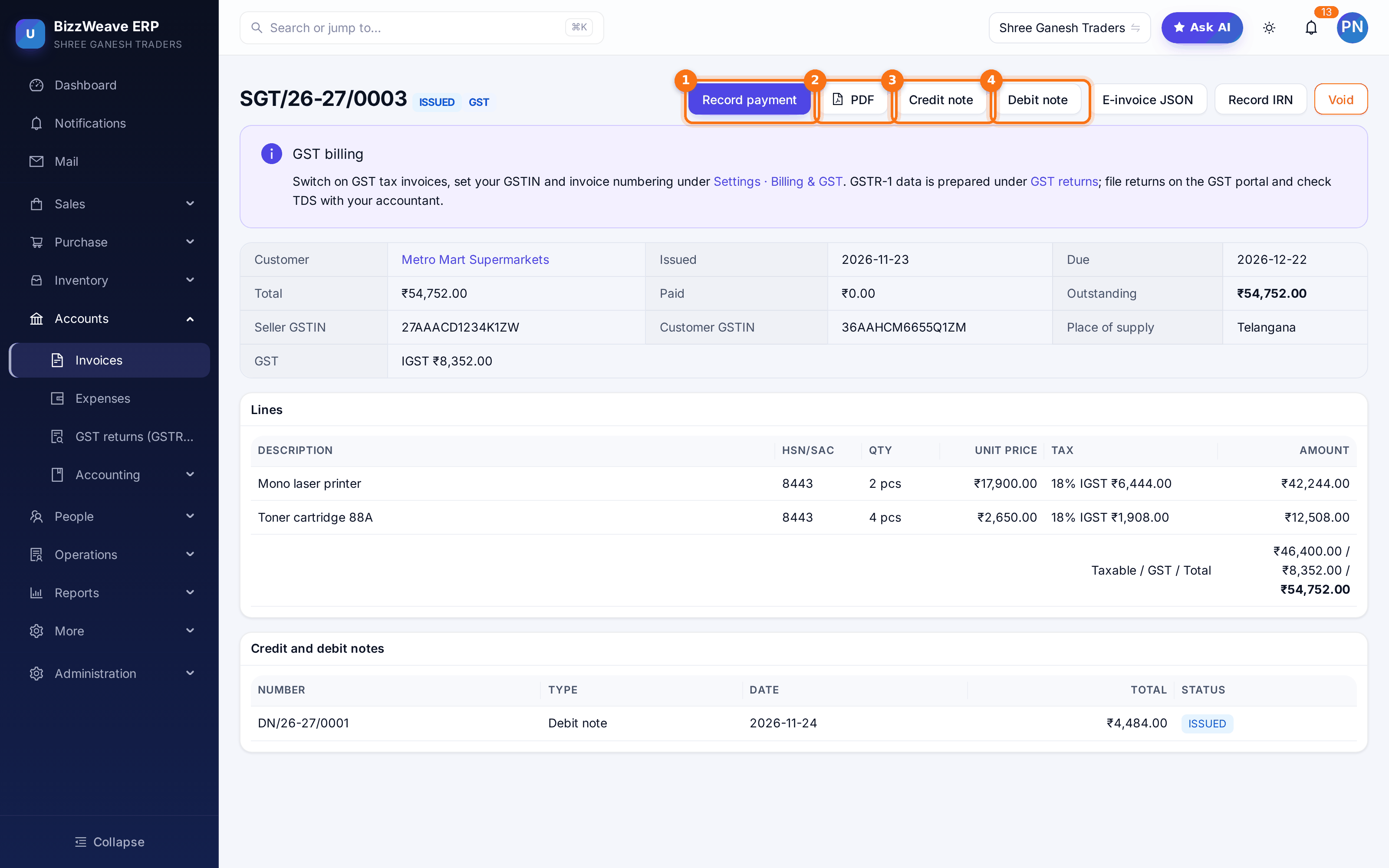
The top box shows the customer, issue and due dates, total, paid, credited and outstanding amounts, the seller and customer GSTIN, the place of supply and the GST split (CGST + SGST within your state, IGST for another state). Below are the lines, any Credit and debit notes raised against the invoice, and the Payments received.
Other buttons you may see:
- E-invoice JSON (GST invoices to registered customers): downloads the invoice in the e-invoice format. Upload it on the government's e-invoice portal (IRP).
- Record IRN: after the portal returns the IRN (invoice reference number, 64 characters) and acknowledgement, enter them here. They then print on the invoice.
- Void (administrators): cancels an issued invoice. Enter a reason.
Print or send the invoice as PDF
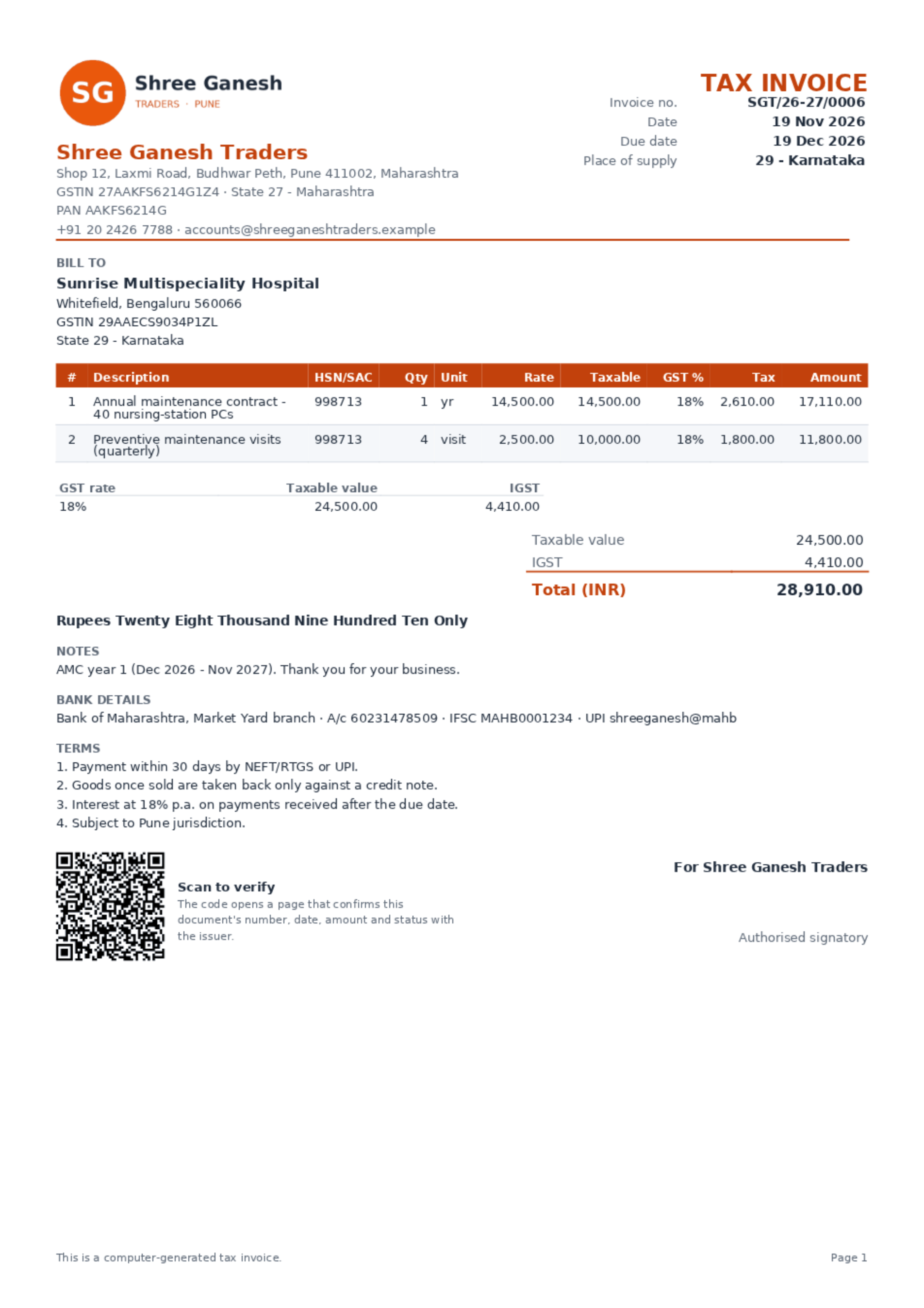
- Open the invoice and click “PDF”. The PDF opens in a new browser tab.
- Print it, or save it and attach it to an e-mail or WhatsApp message to your customer.
There is no “send by e-mail” button
BizzWeave ERP does not e-mail invoices from this page. Download the PDF and send it yourself. Marking it as sent is not needed: issuing the invoice is what makes it final.
Record a payment
When the customer pays, record the payment against the invoice.
-
Open the invoice and click “Record payment”.

The amount starts at the full outstanding amount. -
Check the amount. It starts at the outstanding amount; change it for a part payment. You can't record more than is outstanding.
- Enter the date the money arrived (not in the future), the Method (BANK TRANSFER, UPI, CARD, CASH, CHEQUE or OTHER) and a Reference, for example the NEFT UTR or cheque number.
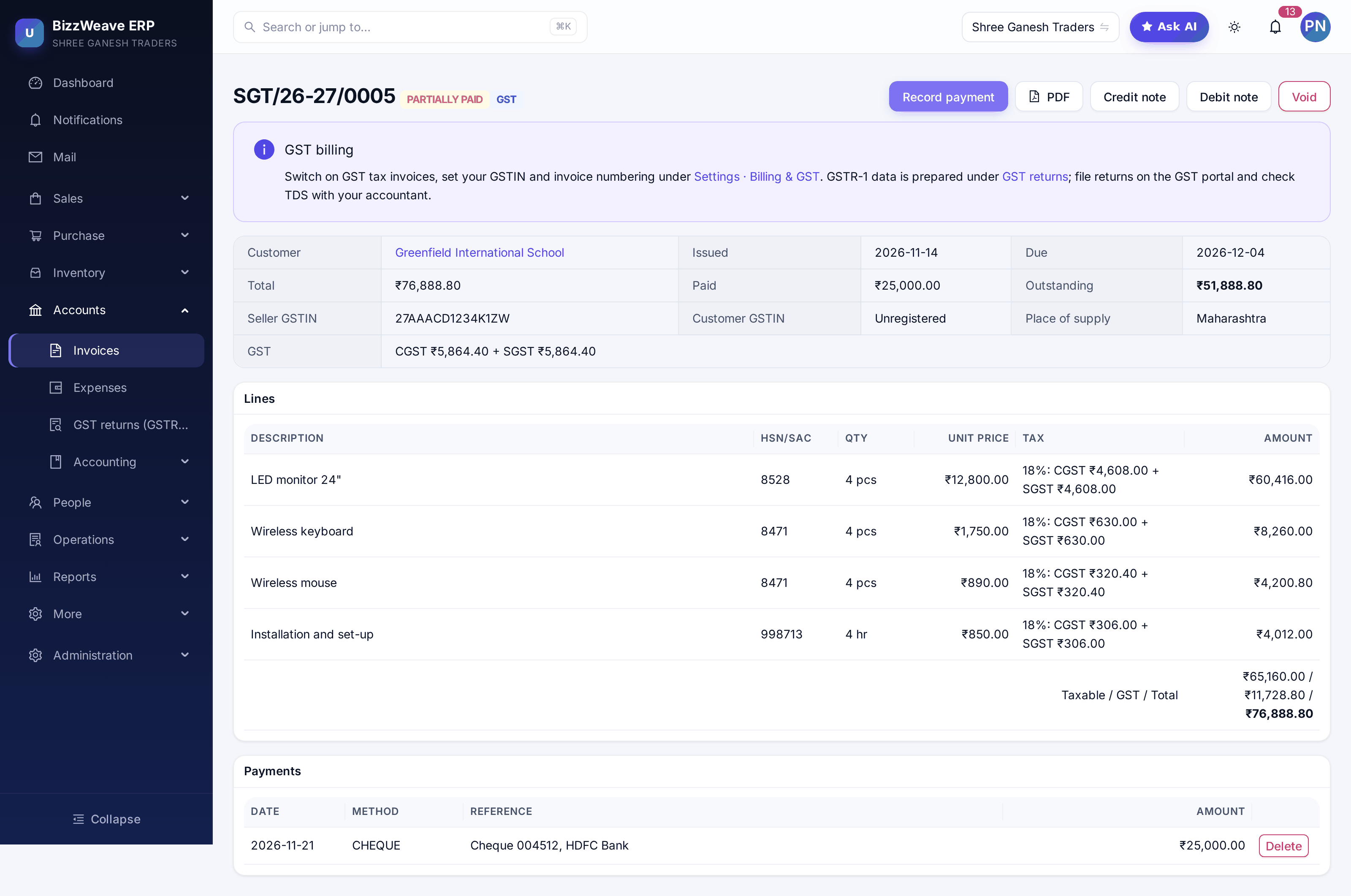
- Click “OK”. The payment appears under Payments, and the status changes to PARTIALLY PAID or PAID.
What happens next
The payment is posted to the accounts (bank or cash against accounts receivable), so it shows in Financial reports. The invoice leaves the Overdue list when it is fully paid. An administrator can delete a wrongly recorded payment from the Payments table.
Raise a credit note or a debit note
Use a note to correct an issued invoice:
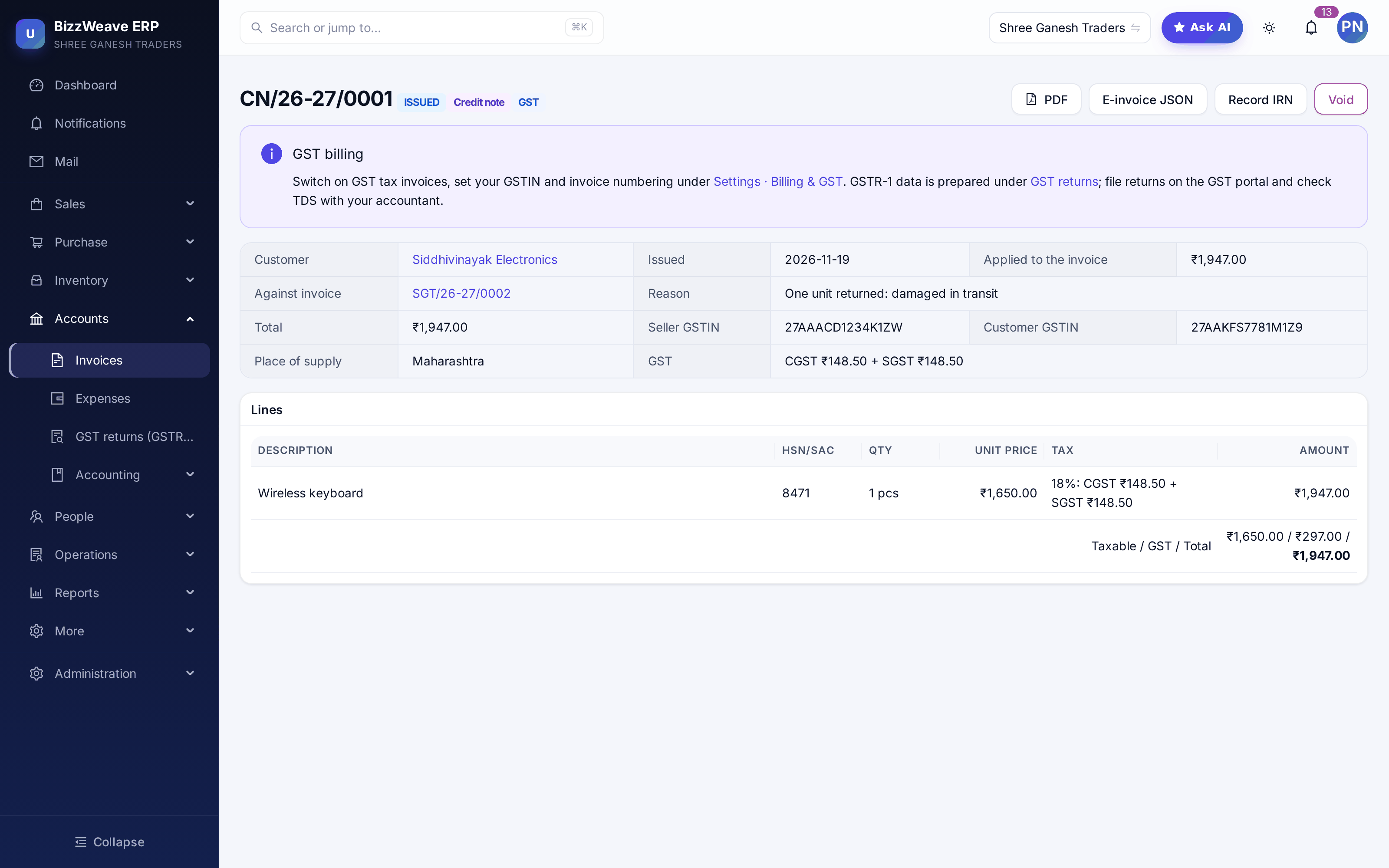
- A credit note reduces what the customer owes, for example for returned goods, a discount after billing or an over-charge.
- A debit note adds to what the customer owes, for example for freight you forgot to bill or an under-charge.
-
Open the issued invoice and click Credit note or Debit note.

Enter the reason; it is printed on the note. -
Enter the reason and click Create draft. The ERP creates a draft note that starts with all the lines of the invoice.
- Adjust the lines so that they show only what you are crediting or charging. For example, for one returned keyboard, keep one line with quantity 1 and delete the others. Click Save draft.
- Click “Issue”. Credit notes are numbered in their own series (for example CN/26-27/0001) and debit notes in theirs (DN/26-27/0001). Issuing a credit note needs administrator rights.
Rules the ERP checks
A note can't be dated before its invoice, a credit note can't be more than what is left to credit on the invoice, and a note to a registered customer keeps the GST details of the original invoice. Notes appear in GSTR-1 under Credit/debit notes (see GST returns).
Common questions
How are invoice numbers formed?
Prefix / financial year / running number, for example SGT/26-27/0004. The prefixes (up to 4 letters or digits) are set under Administration → System → Billing & GST. Numbering restarts every April. Drafts have no number, so deleting a draft never leaves a gap.
Why does my invoice show IGST instead of CGST and SGST?
The place of supply is in a different state from your GSTIN's state. The ERP takes the place of supply from the customer's GSTIN. If the goods are delivered in your state, set Place of supply on the draft before issuing.
Can I change an invoice after I issued it?
No. Raise a credit note or a debit note. If the whole invoice was a mistake, an administrator can Void it.
Who can see invoices?
Administrators and managers. Members and viewers don't see invoices, payments or other people's expenses.
Where do invoices from sales orders come from?
On a sales order, Create invoice makes a draft for everything delivered (and for service lines) that is not yet invoiced. See Sales orders.