Project templates
A project template is a ready-made plan: phases, tasks, durations, dependencies, milestones and roles. Start every new project from a template and it arrives fully planned. This page shows how to manage the template library and make templates of your own.
Before you start
- Open Configuration → Project templates in the Project Management menu.
- Everyone who can see projects can view and export templates. To copy, edit, publish, import or archive templates you need the permission to manage templates, which owners and administrators have.
- Time needed: about 5 minutes to copy a template; longer to design one.
To create a project from a template, see Create a project. This page is about the templates themselves.
The template library
The library lists every template your organisation can use. BizzWeave ERP ships more than 20 templates, from Scrum product development and ERP / software implementation to Building construction (G+N) and Conference / event. Your own templates appear in the same list.
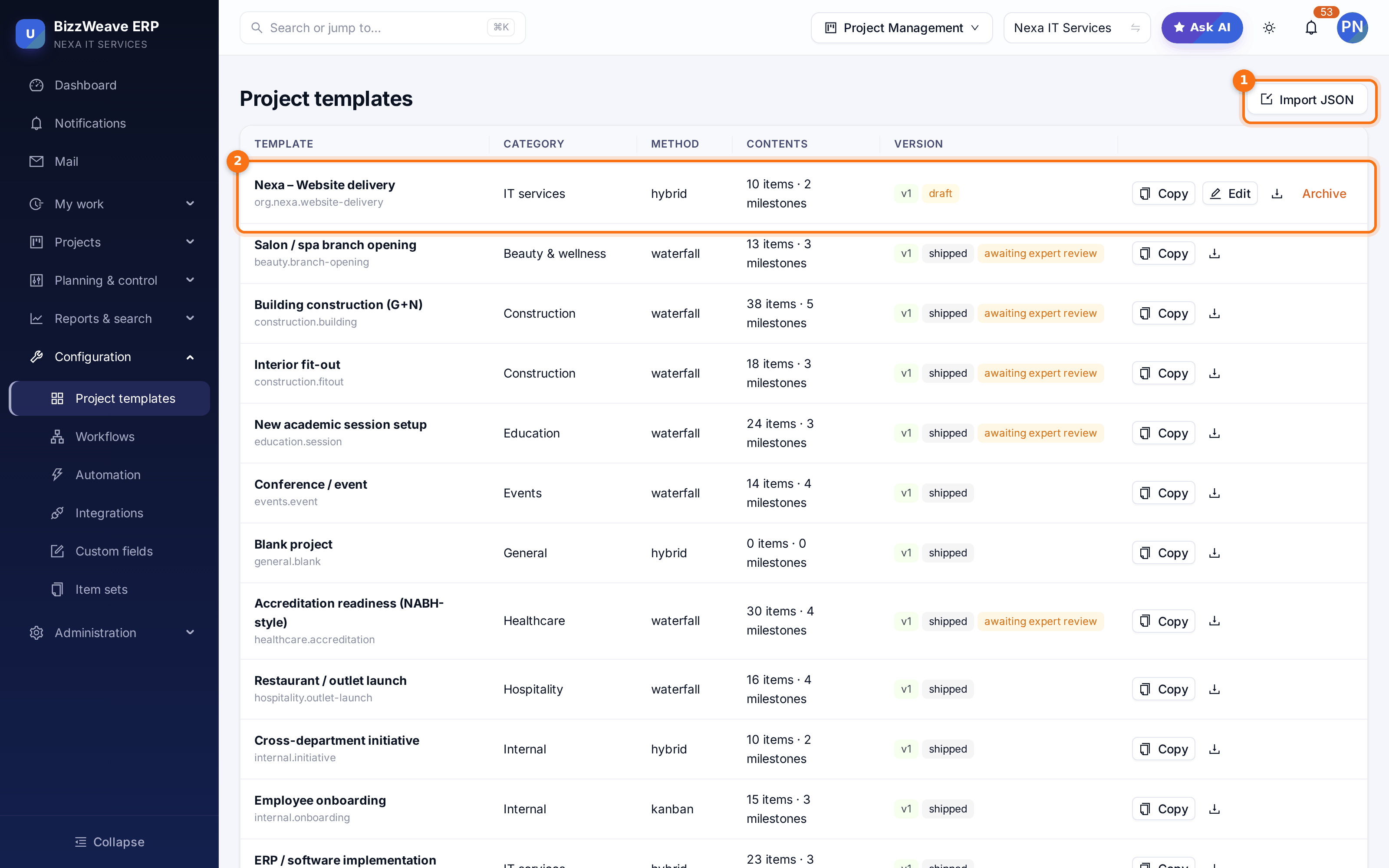
| Column | What it shows |
|---|---|
| Template | The name, and below it the template's key, a short unique code such as it.implementation. Keys of your own templates start with org. |
| Category | The kind of work, for example IT services, Construction or Professional services. The New from template window groups templates by category. |
| Method | How the work is run: waterfall (one phase after another), scrum (sprints), kanban (a continuous flow) or hybrid. |
| Contents | How many items (tasks) and milestones a project gets. |
| Version | Green v1, v2… is the published version that new projects use. draft means someone saved changes that are not published yet. shipped marks a template that comes with BizzWeave ERP. unpublished means the template has never been published. |
The tag awaiting expert review appears on some shipped templates for specialised fields such as construction or healthcare. Their content is still waiting for a review by an expert in that field. You can still use them; the safest way is to copy the template, check it against your own practice and publish your copy.
The buttons on each row:
- Copy: makes an organisation copy of the template and opens it in the editor.
- Edit: only on your organisation's templates. Opens the editor.
- (download icon): exports the template as a JSON file, for example to share it with another organisation.
- Archive: only on your organisation's templates. Removes the template from the list. Projects already created from it are not affected.
Shipped templates are read-only
You cannot edit a shipped template directly. Copy it first, then change the copy.
Make your own template from a shipped one
- Click “Copy” on the template closest to what you need, for example Client engagement / consulting. The message Copied: edit and publish it appears and the editor opens.
- Change the definition in the editor (see the next section): give it your own name, rename tasks, change durations, add or remove items.
- Type what changed in the box at the bottom, for example Our standard website plan. This note is kept in the template's version history.
- Click “Publish”. The copy becomes version 1 and appears in the New from template window for everyone.
Edit a template
A template is stored as a structured text definition (JSON). The editor shows it in full so you can change anything.
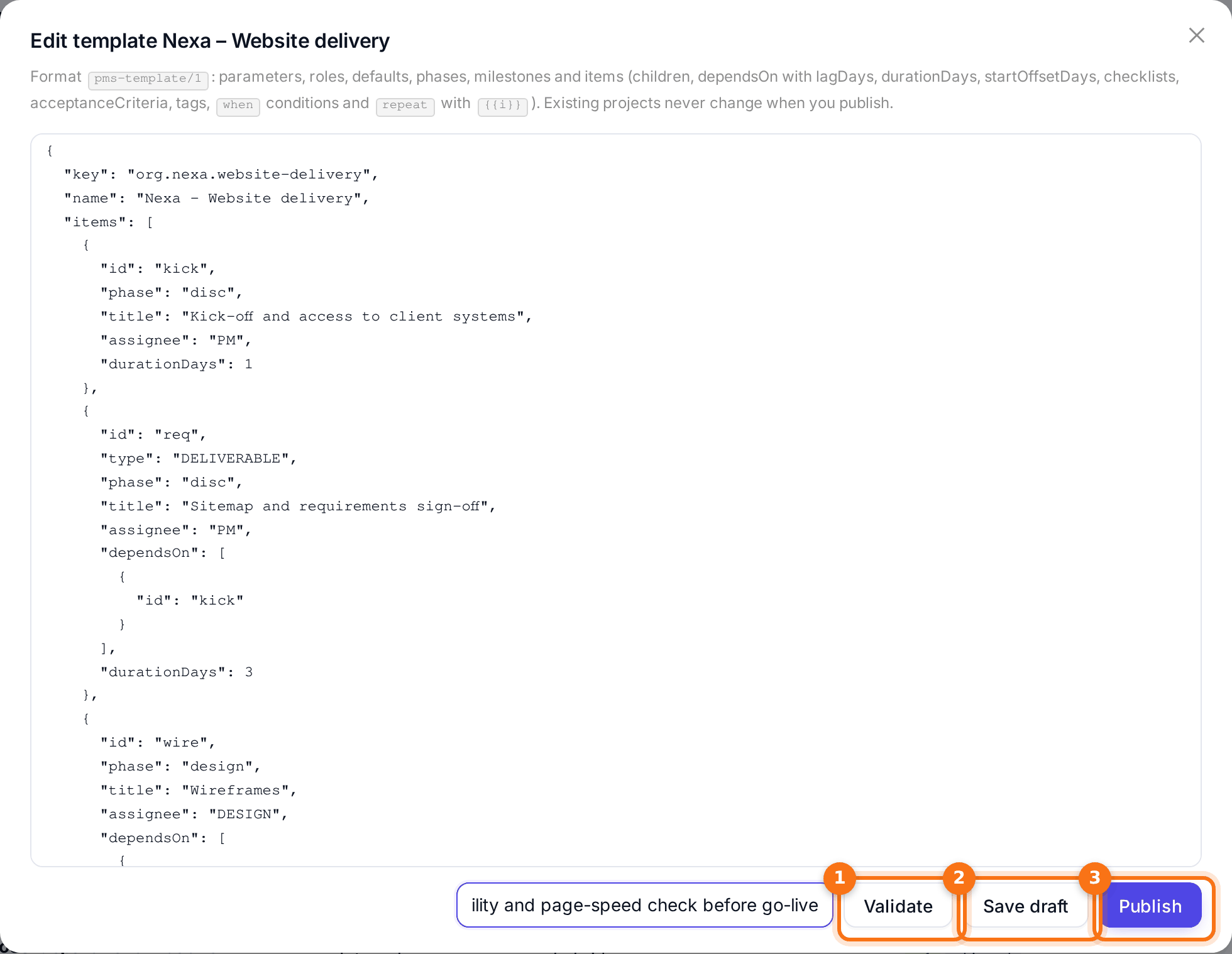
- Click “Edit” on one of your organisation's templates.
-
Change the definition. The most useful parts are:
Part What it holds Example name,descriptionWhat people see in the template list "Nexa – Website delivery"phasesThe stages of the project, in order Discover, Design, Build, Launch itemsThe tasks. Each has an id, atitle, thephaseit belongs to, adurationDays, the role it is assigned to (assignee) anddependsOn(tasks that must finish first, optionally withlagDays)"title": "Wireframes", "durationDays": 4, "dependsOn": [{"id": "req"}]milestonesKey dates, each reached aftersome items, withexitCriteriaWebsite live after Go-live rolesThe roles that receive tasks, such as Delivery manager or Developer. When someone creates a project, they choose a person for each role. {"key": "DEV", "name": "Developer", "projectRole": "MEMBER"}parametersQuestions asked when a project is created, such as Number of page templates. Items can repeat ( repeat, with{{i}}in the title) or be included onlywhena condition holds."repeat": "params.deliverables"defaultsPriority, working days per week, the workflow and the visibility of new projects "workflow": "builtin.task.review"Items can also carry
children(subtasks),checklists,acceptanceCriteriaandtags. -
Click “Save draft” to keep your work. The template shows a draft tag; new projects still use the published version.
- When the draft is ready, type what changed and click “Publish”. The draft becomes the next version (for example v2).
What happens next
New projects created from the template use the newly published version. Existing projects never change when you publish: they keep the plan they were created with.
Validate does not work in QA
In the current test version, Validate answers Request failed (500) for every template, including shipped ones. Saving and publishing still work, and Publish refuses a definition with errors, so you can rely on it to catch mistakes.
Save a running project as a template
A project that went well is a good starting point for the next one.
- Open the project and click the ⋮ (more) button next to the project's status.
- Click Save as template…, check the template name (it starts as the project's name) and confirm.
- The message Saved as a draft template: review and publish it in Project templates appears and the ERP opens Project templates. The new template is in the General category. Open it with Edit, check it, then Publish it.
Only the project's managers can do this, and only if they may manage templates.
Import and export templates
- Export: click the icon on a template row. A file such as
org.nexa.website-delivery.jsondownloads. - Import: click Import JSON, paste the contents of an exported file and click Import. The template is added as a draft (Imported as a draft: publish it to use it). Organisation template keys must start with
org.
Common questions
I changed a template. Why didn't my project change?
Publishing a template affects only projects created afterwards. A project keeps the plan it was created with; change the project itself in its Tree, Gantt and Schedule tabs.
Can I delete a template?
You can Archive your own templates. Shipped templates cannot be archived or edited.
Our new template does not appear when I create a project.
A template must be published at least once. If the Version column shows unpublished, open it with Edit and click Publish.
What are roles for?
Roles let a template assign tasks without knowing your people. When someone creates a project, the ERP asks who plays each role (for example, Developer: Arjun Mehta) and assigns that role's tasks to that person.