Sprint review and retrospective
At the end of every sprint the team holds two short meetings. In the review it shows the finished work to the customer and records their feedback; in the retrospective it looks back on how it worked and agrees what to change. BizzWeave ERP keeps the notes of both with the sprint.
Before you start
- The sprint must have started. You can fill in the review and retrospective while the sprint is still active or after it is completed.
- Team members, and anyone allowed to manage sprints, can edit both. Everyone else can read them.
- Time needed: about an hour for each meeting in a two-week sprint.
Where to find them
Open Projects → Sprints, click the team, choose the Reports tab and pick the sprint in the Sprint box (the active sprint is marked (active)). The Sprint review and Retrospective cards are at the bottom of the sprint report.
Record the sprint review

- Demo notes: write what you showed and to whom, for example “Demo on the Android test build to the bank's digital banking team.”
- Stakeholder feedback: write down what the customer asked for or changed. These are ideas for new backlog items.
- Accept or reject each item. Every item of the sprint is listed. Click Accept if the customer agrees it is done as asked, or Reject if it is not.
- Click “Save” at the top right of the card.
Turn feedback into work
Feedback such as “Statement PDF should show the bank's logo” becomes a new story: add it in the project's Tasks tab and it appears in the team's backlog for the next planning meeting.
Hold the retrospective
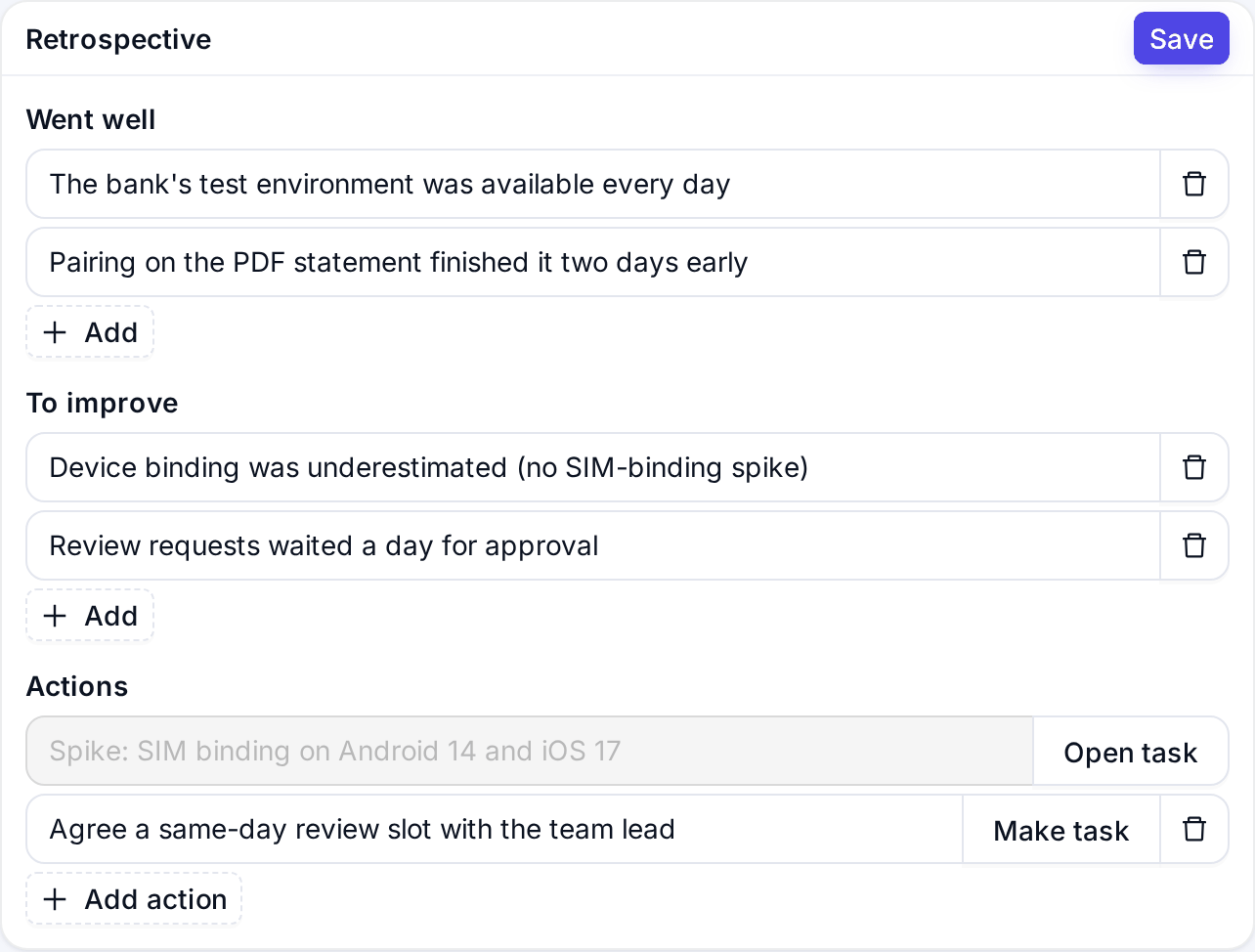
- Went well: click Add and type each point, one per line, for example “The bank's test environment was available every day.”
- To improve: click Add for each thing that slowed the team down.
- Actions: click Add action for each concrete step the team agrees to take, for example “Spike: SIM binding on Android 14 and iOS 17.”
- Click “Save”.
- Make tasks from actions (optional). Click Make task next to an action. The ERP creates a task with that title in the team's project (if the team has several projects, first choose one in New tasks go to). The button changes to Open task, and the action can no longer be edited.
What happens next
Action tasks appear in the project and in the team's backlog, so the improvement is planned like any other work. The review and retrospective stay with the sprint and can be read at any time from the Reports tab.
Common questions
The fields are greyed out
Only team members and people who manage sprints can edit the review and retrospective. Ask the Scrum master to add you to the team.
Does rejecting an item in the review change its status?
No. Accept and Reject record the customer's decision for the sprint. To rework a rejected story, reopen it or add a new story to the backlog.
I deleted a line by mistake
Nothing is saved until you click Save. Reload the page to discard your unsaved changes.