Gantt chart, schedule and planning
See your plan on a timeline, link tasks so that one starts when another finishes, let the ERP work out the dates, and compare today's plan with the one you agreed. The Gantt, Schedule, Programme and Phases & planning tabs of a project cover this.
Before you start
- Open a project from Projects → Projects.
- Anyone on the project can look at the chart. To move bars, link tasks, apply a schedule, change the calendar or save baselines you need planning rights in the project (usually the project manager).
- Words used on this page:
- Dependency: a link saying one task must wait for another.
- Critical path: the longest chain of linked tasks. If any task on it slips, the project finishes late.
- Slack: how many working days a task can slip without delaying the project.
- Baseline: a saved copy of the plan, to compare against later.
- Time needed: about 15 minutes.
The Gantt tab
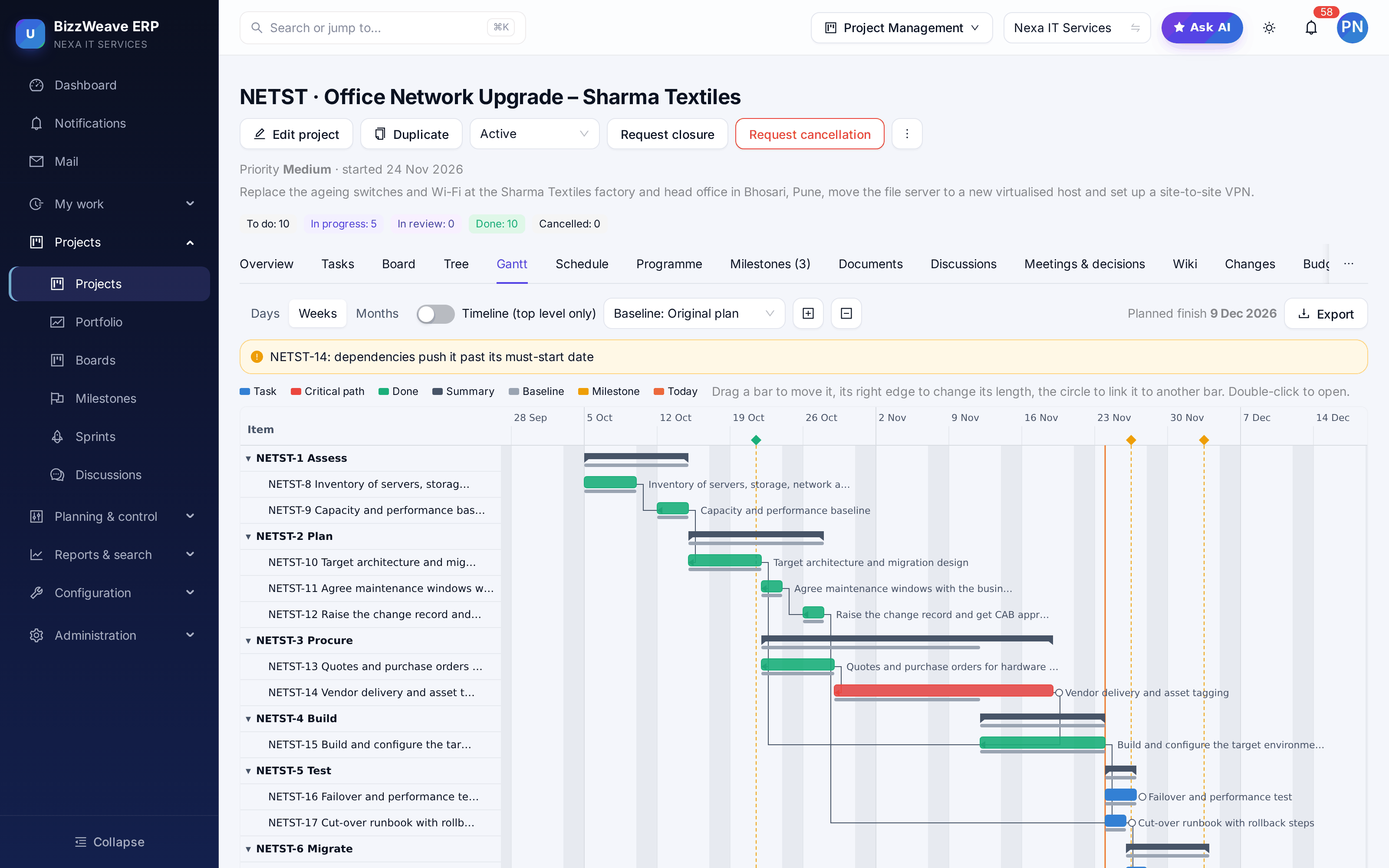
The left side lists the items; click the triangle next to a phase to fold it. The right side shows each item as a bar from its start to its due date, with arrows for the dependencies. The legend explains the colours: Task, Critical path, Done, Summary, Baseline, Milestone and Today.
The toolbar:
| Control | What it does |
|---|---|
| Days / Weeks / Months | The zoom level. |
| Timeline (top level only) | Shows only phases and other top-level items, for a one-line-per-phase overview. |
| Compare with baseline | Choose a saved baseline. A thin grey bar under each task shows where it was in that plan. |
| Expand all / Collapse all | The two square buttons open or fold every phase. |
| Planned finish | The date the last item finishes. |
| Export | Image (PNG), Print / PDF, Spreadsheet (CSV) or MS Project (XML) to open the plan in Microsoft Project. |
A yellow box warns about problems in the plan, for example "NETST-14: dependencies push it past its must-start date".
Change the plan on the chart
- Move a task: drag its bar left or right.
- Change its length: drag the right edge of the bar.
- Link two tasks: drag the small circle at the end of one bar onto another bar. The second task now waits for the first to finish (finish → start).
- Open a task: double-click its bar or click its name on the left.
When you move a bar the message "Dates saved. Successors are not moved automatically; preview them in the Schedule tab" appears. Tasks that depend on the moved one keep their dates until you apply the schedule (below).
The Schedule tab

Auto-schedule
The ERP works out the dates every item should have, given the links, the estimates and the working calendar. It shows the result first and changes nothing until you apply it.
- Look at the four numbers: Schedules from, Planned finish, Items that would move and On the critical path. The Critical path is listed below them.
- Read the table: for every item that would move it shows the dates Now, the Scheduled dates and the Slack. A red critical tag marks critical-path items.
- Switch on Pull work earlier where possible if you want the ERP to bring tasks forward too. Without it, existing start dates are kept as "not before" dates.
- Click Apply N change(s). The message tells you how many items were rescheduled and the new planned finish.
Durations come from each item's dates or, if it has none, from its estimate at 8 hours a day. Work that has started or is done keeps its dates.
Dependencies
Every link in the project, with the Item, what it Depends on, the Type and the Lag (working days). Change the type or lag right in the table:
| Type | Meaning |
|---|---|
| Finish → Start | The item starts after the other one finishes (the usual case). |
| Start → Start | The item starts after the other one starts. |
| Finish → Finish | The item finishes after the other one finishes. |
| Start → Finish | The item finishes after the other one starts. |
Lag adds waiting days, for example 2 days for concrete to cure or a vendor to deliver; a negative lag lets work overlap. New links are added on the Gantt chart or on a task's Dependencies tab.
Scheduling constraint of one task
Open a task, go to its Details tab and use Scheduling constraint in the Planning box: As soon as possible (the default), Start no earlier than, Start no later than, Finish no earlier than, Finish no later than, Must start on or Must finish on, with a date. Tick Manually scheduled to keep the ERP from moving the task at all.
Working calendar
Tick the working days of the week (Mon to Fri by default). Under Holidays and extra working days, pick a date, give it a name (for example Diwali), choose Holiday or Working day and click Add. Click Save to keep the changes. The schedule and the Gantt chart skip holidays.
Baselines
Save a baseline when the plan is agreed, for example with the client.
- In the Baselines card, type a name such as Approved plan and click Save baseline.
-
Later, click Compare next to a baseline.

One task, vendor delivery, finishes 5 days later than planned; four tasks were added after the baseline. -
The comparison shows the project finish then and now, how many items are late, early, added and removed, and each item's Baseline and Now dates with its finish variance (on plan, 5 d late, 2 d early).
The ERP also saves baselines by itself: Start when the project starts (if the project's settings ask for it), Closing when it closes, and After CR-1, After CR-2 … when a change request is carried out. It stops adding automatic baselines once a project has 10. You can delete a baseline with the bin icon.
The Programme tab
A one-page progress view of the project, as of today.
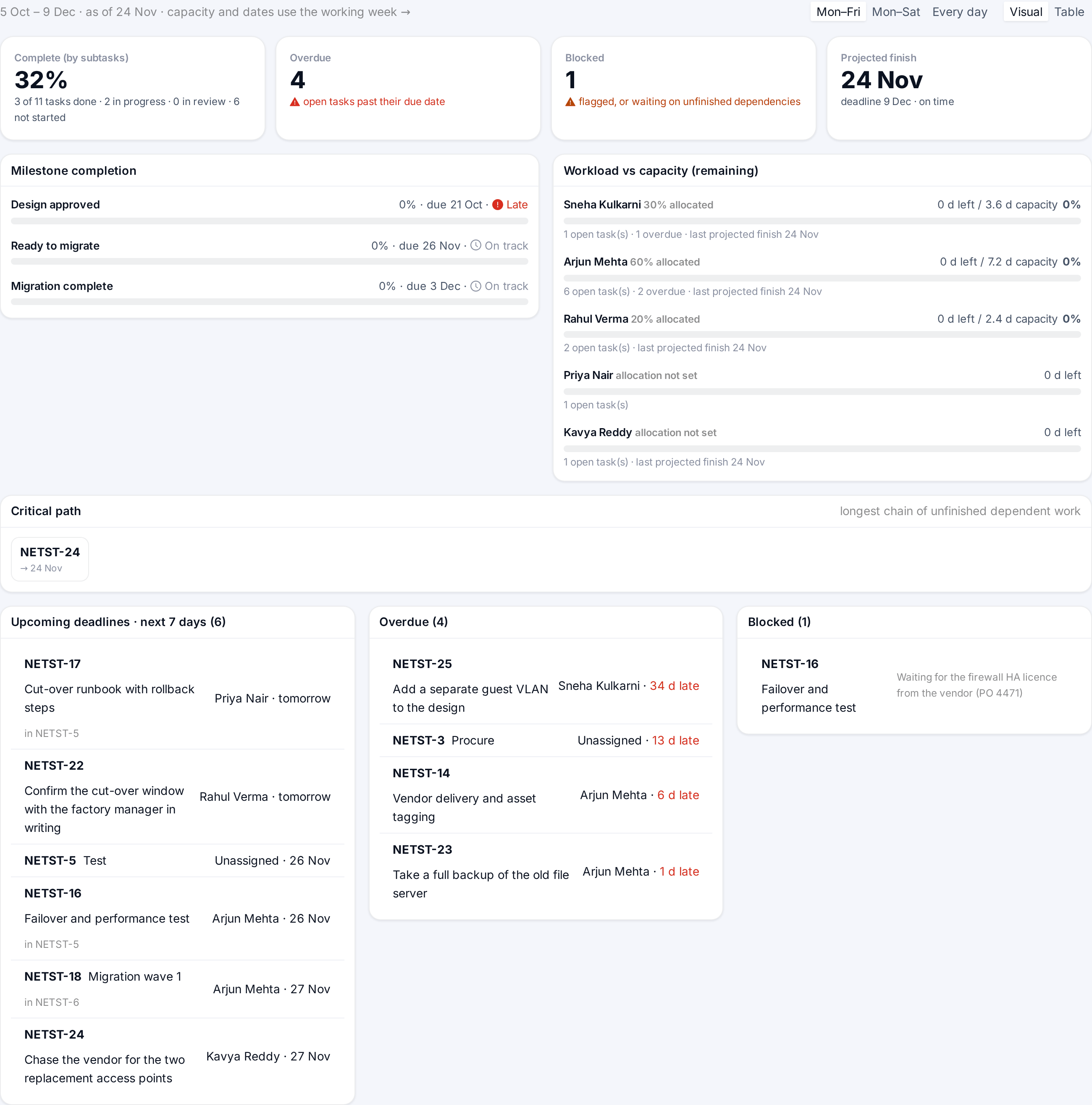
| Part | What it shows |
|---|---|
| Complete (by subtasks) | How far the scheduled top-level tasks are, with how many are done, in progress, in review and not started. |
| Overdue | Open tasks past their due date. |
| Blocked | Tasks flagged as blocked or waiting on unfinished dependencies. |
| Projected finish | When the project will finish at the current pace, against its deadline. If it is later, a red box says so. Deadlines are never changed automatically. |
| Milestone completion | Each milestone with its percentage done, due date and On track, At risk, Late or Done. |
| Workload vs capacity (remaining) | For each person: allocation, open tasks, days of work left, capacity and utilisation. People over 100% are counted as over capacity. |
| Critical path | The longest chain of unfinished dependent work. |
| Upcoming deadlines · next 7 days, Overdue, Blocked | Lists of tasks needing attention; click one to open it. |
Use Mon–Fri, Mon–Sat or Every day to say which days count as working days for capacity and projections, and Visual or Table to switch between bars and tables.
The Phases & planning tab
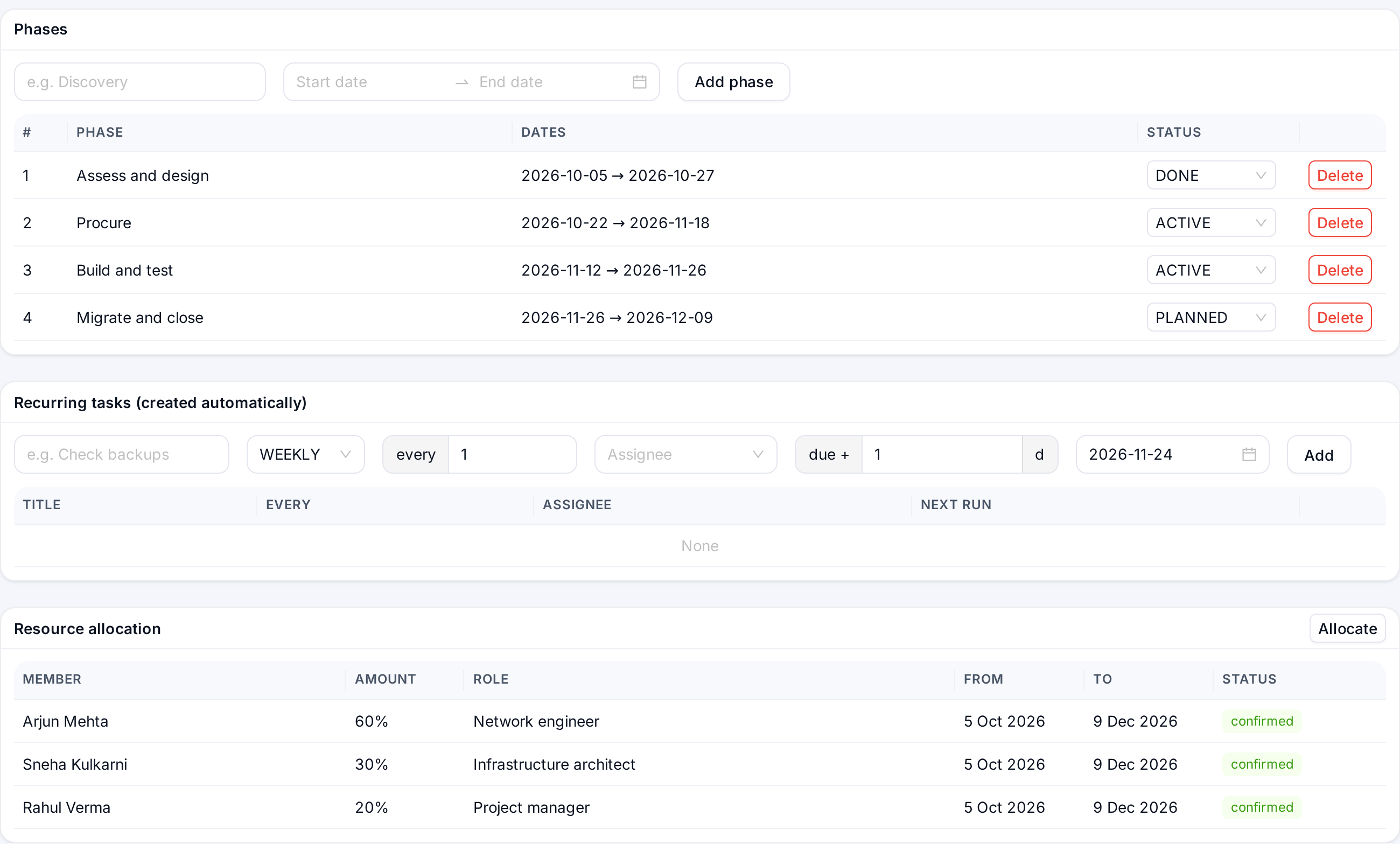
Phases
Phases group the work into stages, such as Assess and design or Migrate and close. Type a name, optionally pick the dates, and click Add phase. Set each phase's Status to PLANNED, ACTIVE or DONE. To put a task in a phase, open the task and choose the Phase in the Planning box of its Details tab.
Recurring tasks
Tasks the ERP creates for you on a schedule, such as a weekly backup check.
- Type the title (for example Check school server backups).
- Choose DAILY, WEEKLY or MONTHLY and how often (every 1, 2 … times).
- Choose the Assignee, the number of days until it is due (due + N d) and the date of the first run.
- Click Add. The list shows when each recurring task runs next.
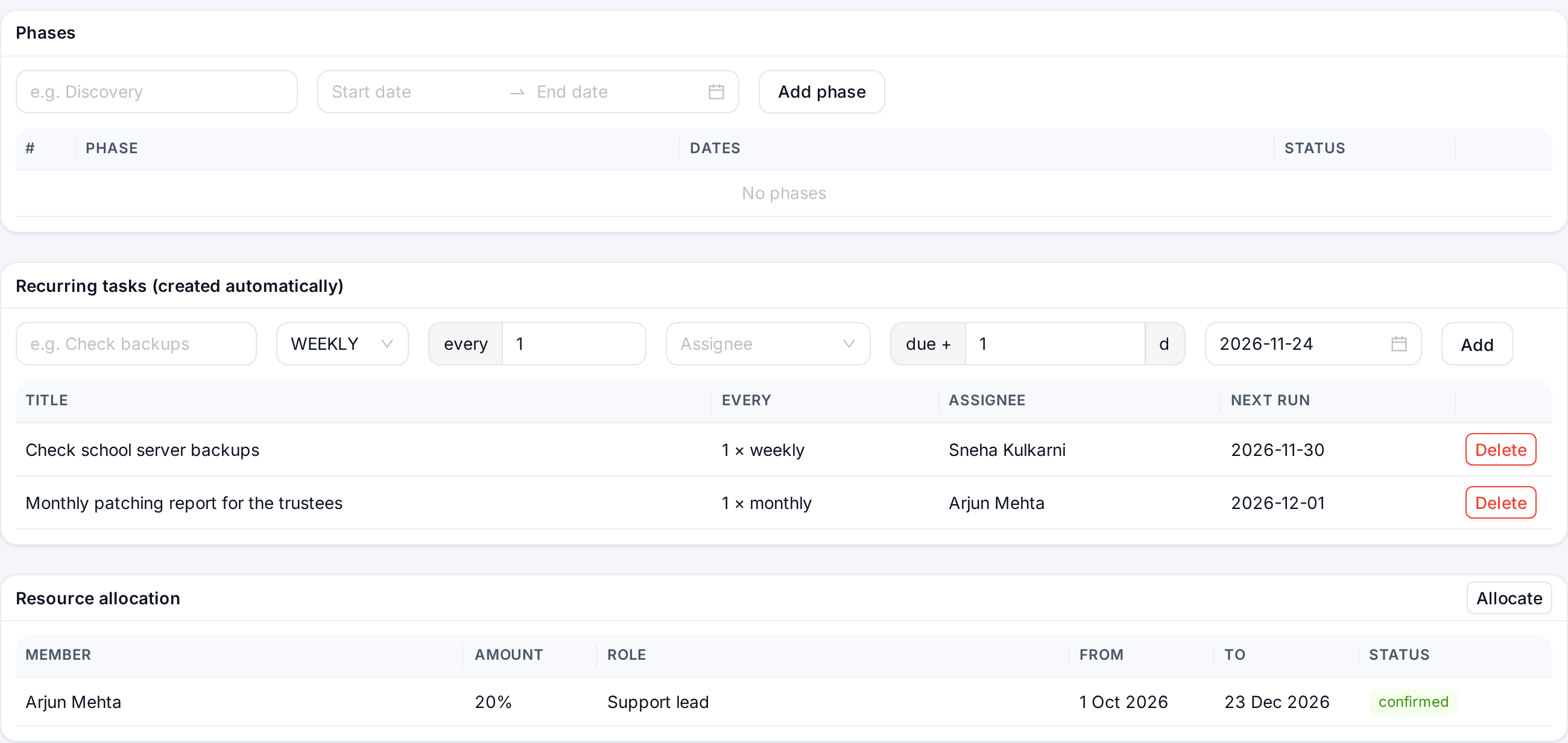
Resource allocation
Who is booked on the project, how much (for example 60%), in which role and for which dates, and whether the booking is confirmed, tentative, awaiting approval or rejected. Project managers click Allocate to add a booking, or click a row to change it. See Resources.
Common questions
I moved a task on the Gantt chart but the next tasks didn't move.
That is on purpose, so nothing changes behind your back. Open the Schedule tab, check the preview and click Apply.
Why is a task red on the Gantt chart?
It is on the critical path: any delay to it delays the whole project.
Can I open the plan in Microsoft Project?
Yes. On the Gantt tab click Export → MS Project (XML) and open the file in Microsoft Project.
Our team works on Saturdays.
Tick Sat in the Working calendar on the Schedule tab and click Save. On the Programme tab choose Mon–Sat as well.