Work, resolve, close and reopen tickets
Keep the requester informed while you fix the problem, record what you did for your colleagues, and close the ticket when the requester is happy.
Before you start
- You need the Work tickets permission (managers and owners have it).
- The ticket should be assigned to you (see Triage).
Ticket statuses
| Status | Meaning |
|---|---|
| New | Raised, nobody has responded yet. |
| Open | The IT team has responded. A reply to a new ticket sets this automatically. |
| In progress | Someone is working on it. |
| Pending | Waiting for the requester or a supplier. A reply from the requester moves it back to Open. |
| Resolved | The IT team believes it's fixed. The resolution clock stops. |
| Closed | Finished. Nothing can be changed any more. |
| Cancelled | Withdrawn by the requester or the IT team. Nothing can be changed any more. |
Reply or add an internal note
- Open the ticket from Assigned to me or the Open queue.
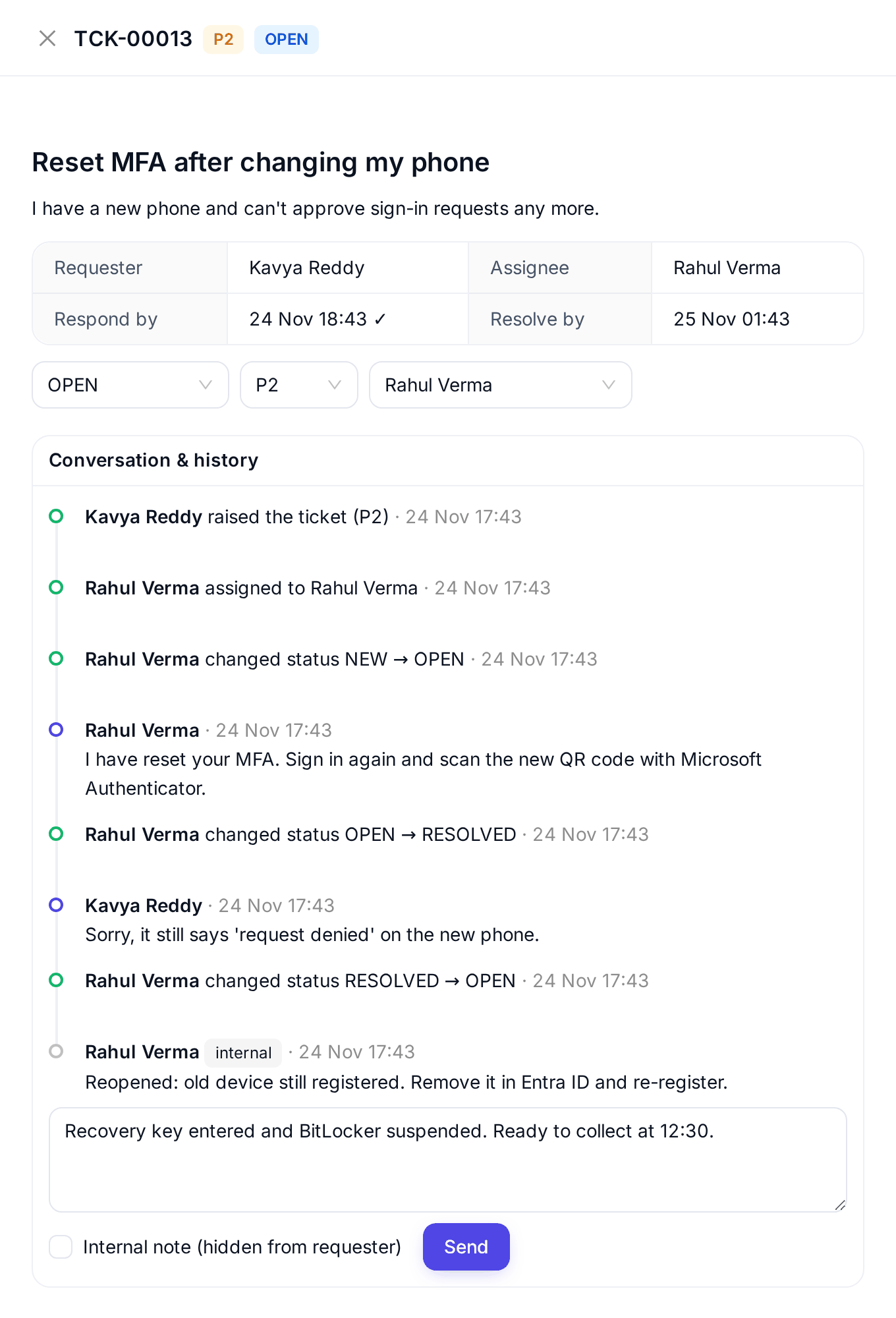
- Type in the box at the bottom of Conversation & history 1.
- Decide who may read it:
- Leave Internal note (hidden from requester) 2 unticked to reply to the requester. Your first reply counts as the SLA's first response.
- Tick it to write an internal note for the IT team only, for example the cause, a supplier's reference number or a password-free hint for the next engineer.
-
Click Send 3.

Internal notes are marked internal in grey and the requester never sees them.
Waiting for the requester?
Ask your question in a reply, then set the status to Pending. When the requester answers, the ticket returns to Open on its own. The SLA clock keeps running while the ticket is pending.
Resolve a ticket
When the problem is fixed:
- Send a reply that says what you did, for example "Cleared the saved credentials and re-created your Outlook profile. Please check now."
- Change the status to Resolved.
The requester sees Confirm resolved on the ticket. When they click it, the ticket is Closed. You can also close it yourself by setting the status to Closed, for example when the requester has confirmed by phone.
Closing is final
A closed or cancelled ticket can't be changed or reopened and takes no new replies. If the problem comes back, raise a new ticket and mention the old number.
Reopen a resolved ticket
If the requester replies that the problem is still there, reopen the ticket: set the status back to Open or In progress. The resolution time is cleared and the ticket returns to the open queue. Requesters can't reopen tickets themselves; they reply and the IT team reopens.
Cancel a ticket
Set the status to Cancelled when a ticket isn't needed, for example a duplicate. The requester can cancel their own ticket with Cancel request while it's still open.
Common questions
Can I link a ticket to an asset or a change?
Not from the ticket. Mention the asset tag (for example NX-LT-005) in the ticket, and the ticket number in the change's description.
Can I edit or delete a reply?
No. The conversation is a permanent record. Send a new reply or internal note to correct it.
Who sees what in the history?
The IT team sees everything. The requester sees replies, status, priority and assignment changes, and SLA entries, but not internal notes.