Raise an IT ticket
When your laptop, e-mail, printer or network access stops working, raise a ticket on the service desk. The IT team sees it at once, and you can follow every step until it's fixed.
Before you start
- You need permission to raise tickets. Members, managers and owners have it; viewers don't.
- Know what is wrong and, if you can, the asset tag on the device (for example NX-LT-003).
- Time needed: about 2 minutes.
Raise a ticket
-
Open the service desk. Choose IT ERP in the category switcher, then open Service management → Service desk. You can also click Raise a ticket on the IT operations dashboard.

An employee's dashboard. 1 Raise a ticket opens the service desk. -
Click “Raise ticket” at the top right of the service desk.
-
Describe the problem in the Raise a ticket window.
Field What to enter Example What's the problem? (required) A short title the IT team can understand at a glance. Webcam not detected in Teams Details What happened, since when, the device's asset tag, error messages and how urgent it is. Since this morning Teams says "no camera found" on my laptop (NX-LT-003). I have a client demo at 4 pm. Category The kind of problem. The category can set a default priority and send the ticket straight to the right person. Hardware Priority How urgent it is, from P1 (highest) to P4 (lowest). Leave it empty to use the category's default, or P3 if there is no category. P2 
A ticket for a webcam problem before a client demo. -
Click “OK”. A message shows the new ticket number, for example TCK-00016.
P1 is set by the IT team
P1 means a critical outage, such as a client site that can't work. If you aren't on the IT team and choose P1, the ticket is saved as P2, and the IT team raises it to P1 if needed.
What happens next
The ticket gets the status New and appears in the IT team's queue. Two deadlines start from the moment you raise it: the time for a first response and the time to resolve it (see SLA targets).
Follow your requests
The My requests tab lists the tickets you raised that are still open or resolved, with their priority, status, assignee and the Resolve by deadline.
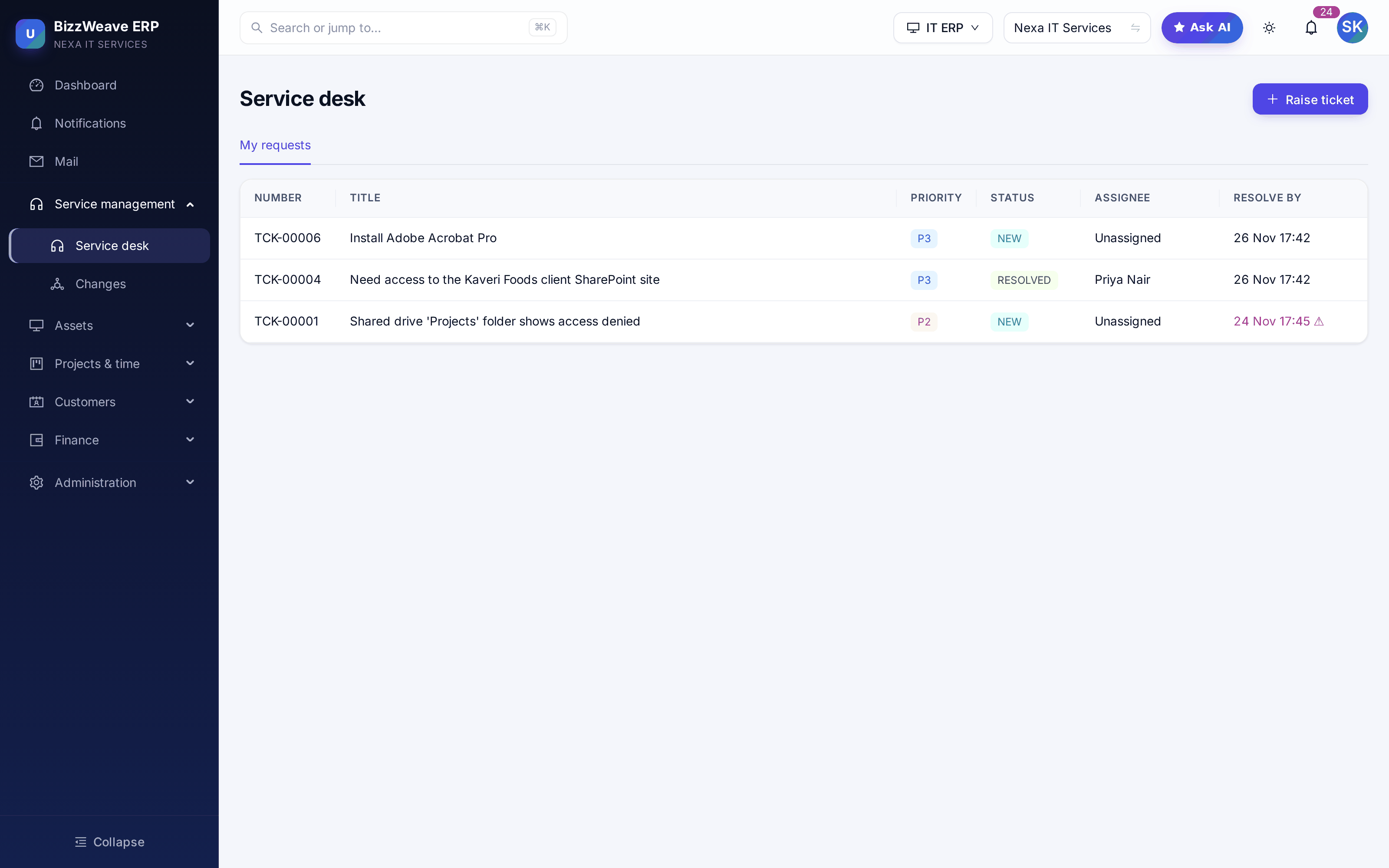
Click a ticket to open it. You see the conversation with the IT team and every change of status, priority and assignee. Internal notes of the IT team are hidden from you.
Confirm, reply or cancel
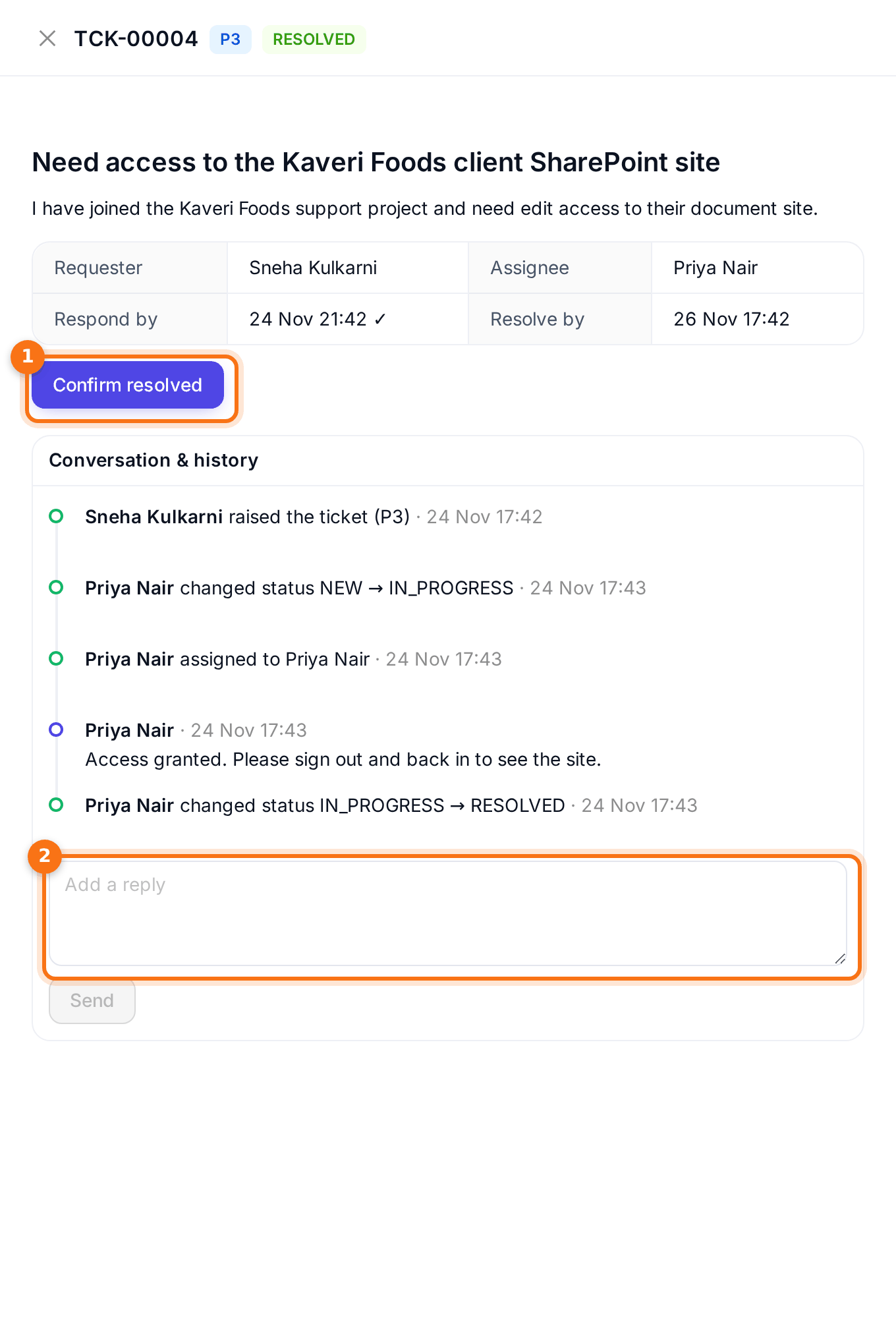
| You want to… | Do this |
|---|---|
| Add information | Type in Add a reply and click Send. If the IT team was waiting for you (status Pending), the ticket moves back to Open automatically. |
| Confirm the fix | When the status is Resolved, click Confirm resolved. The ticket is Closed. |
| Say it isn't fixed | Reply on the resolved ticket, for example "It still fails on the new phone". The IT team reopens it. |
| Withdraw the request | While the ticket is New, Open, In progress or Pending, click Cancel request. The ticket is Cancelled. |
Closed and cancelled tickets can't take new replies. If the problem comes back, raise a new ticket.
Common questions
I don't see the Raise ticket button
Your role doesn't allow raising tickets (for example the Viewer role). Ask your administrator.
Can I see my colleagues' tickets?
No. Employees only see the tickets they raised. The IT team sees every ticket.
Can I attach a screenshot?
Not yet. Describe the error in Details, or reply with the text of the message.