Workflows
A workflow decides how a task moves from start to finish: the states it can be in (such as Triaged or Waiting on client), the actions that move it between states, who may use each action and which actions need an approval. Design workflows here, then choose one for each project.
Before you start
- Open Configuration → Workflows in the Project Management menu.
- You need the permission to manage workflows to see this page; owners and administrators have it.
- To switch a project to a workflow you must be one of that project's managers.
- Time needed: about 10 minutes for a new workflow.
How workflows work
Without a workflow, a task simply has one of five statuses: To do, In progress, In review, Done or Cancelled, and anyone who may edit it can change the status freely.
With a workflow, the task's status is replaced by states and transitions:
- A state is a named step, such as Waiting on client. Every state belongs to one of the five statuses, so reports, boards and filters keep working. For example, Waiting on client counts as In progress.
- A transition is an action button on the task, such as Wait for client. It moves the task from one state to another. A transition can be limited to certain project roles, can have conditions (for example Comment required) and can require an approval.
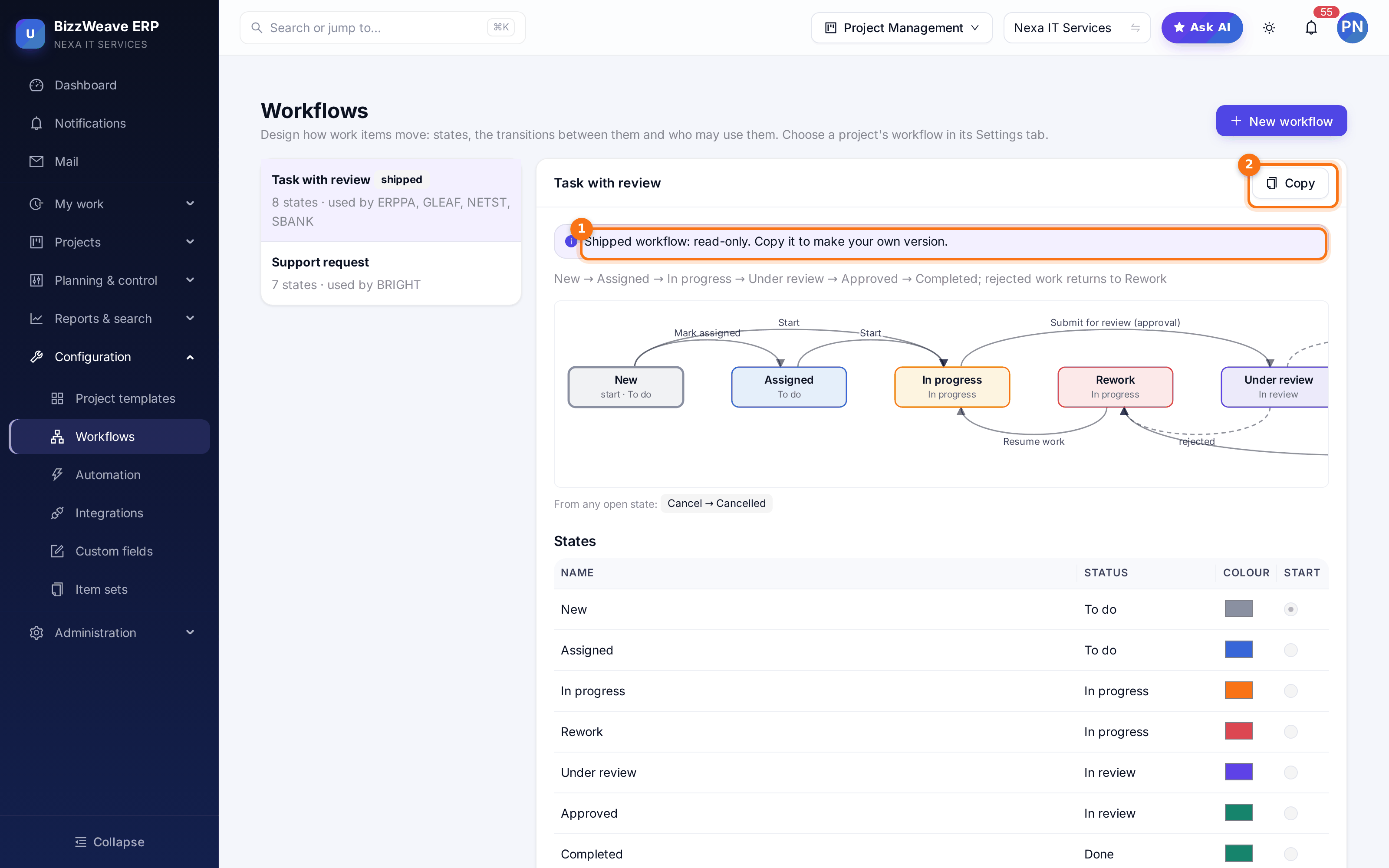
BizzWeave ERP ships one workflow, Task with review: New → Assigned → In progress → Under review → Approved → Completed. Submitting work for review creates an approval request; rejected work goes to Rework. Projects created from most templates use it.
The workflow designer

The left column lists every workflow. Click one to open it on the right:
- the name and description;
- a yellow warning if projects use it (Used by BRIGHT: saving changes applies to those projects at once);
- the diagram: one box per state, coloured by state, with an arrow for each transition. Transitions allowed From any open state, such as Cancel, are listed under the diagram;
- the States and Transitions tables, where you make changes.
Shipped workflows are read-only:
Create a workflow
This example creates Support request for IT support work: New → Triaged → In progress → Waiting on client → Resolved → Closed.
-
Click “New workflow”, type a name such as Support request and click Create.

A new workflow starts as To do → In progress → Done, with Cancel. To start from an existing workflow instead, select it in the list and click Copy.
-
Type a description under the name (optional), for example For support and maintenance work.
-
Set up the states. In the States table:

Seven states. Each one belongs to a status, has a colour, and one of them is the start state. Column What to enter Example Name What people see on the task and on the board Waiting on client Status Which of the five statuses the state counts as: To do, In progress, In review, Done or Cancelled In progress Colour Click the colour box to choose a colour orange Start Select the state new tasks start in. Exactly one state is the start. New Click Add state for a new row. Use the arrows to change the order (the board's columns follow it) and the bin icon to remove a state.
-
Set up the transitions. In the Transitions table, click Add transition for each action:

Eight actions. Close is for project managers and team leads only; Wait for client needs a comment. Column What to enter Example Action The button label people see on the task Wait for client From The state the task must be in. Any open state means any state except Done and Cancelled. In progress To The state the task moves to Waiting on client Who Project roles allowed to use the action: Project manager, Team lead, Member, QA, Finance, Observer. Leave it empty for Anyone who may edit the task. Project manager, Team lead Conditions Checks that must pass first: Someone is assigned, All subtasks done, Not blocked, Comment required Comment required Approval No approval, or an approval policy such as Task review. With an approval, choose the state After approval and After rejection. Task review -
Click “Save”. If something is wrong, a red box lists what to fix, for example a transition that leads to a state that no longer exists. Discard throws away unsaved changes.
What happens next
The workflow appears in the list as not used. Choose it for a project (next section) to start using it.
Use a workflow in a project
- Open the project and click the Settings tab.
-
In the Workflow card, choose the workflow in Items follow. Choose No workflow (simple statuses) to turn workflows off.

1 The project BRIGHT (IT Support Retainer – Brightpath Education Trust) follows the Support request workflow. -
Confirm with Change workflow.
When you change a project's workflow:
- every task gets the state that matches its current status (a task In progress goes to the first state with the status In progress);
- approvals still waiting under the old workflow are cancelled;
- the board's columns follow the new states.
On each task, the workflow's actions appear as buttons under the title (for example Start, Cancel). Tasks waiting for an approval appear in Approvals.
Change a workflow that projects already use
You can edit a workflow that is in use, but the change applies to those projects at once. Tasks in a state you remove move to a state with the same status. A state that waiting approvals lead to cannot be removed until those approvals are decided. A workflow that a project uses cannot be deleted; the Delete button is greyed out and shows which projects use it.
Common questions
The status drop-down on a task disappeared. Why?
The project uses a workflow. Change the task with the action buttons under its title instead. The same applies to bulk changes: the ERP refuses to change the status of workflow tasks directly (This project uses a workflow: change the status with its workflow actions).
Someone cannot see an action button on a task.
Check the transition's Who and Conditions. For example, Close in Support request is only for project managers and team leads, and Triage needs someone assigned.
Can different projects use different workflows?
Yes. Each project chooses its own workflow in its Settings tab. In the example data, four projects use Task with review and the support project BRIGHT uses Support request.