Quotations
Prepare a GST-ready quotation, send it to the customer as a PDF, and turn it into a sales order with one click when the customer accepts.
Before you start
- Where: Sales → Quotations.
- Administrators and managers can create quotations. Accepting a quotation also needs the right to create sales orders.
- Have the customer (a company) and your items with prices and GST rates ready. See Customers and Items & services.
- Time needed: about 3 minutes.
The quotation list
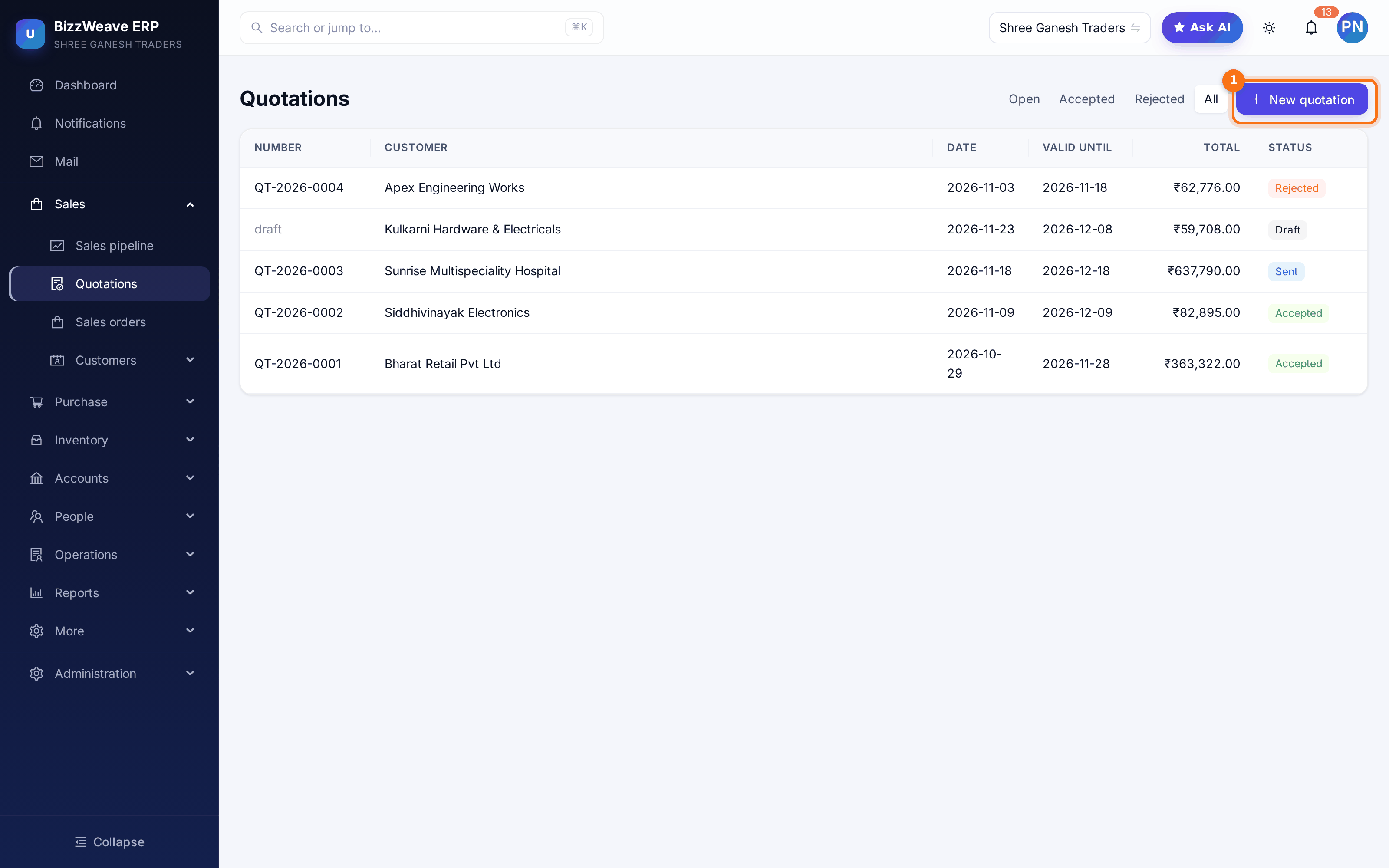
| Status | Meaning |
|---|---|
| Draft | Being prepared. No number yet; you can change or delete it. |
| Sent | Given to the customer. It gets a number such as QT-2026-0003. |
| Accepted | The customer agreed; a sales order was created. |
| Rejected | The customer said no. |
| Expired | Sent, but the Valid until date has passed. The date shows in red. An expired quotation can't be accepted. |
Open shows drafts and sent quotations.
Create a quotation
-
Click “New quotation”, or Make quotation on an opportunity in the Sales pipeline.
-
Fill in the header: Customer (required), Date (today) and Valid until (15 days later by default).
-
Add the lines. For each line:
- Item: pick an item. Its sale price and default GST rate fill in. You can also leave the item empty and type a Description for a one-off line.
- Qty, Price, Disc. % (discount) and Tax.
Click Add line for more lines.

1 Add line. 2 Save draft. 3 Mark as sent. -
Type the terms, for example Ex-warehouse Pune. 100% payment within 15 days of delivery.
-
Click “Save draft”. The total appears next to the button.
Send it to the customer
-
Click “PDF” to download the quotation, and send it to the customer by e-mail or WhatsApp.

The printed quotation with your letterhead, the customer's GSTIN and the GST per line. -
Click “Mark as sent” and confirm. The quotation gets its number and can no longer be edited. If it came from an opportunity, the opportunity moves to Proposal.
Record the customer's answer

- The customer accepts: click Accept → sales order and confirm. A confirmed sales order dated today is created from the quotation, shipping from the default warehouse, and opens. The opportunity moves to Won. Continue in Sales orders.
- The customer declines: click Rejected and type a note, for example Budget deferred to next year.
- You withdraw it: click Cancel (on a draft or sent quotation) and add a note.
The customer wants a change after I sent the quotation
A sent quotation can't be edited. Cancel it and create a new one.
Why is there no Accept button?
Either the quotation has expired (check Valid until) or you don't have the right to create sales orders.