Custom fields
Custom fields add your own information to tasks, projects, risks and issues, such as the client's PO number, whether work is billable, or the agreed go-live date. They appear in the record windows, in lists and searches, and in imports and exports.
Before you start
- Open Configuration → Custom fields in the Project Management menu for fields that apply to the whole organisation. You need the permission to manage workflows (owners and administrators have it).
- Project managers can add fields for their own project only, in the project's Settings tab.
- Time needed: about 2 minutes per field.
The field list

Each row shows the field's label and key, its type, its choices, and which item types it applies to (All or chosen types). The icons on the right edit, archive (hide the field but keep its values) or delete the field. Turn on Archived to see archived fields and restore them.
Add a field
-
Choose the kind of record at the top left (for example Work items) and click “New field”.

The Environment field: one choice from Development, Staging or Production. -
Fill in the form.
Field What to enter Example Label (required) The name people see Environment Key Filled in from the label. Used in searches ( cf.environment) and imports. It cannot be changed later.environmentType See the table below One choice Order Position among the fields; lower numbers come first 20 Choices For One choice and Several choices: click Add choice for each value and pick a colour Development, Staging, Production Only for these item types Work items only. Leave empty for every type, or pick types such as Bug or Deliverable. (empty) Required before the item is completed Work items only. The task cannot be completed until the field has a value. off Help text A hint shown next to the field (an icon) The client's own ticket or PO number The field types:
Type Holds Example Text Free text Client reference: SCB/IT/2026/118 Number A number Story points: 5 Amount (₹) An amount in rupees Contract value: ₹48,50,000 Date A date Agreed go-live date: 8 Dec 2026 Yes / no A switch Billable to client One choice / Several choices Values from a list Effort band: M (1–3 days) Person Someone in the organisation Client contact owner Web link A URL Design file -
Click “Save”.
What happens next
The field appears at once on every matching record, in the Custom fields card.
Fill in custom fields
Open a task and click its Details tab. The Custom fields card shows every field that applies:
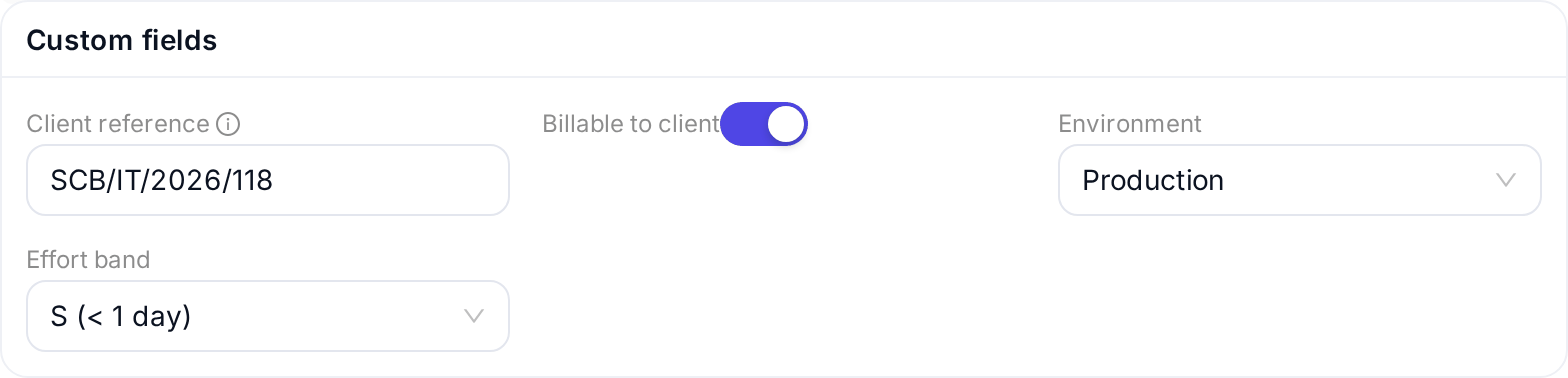
Text and numbers are saved when you leave the box (or press Enter); choices, switches and dates are saved at once. A red * marks a field that is required before the task can be completed.
Project fields appear in the project's Settings tab, in Project details (custom fields). Risk and issue fields appear in the risk and issue windows.
Search and automate with custom fields
- Search: in Search, use the key with
cf., for examplecf.environment = "Production". - Automation: an automation rule can use a field in its condition, or set it with the action Set a custom field.
- Item sets: an item set can carry custom field values.
Fields for one project
In a project's Settings tab, the card Custom fields of this project works like this page but adds fields only to that project. It also lists the organisation-wide fields that already apply there.
Common questions
Should I archive or delete a field I no longer need?
Archive it. Archiving hides the field but keeps the values, and you can restore it. Deleting removes the field and all its values; the ERP tells you how many records hold a value before you confirm.
Can I rename a field?
Yes, change the Label. The Key stays the same, so saved searches and rules keep working.
Who can fill in the values?
Anyone who may edit the task, project, risk or issue. People with read-only access see the values but cannot change them.