Expense claims and reimbursement
Staff submit what they spent for the business, such as travel, meals or office supplies. An approver approves or rejects each claim, and accounts pays the approved claims back in one payout.
Before you start
- Where: in Business ERP, open Accounts → Expenses. In IT ERP and CA ERP the same page is under Finance → Expenses.
- Who: every member can submit and follow their own claims. Approving or rejecting other people's claims needs administrator rights. Paying approved claims (payouts) is for administrators and managers.
- Keep the bill or receipt at hand: you need the date, the amount and the GST included in it.
- Time needed: about 1 minute per claim.
The expenses page
The buttons at the top switch between views. You see only the views your role allows.
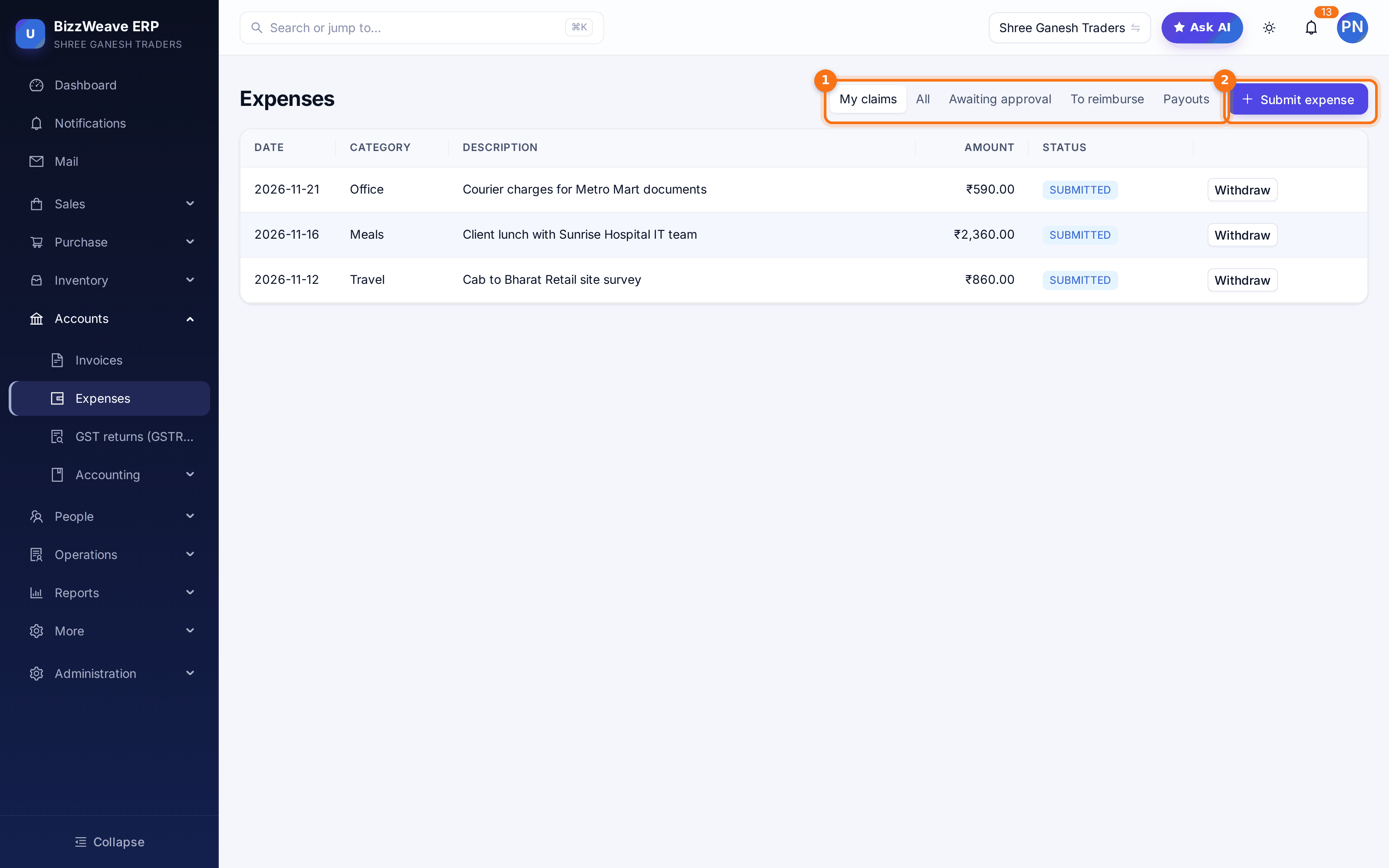
| View | What it shows | Who sees it |
|---|---|---|
| My claims | Your own claims and their status. | Everyone |
| All | Everyone's claims, with who submitted them. | Administrators and managers |
| Awaiting approval | Other people's claims waiting for a decision. | Administrators |
| To reimburse | Approved claims not yet paid back. | Administrators and managers |
| Payouts | Each reimbursement batch you paid. | Administrators and managers |
What the statuses mean
| Status | Meaning |
|---|---|
| SUBMITTED | Waiting for an approver. You can still Withdraw it. |
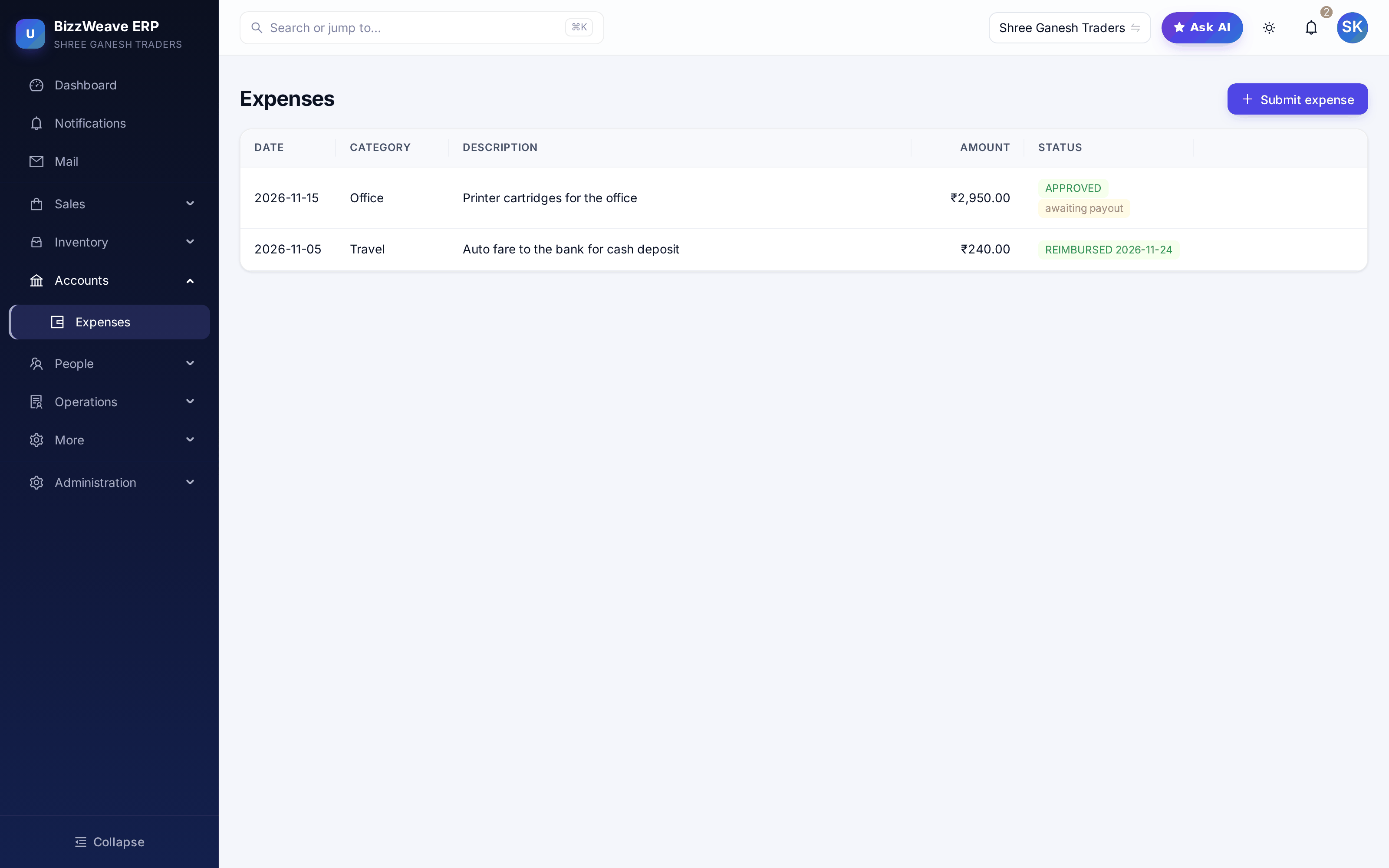
| APPROVED + awaiting payout | Approved; the money has not been paid back yet. |
| REIMBURSED date | Paid back to the employee on that date. |
| REJECTED | Not accepted. Hover over the tag to read the reason. |
Submit an expense
-
Click “Submit expense”.

A travel claim for a cab fare. -
Fill in the claim.
Field What to enter Example Date Required. The day you spent the money (not in the future). 21 Nov 2026 Category Required. Travel, Meals, Software, Hardware, Office, Training or Other. Travel Description Required. What it was for. Cab to Kulkarni Hardware, Nashik Road Amount Required. The full amount you paid, including tax. 1,450 Tax included The GST included in the amount, if the bill shows it. 0 Vendor Optional. The company you paid, if it is in your company list. — -
Click “OK”. The claim appears in My claims as SUBMITTED, and the approvers are notified.
Changed your mind?
While a claim is still SUBMITTED, click Withdraw next to it to remove it.
Approve or reject claims
-
Click Awaiting approval. You see everyone else's submitted claims. (Nobody can approve their own claim, so yours are not listed here.)
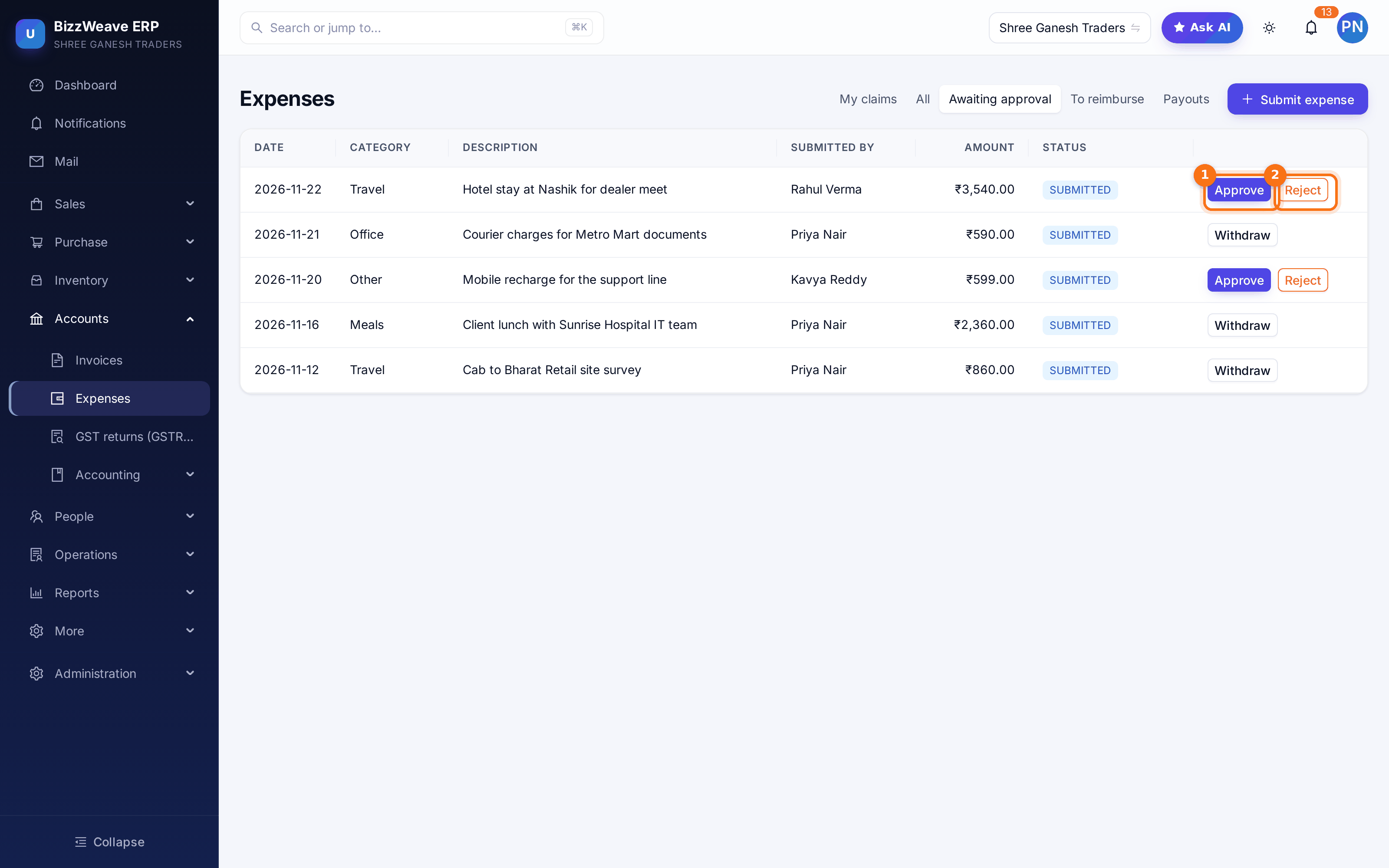
1 Approve. 2 Reject. -
Click “Approve”, or Reject and type the reason. The employee sees the reason on the claim.
You can also approve claims from Operations → My approvals, which collects every decision waiting for you (see My approvals).
What happens next
An approved claim is booked in the accounts as an expense (with the GST as input tax) owed to the employee, and it moves to To reimburse.
Reimburse approved claims
Pay several approved claims back in one go, for example in a weekly bank transfer.
-
Click To reimburse and tick the claims you are paying.
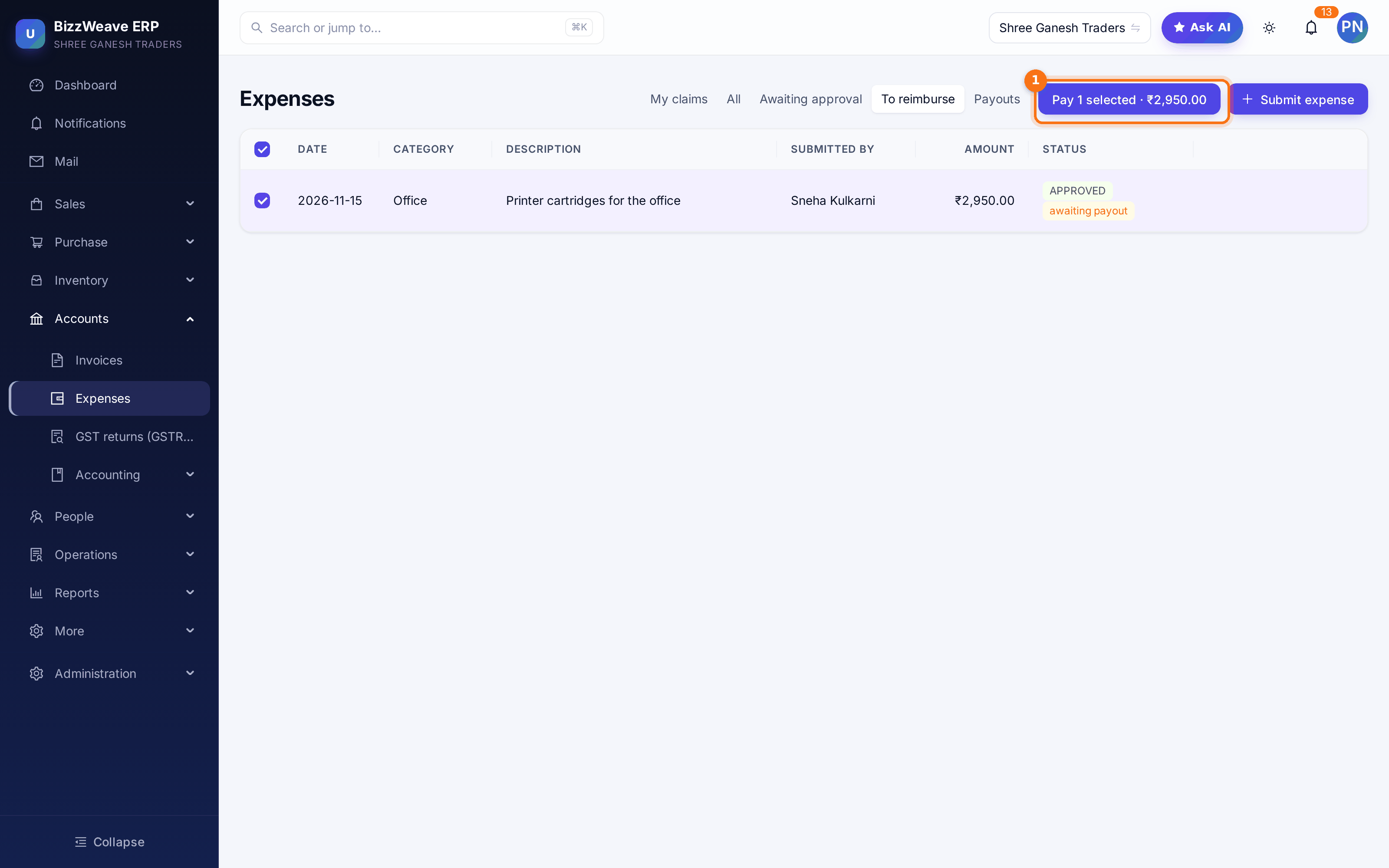
1 The Pay … selected button shows how many claims and the total. -
Click “Pay N selected”.
- Enter Paid on (not in the future, and not before the claims were approved), the Method and a Reference such as the NEFT batch number. Click OK.
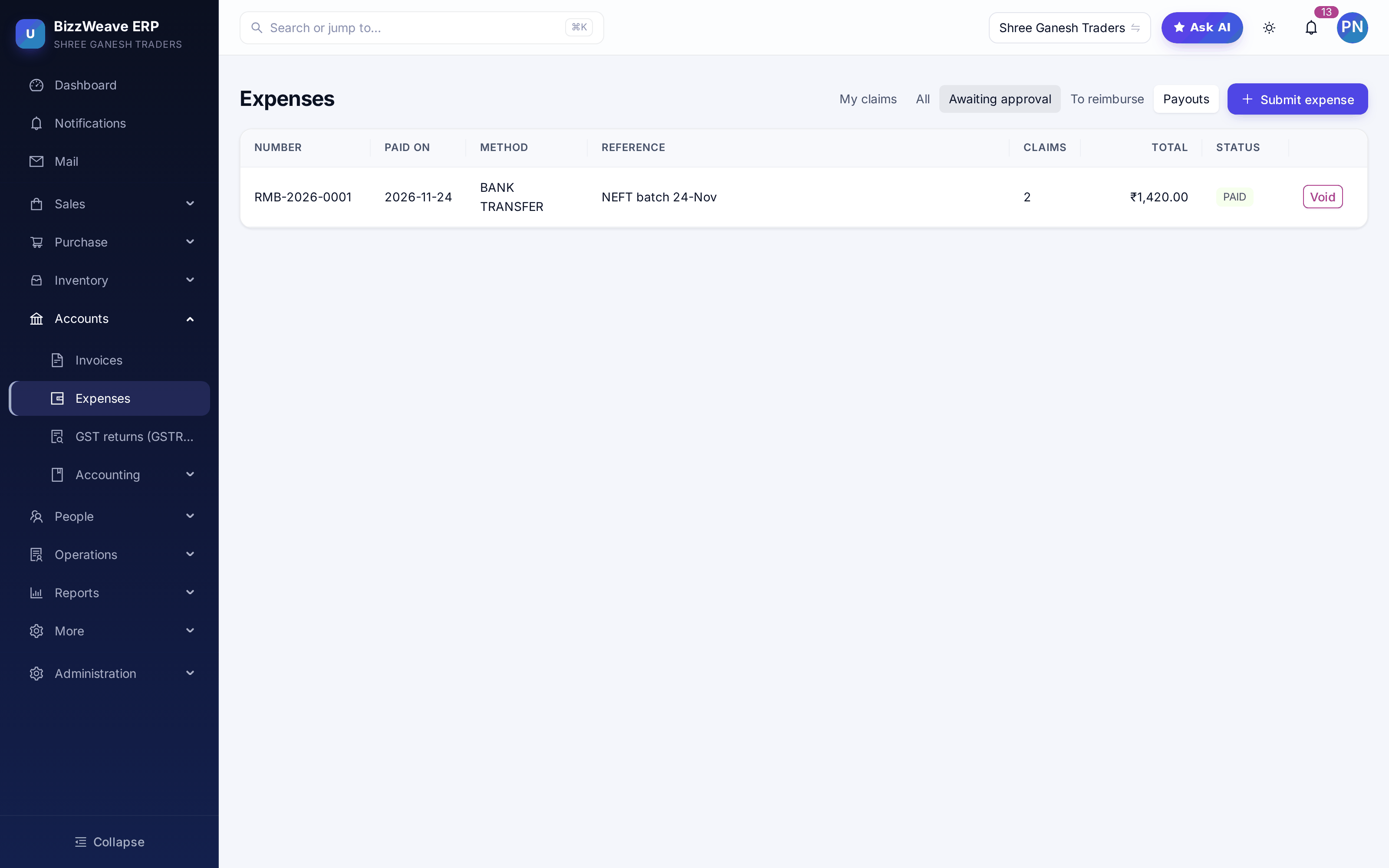
The payout gets a number, such as RMB-2026-0001, and each employee is notified. The claims show REIMBURSED with the date.
What a staff member sees
A member sees only My claims and the Submit expense button.
Common questions
Why can't I approve my own claim?
The ERP never lets anyone approve their own claim. Another administrator must approve it.
Where do expenses show in the accounts?
Approved claims are posted to Operating expenses and Input tax recoverable, against Employee claims payable. The payout then moves the money from the bank. See Journals and Financial reports.
Can I attach a photo of the receipt?
Not on this page. Keep the receipt with your accounts team.