Automation rules
Automation rules do routine work for you. Each rule says when something happens (or every day at a set hour), if the task matches a condition, then do one or more things, such as notify the managers, set the priority or assign someone.
Before you start
- Open Configuration → Automation in the Project Management menu.
- Everyone can see the rules. To create rules you need the permission to manage automation. Owners and administrators can make rules for every project; project managers can make rules for their own projects.
- Time needed: about 5 minutes per rule.
The rules page
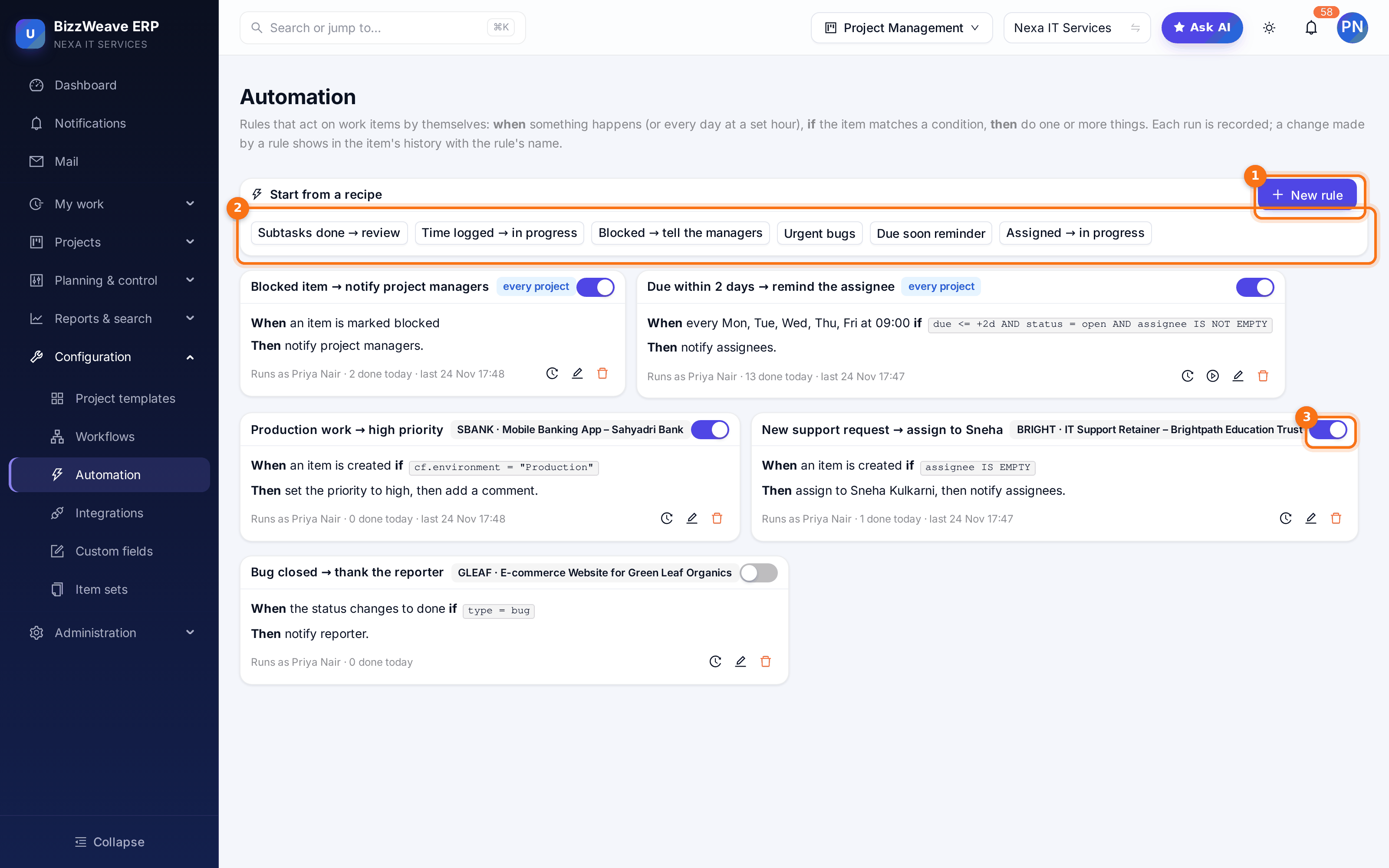
Each rule is a card:
- the title, and the project it applies to (or every project);
- When … if … Then … in plain words, for example When an item is created if
assignee IS EMPTYThen assign to Sneha Kulkarni, then notify assignees; - Runs as Priya Nair · 1 done today · last 24 Nov 17:47: the person the rule acts as, how often it ran today and when it last ran;
- buttons: Runs (history), Run now for today (daily rules only), Edit and Delete.
The recipes are a quick start:
| Recipe | What it does |
|---|---|
| Subtasks done → review | When the last subtask finishes, moves the parent to In review and adds a comment. |
| Time logged → in progress | The first time entry on a To do task moves it to In progress. |
| Blocked → tell the managers | When a task is marked blocked, notifies the project managers. |
| Urgent bugs | A new bug with priority Urgent gets the tag hotfix and the managers are told. |
| Due soon reminder | Every weekday at 09:00, reminds assignees of open tasks due within two days. |
| Assigned → in progress | When someone is assigned to a To do task, moves it to In progress. |
Create a rule
This example tells the managers of Office Network Upgrade – Sharma Textiles when a task is blocked.
-
Click the recipe “Blocked → tell the managers” (or New rule to start empty). The New automation rule window opens.

A rule built from a recipe and tried on task NETST-14: The item matches; the rule would: notify project_managers. -
Name the rule and choose where it applies. In the top row, type the Rule name, choose Every project or one project, and leave the switch On.
-
When: choose what starts the rule:
Trigger Extra settings An item is created – The status changes optionally from and to a status A field changes which field: Priority, Assignee, Due date, Start date, Estimate, Title or Milestone Someone is assigned, A comment is added, Time is logged, All subtasks are finished, An item is marked blocked – Every day at a set hour the hour (organisation time) and the days of the week -
If (optional): type a condition in the search language, for example
type = bug AND priority >= highorcf.environment = "Production". Leave it empty to act on every item. A daily rule needs a condition, such asdue <= +2d AND status = open. Click Search language help to see the language. -
Then: choose one or more actions (up to 10). Click Add action for another.
Action What to fill in Set the status the status Set the priority Low, Medium, High or Urgent Assign A named person, Its reporter, Its owner, Person who made the change or Nobody (unassign) Add a tag the tag, such as hotfix Set a custom field the custom field and the value Add a comment the text; {{key}},{{title}}and{{actor}}are filled inNotify people roles (Assignees, Owner, Reporter, Watchers, Project managers, Person who made the change) and/or named people, and the message Add a subtask the title and due in so many days Block or unblock Block (with a reason) or Unblock Actions run in order, as you (the person who saves the rule) with your rights at that moment. If one fails, none are kept.
-
Try it. Under Try it, pick a task and click Try on this item. The ERP tells you whether the task matches and what the rule would do. Nothing is changed when you try a rule.
-
Click “Save rule”.
What happens next
The rule runs on its own from now on. A change made by a rule shows in the task's History with the rule's name.
Check what a rule did
Click Runs on a rule card to see its last runs.
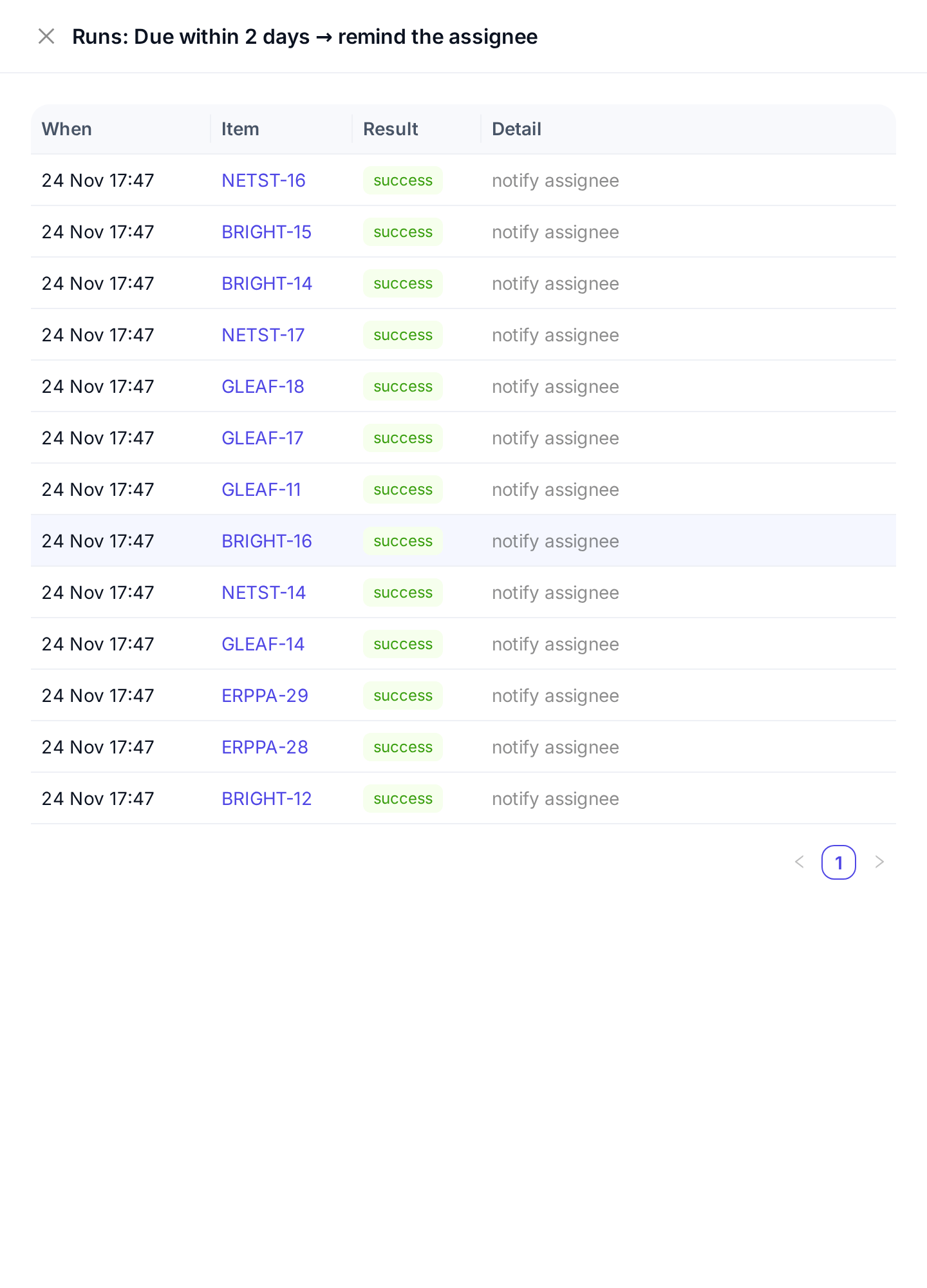
| Result | Meaning |
|---|---|
| success | The actions ran. Detail lists them. |
| failed | An action failed, for example because the person the rule runs as lost a permission. Detail shows the error. |
| skipped | The item did not match, or nothing needed doing. |
| limited | A safety limit stopped the run (see below). |
For daily rules, click Run now for today to run the rule at once instead of waiting for the hour. A daily rule runs only once a day; if it already ran, you see It already ran today.
Safety limits
- A rule runs at most 100 times an hour.
- Changes made by rules can set off other rules, but only three levels deep; after that the chain stops.
- A daily rule acts on at most 200 items a day.
- After 20 failures in a row, a rule switches itself off and the card explains why. Fix the cause and turn it back on.
- An organisation can have up to 200 rules.
Rules for one project
Project managers can also see and create the rules for their project in the project's Settings tab, in the Automation card. These are the same rules as on this page, filtered to the project.
Common questions
Who does the rule act as?
As the person who last saved it, with that person's rights at the time it runs. That's why editing a rule shows Edit (you become the person it runs as).
My rule does nothing. What should I check?
Open Runs. If it is empty, the trigger never happened or the rule is off. If it says skipped, the condition did not match: use Try it on a task you expected it to act on.
Can a rule change the status of a task that follows a workflow?
The rule acts with the normal rules of the project, including its workflow. If the workflow does not allow the change, the run fails and the reason appears in Runs.