Inside a task
Click any task to open its panel. Everything about the job is in one place: who does it, when it is due, the checklist, sub-tasks, files, documents from the client and every comment.
Before you start
- Open Work → Compliance tasks and click a task, or click a task on the Calendar or on a client's Tasks tab.
- To change a task you need the Member role or higher. Viewers see the same panel without buttons.
The top of the panel
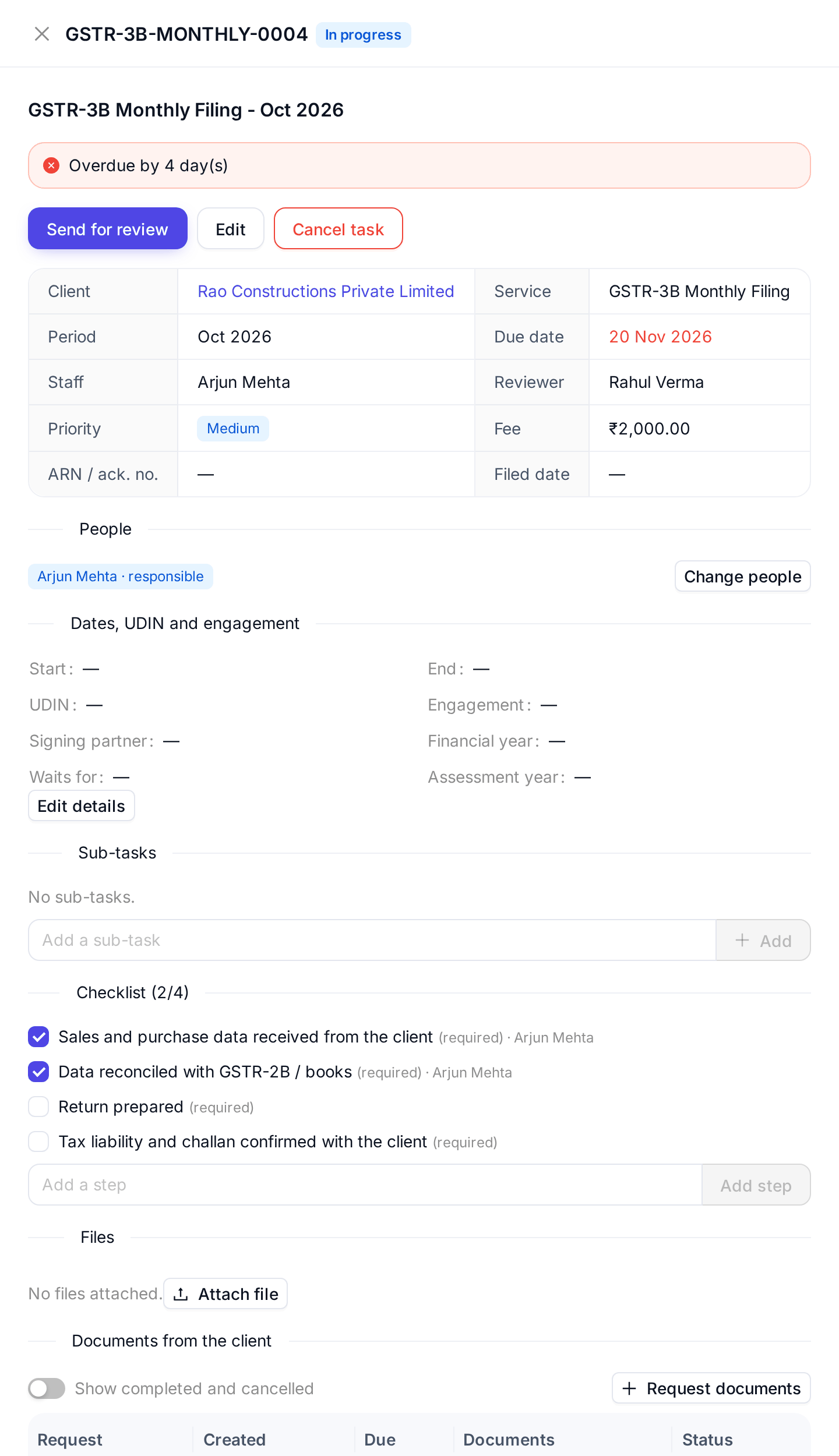
From top to bottom:
- Task number and status, for example GSTR-3B-MONTHLY-0004 · In progress.
- Title, then coloured notes when something needs attention: Overdue by N day(s) in red, Sent back by the reviewer with the reviewer's note in yellow, or the reason a task was Cancelled.
- Buttons for the next step, which change with the status: Start, Send for review, Approve, Send back, Mark done, Edit, Cancel task and, for administrators, Reopen or Delete. See Review and filing.
- The details table: client (click to open the client), service, period, due date, staff, reviewer (No review needed when the service doesn't need one), priority, fee (Not billed separately for retainer clients), and the ARN / ack. no. and Filed date for returns that are filed.
Edit the task
Click Edit to change the Title, Due date, Priority, Staff member, Reviewer and Notes. People who can create invoices also see Fee (₹) and Billed separately. Only open tasks can be edited.
People
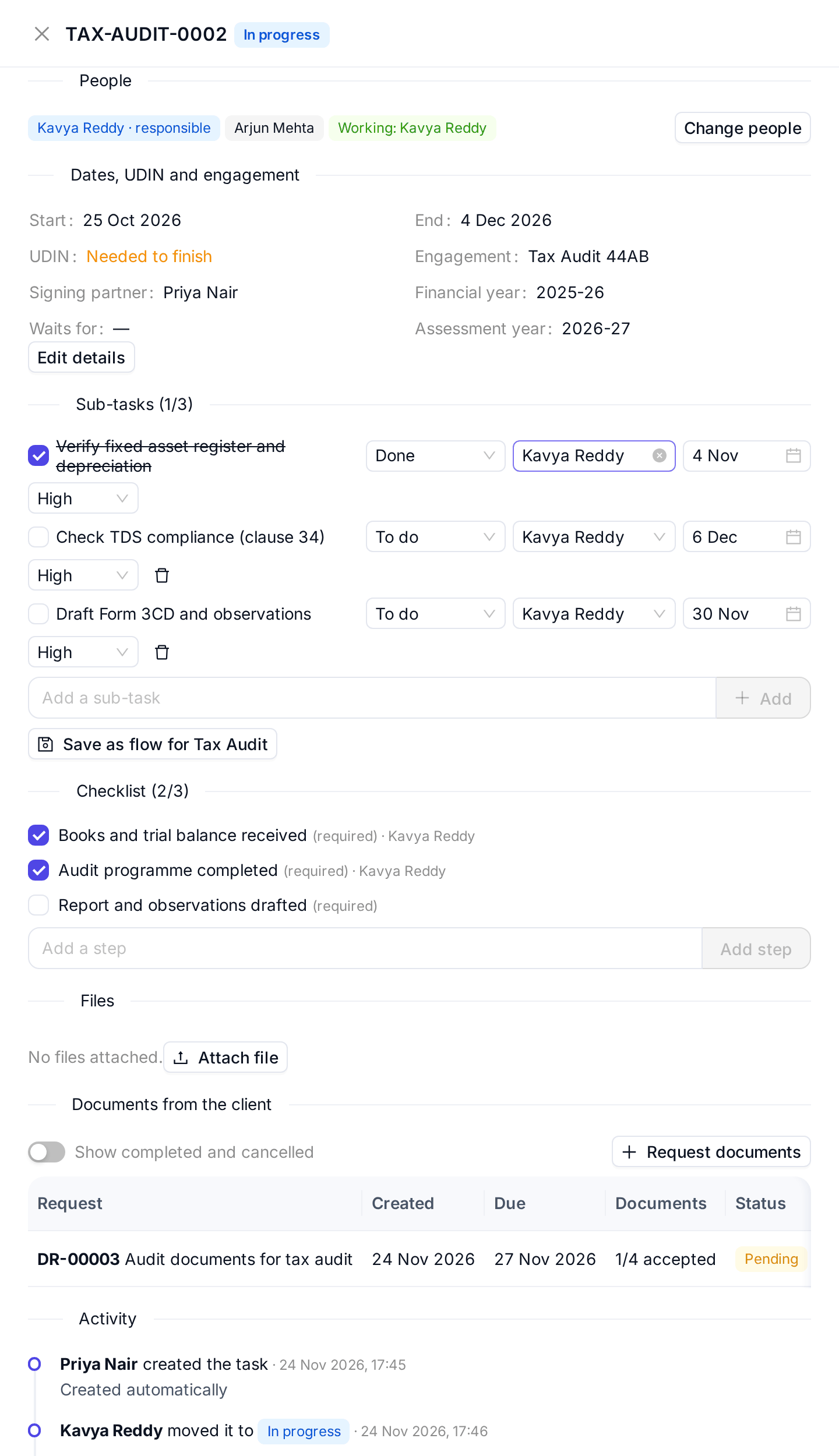
The People section shows the responsible staff member (blue), other people who help (grey) and the Working person (green), that is, who is on the task right now. Click Change people to set:
- Responsible staff member: the person the task is assigned to.
- Other assignees: up to 10 people who also work on it, for example an article assistant.
- Working user: who is actively on it now, chosen from the people above.
The staff member gets a notification when a task is assigned to them.
Dates, UDIN and engagement
This section keeps extra details, mainly for audits and certificates. Click Edit details to fill in:
| Field | What to enter | Example |
|---|---|---|
| Start date, End date | When the work starts and should end. The calendar can show this span. | 25 Oct – 4 Dec 2026 |
| UDIN | The 18-character Unique Document Identification Number from the ICAI portal: year (2 digits), membership number (6 digits), then 10 letters or digits. | 26112233BKCDX00017 |
| Financial year | Written like 2026-27. | 2025-26 |
| Engagement type | Free text. | Tax Audit 44AB |
| Waits for task | Another task of the same client that must be done (or cancelled) before this one can start. | GSTR-1-MONTHLY-0012 |
| Signing partner | The partner who signs the report. | Priya Nair |
| Custom fields | Fields your firm added for tasks, such as Assessment year. See CA settings. | 2026-27 |
When the service needs a UDIN, the UDIN shows Needed to finish in orange until you enter it.
Sub-tasks
Sub-tasks split a big job into parts, each with its own person and date.
- Add: type a title in Add a sub-task and press Enter or click Add. It is assigned to the task's staff member.
- Change: on each line, set the status (To do, In progress, Done, Cancelled), the assignee, the due date and the priority. Ticking the box marks it done.
- Remove: the bin icon (not for done sub-tasks).
- Save as flow for …: copies this task's sub-tasks to the service, so every new task of the service starts with them. Only people who manage services see this button.
Warning
A task can't go for review or be marked done while it has open sub-tasks. Finish or cancel them first.
Checklist
The checklist comes from the service's template, for example the four GST steps from Sales and purchase data received from the client to Tax liability and challan confirmed with the client.
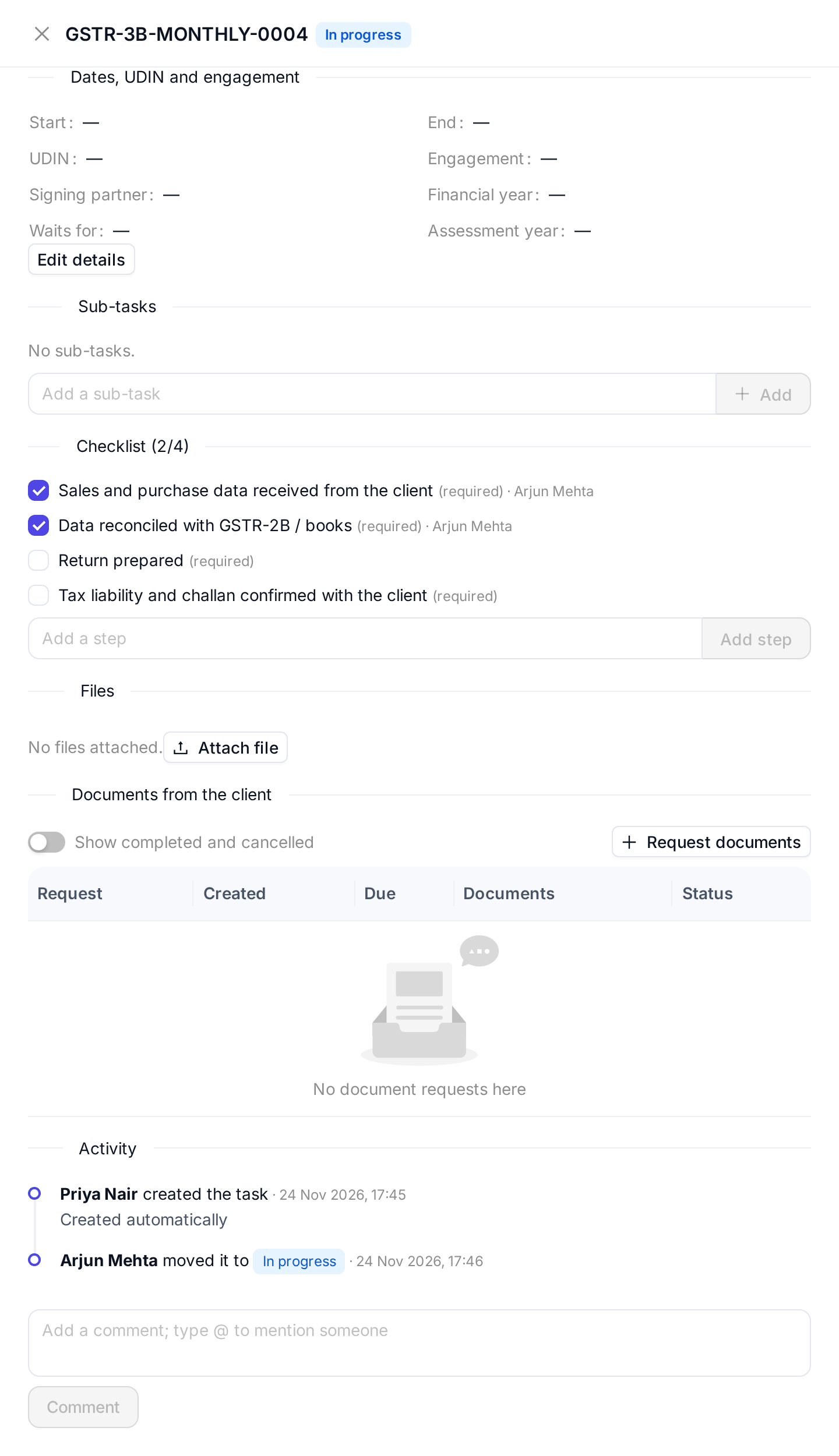
- Tick a step when it is done. The heading shows the progress, for example Checklist (2/4).
- Steps marked (required) must all be ticked before the task can go for review or be marked done.
- Add a step adds an extra step to this task only.
- The checklist can be changed only while the task is To do, In progress or Rework. Once it is sent for review it is locked.
Files
Click Attach file to add a working paper, computation or acknowledgement to the task. Click a file's name to download it; the bin icon removes it. Files can't be removed once the task is invoiced.
Documents from the client
This section lists the document requests made for this task. Click Request documents to ask the client for what you need: the list is filled in from the task's checklist and the due date is set five days before the task's due date. Switch on Show completed and cancelled to see older requests. See Document requests.
Activity and comments
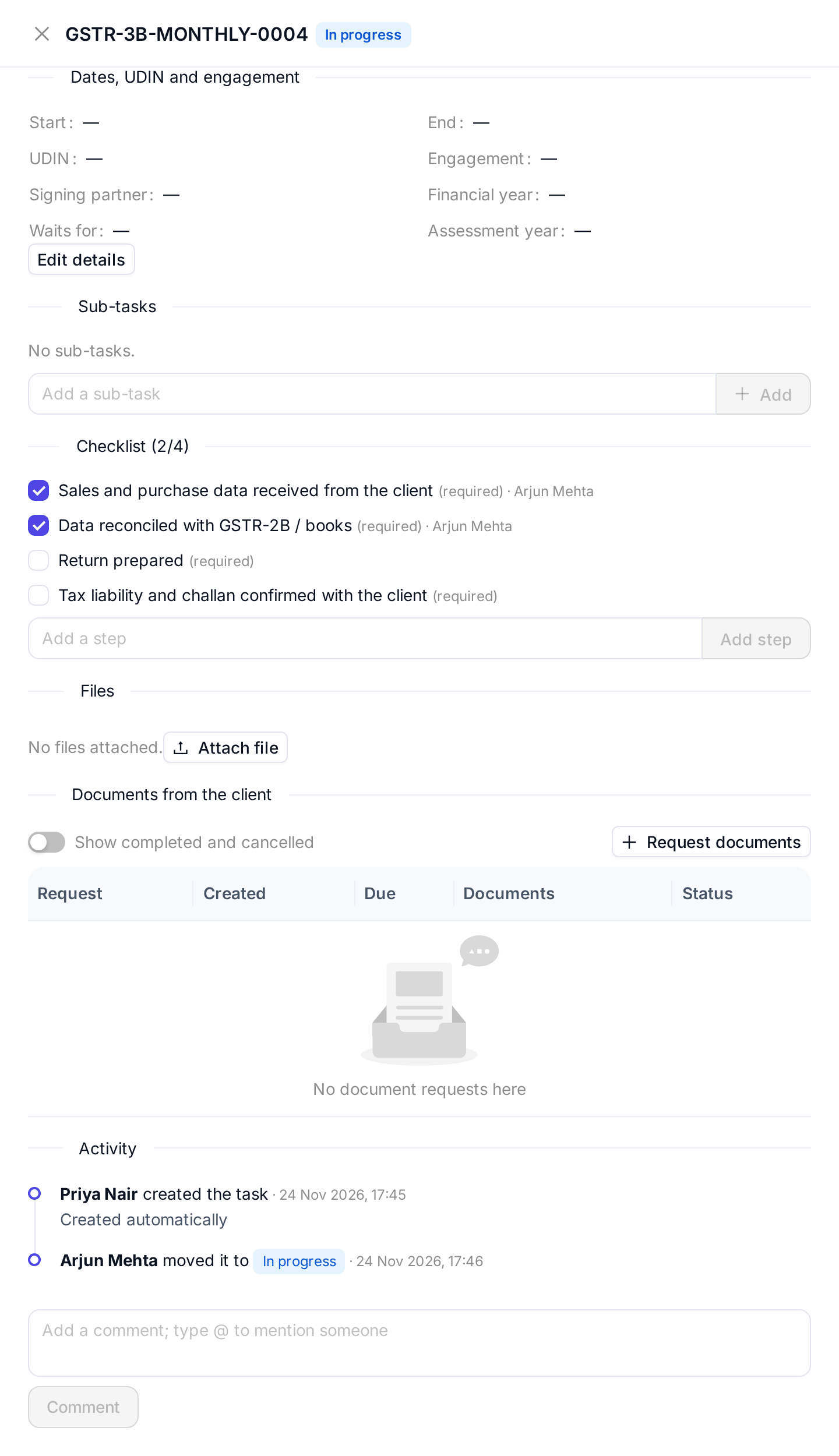
The Activity list shows who created the task, every change of status (with the reviewer's note when it was sent back) and every comment, with date and time.
To comment, type in the box at the bottom and click Comment. Type @ and pick a name to mention a colleague, for example @RahulVerma please review. The person you mention gets a notification.
Common questions
I can't tick the checklist
The task is in review, approved, done or cancelled. Steps can be ticked only while the work is being prepared. If the reviewer sends the task back, the checklist opens again.
Where do I see the ARN of a filed return?
In the details table at the top of the panel (ARN / ack. no. and Filed date), in the Filing no. (ARN) column of the task list, and in the task list search box.