Document requests
Most delays in a CA office come from waiting for the client's data. A document request lists exactly what you need, gives you a ready message to send on WhatsApp or e-mail, and tracks each document until you have accepted it.
Before you start
- To create requests and record documents you need the Member role or higher. Everyone can see them.
- The client must be active.
- Time needed: 2 minutes per request.
The list of requests
Open Work → Document requests.
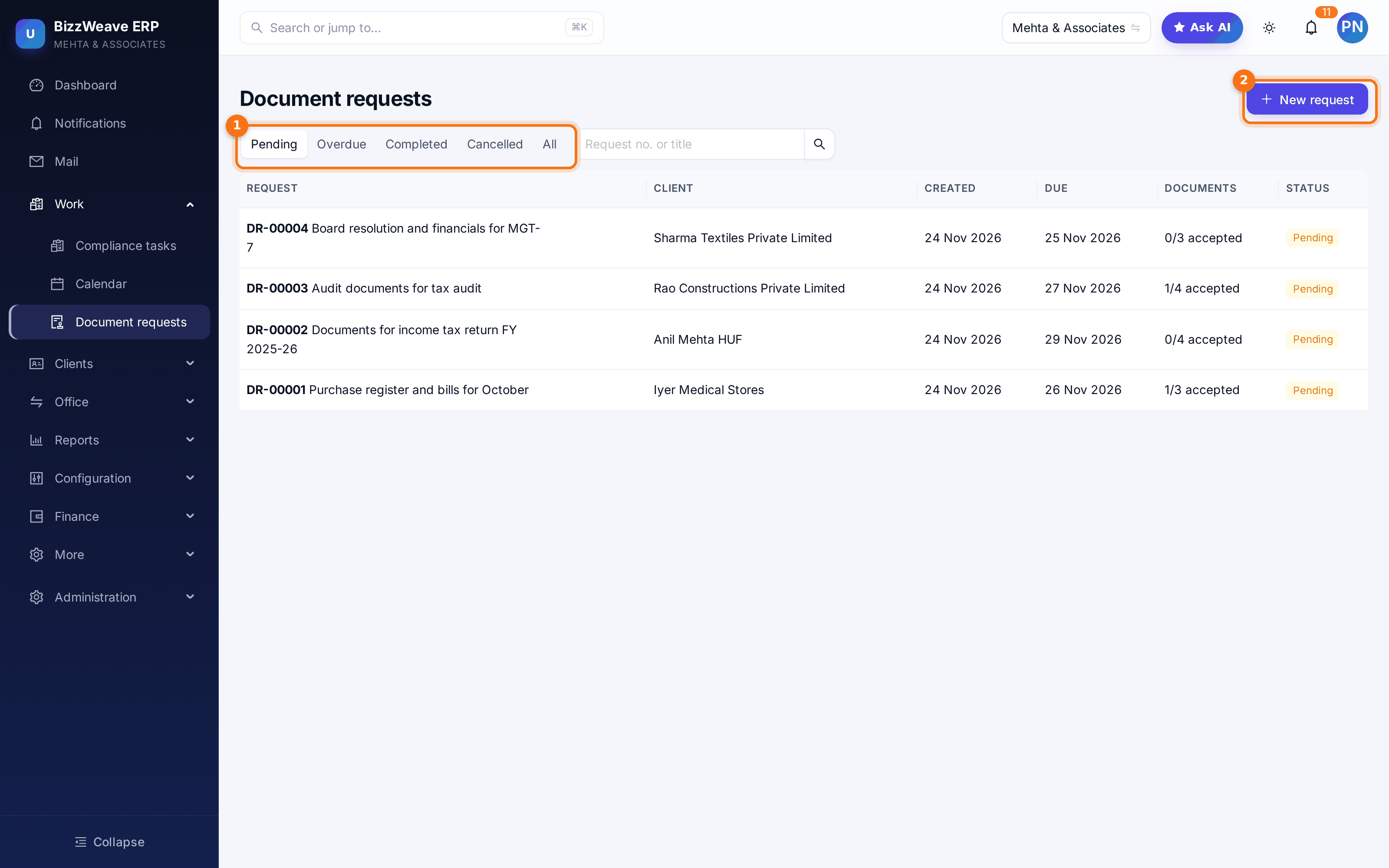
- 1 Pending / Overdue / Completed / Cancelled / All: Pending is shown first. Overdue lists pending requests whose due date has passed.
- Search: type a request number (such as DR-00003) or part of the title.
- The Documents column shows progress, for example 1/4 accepted. An Overdue tag appears next to the status when the client is late.
- Click a row to open the request.
Each client's page also has a Documents tab with that client's requests, and each task lists its own requests under Documents from the client.
Ask a client for documents
- Click New request 2. Faster: open the task the documents are for and click Request documents. The client, title, due date and list of documents are then filled in from the task.
-
Fill in the window:

Three documents for Green Leaf Organics' quarterly GST returns. Field What to enter Client (required) Type to search the active clients. Client to send by The date you need the documents. It can't be in the past. Title (required) For example Documents for GSTR-1 and GSTR-3B (Oct–Dec 2026). Documents needed One line per document. Untick Required for documents that are nice to have. Click Add document for more lines (up to 50). Message for the client The opening line of the message you will send. Empty = a standard text. -
Click Create request. The request gets a number, such as DR-00005, and opens.
Send the request to the client
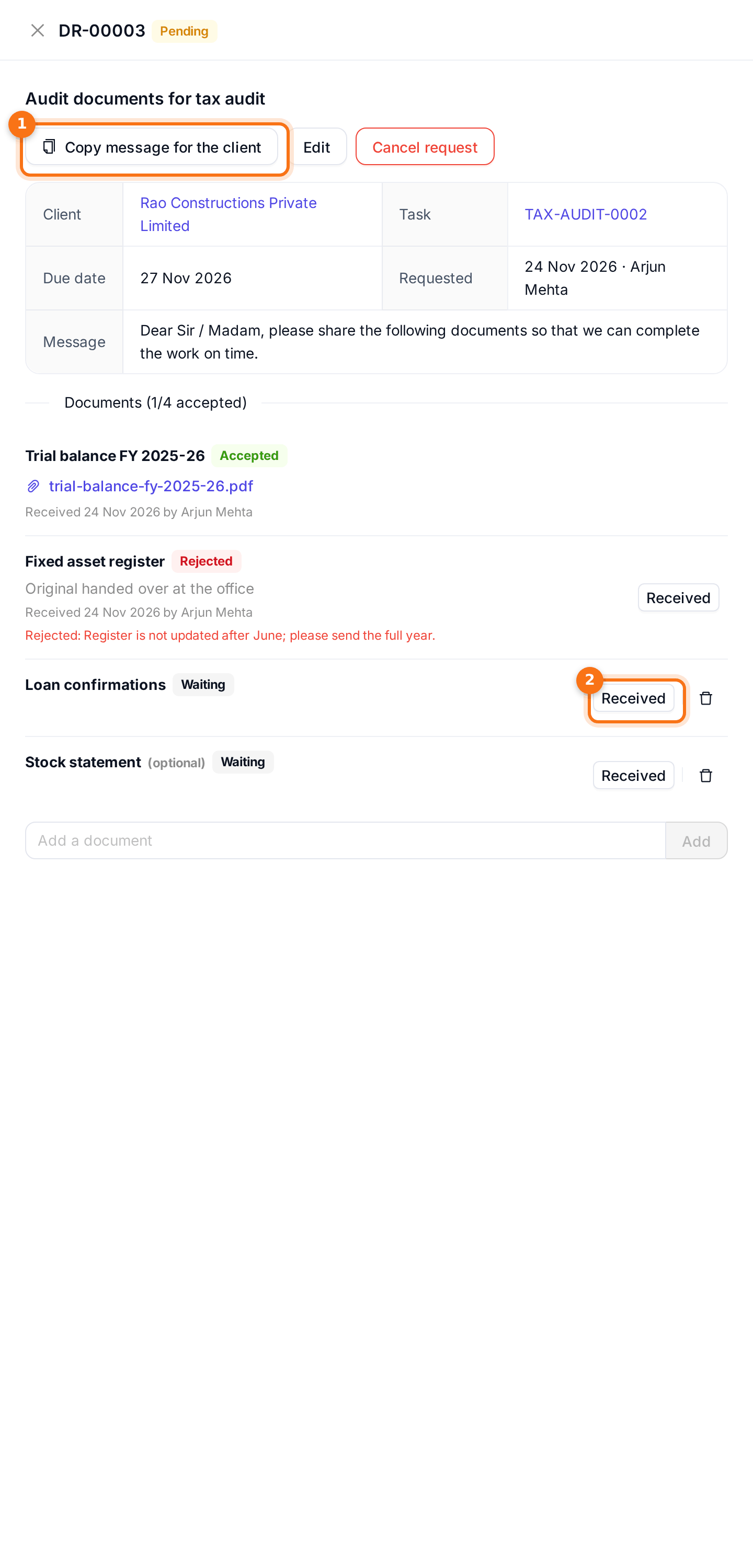
The ERP doesn't send the request by itself. In the request, click Copy message for the client 1, then paste the message into WhatsApp or an e-mail to the client. It lists every document still needed, with the due date.
Record what the client sent
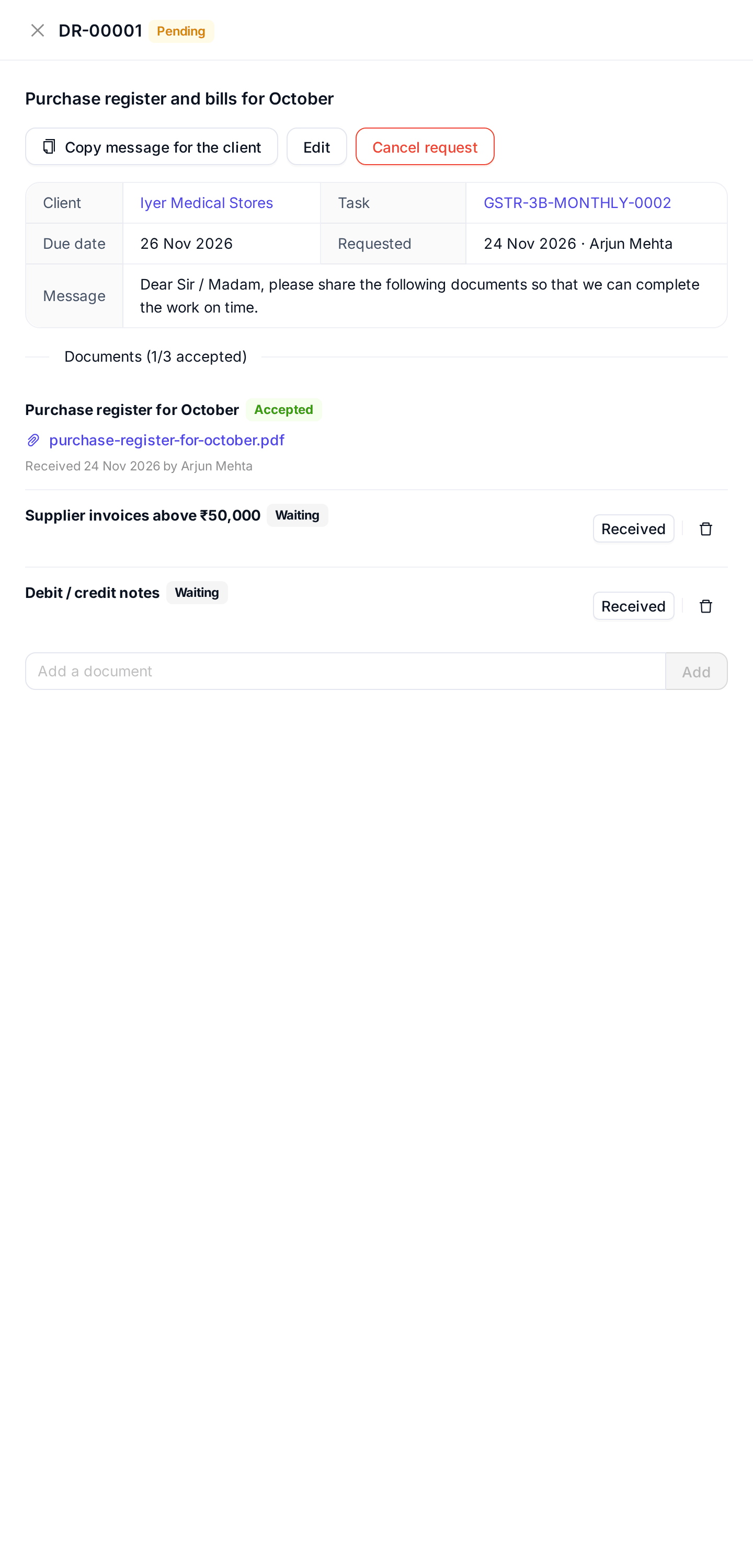
Each document has a status: Waiting, Received, Accepted or Rejected.
- When a document arrives, click Received 2 next to it.
-
Drag the file the client sent into the box (PDF, images, Office documents, text or zip), or write how it was received, for example Original handed over at the office. One of the two is needed.

Recording originals handed over at the office. -
Click Save. The document becomes Received, with the date and your name. A received file can be downloaded by clicking its name.
- Check the document, then click Accept, or Reject with the reason (for example Register is not updated after June; please send the full year). A rejected document goes back on the list for the client, and the reason is added to the next copied message.
What happens next
When every required document is accepted, the request becomes Completed by itself. If the due date passes first, the person who created the request gets a notification (once per due date), and the request counts under Documents awaited from clients · overdue on the dashboard.
Change or cancel a request
While a request is pending you can:
- Edit: change the title, due date or message.
- Add a document: type it in the box under the list and click Add.
- Remove a document: the bin icon next to a document that is still waiting.
- Cancel request: give the reason, for example The client shared the documents by e-mail.
Common questions
Does the client get an e-mail or a link to upload documents?
No. You send the copied message yourself, and you record what arrives. Clients don't sign in to BizzWeave ERP.
Can I set a due date that has already passed?
No. The due date must be today or later.