Email broadcasts
Send one e-mail to many clients at once, for example a GSTR-3B reminder to every client who files GSTR-3B, or Diwali greetings to everyone. Each contact receives a personal e-mail with their own name, from your firm's address.
Before you start
- Members can write drafts and templates. Sending, scheduling and blocking addresses needs a manager, owner or administrator.
- An administrator must first add the firm's e-mail (SMTP) details in Administration → Notification settings. Until then a yellow note says The firm's e-mail is not set up: you can write drafts, but Send test to me, Send now and Schedule… stay greyed out.
- Your clients need contact persons with e-mail addresses. See Contact persons.
- Time needed: 10 minutes for a first broadcast.
The broadcast list
Open Clients → Email broadcasts. The page has three tabs: Broadcasts, Templates and Unsubscribed.
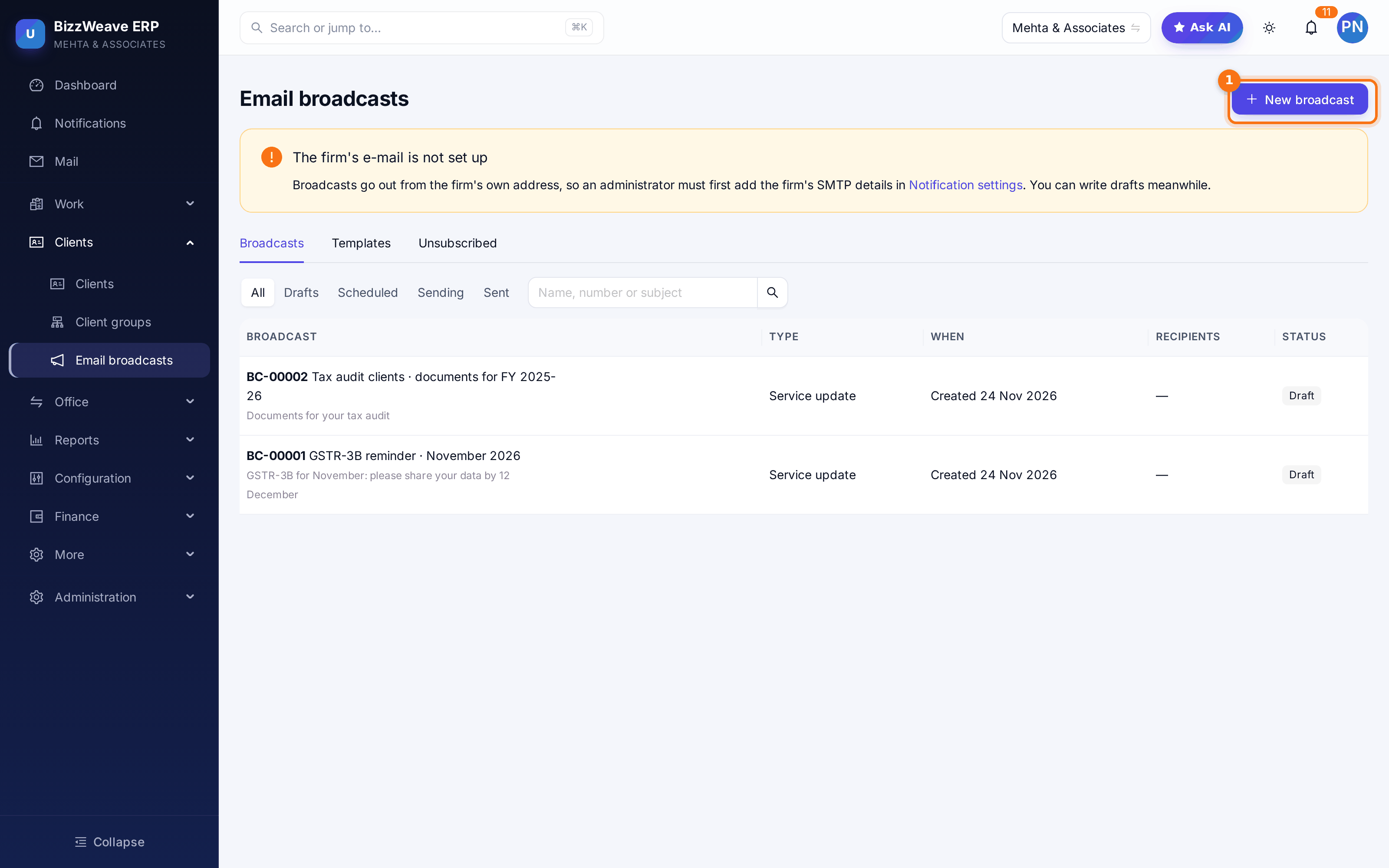
Each row shows the number (such as BC-00001), name and subject, the type, when it was created, scheduled or sent, how many e-mails went out (8/9 sent, with failures in red) and the status: Draft, Scheduled, Sending, Sent, Partly failed or Cancelled. Filter with All / Drafts / Scheduled / Sending / Sent, or search by name, number or subject. Click a row to open it.
Write a broadcast
-
Click New broadcast 1. A draft is created and the editor opens.

The editor. 1 The e-mail. 2 Who receives it. -
Write the e-mail 1:
Field What to enter Name (required) Only the firm sees it, for example GSTR-3B reminder · November 2026. Type Service update (about the client's work) or Newsletter / greeting (marketing). People who unsubscribed never get either. Subject The e-mail subject, for example GSTR-3B for November: please share your data by 12 December. Message Use the toolbar for bold, lists and links. Insert field adds a field filled in for each client: Client name, Contact name, Client no. or Firm name, shown as {{clientName}}. Use template replaces the subject and message with a saved template.Attach file Up to 5 files, 10 MB in total. -
Choose who receives it 2. Combine as many filters as you like:
- Clients who take: one or more services. With several, choose any of these or all of these.
- Business type, Tags, Client group, City, State and GSTIN (Registered or Not registered).
- Also include adds particular clients; Leave out removes some. With no filter at all, this box is called Only these clients (empty = all active clients).
- Send to: the Primary contact of each client, or Every contact with an e-mail.
The counts below update as you change filters: Clients matched, E-mails that will be sent, and Skipped addresses (unsubscribed or bounced). Click Show who receives it to see the list; the bin icon on a row leaves that client out.

Clients who take GSTR-3B (monthly or quarterly): 8 clients, 9 e-mails, 1 skipped because the address is blocked. -
Click Save. Click Preview to see the message as the client will see it.

In the preview, fields such as {{clientName}}are not yet filled in. Send a test to see the real e-mail. -
Click Send test to me. You receive the e-mail exactly as a client would, filled in for one client.
Send or schedule it
A manager, owner or administrator then opens the draft and either:
- clicks Send now and confirms Send to N addresses now?. Each contact receives their own e-mail, about 60 a minute; or
- clicks Schedule…, chooses the date and time (up to one year ahead) and clicks Schedule. The recipients are chosen when sending starts, so clients added before then are included.
Members see the note A manager or partner sends broadcasts. Save the draft and ask them to send it.
What happens next
The broadcast page shows a progress bar while sending, then the counts Sent, Failed and Skipped, and the list of Recipients with each one's status. Every e-mail has an unsubscribe link; people who use it are added to the Unsubscribed list. Each client's Broadcasts tab lists what that client received.
After sending you can:
- Stop sending (while it is sending): e-mails not yet sent are skipped.
- Cancel schedule (before it starts): the broadcast becomes a draft again that you can edit.
- Retry failed (when some failed): fix the address or the e-mail settings first.
- Duplicate: start a new draft from this one, for example for next month's reminder.
A draft can be deleted with Delete.
Templates
The Templates tab keeps e-mails you send again and again, such as a GSTR-3B reminder or an ITR document checklist.
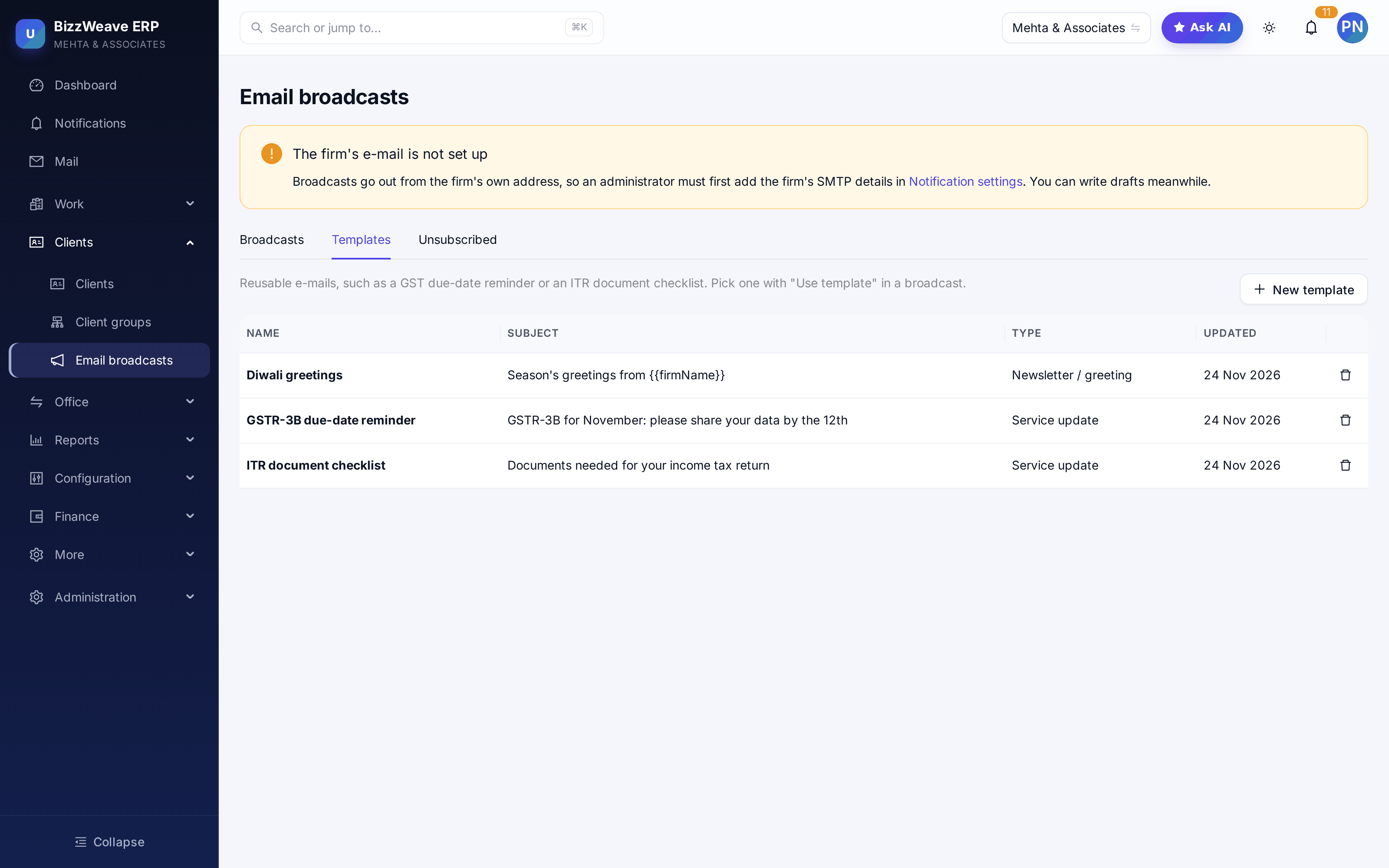
Click New template, enter the Name, Type, Subject and Message, and click Save. Click a template's row to change it, or the bin icon to delete it. Use it in a broadcast with Use template.
Unsubscribed addresses
The Unsubscribed tab lists addresses that get no broadcasts: people who clicked the unsubscribe link, addresses that bounced, complaints, and addresses blocked by the firm.
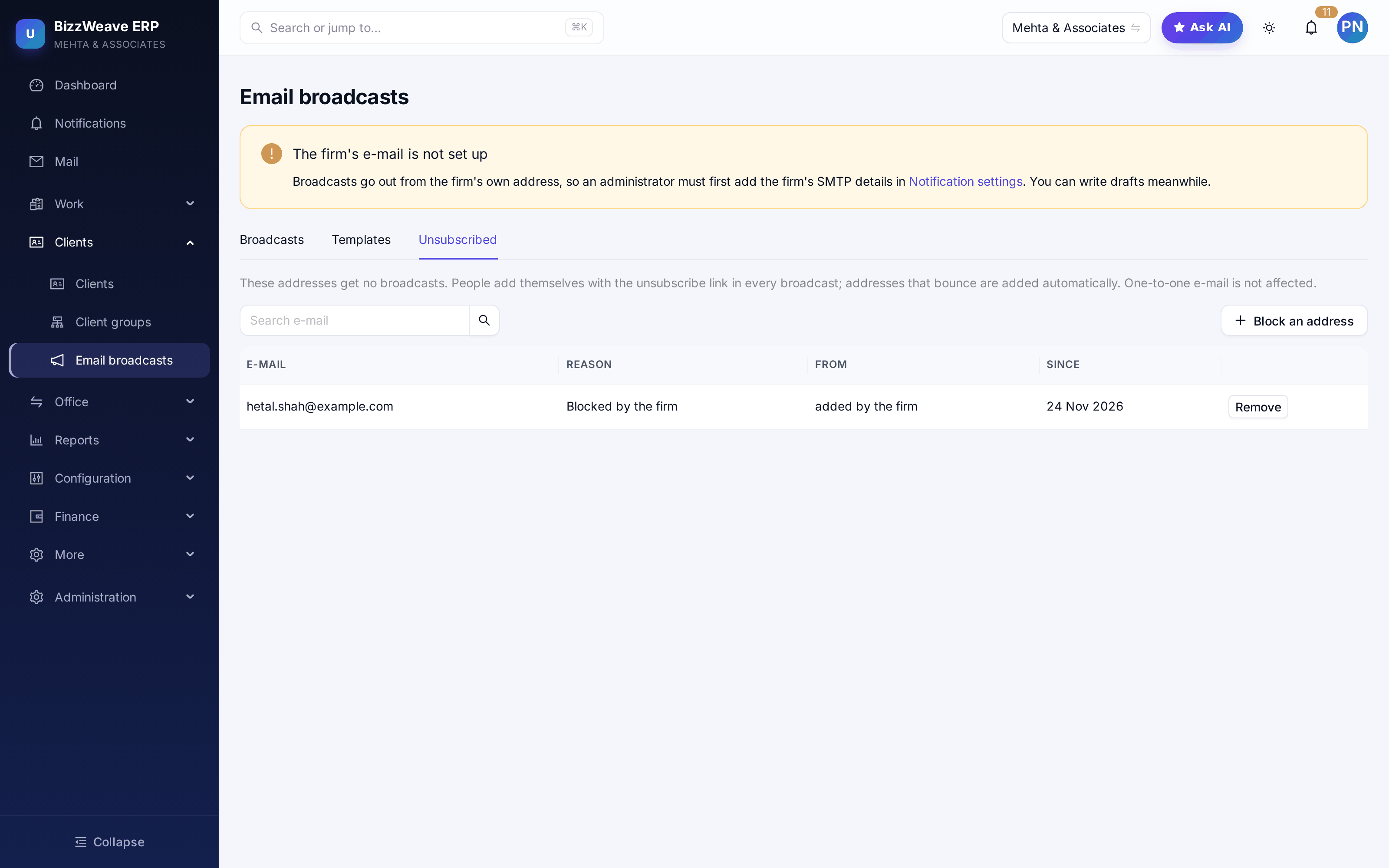
- Block an address: for example a client who asked by phone to stop newsletters.
- Remove: send broadcasts to the address again, only if the person asked for it or the address was corrected.
One-to-one e-mails are not affected by this list.
Common questions
Send now is greyed out
Either the firm's e-mail is not set up (yellow note at the top), the subject or message is empty, or no address is left after skipping. If the button is missing altogether, your role can't send broadcasts.
A client has no e-mail address. Is it sent anyway?
No. Under the counts the editor tells you how many matching clients have no (primary) contact with an e-mail.