Discussions and announcements
Keep project conversations next to the work instead of in scattered chats. Every project has channels with threaded replies, reactions, pins and @-mentions, and managers can post announcements that people confirm they have read.
Before you start
- You need the Project Management category and permission to read discussions.
- To post, you must be able to contribute to the project (a project member, not an observer).
- To announce to a project you must be one of its managers; to announce to the whole organisation you need permission to moderate discussions.
- Time needed: a minute per message.
The Discussions page
Open Projects → Discussions in the menu. It brings together everything from all your projects.
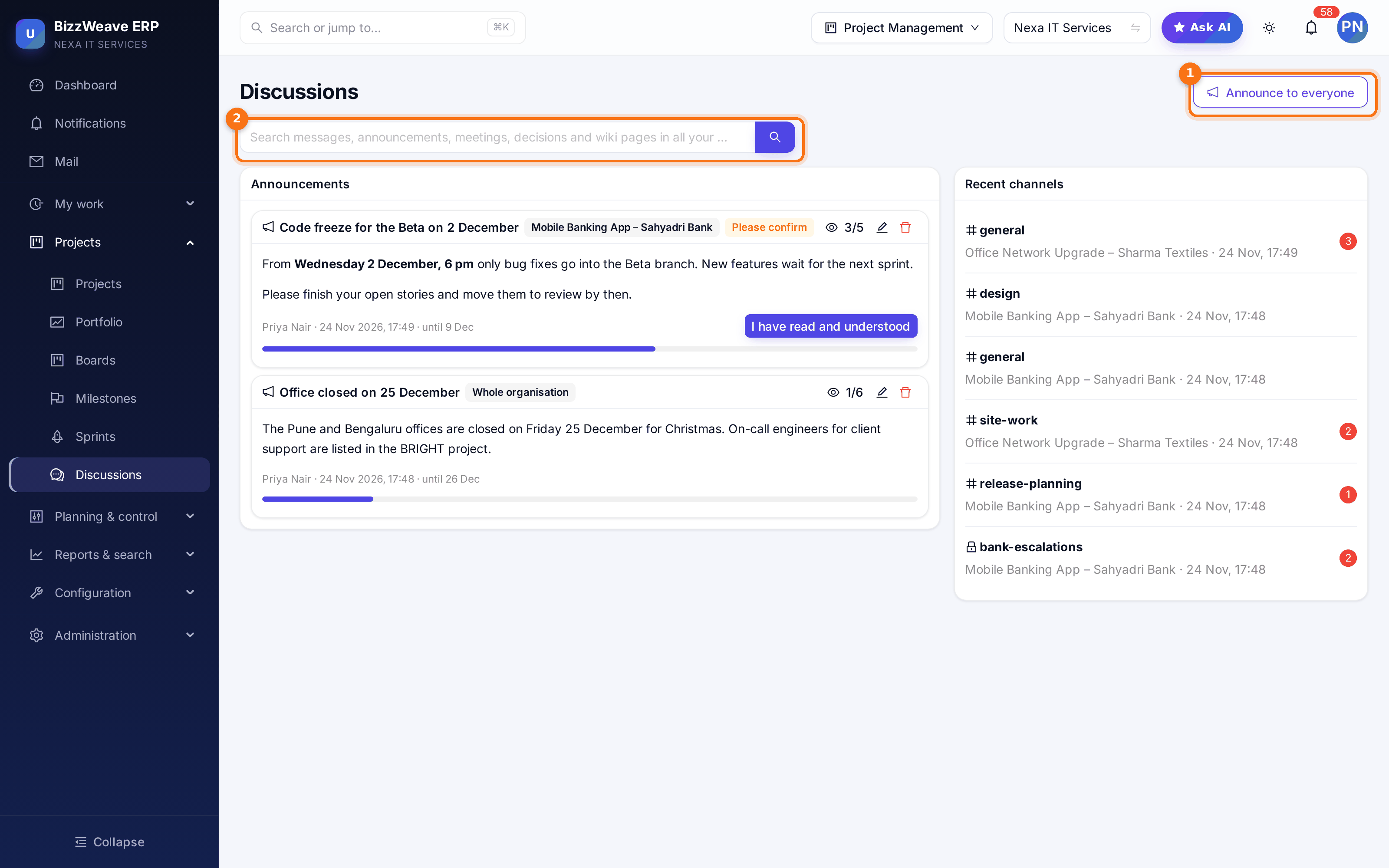
- Announcements lists the current announcements for you, from your projects and for the whole organisation. A Please confirm tag means the author wants you to confirm you have read it.
- Recent channels lists the channels you take part in, newest first, with the project and the number of unread messages. Click a channel to open it in its project.
Search everything
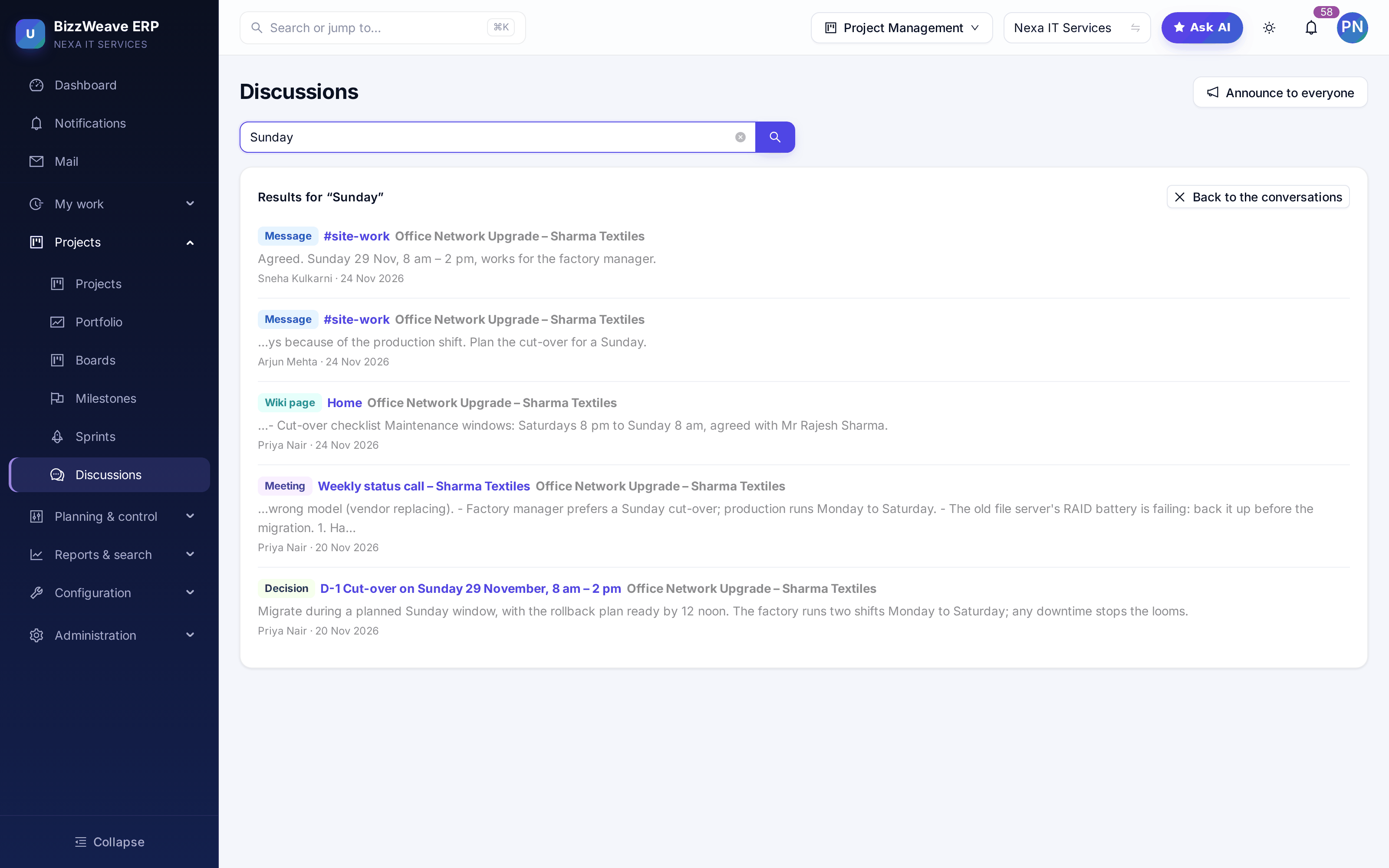
Type at least two characters in the search box and press Enter. The results show the type (Message, Announcement, Meeting, Decision or Wiki page), the project, an extract, the author and the date. Click a result to open it. Click Back to the conversations to return.
Search whole words
Search matches words. A hyphenated word such as cut-over may find nothing; search for another word from the message instead, such as Sunday.
Channels in a project
Open a project and click the Discussions tab.

- Every project has a general channel that everyone in the project can read.
- A # sign marks an open channel; a lock marks a private channel that only its members can read. The red number is your unread messages.
- Announcements for the project appear above the channels. Click Show N earlier announcements to see expired ones.
- The search box at the top searches only this project.
Post a message
- Choose the channel on the left.
- Type your message in the box at the bottom. You can format it with the toolbar (bold, lists, links, tables and so on) and click Preview to check it.
- Mention someone by typing @ and choosing the person. They get a notification.
- Click “Send”, or press Ctrl+Enter.
Under each message you can:
| Button | What it does |
|---|---|
| Smiley | Add a reaction (👍 ❤️ 🎉 😄 👀 ✅). Click an existing reaction to add or remove yours. |
| Reply / N replies | Open the conversation in a side panel and reply there. Replies keep the channel tidy. |
| Pencil | Edit your own message. |
| Pin | Pin an important message to the channel (managers and moderators). N pinned at the top of the channel shows the pinned messages. |
| Bin | Delete a message. |

Create a channel
-
Click “New channel”.

A private channel for the testers. -
Enter a name (for example testing) and what it is about.
- To make it private, tick Private: only the people you add can read it and choose the people. You are added too.
- Click “Create”.
The ⋮ menu next to a channel's name lets its managers Edit channel and Archive it (the general channel can't be archived). Members of a private channel can Add people or Leave channel. An archived channel can still be read but nobody can post in it.
Announcements
Use an announcement for news everyone must see, such as a code freeze or an office holiday. Everyone it is for gets a notification, and you can see who has read it.
-
Click “Announce” on the project's Discussions tab, or Announce to everyone on the Discussions page for the whole organisation.

The Announce to the project window. -
Fill in the form.
Field What to enter Example Title (required) A short headline. Code freeze for the Beta on 2 December Message (required) The details. You can format the text. From Wednesday 2 December, 6 pm only bug fixes go into the Beta branch. Ask everyone to confirm they have read it Adds an I have read and understood button for each reader. Ticked Show until The last day it is shown as current. 9 Dec 2026 -
Click “Publish”.
An announcement counts as read when it appears on someone's screen. If you asked for confirmation, each person also clicks I have read and understood.
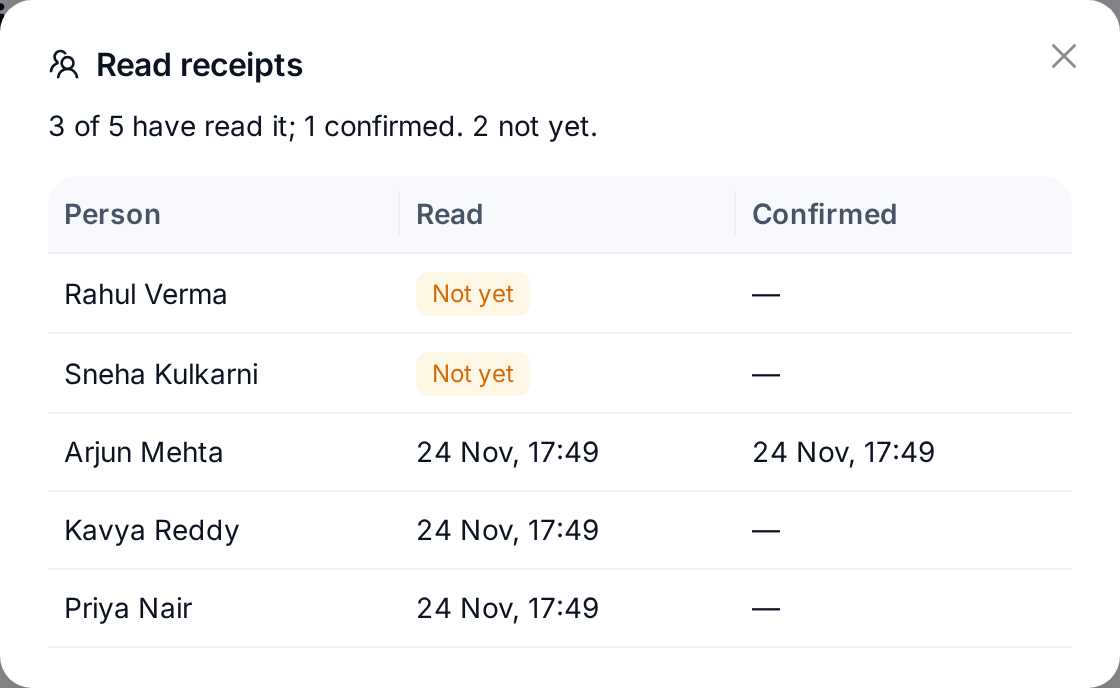
The author, managers and moderators see an eye icon with read / total (for example 3/5) and a progress bar. Click the eye to open the Read receipts: who has read it, when, and who has confirmed.
Use the pencil and bin icons on an announcement to edit or delete it.
What happens next
After the Show until date the announcement is marked Expired and leaves the list of current announcements. It stays available under Show N earlier announcements in the project and in search.
Common questions
I can read a channel but there is no message box
Either the channel is archived, or you are an observer in the project. The text under the messages tells you which. Ask a project manager to give you a contributing role on the Team & access tab; see Team and settings.
I see a channel with a lock but can't read it
It is a private channel. Ask one of its members to add you with Add people.
Can I discuss a single task?
Yes: every task has its own comments in the task window. Channels are for conversations about the project as a whole. See Tasks, board and tree.
Where are meeting notes and decisions?
On the project's Meetings & decisions tab. See Meetings and decisions.