Notification settings
Choose how BizzWeave ERP sends e-mail and SMS for your organisation, change the wording of notifications, register SMS texts for DLT, and check what was delivered.
Before you start
- Needs the Administrator role (Configure e-mail/SMS providers, Edit notification templates, View delivery history).
- For your own e-mail server: its SMTP host, port, username and password. For SMS: an account with MSG91 or Twilio.
- Time needed: about 15 minutes.
Open Administration → System → Notification settings. It has four tabs: Providers, Templates, SMS templates (DLT) and Delivery history. Each person still chooses which notifications they receive in their own notification preferences.
Providers

E-mail (SMTP)
The blue note says which service is used: Using the platform e-mail service or Using your organisation's SMTP server. To send from your own domain:
| Field | What to enter | Example |
|---|---|---|
| SMTP host (required) | Your mail provider's SMTP server. | smtp.zoho.in |
| Port | 25, 465, 587 or 2525. | 587 |
| STARTTLS | On for port 587. | On |
| Username, Password | The sending account. A saved password is kept if you leave the box empty. | [email protected] |
| From address (required) | The address notifications come from. | [email protected] |
| From name | The sender name. | Shree Ganesh Traders |
| Use this server | Switch on to use it instead of the platform service. | On |
Click Save, then Send me a test e-mail.
Web push
Nothing to configure here. Turn on push for your own device under Notifications → Preferences, then click Send me a test push.
SMS
- Choose the Provider: MSG91 (India, DLT), Twilio or Test only (nothing is sent).
- For MSG91: the Sender ID (DLT header) (6 letters or digits), the DLT entity ID (PE ID) and the Route (4 · transactional for alerts). For Twilio: the Account SID, and a From number or messaging service SID.
- Enter the Auth key (MSG91) or Auth token (Twilio).
- Switch on Send SMS, click Save, then Send me a test SMS.
DLT for Indian numbers
Indian operators deliver only business SMS whose text matches a template registered on DLT under your sender ID. Register the texts on the SMS templates (DLT) tab first.
Templates
Change the wording of any notification, per channel.
- On the Templates tab, choose the Notification type, for example A purchase order is waiting for your approval, and the channel (EMAIL, IN_APP, PUSH…). The tag shows built-in default or custom vN.
- Edit the Subject and the text. Use the Variables shown, such as
{{number}},{{supplier}},{{total}},{{recipientName}}and{{link}}. Unknown variables are refused. -
Click Preview to see the result with sample values.

Shree Ganesh Traders' purchase approval e-mail, with a reminder about the 4 pm dispatch cut-off. -
Click Save as new version. Earlier versions are listed below; Revert to default goes back to the built-in text.
SMS templates (DLT)
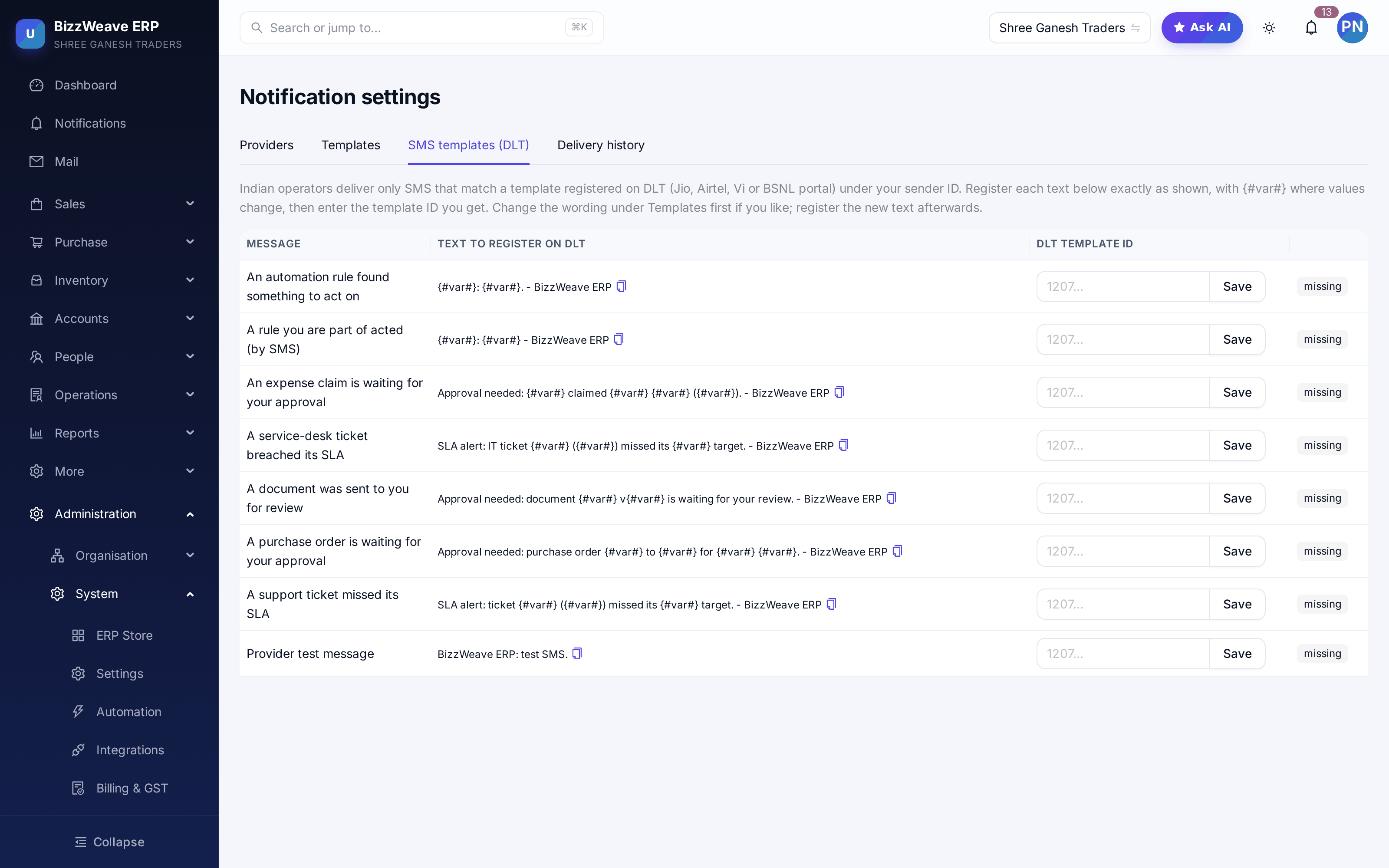
For each SMS message, copy the Text to register on DLT exactly as shown (with {#var#} where values change) and register it on your operator's DLT portal (Jio, Airtel, Vi or BSNL). Then enter the DLT template ID you receive and click Save. The tag changes from missing to ready. If you change an SMS wording under Templates, register the new text too.
Delivery history
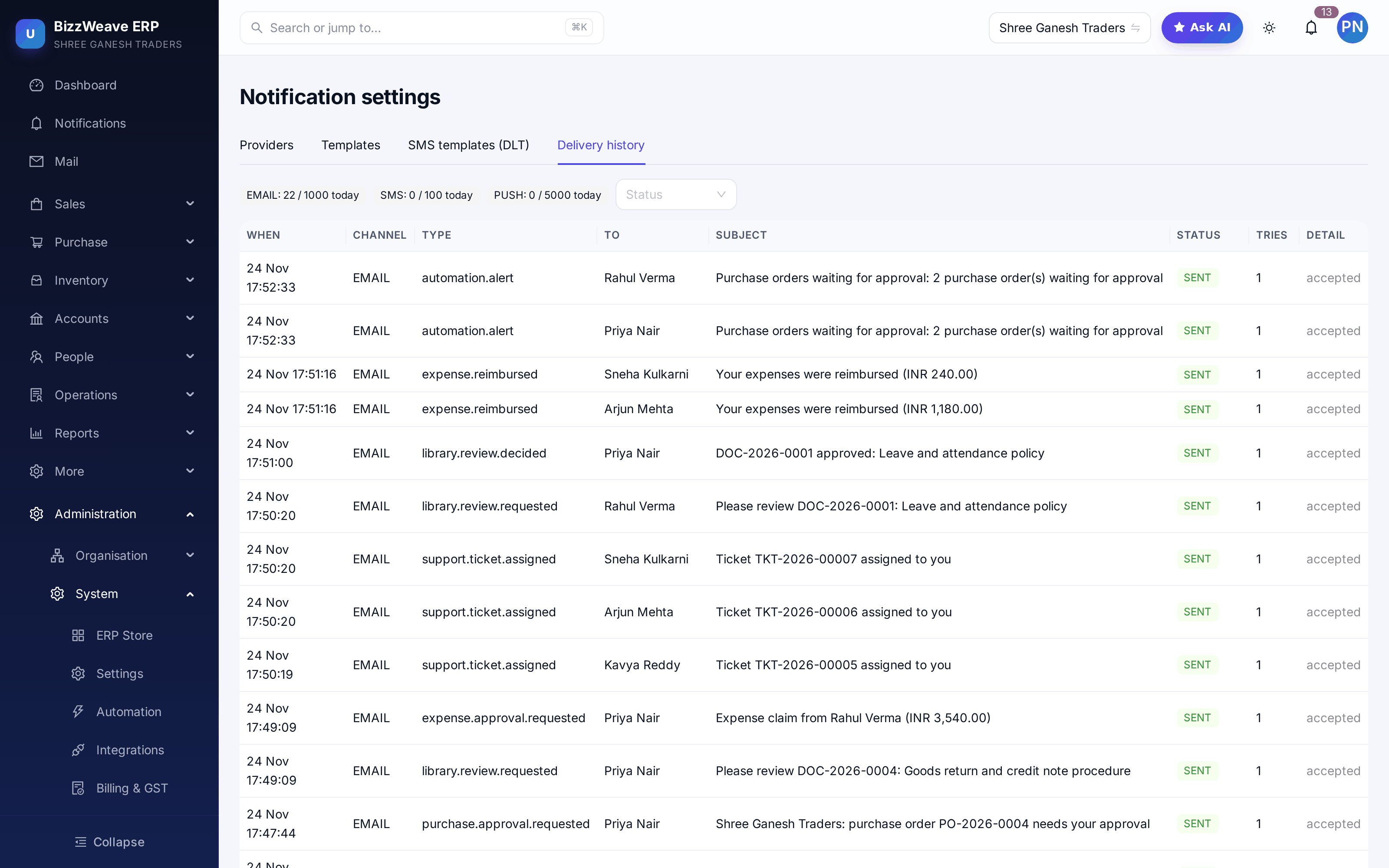
| Status | Meaning |
|---|---|
| PENDING / SENDING | Waiting or being sent. |
| SENT | Handed to the provider. |
| FAILED | Failed; it will be retried. Detail shows why. |
| DEAD | Gave up after several tries. |
| SKIPPED | Not sent, for example because the person turned that channel off. |
Filter by Status to find problems. The list refreshes every 15 seconds.