Document library
Keep policies, procedures, contracts and forms in folders, with versions and an approval step. Everyone reads the approved version; drafts stay with their owner and the reviewer.
Before you start
- Where: Operations → Document library.
- Everyone can read approved documents. Members, managers and administrators can add documents. Managers review and approve. Only administrators create folders, archive documents and change owners.
- Files can be PDF, Office documents, images, text or zip, up to 25 MB.
The library

Click a folder on the left (or All documents). Search by title or number, filter by status, or choose Mine or to review. Each document shows its number (such as DOC-2026-0004), title, category, status, version, owner and expiry date (orange when it expires within 30 days, red when expired).
| Status | Meaning |
|---|---|
| Draft | Uploaded, not yet approved. Only the owner, editors and reviewer see it. |
| In review | Sent to a reviewer. |
| Approved | Published. Everyone sees this version. |
| Rejected | The reviewer asked for changes. |
| Archived | No longer in use. Readers don't see it. |
Add a document
-
Click “Add document”.

Choose the file first; the title fills in from the file name. -
Click “Choose file” and pick the file.
- Check the Title, choose the Folder, and add a Category (for example Policy), an Expires on date (for contracts and licences), a Description and a Version note.
- Click “Add”. The document is added as a draft (v1) and opens.
Send it for review
-
On the document, click “Send for review”.

1 Send for review. 2 New version. -
Choose the Reviewer (someone with the right to approve documents; managers have it) and click Send. The document becomes In review, and it appears in the reviewer's My approvals. You can Withdraw review until they decide.
Review a document
-
Open the document from My approvals (or the library).
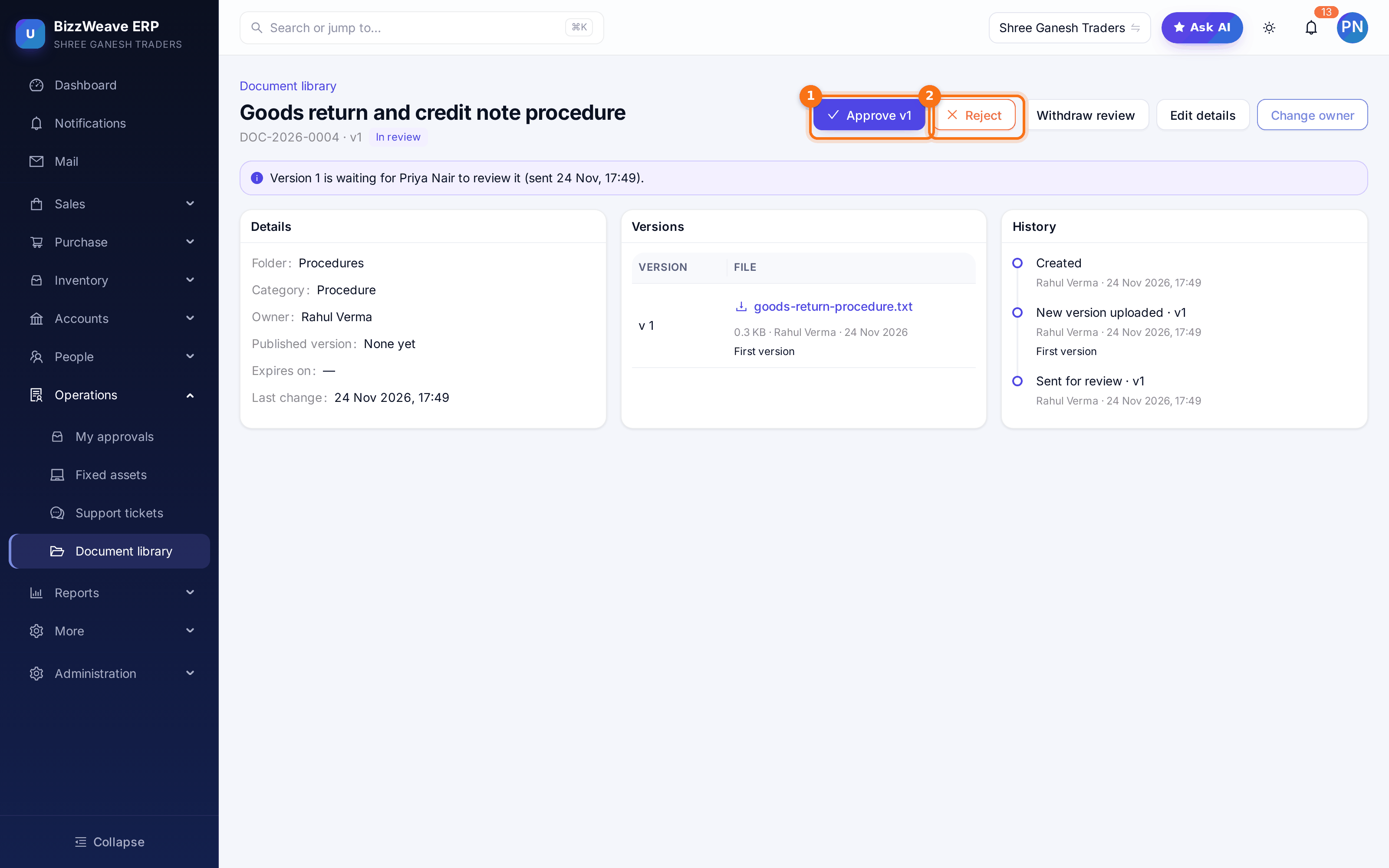
1 Approve v1. 2 Reject. -
Download the file from Versions and read it.
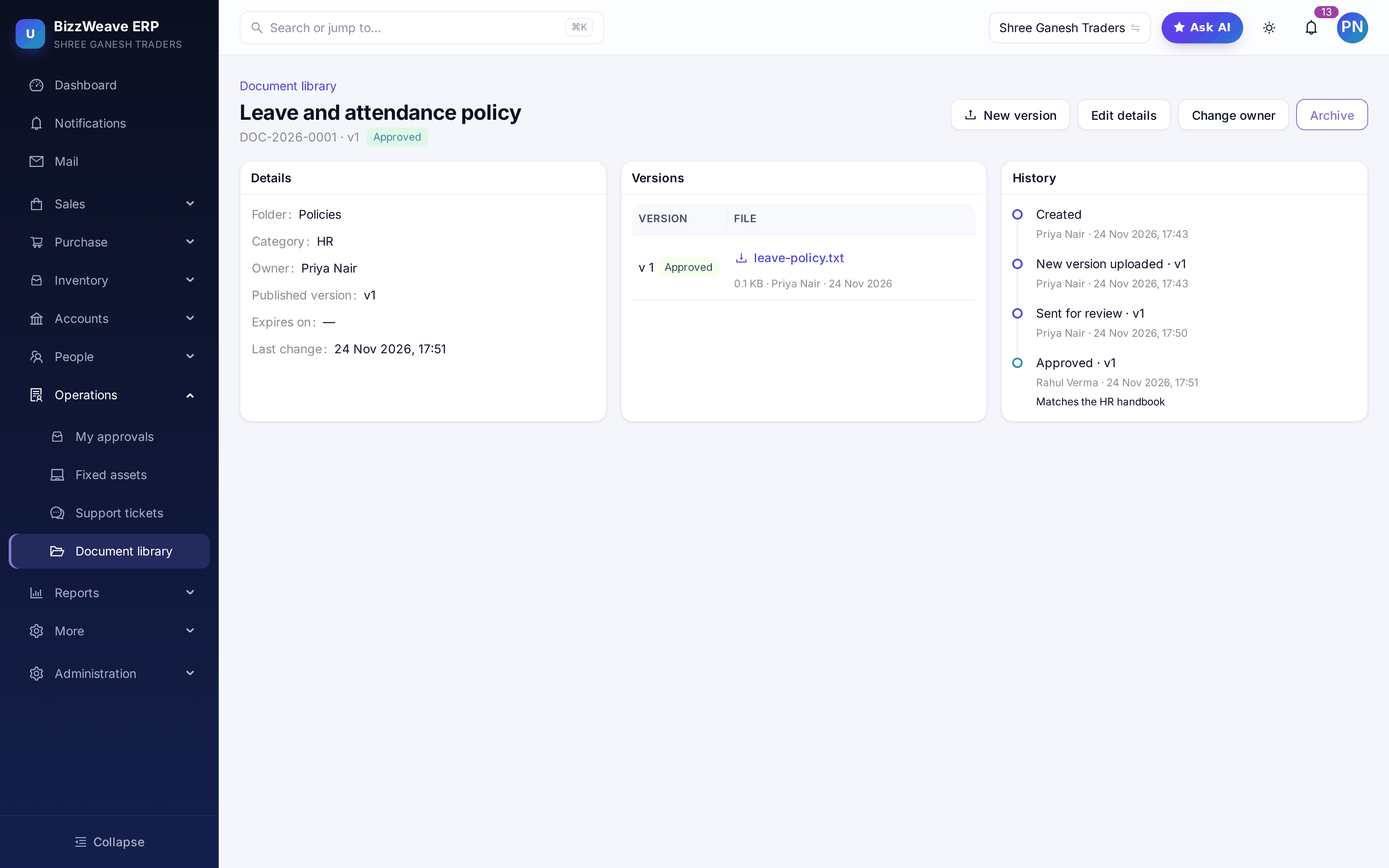
- Click “Approve v1”, or Reject and type the reason.
Upload a new version
Click New version, choose the file and describe what changed. Readers keep seeing the approved version until the new one is approved. Then send the new version for review.
Other actions
- Edit details: title, folder, category, expiry date and description.
- Change owner and Archive / Restore (administrators).
- New folder, Rename and Delete (empty folders only), for administrators.
Can someone be reminded before a contract expires?
Yes. Set Expires on; an automation rule can remind you 30 days before (see Administration → System → Automation).