Project budget, costs and revenue
Set a budget for the project, get it approved, record what you spend and what you bill, and see at a glance whether the project will finish within budget.
Before you start
- Open the project and click the Budget tab (click ⋯ at the end of the tab row if you don't see it).
- You need permission to see budgets. To change the budget you must be a project manager or a finance person of the project with budget rights.
- Keep your quotation or cost estimate ready, split by type of cost.
- Time needed: about 10 minutes for a first budget.
The Budget tab has four views, chosen with the buttons at the top: Overview, Budget, Costs and revenue and Settings. Start with Settings on a new project.
Step 1: finance settings
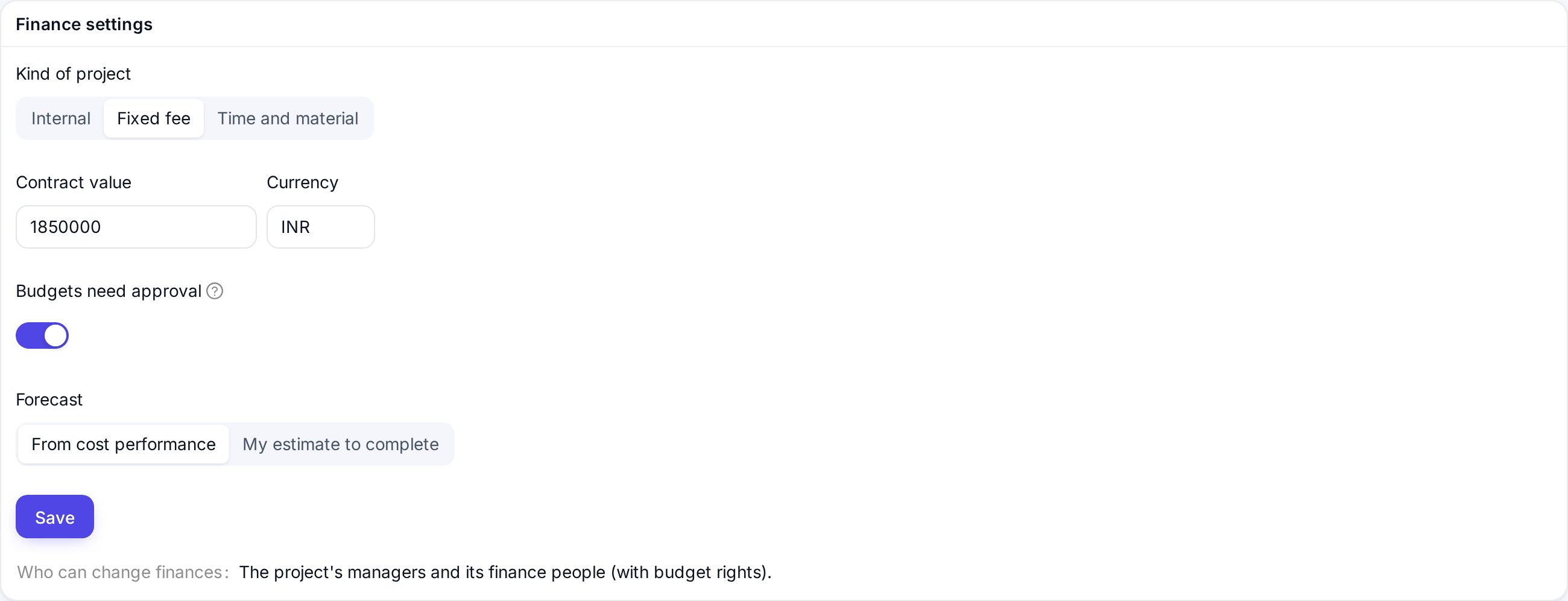
| Field | What to choose | Example |
|---|---|---|
| Kind of project | Internal (no client billing), Fixed fee (one agreed price) or Time and material (you bill the hours worked). | Fixed fee |
| Contract value | The agreed price with the client. | 1850000 |
| Currency | Three capital letters. | INR |
| Budgets need approval | On: a budget goes to the approvals inbox. Off: submitting a budget makes it the approved budget at once. | On |
| Forecast | From cost performance: the ERP predicts the final cost from how the project is going. My estimate to complete: you type how much more you expect to spend. | From cost performance |
Click Save. The project's managers and its finance people (with budget rights) can change these settings.
Step 2: create the budget
A budget is a list of lines, each with a cost category and an amount. Budgets have versions: when the project changes, you make a new version instead of editing the approved one.
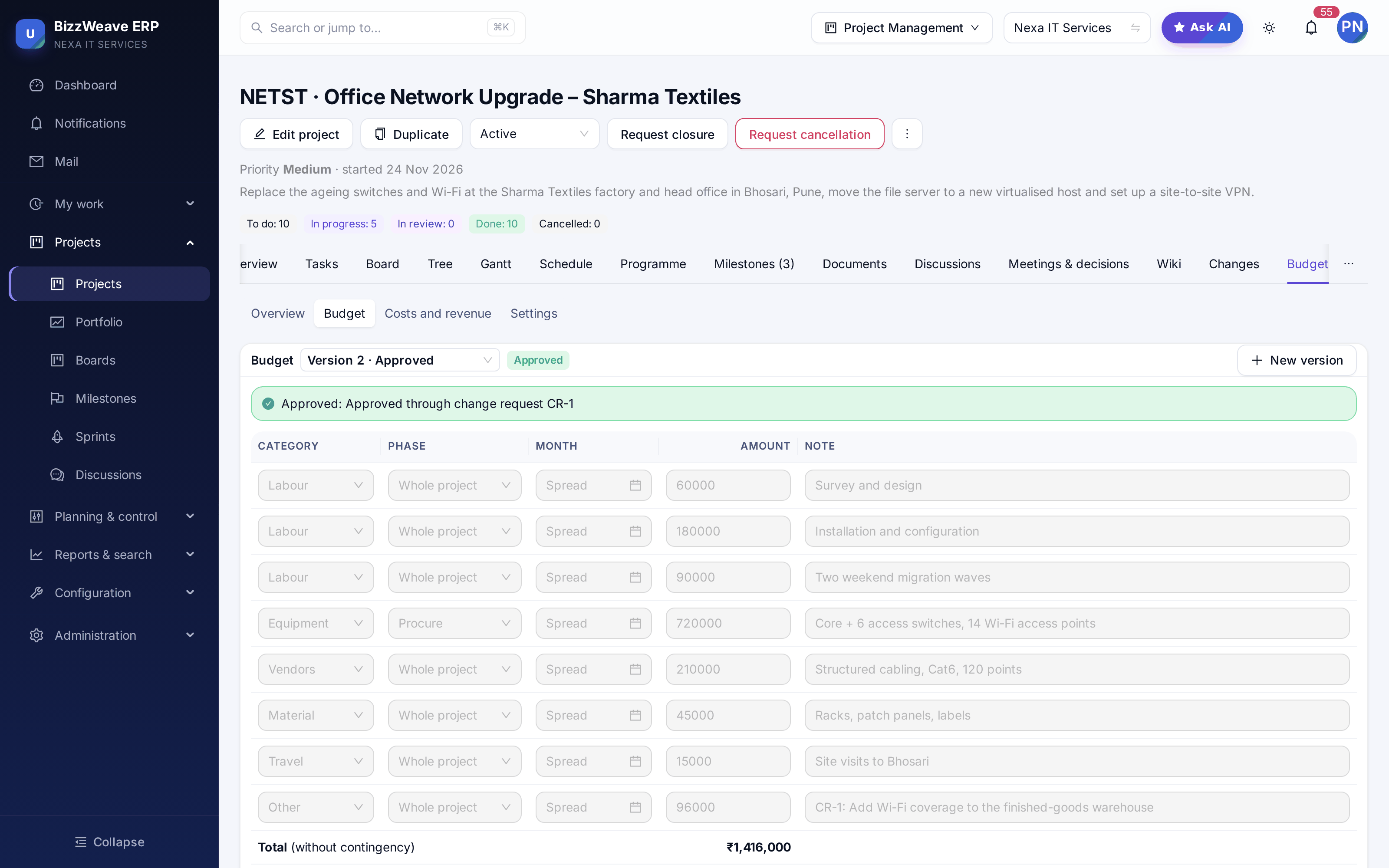
- Click Budget at the top of the tab, then Create budget (or New version if a budget exists; the new version starts as a copy of the approved one).
-
Click “Add line” for each cost and fill in the row:
Column What to enter Example Category Labour, Material, Vendors, Travel, Equipment, Overhead or Other. Equipment Phase The phase the cost belongs to, or leave Whole project. Procure Month The month the money is spent. Leave it empty (Spread) to spread the amount over the project's months. Spread Amount The amount in the project's currency. 720000 Note What it is for. Core + 6 access switches, 14 Wi-Fi access points -
Enter the Contingency (money kept aside for surprises) and a Note with your assumptions.
- Click Save.
-
Click Submit for approval. (If the project needs no approval, the button says Approve and the budget is approved at once.)

A draft version 2 for the e-commerce project. 1 Choose the version to look at. 2 Add a line. 3 Approve (this project needs no approval).
What happens next
A submitted budget shows Waiting for approval. It appears in the Approvals inbox of the project's finance people and project managers, and someone other than the person who submitted it must decide. Until then you can Withdraw it. When it is approved, it becomes the project's budget and the previous approved version is marked Superseded. A rejected budget shows the reason; change it and submit again.
Step 3: record costs and revenue
Open Costs and revenue.
Record an expense or a commitment
-
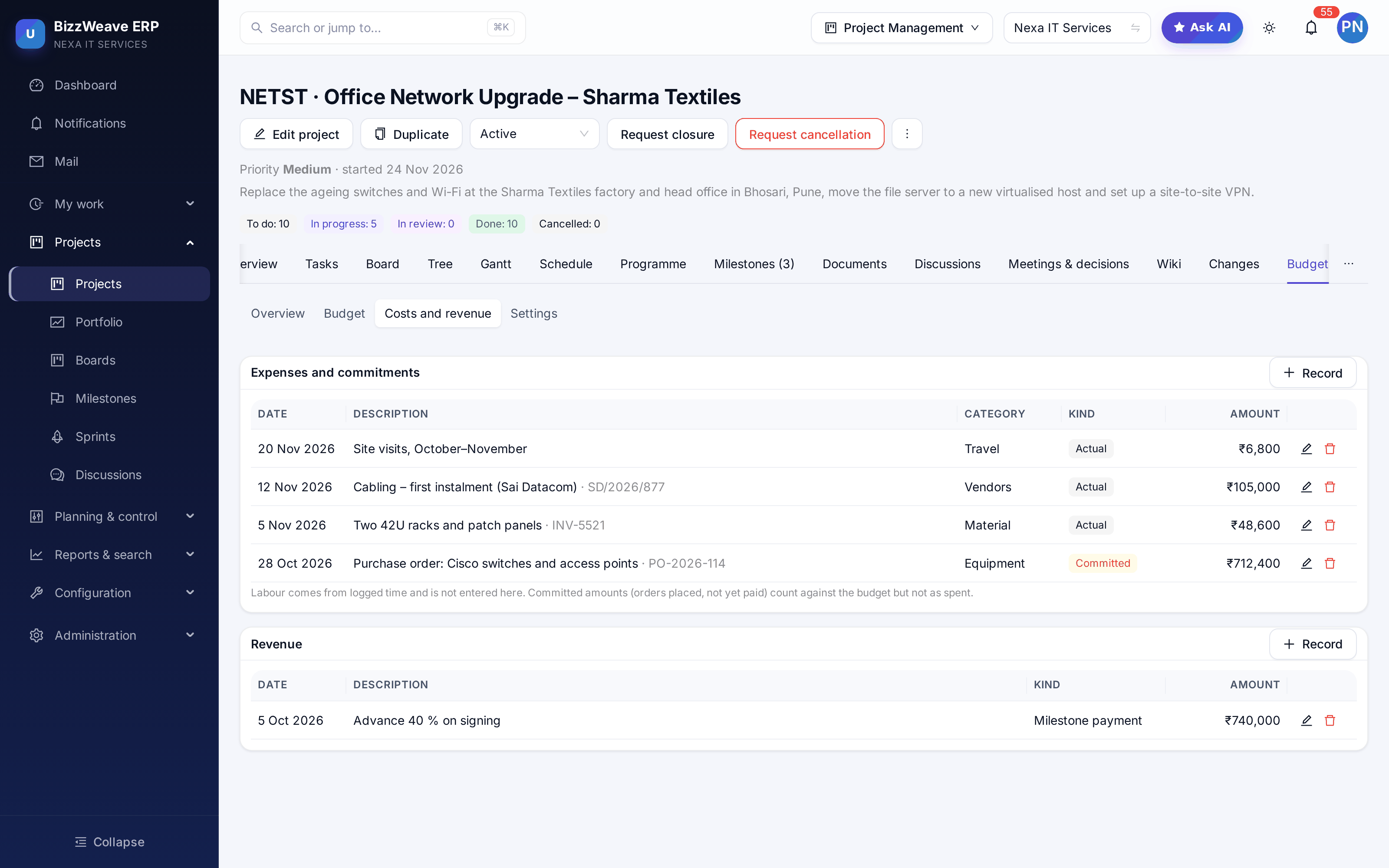
In Expenses and commitments, click Record.

Recording a bill for fibre patch cords. -
Choose the Kind: Spent for money already paid, or Committed (ordered) for a purchase order that isn't paid yet.
- Enter the Description, Category, Amount and Date, and the Reference (bill or PO number) if you have one.
- Click Save.
Labour cost is automatic
You don't enter labour here. The ERP multiplies the hours people log in their timesheets by each person's cost rate on that day. Committed amounts count against the budget but not as spent.
Record revenue
In Revenue, click Record, enter a Description (for example Advance 40 %), choose the Kind (Fixed fee, Milestone payment, Time and material, Invoice or Other), the Amount, the Date and the invoice number in Reference, then click Save.
For a time and material project, billable hours × bill rates count as revenue automatically; add only other income here.
Step 4: read the overview
Overview shows how the project is doing against its budget.
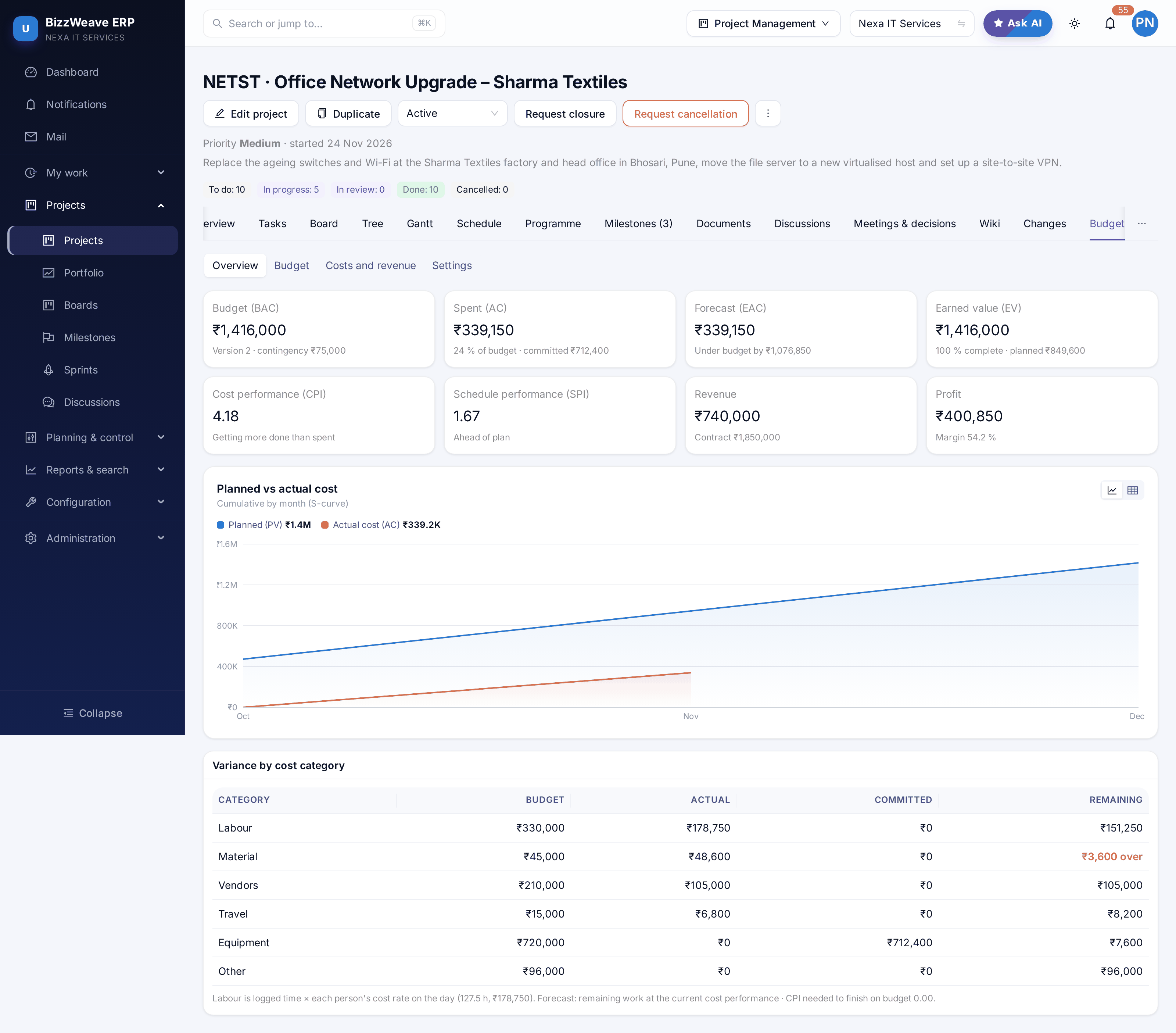
| Figure | What it tells you |
|---|---|
| Budget (BAC) | The approved budget (budget at completion), its version and the contingency. |
| Spent (AC) | What has been spent so far (actual cost), as a % of the budget, and what is committed. |
| Forecast (EAC) | The expected final cost (estimate at completion) and whether you will be under or over budget. |
| Earned value (EV) | The budget value of the work done so far, the % complete and the planned value (PV) for today. |
| Cost performance (CPI) | Earned value ÷ actual cost. Above 1: you get more done than you spend. Below 1: you spend more than you earn. |
| Schedule performance (SPI) | Earned value ÷ planned value. Above 1: ahead of plan. Below 1: behind plan. |
| Revenue and Profit | Shown for fixed-fee and time-and-material projects: income recorded, profit and margin. |
Below the figures:
- Planned vs actual cost is an S-curve: the cumulative planned cost per month against the actual cost.
- Variance by cost category compares budget, actual and committed per category. A red over amount means that category has gone past its budget.
Common questions
Why can't I change the approved budget?
An approved version is locked so everyone knows which numbers were agreed. Click New version: it starts as a copy you can change and submit again.
I submitted a budget. Why can't I approve it myself?
The person who submits a budget can't decide on it. A finance person or another project manager decides in the approvals inbox.
Labour shows some hours without a rate
The note under the variance table says how many logged hours have no cost rate. Cost rates are kept in each person's profile on the Resources page; ask your administrator to add a rate for those people. Until then their hours cost nothing in the budget.
Where do change requests come in?
When an approved change request with a cost increase is implemented, the ERP creates a new approved budget version with the extra cost added. See Change requests.