Purchase orders and goods receipt
Order goods from your suppliers, get the order approved, and record what arrives in the warehouse. Received goods go straight into stock at their purchase price.
Before you start
- Where: Purchase → Purchase orders.
- Administrators and managers create, approve and receive purchase orders. Short-closing an order needs administrator rights.
- The supplier must exist as a company of type Vendor. See Customers: companies and contacts.
- Time needed: about 3 minutes.
The purchase order list
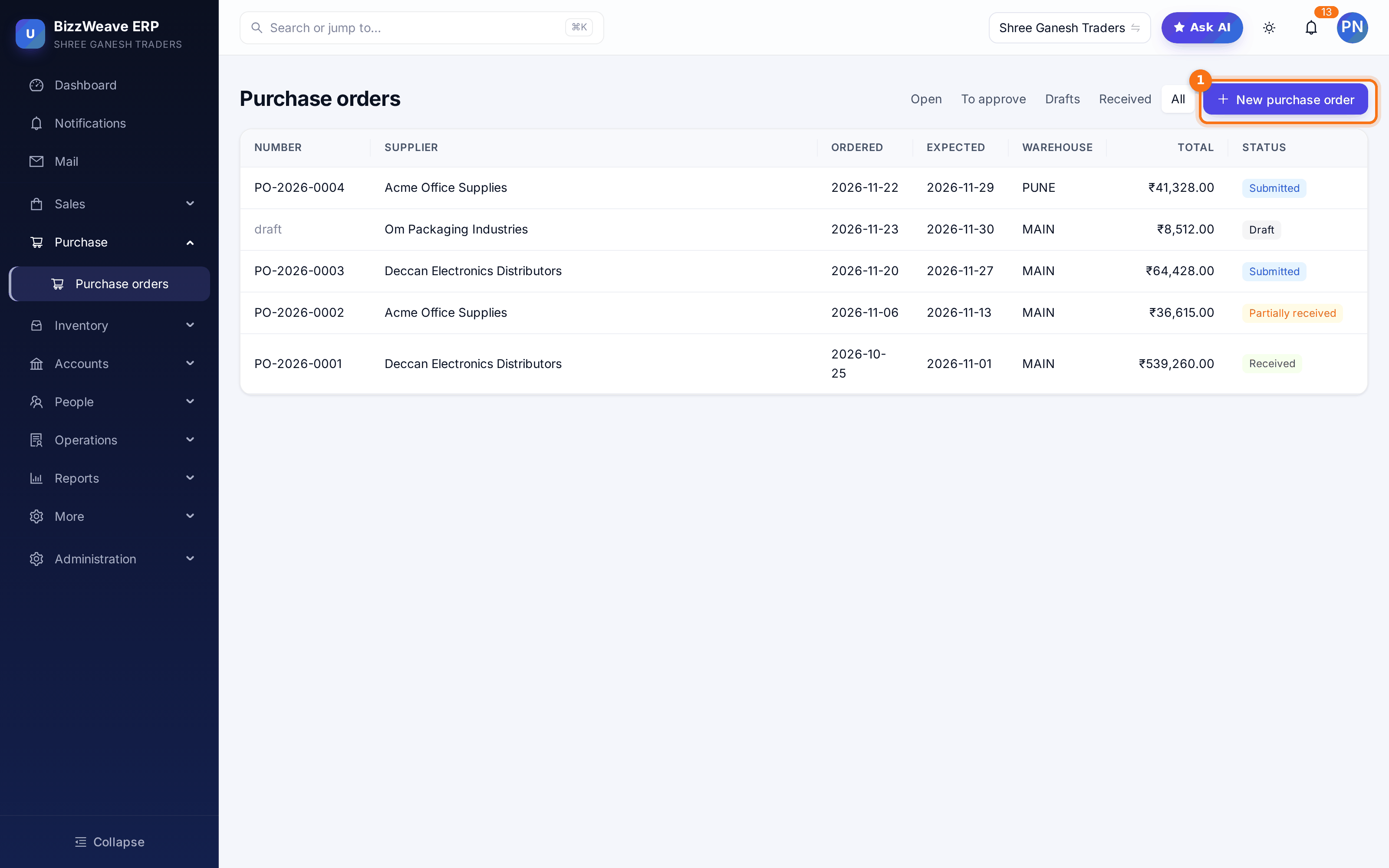
| Status | Meaning |
|---|---|
| Draft | Being prepared. No number yet. |
| Submitted | Waiting for approval. It now has a number, such as PO-2026-0004. |
| Approved | Approved; you can send it to the supplier and receive goods against it. |
| Partially received | Some goods have arrived. |
| Received | Everything has arrived. |
| Closed | The rest will not come (short-closed). |
| Cancelled | Called off. |
Create a purchase order
-
Click “New purchase order”.

Ordering 10 UPS units from a distributor. -
Fill in the header.
Field What to enter Example Supplier Required. Deccan Electronics Distributors Deliver to Required. The warehouse that receives the goods. MAIN · Main warehouse Order date Required. 24 Nov 2026 Expected When the supplier promised delivery. 1 Dec 2026 Supplier reference The supplier's quotation or order number. Quote DED/Q/552 -
Add the lines. Pick an Item: its purchase price and GST rate fill in. Enter the Qty, and change the Unit price if the supplier quoted a different price. For something that is not an item (such as packing boxes), leave the item empty and type a Description.
- Click “Save draft”. The subtotal, tax and total appear.
- Click “Submit for approval” and confirm. The order gets its number and appears in the approver's My approvals.
Approve or send back a purchase order
-
Open the submitted order (from To approve or My approvals).
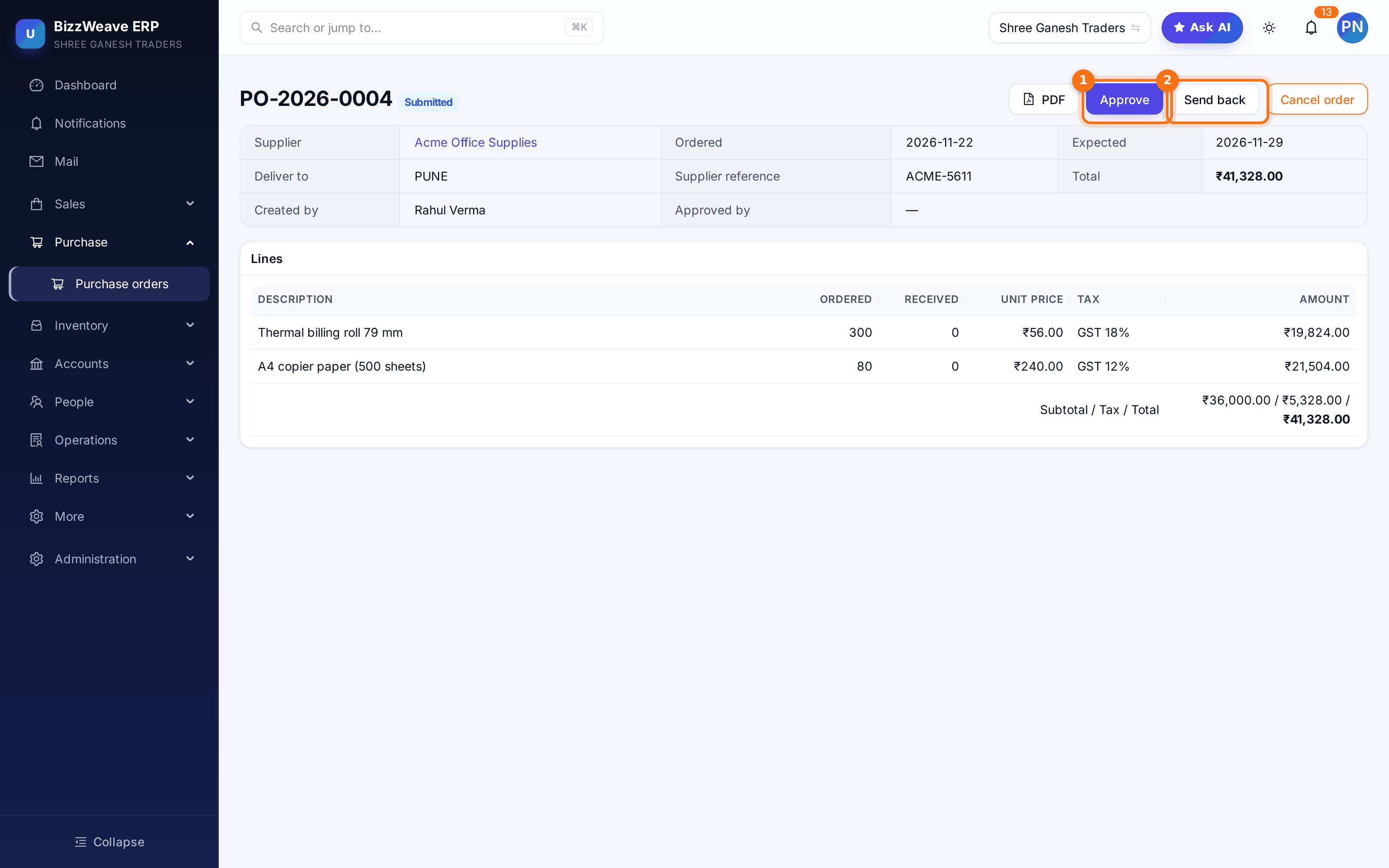
1 Approve. 2 Send back. -
Click “Approve” and confirm, or Send back and type the reason. A sent-back order returns to Draft, and the creator sees Sent back: … with your reason.
PDF prints the purchase order with your letterhead, to send to the supplier.
Receive goods
When the goods arrive, record a goods receipt (GRN).
-
Open the approved order and click “Receive goods”.

1 Receive goods. 2 Short-close. The Received column and Goods receipts show what has arrived so far. -
Check the receipt. Set Received on, the Warehouse and the supplier's Delivery note / invoice no.. Under Receive now, each line starts with what is still to come; change it to what actually arrived.

Receiving the rest of an order. -
Click “OK”.
What happens next
The receipt gets a number such as GRN-2026-0003. The goods are added to stock at the order's unit price (which updates the average cost), and the accounts record the stock against Accounts payable (what you owe the supplier). The order becomes Partially received or Received.
Short-close or cancel
- Short-close (administrators, on a partly received order): the supplier won't send the rest. Enter a reason; the order becomes Closed.
- Cancel order (on a draft, submitted or approved order): enter a reason.
Common questions
How do I pay the supplier?
Generic ERP doesn't have supplier bills or supplier payments yet. Pay from your bank as usual, then record a manual journal: debit Accounts payable, credit Bank. See Journals.
Can I receive more than I ordered?
No. Receive now can't be more than what is still to receive. Create another purchase order for the extra quantity.
Who can approve purchase orders?
Managers and administrators. The Business overview counts the orders awaiting approval.