Integrations
Connect Project Management to the tools your team already uses: post project updates to a Slack or Microsoft Teams channel, link GitHub or GitLab code to tasks, and turn e-mails into tasks.
Before you start
- Open Configuration → Integrations in the Project Management menu.
- You need the permission to manage integrations; owners and administrators have it.
- For chat you need the right to add an incoming webhook in Slack or Teams. For code you need admin rights on the GitHub or GitLab repository.
- Time needed: about 10 minutes per connection.
Two related features are documented elsewhere: personal calendar subscriptions and sync are in Calendar, and outbound webhooks and API keys for your own systems are under Administration → Integrations.
The Integrations page

Every connection shows a Status:
| Status | Meaning |
|---|---|
| Not used yet | Nothing has been sent or received yet. |
| Working | The last message or delivery succeeded. |
| Failing | The last attempt failed. Click the + at the start of the row to read the error. |
| Off | The connection is switched off with the On switch. Off (too many failures) means it switched itself off after repeated failures. |
Post project updates to Slack or Teams
- Create an incoming webhook in your chat tool.
- Slack: Apps → Incoming WebHooks → Add to channel, then copy the URL (it starts with
https://hooks.slack.com/). - Teams: in the channel, ⋯ → Workflows → "Post to a channel when a webhook request is received", then copy the URL.
- Slack: Apps → Incoming WebHooks → Add to channel, then copy the URL (it starts with
-
Click “Add Slack” or “Add Teams”.

Connecting the channel #sahyadri-bank-project to the Mobile Banking App project. -
Fill in the form.
Field What to enter Example Name Usually the channel name #sahyadri-bank-project Project The project whose updates are posted (required; cannot be changed later) SBANK · Mobile Banking App – Sahyadri Bank Incoming webhook URL The URL you copied in step 1. The ERP accepts only real Slack or Teams webhook addresses. https://hooks.slack.com/services/…Post What to post: New items, Status changes, Items completed, Comments, Announcements, Decisions recorded Status changes, Items completed, Announcements -
Click “Save”, then Test on the new row. A test message appears in the channel.
Confidential items are never posted
Tasks marked confidential are left out of every chat message.
Chat commands
Click Commands on a chat row to let people work with tasks from the chat. People type /erp my in Slack (or @ERP my in Teams), show WEB-42 or task Fix the login page. To turn commands on, copy the Request URL (Slack slash command) or Callback URL (Teams outgoing webhook) shown in the window into your chat app, paste the Slack signing secret or the Teams security token and click Turn on.
Each person links their chat account once by typing link in the chat and confirming on the Connect your chat account page. Commands then run with that person's own permissions.
Link GitHub or GitLab code to tasks
When a branch name, commit message or pull/merge request title mentions a task's key (for example SBANK-31), the code appears on the task under Development, with its CI status (CI passed, CI failed and so on). The connection can also move the task forward when a pull request opens or is merged.
-
Click “Add GitHub” or “Add GitLab” and fill in the form:

The connection for the Mobile Banking App repository. Field What to enter Example Name Usually the repository name sahyadri-mobile-banking Project Optional: only tasks of this project are linked SBANK Repository Optional: owner/name; deliveries from other repositories are ignorednexa-it/sahyadri-mobile-bankingWhen a pull request opens (merge request on GitLab) Optional status to move the task to In progress When it is merged Optional status to move the task to In review -
Click “Save”. A window shows the Payload URL (GitHub) or URL (GitLab) and a Secret.
Copy the secret now
The secret is shown only once. If you lose it, click New secret on the row; the old one stops working at once.
-
Add the webhook in the repository.
- GitHub: Settings → Webhooks → Add webhook. Paste the payload URL and the secret, set Content type to
application/jsonand choose the events Pushes, Pull requests and Workflow runs (and Check suites or Statuses if you use another CI). - GitLab: Settings → Webhooks → Add new webhook. Paste the URL and secret token and tick Push events, Merge request events and Pipeline events.
- GitHub: Settings → Webhooks → Add webhook. Paste the payload URL and the secret, set Content type to
- Check the deliveries. Click Deliveries on the row to see what arrived in the last 14 days and whether each delivery was processed, ignored or failed.
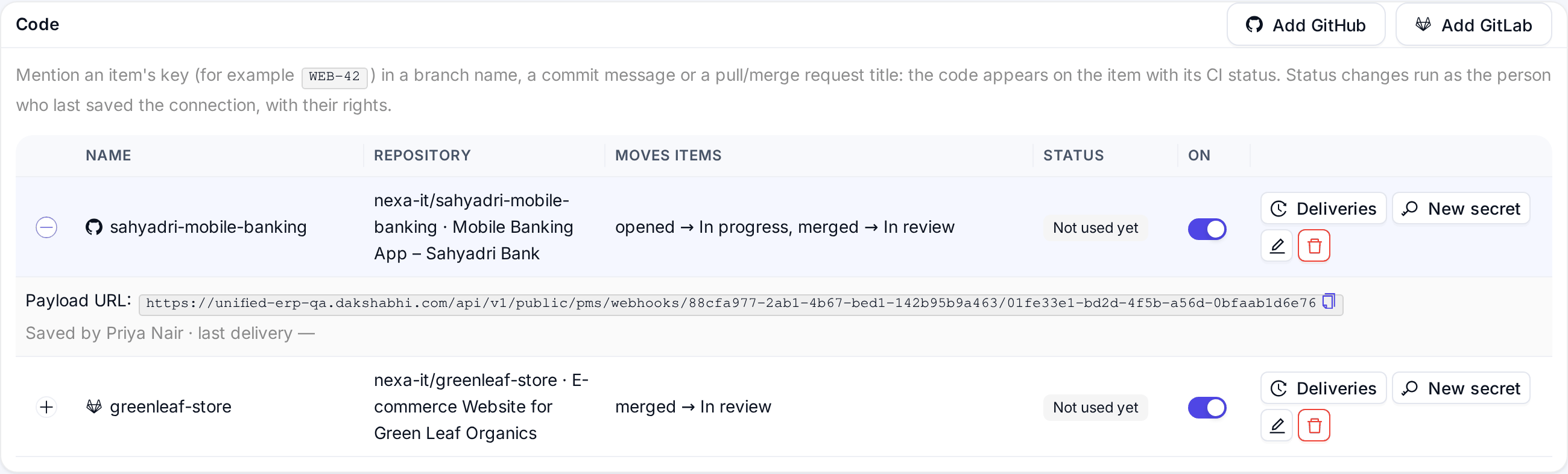
Status changes made by the connection run as the person who last saved it, with their rights. Tasks only ever move forward. In projects that use a workflow, the status changes through the workflow instead.
Turn e-mails into tasks
A project mailbox turns e-mails into tasks. It works with a mail provider's inbound parse webhook (for example Brevo inbound parsing).
- In E-mail into projects, choose a project and click Add mailbox.
- Copy the Mailbox URL from the window. It is shown only once and works like a password.
- In your mail provider, point the inbound-parse webhook at this URL.
From then on:
- an e-mail from someone in your organisation becomes a task in the project, created as that person;
- an e-mail whose subject contains a task key in brackets, such as
[SBANK-31], adds a comment to that task instead; - e-mails from other senders are rejected and logged.
Click Log to see what each mailbox received and what happened (Item created, Comment added or Rejected). New URL replaces the address if it leaked.
Common questions
The Save button says the webhook URL is not valid.
The ERP accepts only real Slack (https://hooks.slack.com/…) or Teams Workflows (…logic.azure.com/… or …api.powerplatform.com/…) webhook addresses. Copy the URL again from your chat tool.
A commit mentions the task key but nothing shows on the task.
Open Deliveries on the connection. If nothing arrived, check the webhook in GitHub or GitLab. If deliveries show ignored, check the Repository and Project you set on the connection.
Can I switch a connection off for a while?
Yes: use the On switch on its row. Nothing is posted or processed while it is off.