Roles & permissions
A role is a named set of permissions. BizzWeave ERP comes with four built-in roles; when they don't fit, build a custom role with exactly the permissions a job needs.
Before you start
- Creating, editing and deleting custom roles needs the Administrator role. Everyone can see the list of roles.
- Read Roles explained first: often a built-in role is enough.
- Time needed: about 10 minutes per custom role.
The role list
Open Administration → Organisation → Roles & permissions.
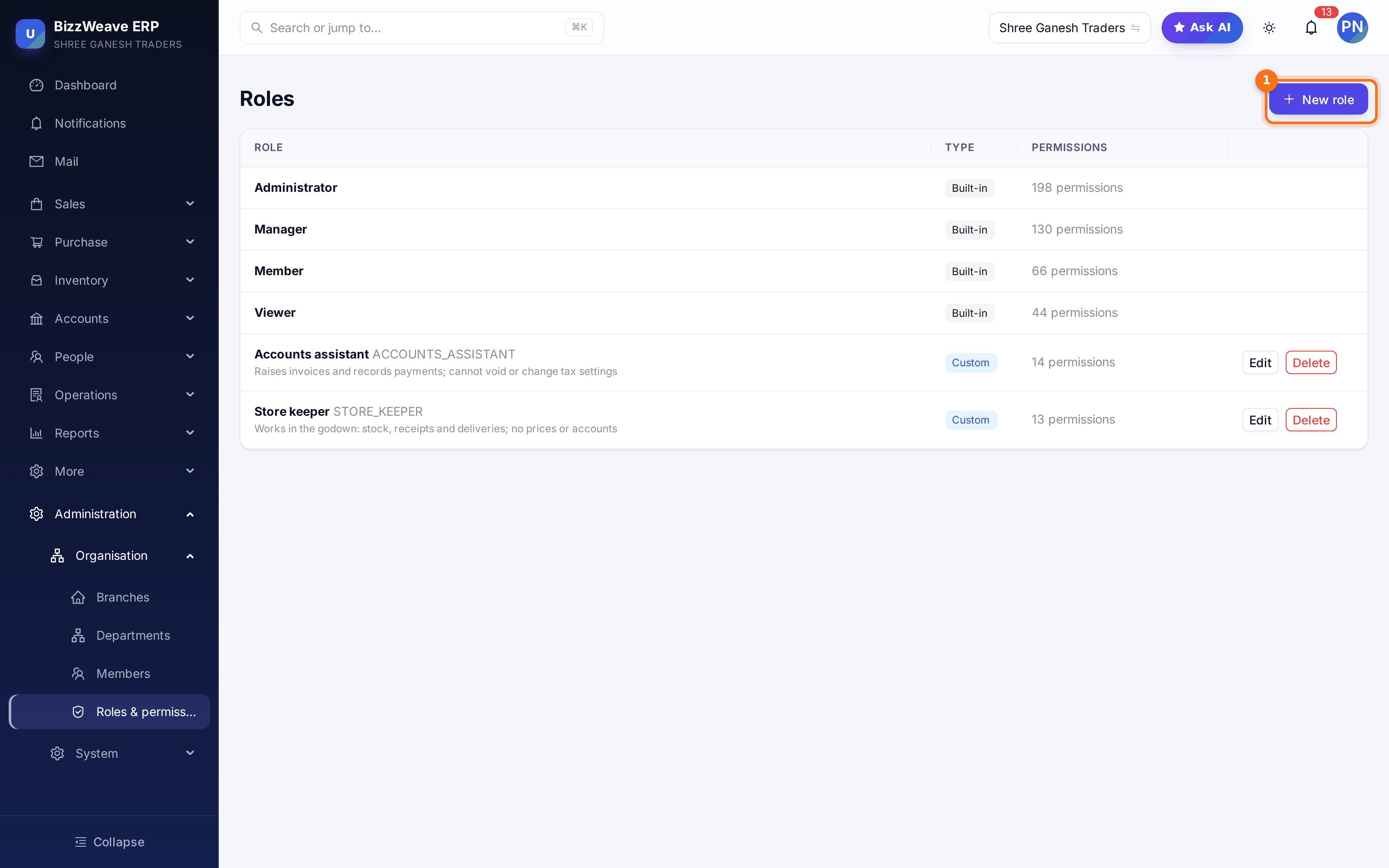
The Permissions column counts each role's permissions.
Create a custom role
- Click New role.
-
Fill in the details:
Field What to enter Example Code (required) 2 to 40 characters: capital letters, digits and underscores, starting with a letter. It can't be changed later. STORE_KEEPER Name (required) The name people see. Store keeper Description What the role is for. Works in the godown: stock, receipts and deliveries; no prices or accounts -
Tick the Permissions the role needs. They are grouped by area (Accounting, Settings, AI assistant, Branches, Inventory and so on), each with a plain description.

The top of the dialog. Scroll down to see every area. -
Click OK. The message Role saved appears.
Example: Store keeper
Shree Ganesh Traders' Store keeper role has: View items, services and prices, View stock levels…, Transfer stock and draft stock adjustments, View purchase orders and goods receipts, Receive goods against approved orders, View sales orders and deliveries, Deliver goods against sales orders, See branches, View the Generic ERP business overview, Request own leave…, Check in and out…, View departments and View organisation members. Store keepers can receive and dispatch goods but can't see invoices or approve orders.
Building a role
- A page appears in the menu only when the role has its View … permission, so tick the View permission of every area the person works in.
- You can only include permissions that you hold yourself.
- Permissions whose description says (restricted), such as cost rates, show sensitive figures.
Edit or delete a custom role
- Edit: click Edit, change the name, description or permissions, and click OK. Everyone with the role gets the change. The code can't be changed.
- Delete: click Delete and confirm. A role that is still given to members can't be deleted: the message Role is assigned to members; reassign them first appears. Change those members' role first (see Members).
Every change is recorded in the audit trail (role.created, role.updated with the permissions added and removed, role.deleted).
Give the role to people
Go to Members and choose the custom role in the person's Role list. Custom roles are marked (custom).
Roles added by apps
Some apps add ready-made roles when you install them: the Project Management Suite, for example, adds roles for typical project jobs. They appear in the list as custom roles and work in the same way.