Your profile and account security
Keep your account safe with two-step sign-in, understand when you are signed out, and create personal API tokens if you use scripts.
Before you start
- For two-step sign-in: a phone with an authenticator app, for example Google Authenticator, Microsoft Authenticator or FreeOTP.
- Time needed: about 5 minutes.
Your profile
Your name and e-mail address come from your sign-in account. You see them at the top of the account menu (click your initials in the top-right corner). You entered them when you registered, or your administrator invited your e-mail address.
- Password: change it with Forgot Password? on the sign-in page. See Sign in.
- Role: your administrator sets it in each organisation. See Roles explained.
- Branch: if your company uses branches, an administrator can limit you to some of them. See Branches.
Turn on two-step sign-in
With two-step sign-in (also called two-factor sign-in or MFA), signing in needs your password and a 6-digit code from an authenticator app on your phone. Someone who learns your password still can't sign in without your phone. It is optional, but we recommend it for everyone, and especially for administrators.
-
Click your initials in the top-right corner and choose Account security.

Status shows Off or On. Click 1 Turn on two-factor sign-in. -
Click Turn on two-factor sign-in. The secure sign-in service opens Mobile Authenticator Setup.

Scan the QR code with your authenticator app, then type the code it shows. -
On your phone, open the authenticator app, tap + (add account) and scan the QR code. If you can't scan it, click Unable to scan? and type the key it shows into the app.
- Type the 6-digit code from the app into One-time code.
- Optionally, give the phone a Device Name, for example Anita's Pixel.
- Optionally, tick Sign out from other devices to end any other sessions.
- Click Submit. You return to Account security, which now shows Status: On, the authenticator's name and the date you turned it on.
Don't ask on a device you trust
When you type the code at sign-in, you can tick Don't ask for a code on this device. That browser then doesn't ask for a code for 30 days. Don't tick it on a shared computer.
Turn two-step sign-in off
On Account security, click Turn off two-factor sign-in and confirm in the sign-in service. Turning it off also forgets every device on which you chose not to be asked.
The page says “Two-factor settings are not available right now.”
The sign-in service couldn't be reached. Try again later, or ask your administrator.
Sessions and signing out
- Each browser is a separate session. Signing out on your laptop doesn't sign you out on your phone.
- Inactivity ends a session. After a period without activity, or when the computer has been asleep, BizzWeave ERP first tries to renew your session quietly. If it can't, you see Your session has expired on the welcome page. Sign in again to return to the same page.
- End other sessions: when you turn on two-step sign-in you can tick Sign out from other devices. If you think someone else knows your password, change it with Forgot Password? straight away and tell your administrator.
Personal API tokens
A personal API token lets a script or spreadsheet read (or change) BizzWeave ERP data as you, without your password. It is meant for technical users.
- Click your initials and choose API tokens.
- Click New token, give it a Name (what will use it, for example weekly report script), choose Read only or Read & write, and how many days until it Expires (1 to 366).
- Click Create. Copy the token straight away: it is shown only once. Click I have copied it.
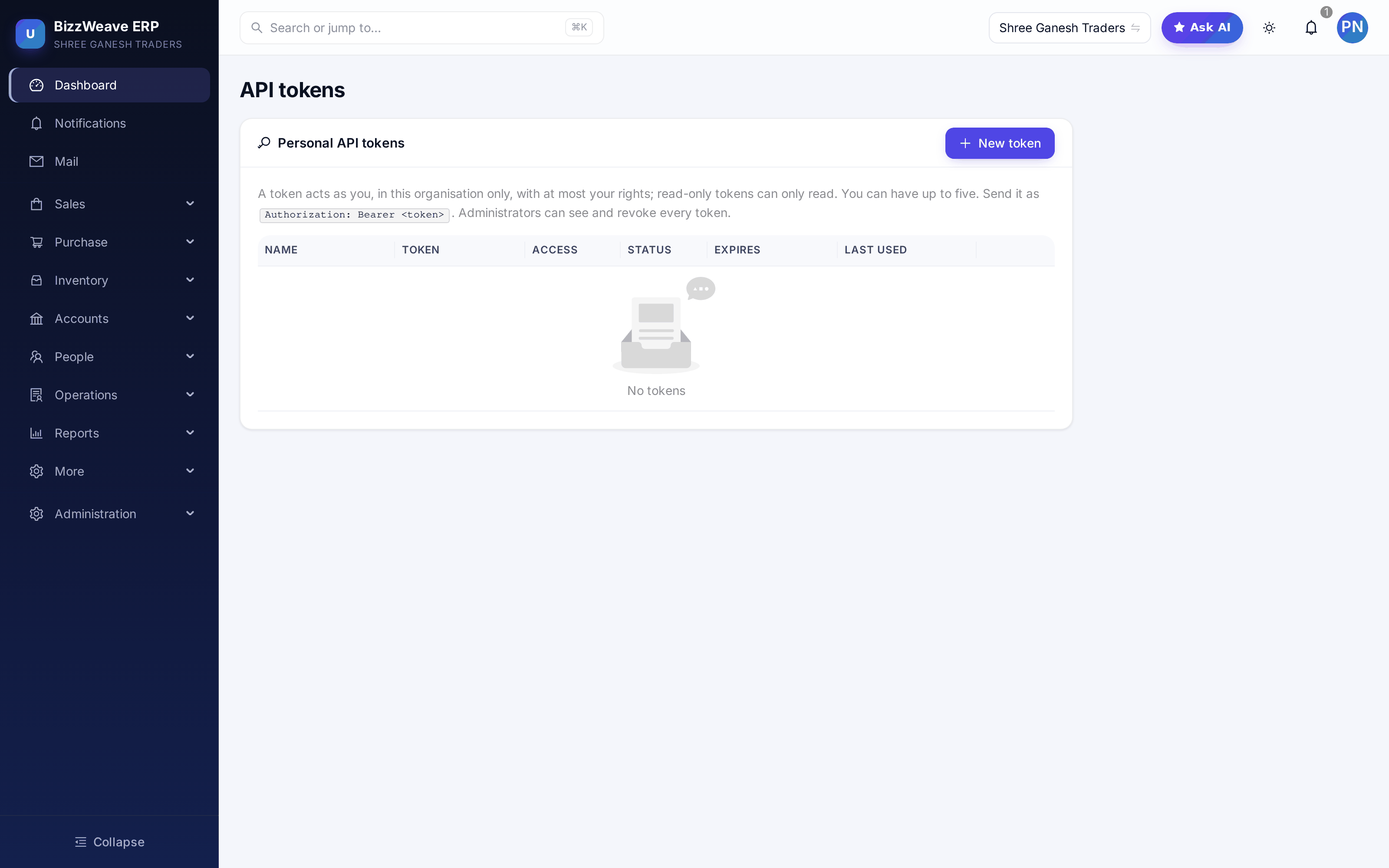
A token works only in the organisation where you created it, with at most your own rights. You can have up to five. Administrators can see and revoke every token under Integrations.
Who can create tokens
Only roles with the Create personal API tokens permission can. Of the built-in roles, that is the Administrator. Others see Your role does not include personal API tokens; an administrator can give the permission through a custom role.