Timesheet
Your timesheet collects the time you logged in a week. Check it, submit the week for approval, and, if you approve timesheets, approve or reject your team's weeks on the same page.
Before you start
Your week
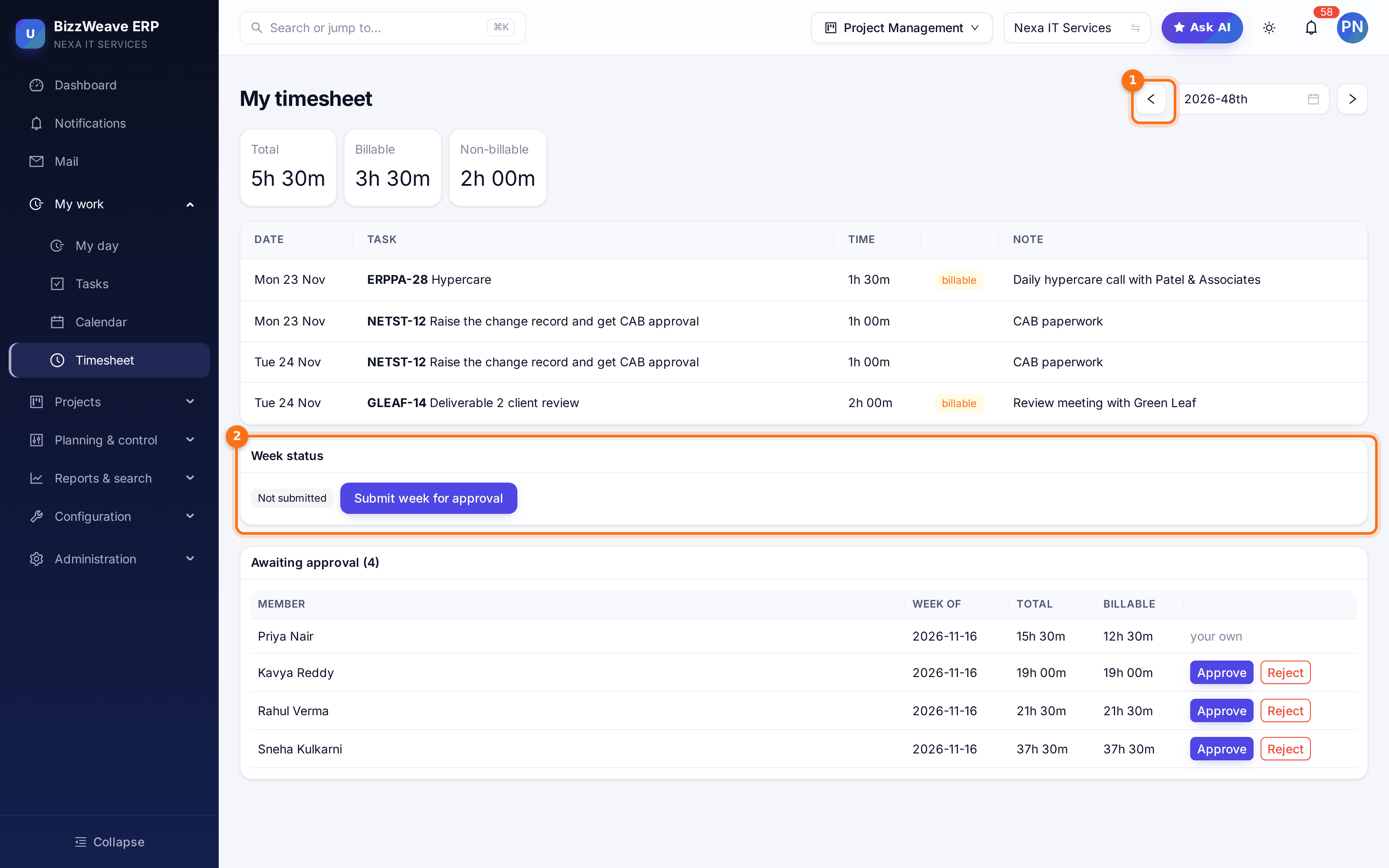
The page shows one week, Monday to Sunday:
- Total, Billable and Non-billable: the hours you logged this week.
- The table: one row per time entry with the date, the task, the time, a billable tag and your note.
- Week status 2: Not submitted, SUBMITTED, APPROVED or REJECTED, with the approver's note when the week was rejected.
Use the arrows or the week picker 1 to move to another week.
Fix a wrong entry
Open the task (click its name on Tasks or My day), go to the Time tab and delete the entry, then log it again. You can only change time in weeks that are not submitted or approved.
Submit a week for approval
- Choose the week with the arrows or the week picker.
- Check the entries and totals.
- Click Submit week for approval.
What happens next
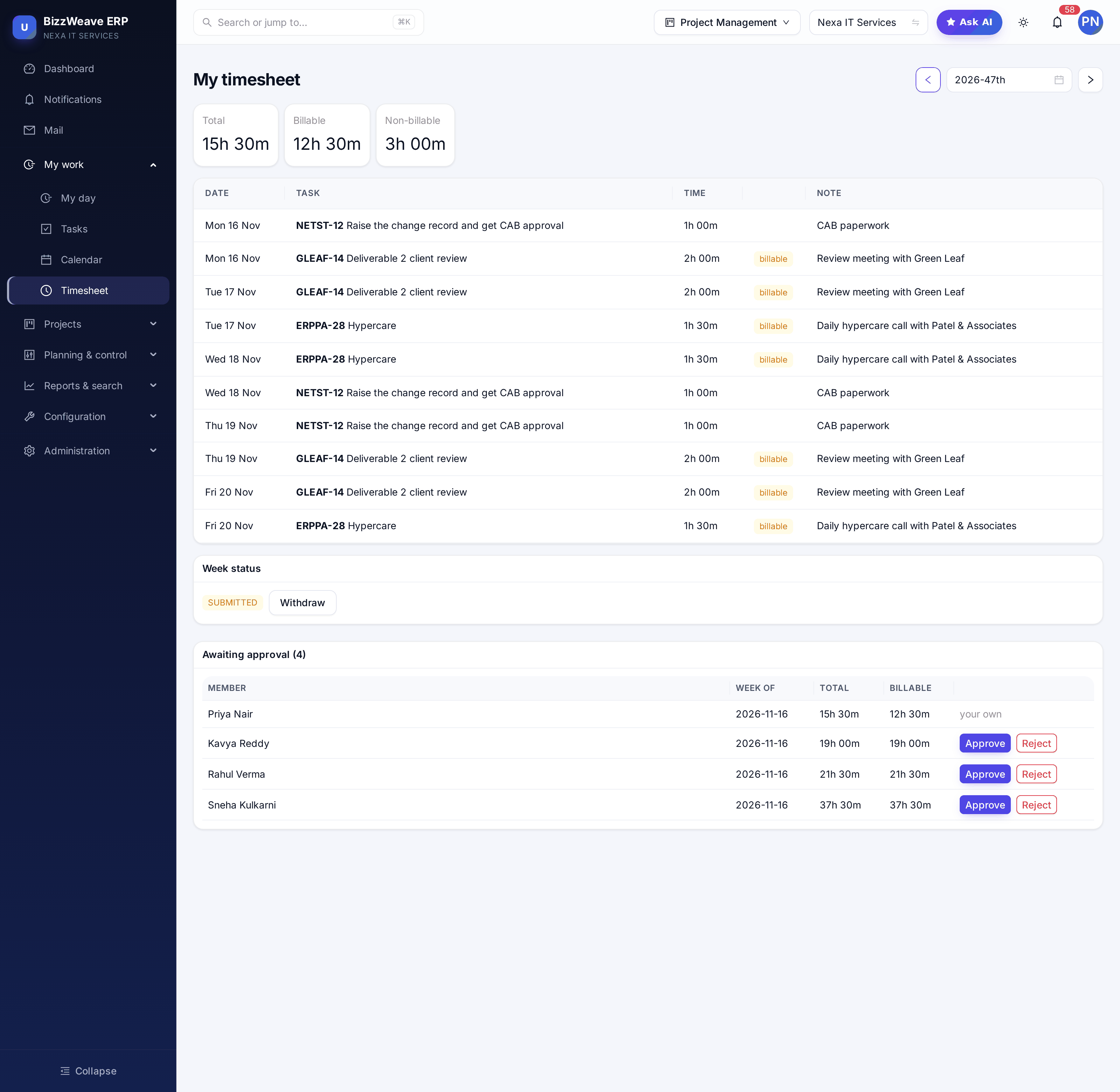
The week shows SUBMITTED and its entries are locked: neither you nor the timer can add or change time in that week. The week appears in the approvers' Awaiting approval list.
- Change something after submitting? Click Withdraw. The week returns to Not submitted and you can edit it and submit again. You can only withdraw a week that hasn't been decided yet.
- Rejected? The status shows REJECTED with the approver's reason, for example “Please split the 5 h on NETST-15 between switch build and Wi-Fi survey”. Correct the entries and click Submit week for approval again.
- Approved? The week stays locked.
Approve your team's timesheets
If you may approve timesheets, the Awaiting approval card appears below your own week. It lists every submitted week, whatever week you are looking at.
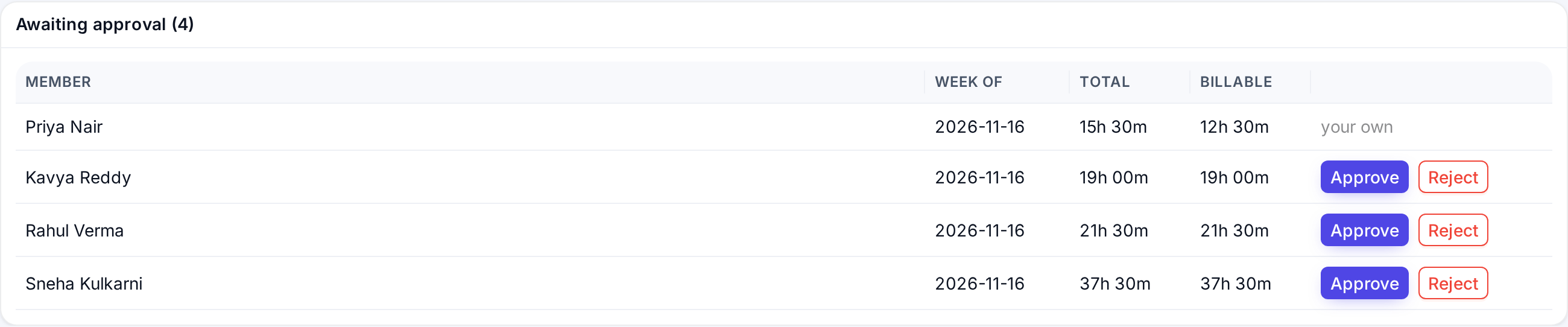
- Check the Member, Week of, Total and Billable hours. To see the detail, look at the person's time in the project or in Project reports (for example Resource utilisation).
- Click Approve to accept the week.
- Or click Reject, type the reason for rejection and confirm. The person sees your reason on their timesheet.
You can't approve your own week
The ERP doesn't let anyone approve their own timesheet. Another approver must do it.
Common questions
I can't log time: “The timesheet for this week is submitted”
The week is submitted or approved. Withdraw it on the Timesheet page (only while it is still submitted), add the time, then submit again. An approved week can't be reopened by you; ask your manager.
Do I have to submit every week?
That depends on your company. The ERP records time as soon as you log it; submitting adds the approval step and locks the week.
Which hours count as billable?
Those you ticked Billable when you logged them or stopped the timer. Billable hours are used for project cost and client billing reports.
Where do managers see everyone's hours?
In Project reports: Employee productivity, Resource utilisation and Project cost.