AI assistant
The AI assistant drafts plans, dependencies, milestones, assignments, risks, corrective actions and status reports from your project data. It only proposes: nothing changes until a person reviews the proposal and applies the items they choose, with their own permissions.
Before you start
- Open Planning & control → AI assistant.
- Every member can ask for proposals. Applying an item needs the same right as making the change by hand; for example, only someone who may assign work can apply an assignment.
- AI on or off: when your administrator has turned AI on for the organisation (Administration → System → AI assistant), text such as status reports is written by the AI model. When AI is off, every proposal is still drafted, by rules, from your project data.
- Time needed: a few seconds for rule-based drafts; up to a minute for AI-written text.
The assistant page

The page has three cards:
- Project: choose a project, then one of the assistants below. The list under the buttons shows the project's proposals, who made them (AI or Rules), their status and when they were created.
- Team: for Scrum teams, Sprint plan fills the next planned sprint from the ranked backlog within the team's capacity, and Prioritise backlog suggests a new order from priority, due dates and dependencies. See Sprints.
- Across projects: Management summary writes one summary of every active project you can see.
What each assistant proposes
| Button | What you get |
|---|---|
| Plan from requirements | Phases, tasks and subtasks with dates, from a plain-text list (see below). |
| Dependencies | Finish-to-start links between items whose dates already run one after another. |
| Milestones | A milestone at the end of each summary item and of the project. |
| Timeline | New dates that follow the dependencies and the project calendar. |
| Assignments | Someone for each unassigned item, chosen by skills, free capacity and who has done similar work. |
| Risks | Risk register entries for late-looking work and bottlenecks. |
| Corrective actions | Reassign or raise the priority of items with a high delay risk. |
| Status report | A status report for stakeholders, to publish in the project wiki. |
| Weekly summary | A short summary of the week for the team. |
Inside a work item you also find Suggest subtasks (breaks the item into subtasks from its description or acceptance criteria), and in a meeting Find action items (turns lines such as Action: … or TODO: … in the notes into tasks). Both open the same review window.
If there is nothing to propose, you see a short message, for example No missing links found for dependencies.
Review and apply a proposal
-
Click an assistant button (or a proposal in the list). The proposal opens on the right.

A rule-based proposal: raise the priority of an overdue backup task. The grey line explains why. -
Read the banner. AI-generated draft — check every item before applying or Drafted by rules from your project data. It also says when the proposal expires (two weeks after it was made).
- Check each item. The Change column says what would happen and why. Click the pencil to edit an item before applying it, for example to change a date or the person. Edited items are tagged edited.
- Untick any item you do not want.
- Apply:
- Apply selected (N) applies the ticked items and keeps the rest pending, so you can come back to them.
- Apply selected, skip the rest applies the ticked items and closes the proposal.
- Dismiss closes it without changing anything.
What happens next
Each applied item is made with your own permissions and recorded in the audit log. Its status becomes Applied (with the new key, such as NETST-26), or Not applied with the reason if something prevented it. The proposal becomes Applied, Partly applied or Dismissed.
Reports written by the AI
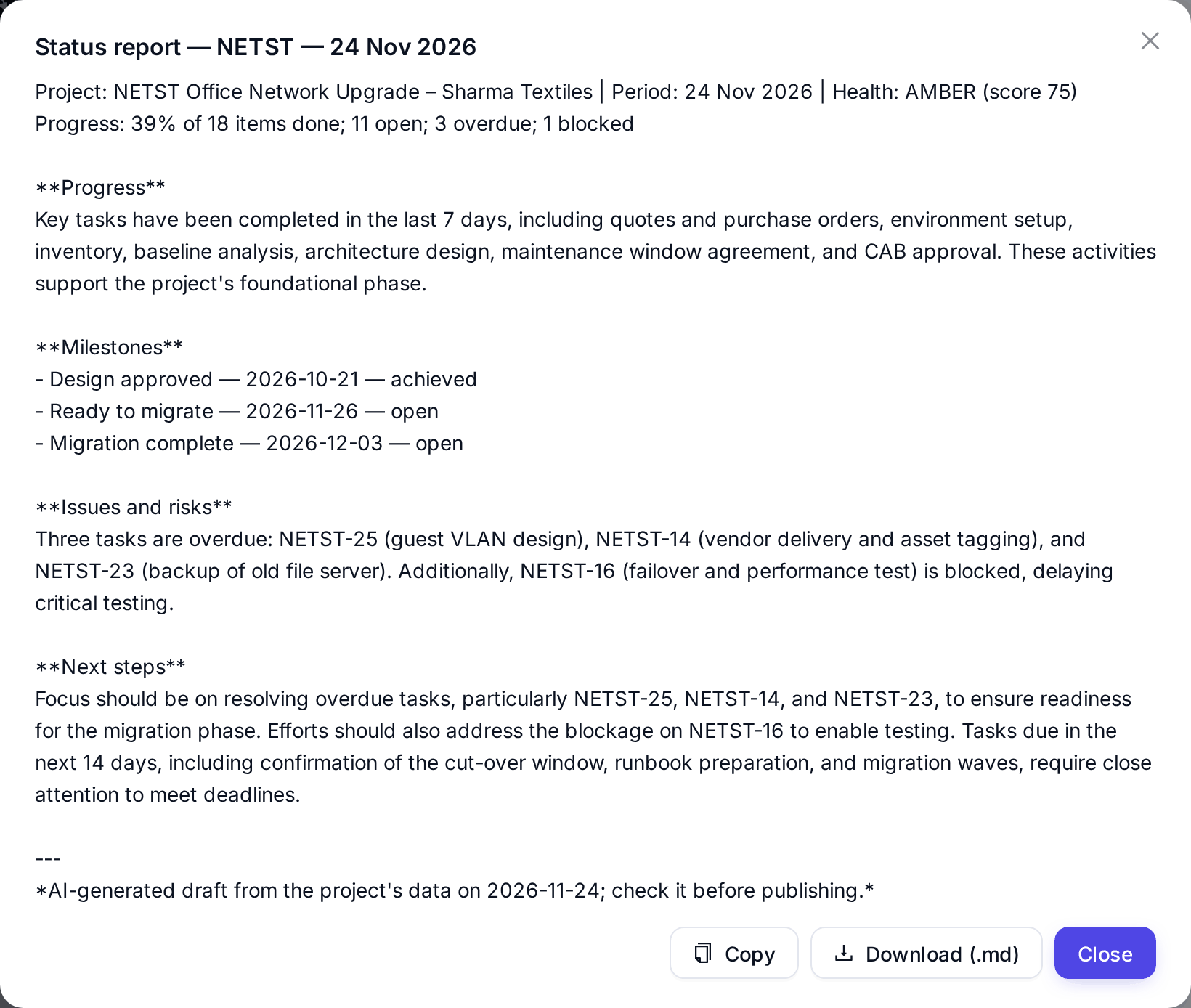
Status reports, weekly and management summaries come as one Document item.
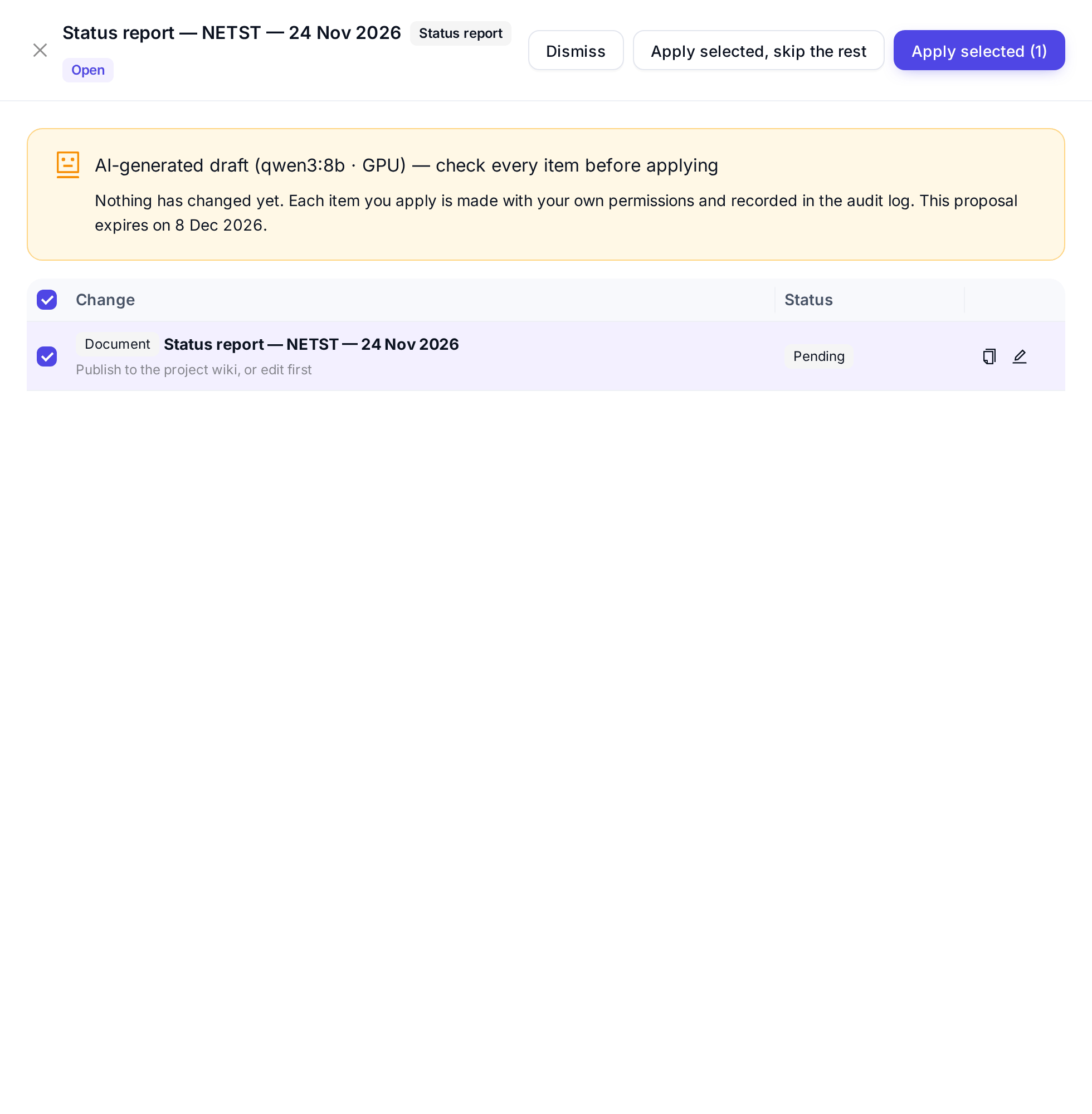
Click the Read icon to read it, Copy it or Download (.md). Click the pencil to edit the text and choose When applied: Publish as a page in the project wiki, or Only mark as accepted.
Plan from requirements
Turn a list of what needs to be delivered into a draft plan.
-
Choose the project and click Plan from requirements.

Headings become phases, bullets become tasks and indented bullets subtasks. -
In What needs to be delivered, type or paste the work. Use
#headings for phases and-bullets for tasks; indent a bullet for a subtask. Estimates such as (3d), [4h] or ~2 weeks are used for the durations. - Optionally choose Start on (default: the project start or tomorrow).
- Click Draft a plan, then review and apply the items as above.
Delay risk and bottlenecks
Choose a project and click Delay risk.

- Scores are calculated, not guessed: overdue days, float on the schedule, work left against working days, blocked items, nobody responsible, and items waiting on it. High and medium counts are shown in the title. The Why column lists the reasons.
- Milestones below the list show how likely each milestone is to slip, with its riskiest item.
- Bottlenecks: a Person with more work due than hours available, an Item that several open items wait for, or Blocked work.
- Explain asks the AI for a short explanation in plain words (when AI is on).
To act on the scores, click Corrective actions on the Proposals view.
Common questions
Does the AI change my project on its own?
No. It only creates proposals. A person must review and apply each item.
My proposal says “Rules”, not “AI”
Most assistants (dependencies, milestones, timeline, assignments, risks, corrective actions, sprint plan, backlog order) are always calculated by rules from your data, so the result is explainable. The AI model writes text such as status reports and summaries when AI is turned on; if it is off or does not answer in time, the ERP drafts the text from the figures instead and says so in the banner.
Is our data sent outside the company?
That depends on the model your administrator chose under Administration → System → AI assistant. A self-hosted model keeps the data on your organisation's own server.
A proposal disappeared from the list of open ones
Proposals expire after two weeks. Ask for a fresh one; it will use the latest data.