The dashboard
The dashboard is the first page you see after signing in. It shows the key figures of the category you are working in, so you know at a glance what needs attention today.
Before you start
- Everyone has a dashboard. What it shows depends on the category chosen in the top bar and on your role.
- Time needed: 1 minute a day.
Open the dashboard
Click Dashboard at the top of the menu, or the BizzWeave ERP logo. Each category has its own dashboard; switch category in the top bar to see another one (see Find your way around).
Only what you are allowed to see
Tiles and charts are filtered by your role, and the server filters the figures again. A member who can't see finance, for example, doesn't get the cash or receivables tiles. Two people can therefore see different dashboards in the same organisation.
Business ERP: Business overview
For Generic ERP, the dashboard is the Business overview: money, sales, stock and work waiting for a decision.
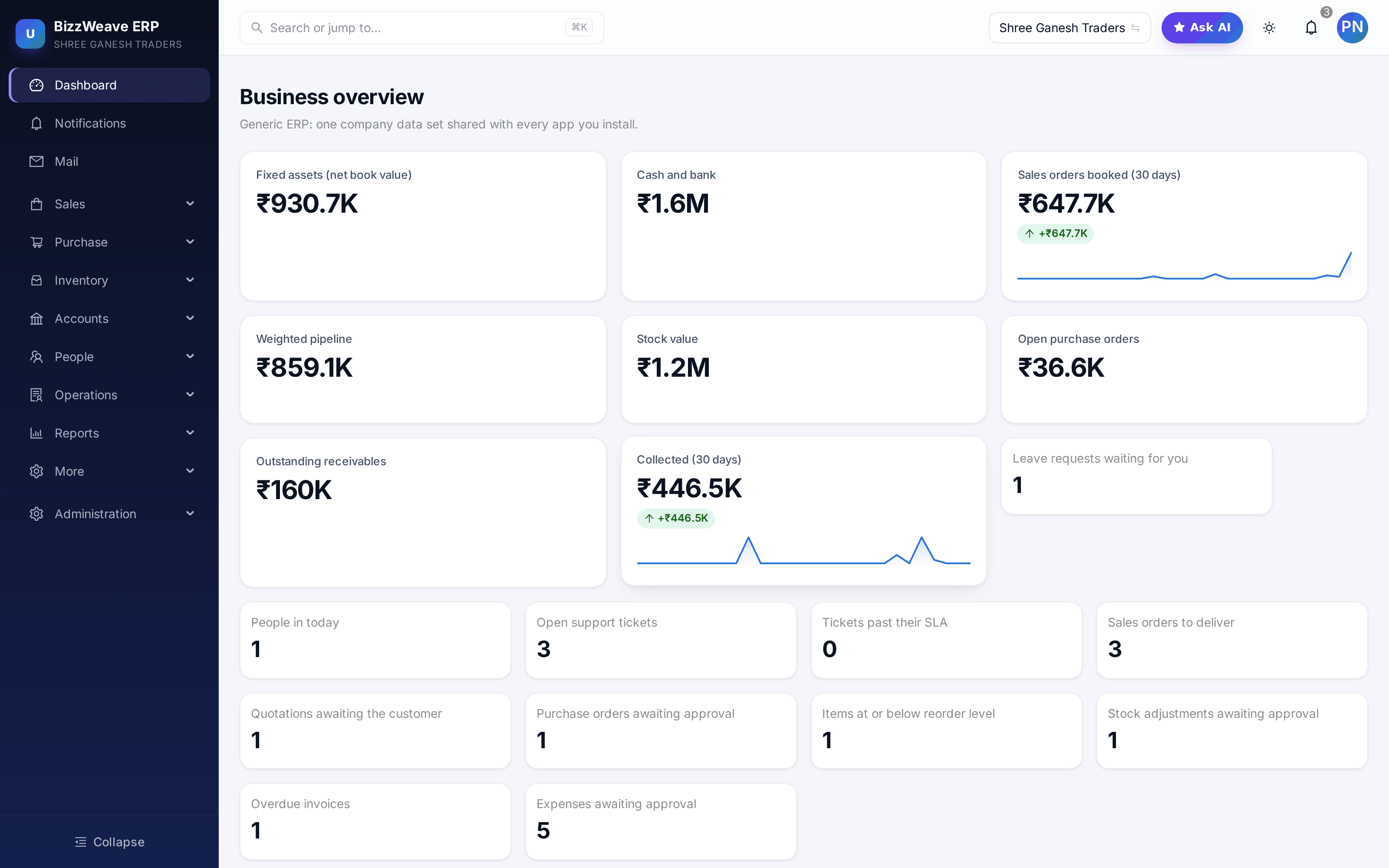
The guides for these modules are in Generic ERP.
CA ERP: the practice dashboard
For a CA firm, the dashboard counts compliance tasks that are Overdue, Due today, Due in 7 days, Awaiting review, Open and Done this month. It also shows unbilled finished work, documents awaited from clients and DSCs or licences expiring in 30 days, with charts of work due by service, tasks by status, and overdue and open work by staff member.

More in CA Firm ERP.
Project Management: Project home
Project home lists your open, overdue and upcoming items, approvals waiting for you, the health of your projects and recent activity.
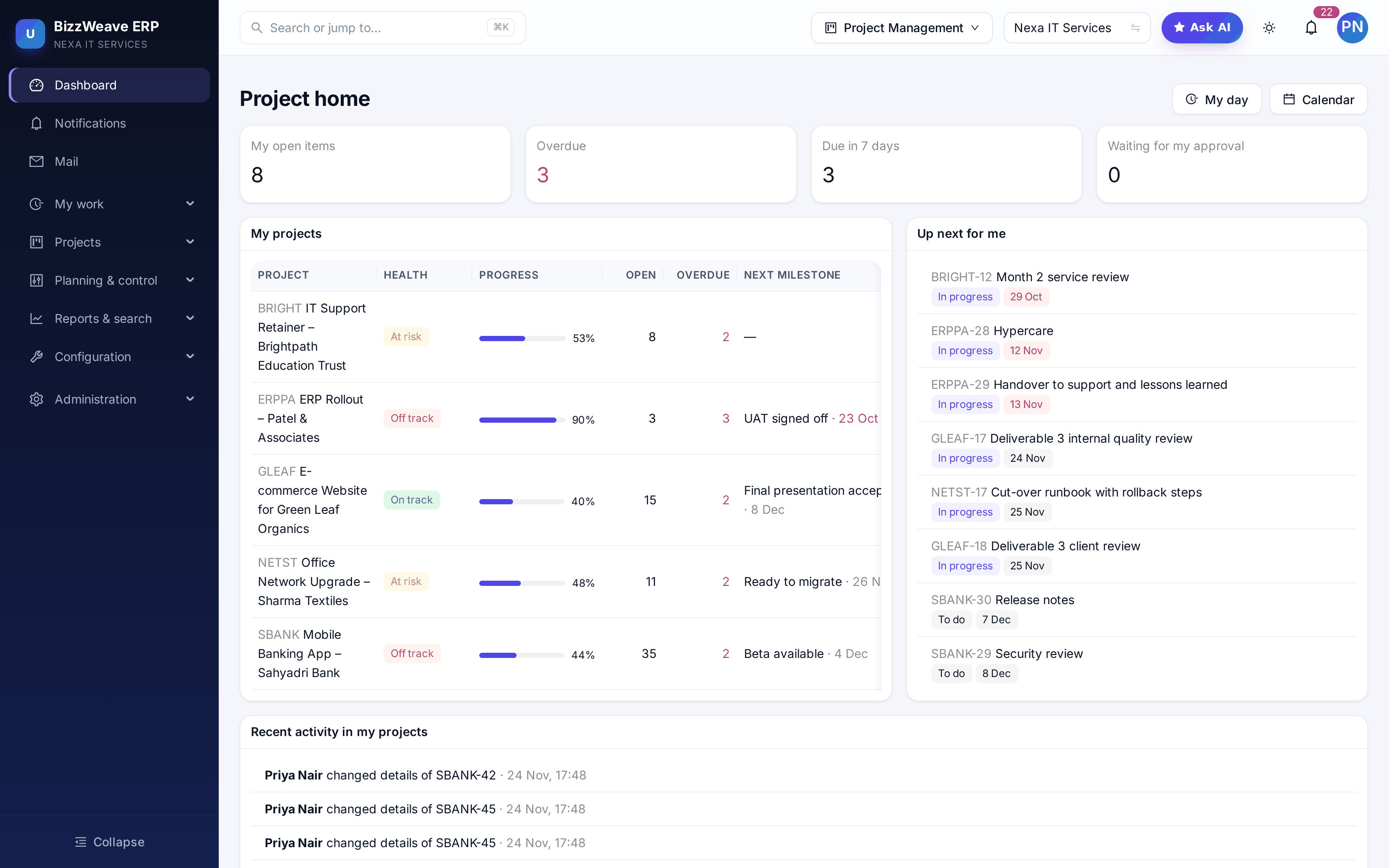
More in Project Management.
IT ERP: IT operations
IT operations shows open tickets, tickets that breached their SLA, tickets assigned to or raised by you, IT assets in use or in repair, warranties expiring, changes awaiting approval or in progress, and a list of open tickets.

More in IT ERP.
Common questions
My dashboard is empty or shows only zeros.
Either nothing has been entered yet, or your role can't see the records behind the tiles. Check that you are in the right organisation and category.
Can I choose which dashboard opens first?
Yes: switch to the category you want. BizzWeave ERP remembers your last category in each organisation. An administrator sets the starting category for people who haven't chosen one (see Organisation settings).
Can I build my own dashboard?
In Project Management, Reports & search → Project dashboards lets you build personal and shared dashboards with widgets. See the Project Management guides.