Search and the command palette
Use the command palette to jump to any page by name, and the search boxes inside each list to find a record. For questions about your data in plain English, use Ask AI.
Jump to a page
- Click Search or jump to… at the top of any page, or press Ctrl+K (Cmd+K on a Mac).
-
Type part of the page name or a related word. For example,
gstfinds GST returns (GSTR-1) and Billing & GST;leavefinds Leave;supplierfinds Purchase orders.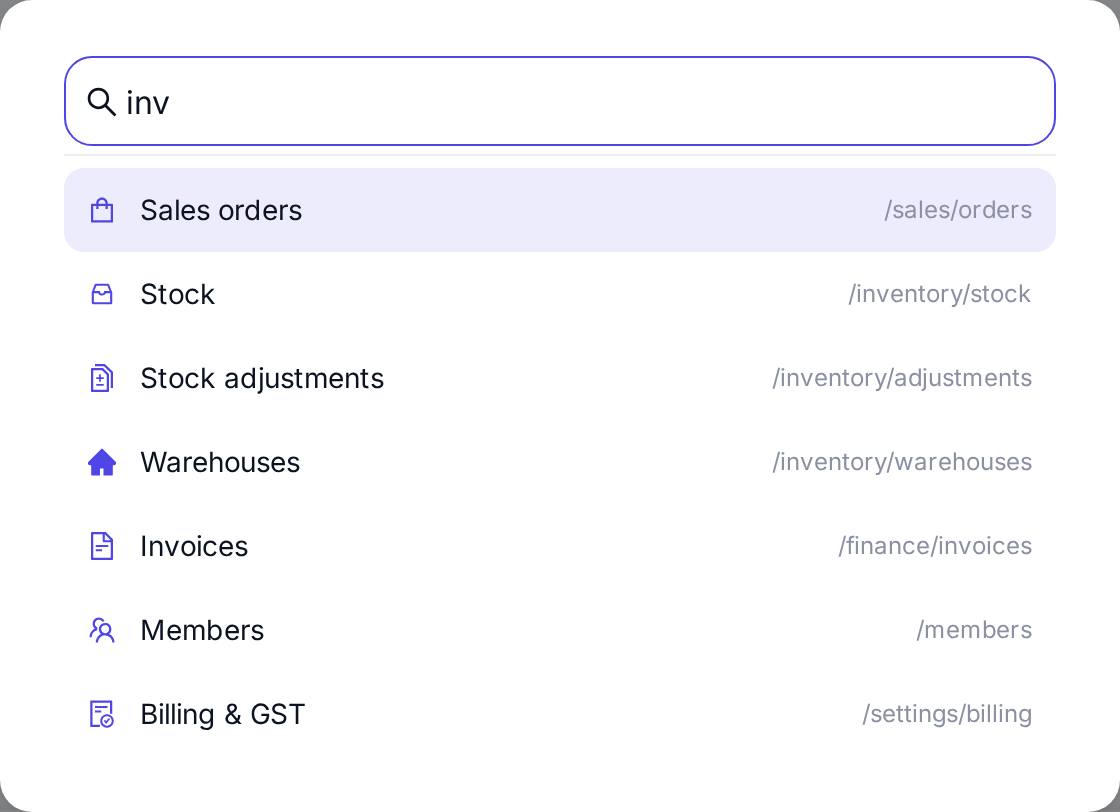
Results show the page name and its address. -
Press Enter, or click a result. Use Up and Down to move through the list and Esc to close.
Pages, not records
The command palette finds pages (menus), not individual records. It lists only pages your role can open, in every category your organisation uses. Opening a page of another category switches the menu to it.
Find a record
To find a customer, invoice, task or item, open its list and use the list's own search box and filters. For example:
| You're looking for | Open | Then |
|---|---|---|
| A customer or supplier | Companies (in Business ERP: Sales → Customers → Companies) | Type part of the name in the search box. |
| An invoice | Accounts → Invoices (Business ERP) or Finance → Invoices | Sort or filter the list's columns, or open the customer's company page. |
| A CA client | Clients → Clients (CA ERP) | Use the list's filters; see Add and manage clients. |
| A project task | Reports & search → Search (Project Management) | Use the advanced search, save the view and export it. |
| An e-mail | Use Search mail. |
The guides of each category explain their lists in detail.
Ask in plain English
For questions such as “Which purchase orders are waiting for goods receipt?”, open Ask AI (Ctrl+J). It searches your data for you and links to the records it found. See Ask AI.