Tasks, board and tree
Inside a project, work is a set of items: phases, tasks and subtasks. The Tasks tab lists them, the Board tab shows them as cards you drag across columns, and the Tree tab shows the whole hierarchy with progress rolled up. Click any item to open it and see everything about it.
Before you start
- Open a project from Projects → Projects.
- To add or change tasks you must be a member of the project with edit rights. Observers can look but not change.
- Time needed: about 10 minutes to learn; seconds per task after that.
The Tasks tab

The list shows top-level items, newest first, with their number, title, status, priority, assignee and due date. A due date in red is overdue.
- Status: by default the list shows To do, In progress and In review. Add Done or Cancelled to see finished work.
- Assignee: choose a person, Me or Unassigned.
- Overdue: click to show only open items past their due date; click again to switch it off.
- Search title: type a word and press Enter.
- Click a row to open the task.
To see your own tasks across all projects, use My work → Tasks.
Add a task
- Click New task.
-
Enter the Title (required) and, if you like, a Description, the Assignee, the Priority (LOW, MEDIUM, HIGH or URGENT), the Due date and the Milestone it belongs to.

Only the title is required. -
Click OK. The task gets the next number, for example NETST-26, and the message "NETST-26 created" appears.
To add many tasks at once use Import CSV (see Create a project) or Add from item set (see Item sets).
Open a task
Click a task anywhere (a list, the board, the tree, the Gantt chart) to open it in a large window.
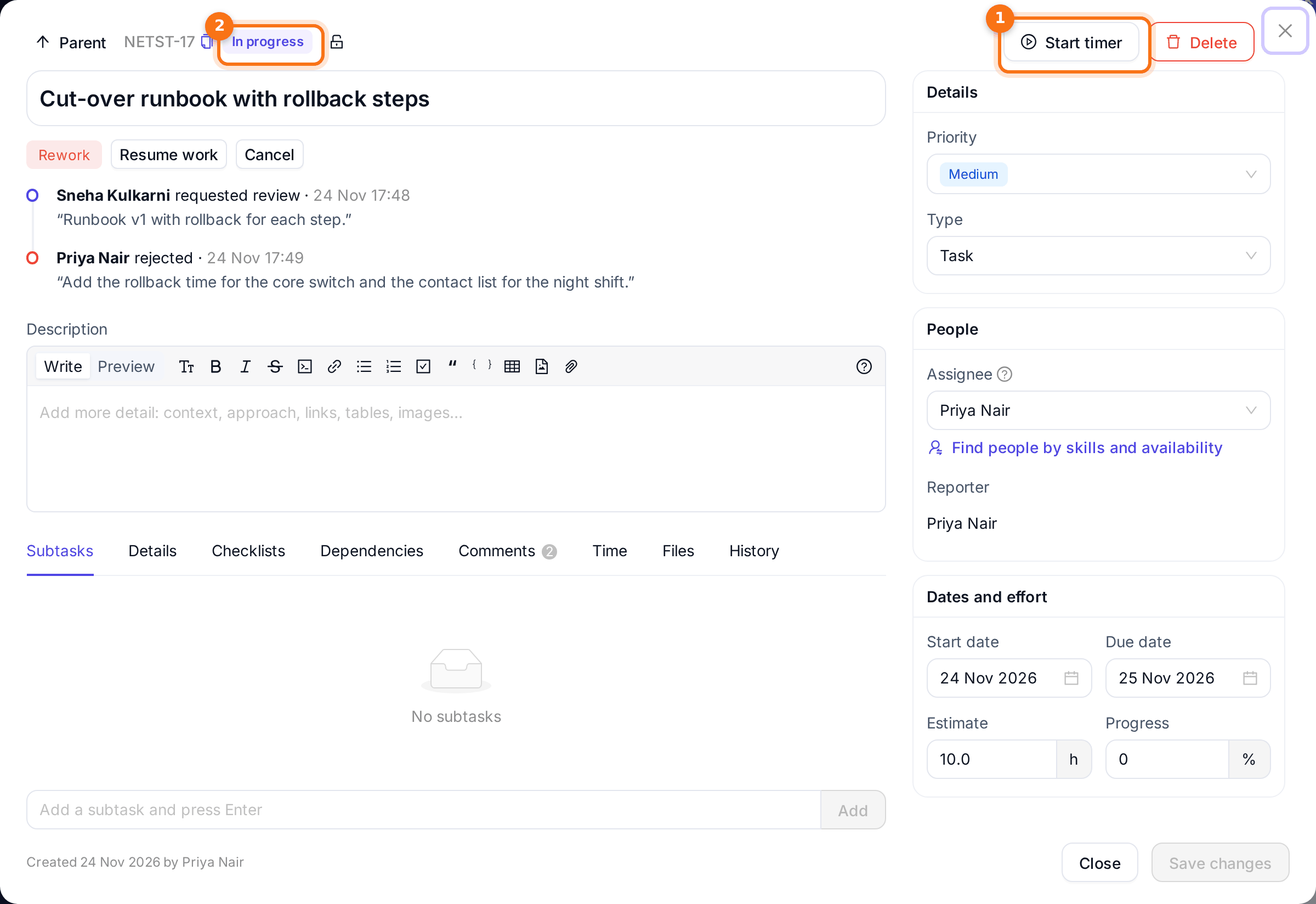
Along the top: Parent (when the task is a subtask) jumps to its parent; the task key (click the copy icon to copy it); the status; the padlock to make the task confidential (only its assignees, owner, reporter, watchers and the project managers can then see it); Start timer; and Delete.
On the left: the title, the workflow buttons (below), the Description and a row of tabs.
On the right: Details (Priority, Type), People (Assignee, Reporter) and Dates and effort (Start date, Due date, Estimate in hours, Progress in %).
Change any field, then click Save changes at the bottom. "Unsaved changes" reminds you if you forget; if you close the window, the ERP asks whether to discard them.
Move the task through its workflow
Most projects use a workflow, by default Task with review: New → Assigned → In progress → Under review → Approved → Completed. Work sent back by the reviewer goes to Rework. The current state is shown under the title with a button for every step you may take now, for example Start, Submit for review, Resume work or Cancel.
- Submit for review sends an approval request to the project managers, team leads and QA of the project. The task shows Waiting for review since … and a Withdraw button until someone decides it in Approvals.
- Some steps need a comment, for example Cancel or Reopen; a box asks for it.
- A greyed-out button tells you why when you point at it, for example because subtasks are still open or the task is blocked.
- The decisions so far (who asked for review, who approved or rejected and why) are listed under the buttons.
In a project without a workflow, the Status box on the Details tab sets the status directly. Workflows are set up in Workflows.
The task's tabs
| Tab | What you find there |
|---|---|
| Subtasks | The task's subtasks with their assignee and status. Type a title in Add a subtask and press Enter. Click a subtask to open it. |
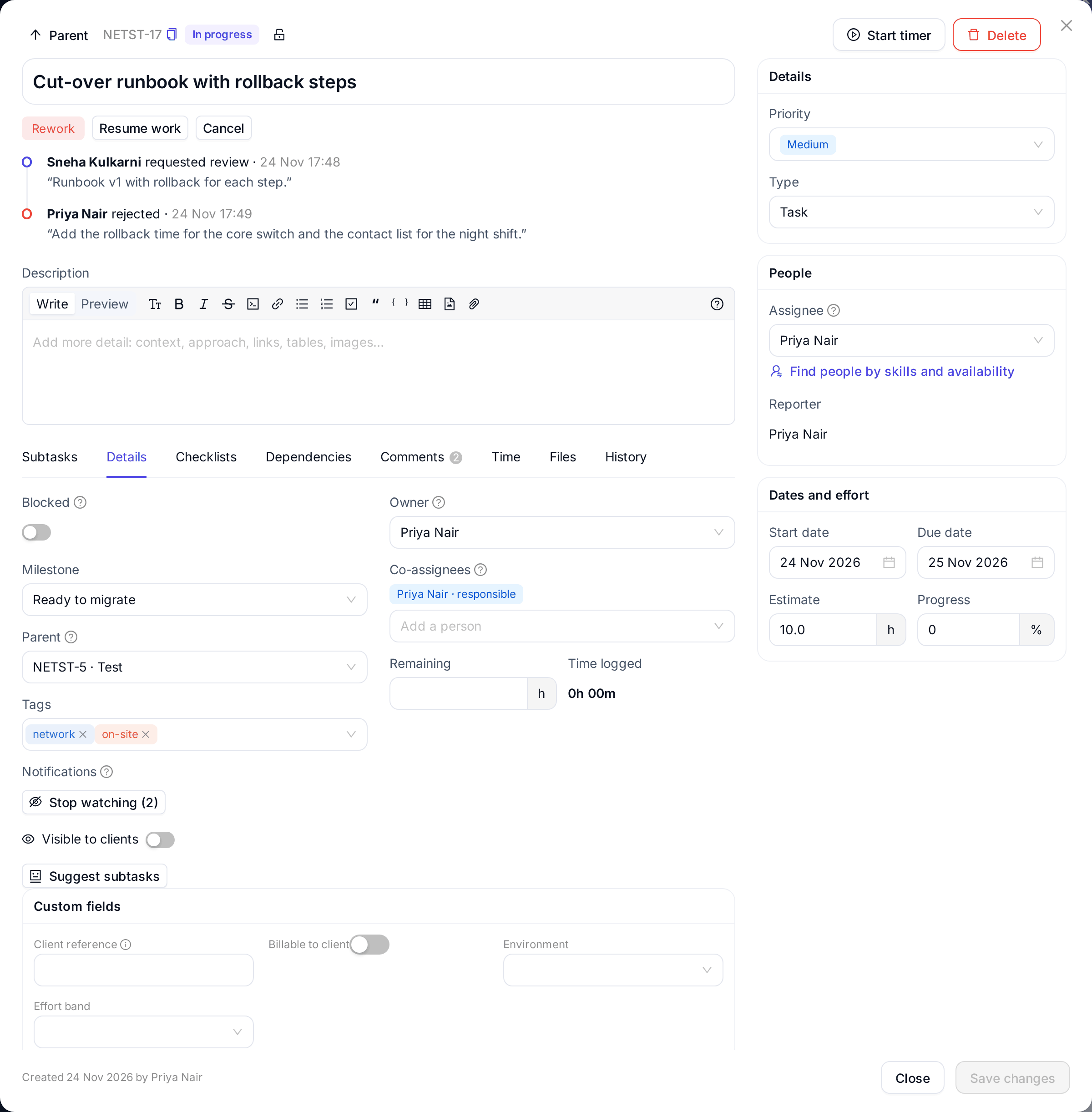
| Details | Blocked (switch it on and say what the task is waiting on), Milestone, Parent (to move the task under another one), Tags, Notifications (Watch / Stop watching), Visible to clients, Suggest subtasks (the AI proposes subtasks for you to review), the Owner (the person accountable), Co-assignees, Remaining hours and Time logged. Below are the project's Custom fields and a Planning box with Phase, Story points, Required skills and the Scheduling constraint. |
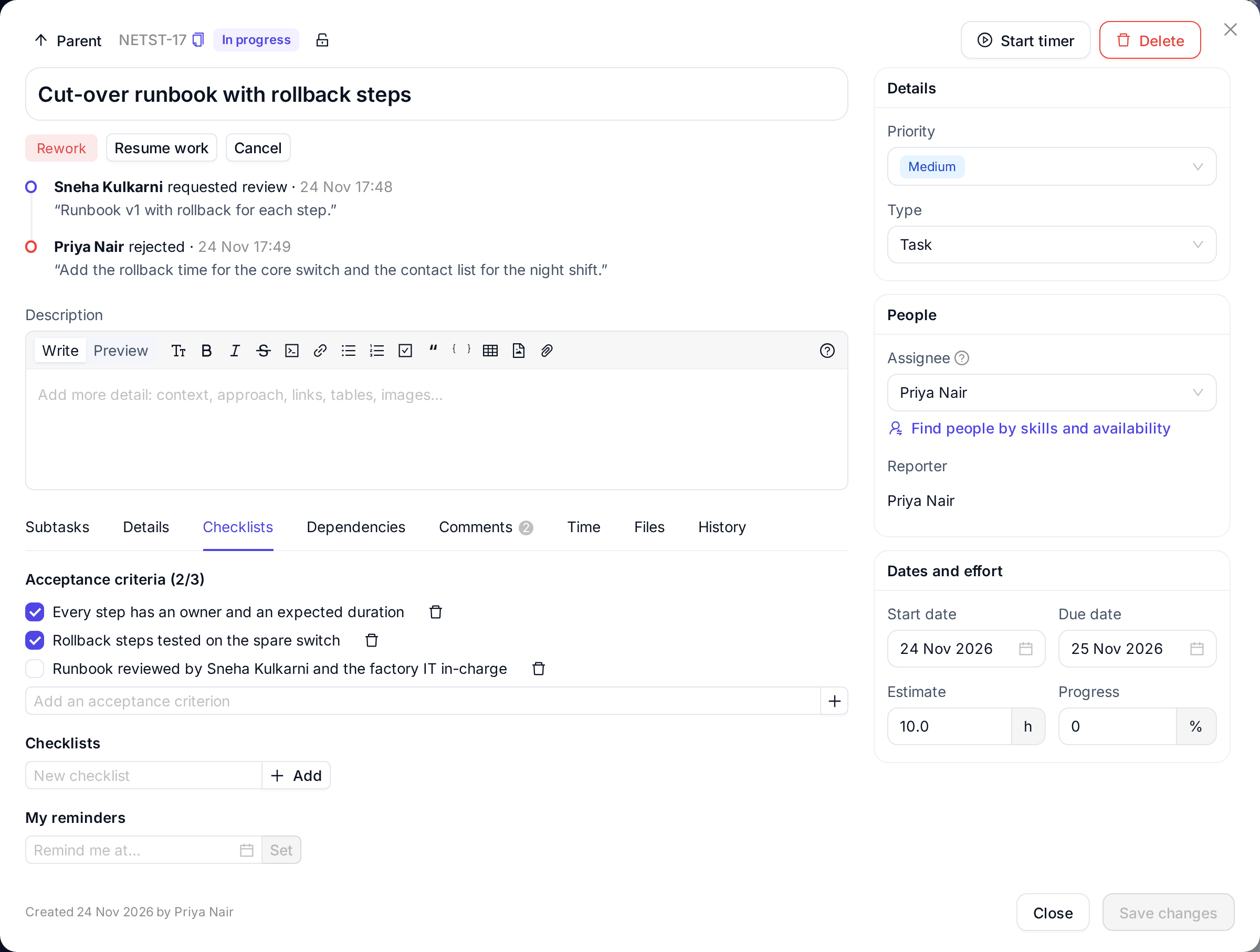
| Checklists | Acceptance criteria (what must be true for the task to be accepted), Checklists with a progress bar, and My reminders. |
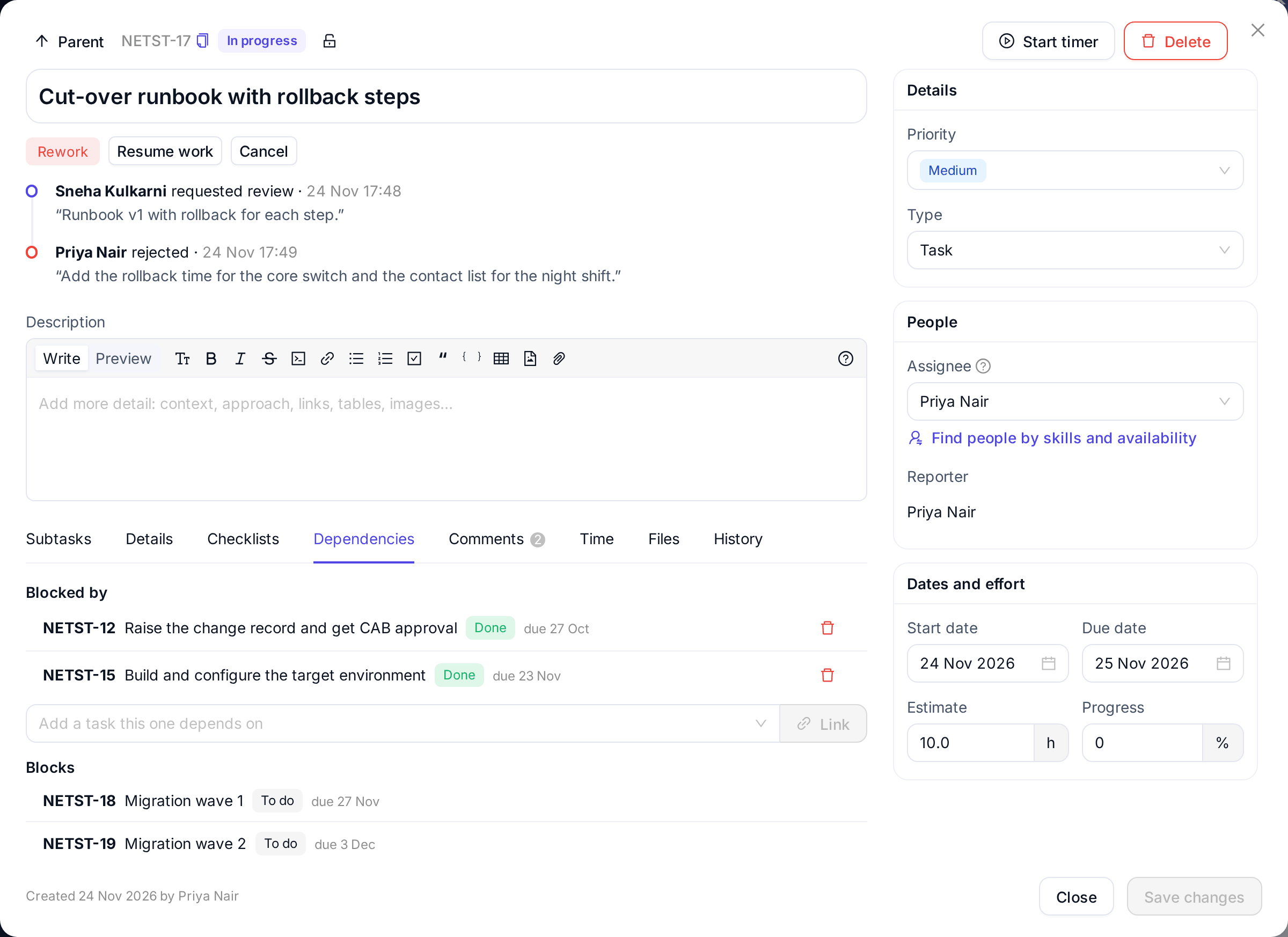
| Dependencies | Blocked by: tasks that must finish first. Blocks: tasks waiting for this one. Choose a task in Add a task this one depends on and click Link. |
| Comments | The conversation about the task. Comments use Markdown formatting; type @ to mention someone, who is then notified. React with an emoji or Reply. |
| Time | Log time with the date, hours, minutes, a note and Billable, and the list of time logged on the task. |
| Files | Files attached to the task (up to 25 MB each). |
| History | Every change to the task, newest first. |

Common task jobs
- Add a checklist. On the Checklists tab, type a name in New checklist and click Add. Type each item in Add item (Enter) and press Enter. Tick items as they are done.
- Flag a task as blocked. On the Details tab, switch on Blocked, type what it is waiting on (for example "Waiting for the firewall licence from the vendor") and click Save changes. The task shows a red Blocked tag everywhere.
- Share the work. On the Details tab, choose more people in Co-assignees. The first person is marked responsible.
- Get a reminder. On the Checklists tab, pick a date and time in Remind me at… and click Set. Only you get this reminder.
- Track your time. Click Start timer. A red timer appears at the top of every page. Click it, add a note, tick Billable if needed and click Stop and log. Starting a timer on another task stops and logs the first one. See My day and Timesheet.
Deleted a task by mistake?
Click Undo in the message that appears, or restore it later from the project's Recently deleted tab.
The Board tab
The board shows the project's items as cards in columns. In a project with a workflow, the columns are the workflow states and moving a card runs the matching workflow step; otherwise moving a card changes its status.
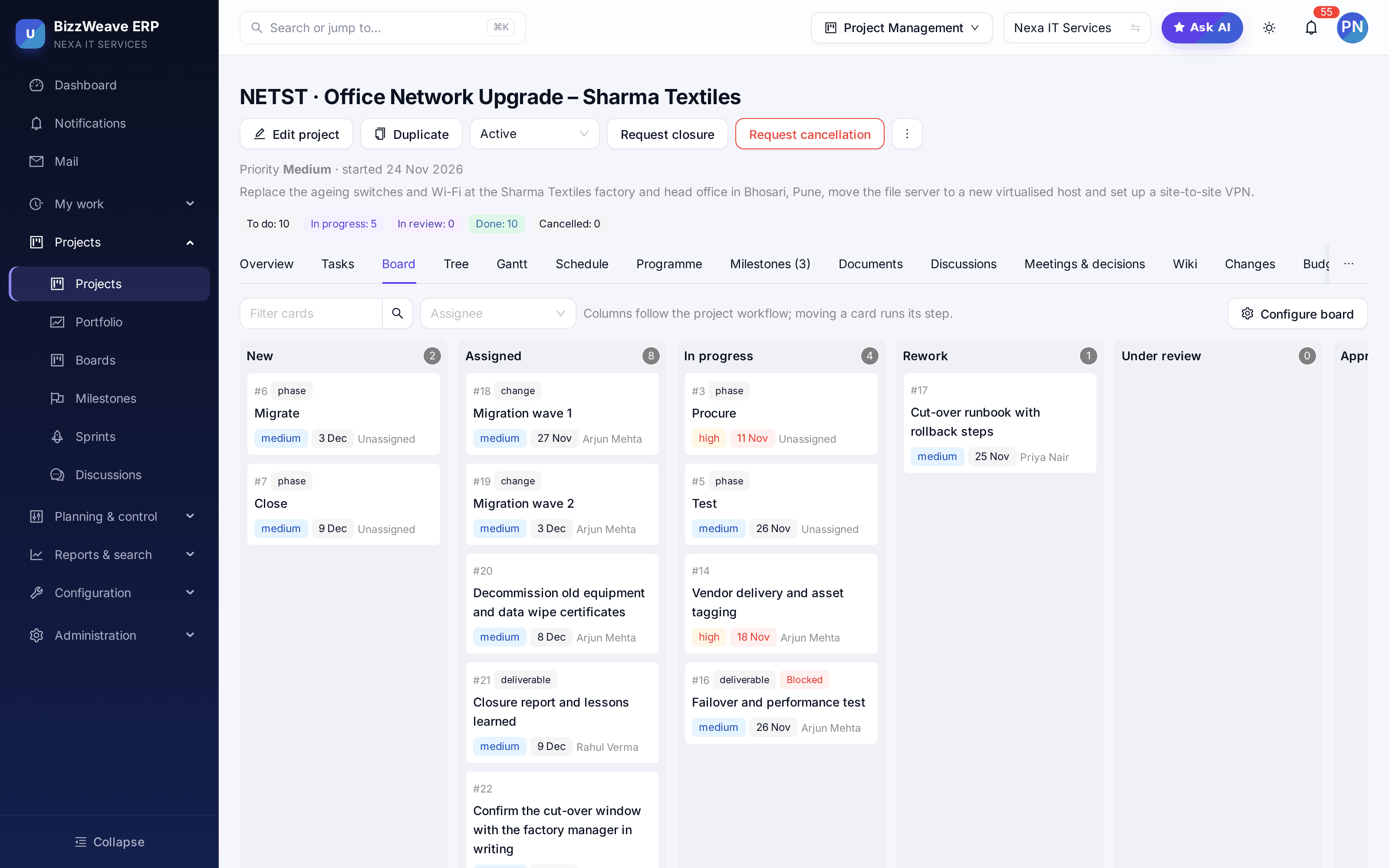
- Move a card: drag it to another column, or up and down inside a column to change the order. If more than one workflow step leads to that column, or the step needs a comment, a window asks you to choose the step and add the comment, then click Move.
- Filter: type in Filter cards or choose an Assignee (or Unassigned).
- Open a card: click it.
- A red Blocked tag and a red date mark cards that need attention. The number next to a column title is the card count; with a work-in-progress limit it shows, for example, 5/4 in red and Over the limit.
Configure the board
Project managers click Configure board to:
- rename the board and choose swimlanes (rows): No swimlanes, By assignee, By priority, By type or By parent;
- rename columns, choose which workflow states each column holds, and Add column (up to 15);
- set a WIP limit (work in progress: the most cards a column should hold). Tick Enforce to stop people dropping more cards into a full column.
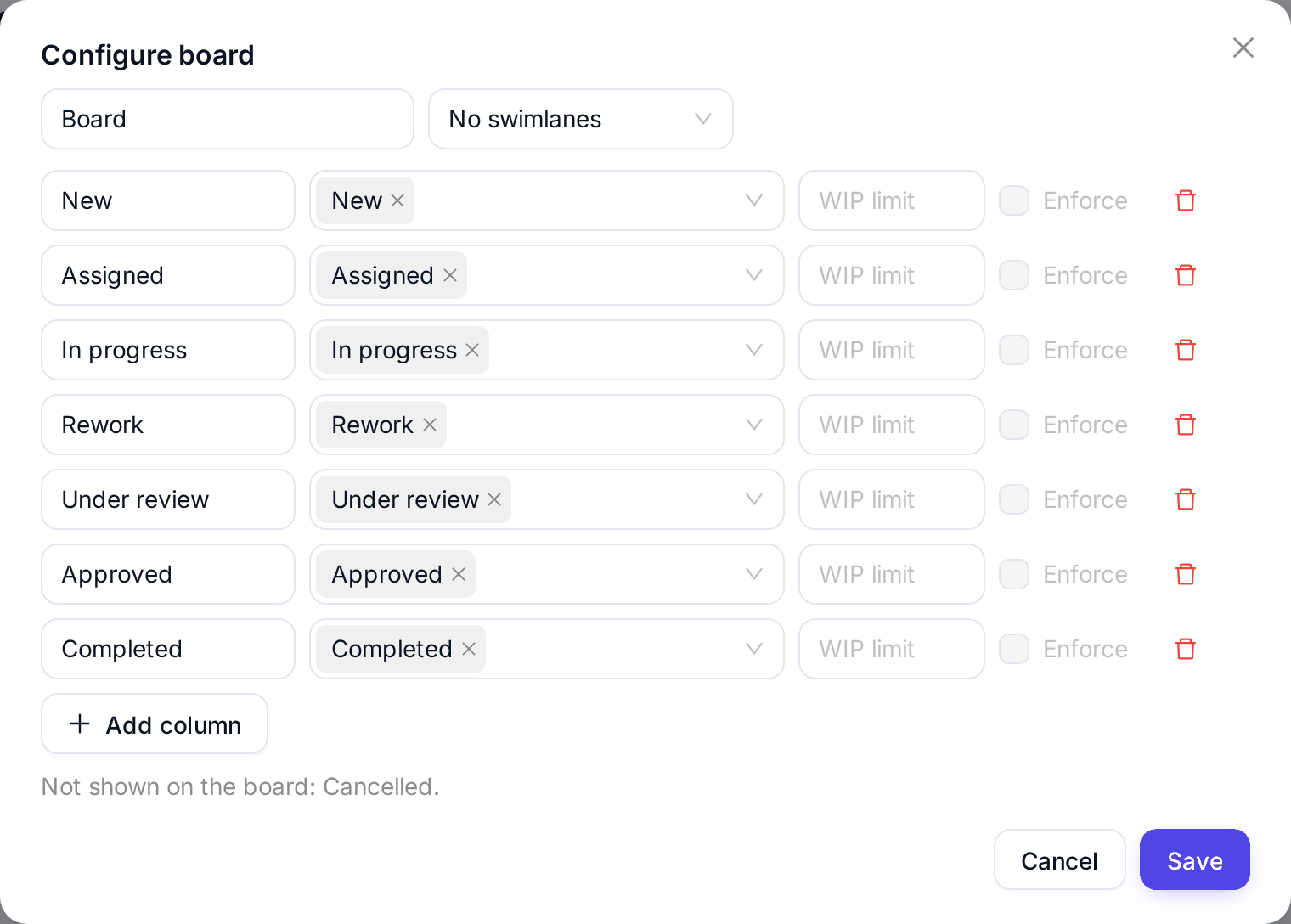
Click Save. To see cards from several projects on one board, use Boards.
The Tree tab
The tree shows every item of the project in its hierarchy: phases, then tasks, then subtasks.

- Click the − / + box to collapse or expand a branch, or use Expand all and Collapse all.
- Type in Find in the tree to show only matching items.
- Progress for a parent is the share of its sub-items that are done, weighted by their estimates. Point at the bar to see, for example, "3 of 4 sub-items done".
- Estimate and Logged add up the hours of the whole branch. Logged time shown in orange is more than the estimate.
- Click a row to open the item.
Common questions
Why can't I change the status in the task's Details tab?
The project uses a workflow. Use the workflow buttons under the task title instead, or drag the card on the Board.
Why is “Submit for review” greyed out?
Point at the button to see the reason. The usual causes are open subtasks or the Blocked flag being on.
What is the difference between Owner, Assignee and Co-assignees?
The Assignee does the work. Co-assignees help with it. The Owner is accountable for the result, for example the team lead who signs it off.
Who sees a confidential task?
Only its assignees, owner, reporter, watchers and the project managers. Everyone else in the project no longer sees it in lists, boards or search.