Escalations
Escalations make sure late, blocked and forgotten work does not go unnoticed. When an item is overdue, blocked or quiet for too long, an approval waits too long or an issue passes its resolution date, the ERP tells the right people step by step: first the owner, then the team lead, then the project manager.
Before you start
- Open Planning & control → Escalations.
- Everyone can see what is escalated in the projects they can see. Changing the organisation's rules needs PMS settings rights (an administrator); a project's managers can give their project its own rules.
- Time needed: 5 minutes to review the rules once.
How escalation works
Each rule watches one kind of problem and has up to three levels. A level is reached after a number of working days (weekends and organisation holidays do not count). When a level is reached, the ERP:
- sends a notification to the people chosen for that level (in the bell menu and by e-mail);
- optionally raises the priority of the item or issue;
- optionally flags it in reports, so it stands out on dashboards and project reports.
Each level is raised once. When the cause goes away (the item is finished, unblocked or updated, the approval is decided, the issue is resolved) the escalation clears itself.
The check runs automatically every 15 minutes.
What is escalated now
The Escalated now tab lists everything currently escalated.

| Column | Meaning |
|---|---|
| What | The item, issue or approval, with the reason, for example Overdue since 12 Nov (8 working days). Click it to open it. |
| Rule | Which rule raised it. |
| Level | For example Escalated · level 2 of 3. A flag icon means it is flagged in reports. |
| Told | Who was notified. |
| Since | When the current level was raised. |
Tick Include cleared to also see escalations that have already cleared and the level they reached.
Set the rules
Click the Rules tab. Rules for shows The organisation (default): every project follows these rules unless it has its own.
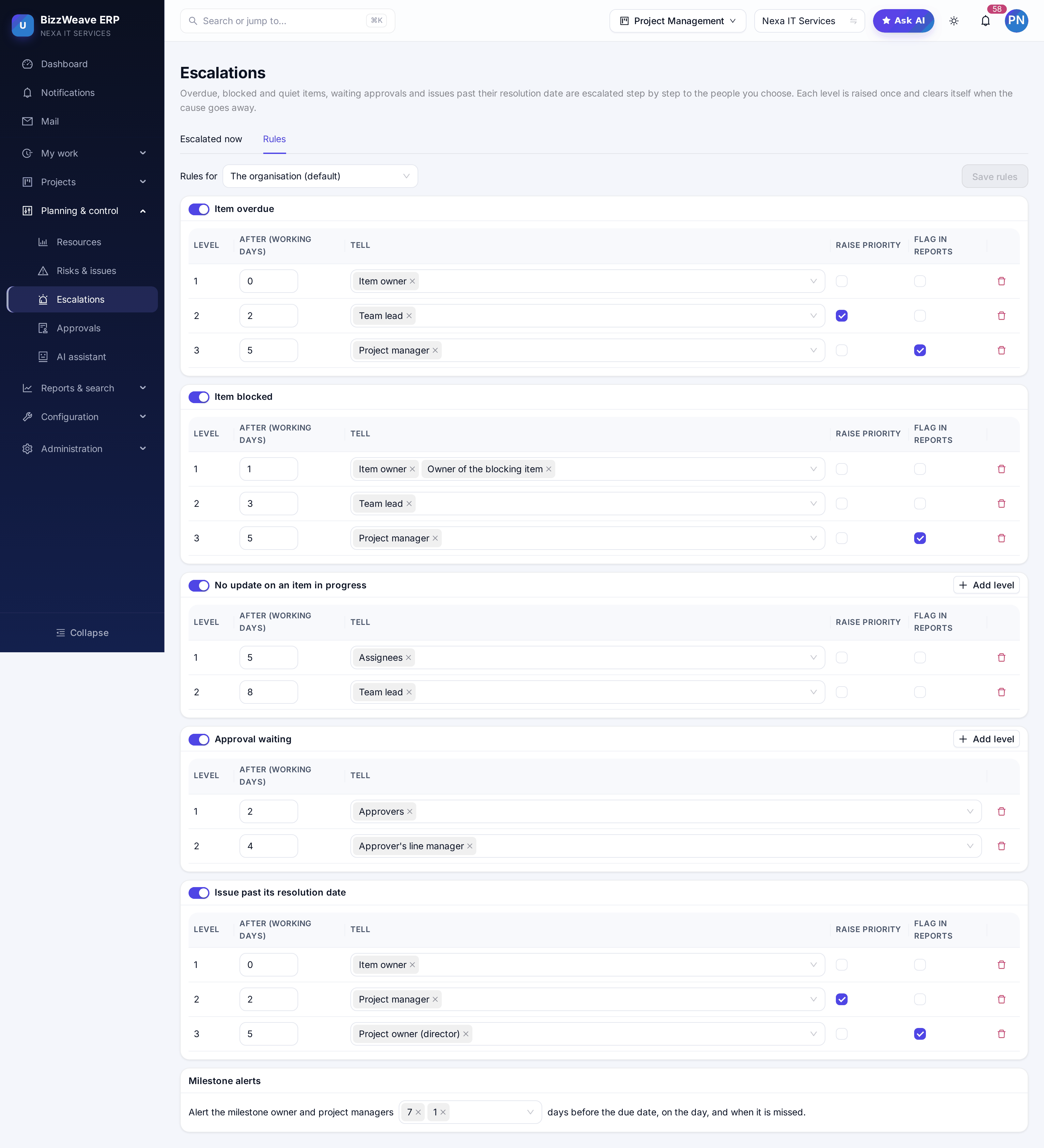
The five rules:
| Rule | It escalates… | Who can be told |
|---|---|---|
| Item overdue | an open item past its due date. | Assignees, Item owner, Owner of the blocking item, Team lead, Project manager, Assignee's line manager |
| Item blocked | an item marked blocked (for example by an issue). | as above |
| No update on an item in progress | an item in progress that nobody has touched. | as above |
| Approval waiting | an approval request nobody has decided. | Approvers, Approver's line manager, Project manager |
| Issue past its resolution date | an open issue after its Resolve by date. | Item owner, Assignee's line manager, Project manager, Project owner (director) |
- Switch a rule on or off with the switch in its title.
- Set each level: in After (working days) type the number of working days (0 = on the day), choose who to Tell, and tick Raise priority or Flag in reports if needed.
- Add or remove levels: Add level (up to three per rule) or the bin icon.
- Milestone alerts: at the bottom, choose how many days before a milestone's due date the milestone owner and project managers are alerted (for example 7 and 1). They are also alerted on the day and when the milestone is missed.
- Click “Save rules”.
Give one project its own rules
A critical project may need faster escalation. In the example, the bank project tells the project manager after one working day instead of five.
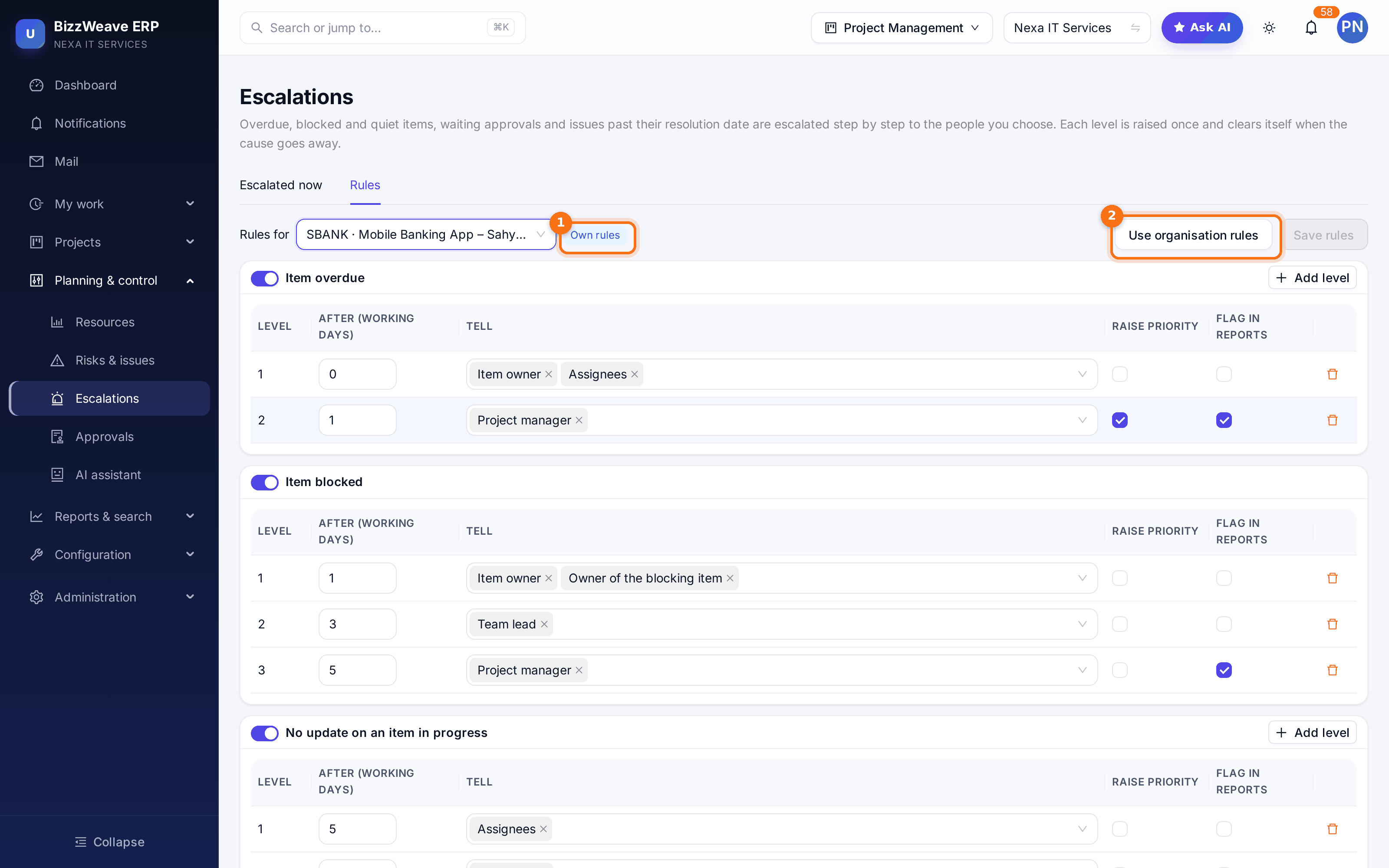
- In Rules for, choose the project. The tag Follows the organisation shows that it uses the default.
- Change the levels as above and click Save rules. The tag changes to Own rules.
- To undo, click Use organisation rules and confirm.
What happens next
New escalations follow the new rules at the next check (within 15 minutes, or at once with Check now). Escalated issues show the level in the issue log.
Common questions
Who is the “Item owner”?
Every item has an owner, normally the person who created it or the project manager who planned it. You can see and change it in the item's details.
I fixed the problem but the item is still listed
Escalations clear at the next check, which runs every 15 minutes. An administrator can click Check now to run it straight away.
Will people get the same reminder every day?
No. Each level is raised once. People hear about it again only when the next level is reached.