Bill clients for finished work
When a task is done, its fee waits on the client's Invoices tab until you bill it. Clients billed per service get an invoice for the tasks you choose; retainer clients get one fixed invoice per month, quarter or year. Either way the ERP creates a draft invoice in Finance, where you check it, issue it and record the payment.
Before you start
- You need to see and create invoices (owners, administrators and managers). Members don't see the Invoices tab.
- Once, for the firm: an administrator fills in the firm's details (legal name, GSTIN, address, bank details, invoice terms) and the GST Tax rates (for example GST 18%) under Administration → Billing & GST.
- For each client: the client must be linked to a CRM company, because invoices are raised to the CRM customer. Set it with Edit → Linked CRM company on the client. Without it, the tab shows Link this client to a CRM company to invoice it.
- Time needed: 2 minutes per invoice.
Per service or retainer?
You choose the billing method on the client (Edit → Billing). See Add and manage clients.
| Fee per service | Retainer | |
|---|---|---|
| What the client pays | The fee of each task that is done. | One fixed amount every month, quarter or year. |
| Fee on each task | The client's fee for the service, or the service's default price. | None: tasks are marked Not billed separately. |
| When you bill | Whenever you like, for the done tasks you choose. | Once per period, with Invoice retainer. |
| Example client | Iyer Medical Stores: ₹1,500 for GSTR-1, ₹2,000 for GSTR-3B. | Desai Infotech: ₹20,000 every month for all its services. |
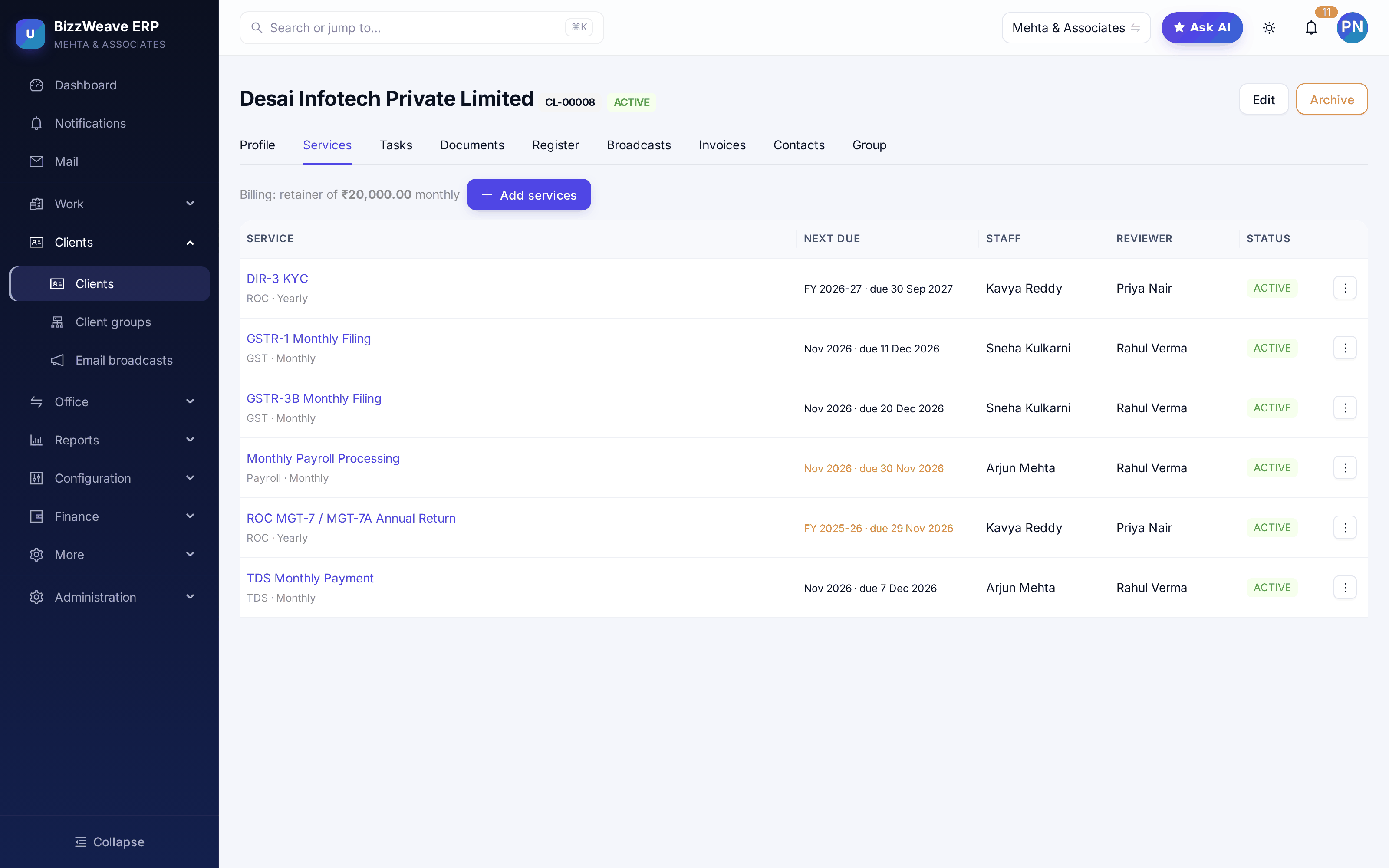
The client's Services tab shows the method at the top, for example Billing: retainer of ₹20,000.00 monthly, and the fee column only for per-service clients.
Invoice done work (fee per service)
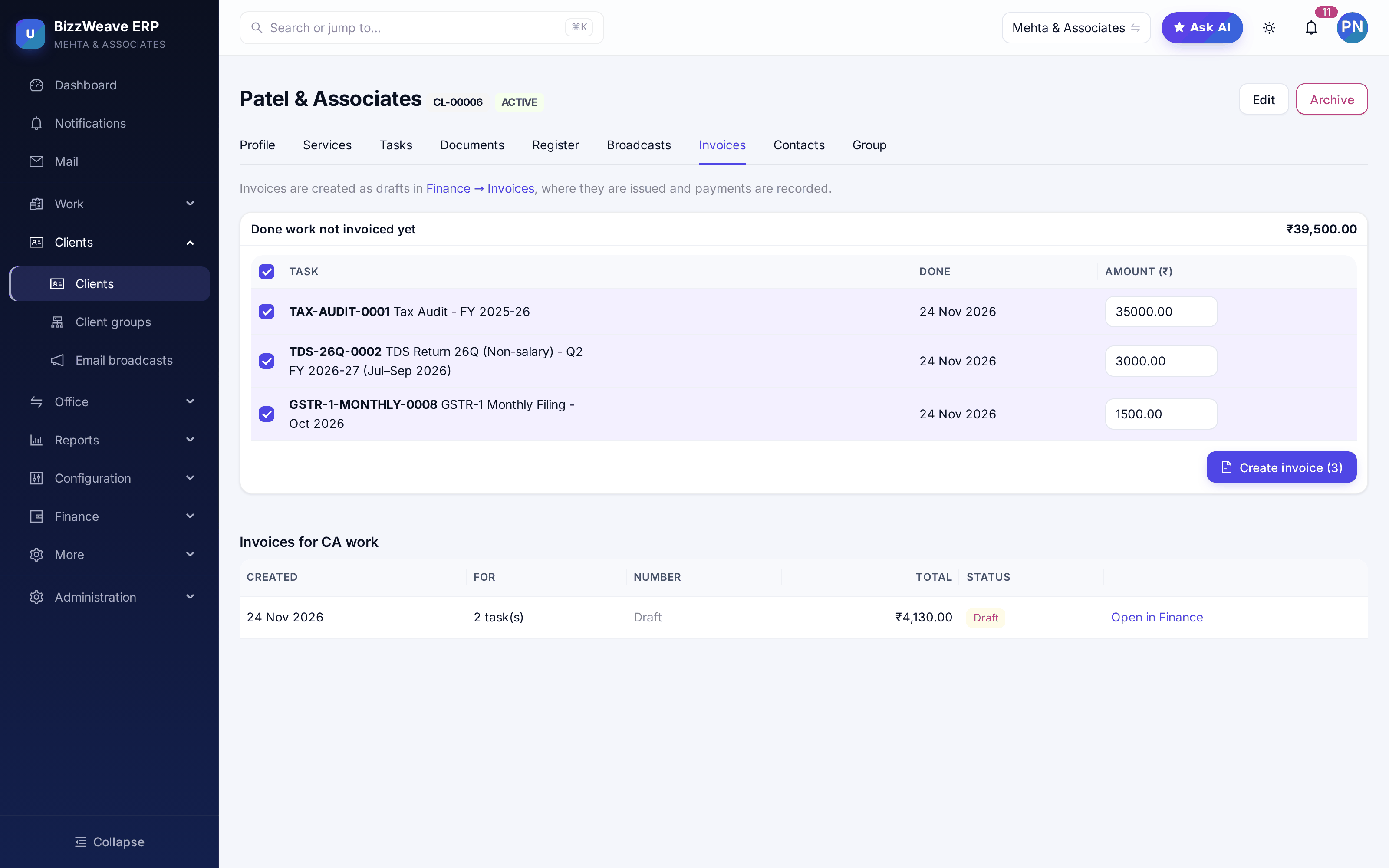
- Open the client and click the Invoices tab. You can also start from the dashboard tile Unbilled done work, which shows the total for all clients.
-
The box Done work not invoiced yet 1 lists every done task that is not billed yet, with the date it was done and its amount. The total is at the top right.

Iyer Medical Stores: two September returns are done and not billed, ₹3,500 in total. 1 The unbilled work. 2 Create invoice. -
Untick any task you don't want to bill now. Change an Amount (₹) if needed; a task without a fee is outlined in red until you enter one.
- Click Create invoice (N) 2.
-
In the window, check the Amount before tax, choose the GST rate, change Payment due if needed (15 days from today by default) and add Notes on the invoice.

GST 18% on ₹3,500, payable by 9 December. -
Click Create draft invoice. A message confirms the amount and offers Open the invoice.
What happens next
The billed tasks become Invoiced and leave the unbilled list and the dashboard total. The invoice appears under Invoices for CA work on the client's tab as a Draft. Each task is one invoice line with its service's SAC code.
Invoice a retainer
- Open the retainer client and click the Invoices tab. The note Done work of retainer clients is billed with the retainer replaces the unbilled list.
-
Click Invoice retainer 1.

Desai Infotech: the October retainer is already drafted. 1 Invoice retainer. -
In Period, pick any day of the month, quarter or year to bill. Leave it empty for the current period. A blue note shows what will be billed, for example Retainer for Nov 2026: ₹20,000.00; a yellow note says when that period is already invoiced, and the button is disabled.

The retainer for November 2026. -
Choose the GST rate, check Payment due, add notes and click Create draft invoice.
The invoice has one line, Retainer fee - Nov 2026. Done tasks of the client whose period falls in that month are marked Invoiced with it, and their numbers are listed in the invoice notes (Covers: …), so the client sees what the fee paid for. A period can be billed only once.
Issue the invoice in Finance
The ERP only prepares a draft. To send it to the client:
-
On the client's Invoices tab, click Open in Finance next to the invoice (or go to Finance → Invoices).

The draft for Patel & Associates in Finance: two lines with SAC 998231 and GST 18%, total ₹4,130. -
Check the lines. You can still change them and click Save draft.
- Click Issue. The invoice gets its number, can be downloaded as a PDF, and payments are recorded against it in Finance.
The status on the client's tab follows Finance: Draft, Issued, Voided or Deleted.
Correcting a mistake
If you delete a draft or void an issued invoice in Finance, its tasks go back to Done and reappear as unbilled work (or, for a retainer, the period can be billed again). An invoiced task can't be reopened until its invoice is deleted or voided.
Common questions
The Create invoice button is greyed out
The client is not linked to a CRM company, no task is ticked, or a ticked task has no amount.
A task is done but not in the unbilled list
It is already invoiced, the client is on a retainer, or the task is marked not billed separately (Edit on the task, Billed separately).
Can I bill an extra job for a retainer client?
Yes. Open the task, click Edit, switch on Billed separately and enter the Fee. Once it is done it appears in the unbilled list like a per-service task.
Where do I record the payment?
In Finance → Invoices, on the issued invoice.