Scrum board and daily stand-up
During the sprint the team works from the Active sprint board and writes a short daily stand-up. The board shows at a glance what is to do, in progress, in review and done; the stand-up shows who is stuck and why.
Before you start
- The team needs a started sprint (see Backlog and sprint planning).
- To move cards you need to be able to change work in the project (project members can). Only team members write stand-up entries; everyone can read them.
- Time needed: a few minutes a day.
The Active sprint board
Open Projects → Sprints, click the team and choose Active sprint.
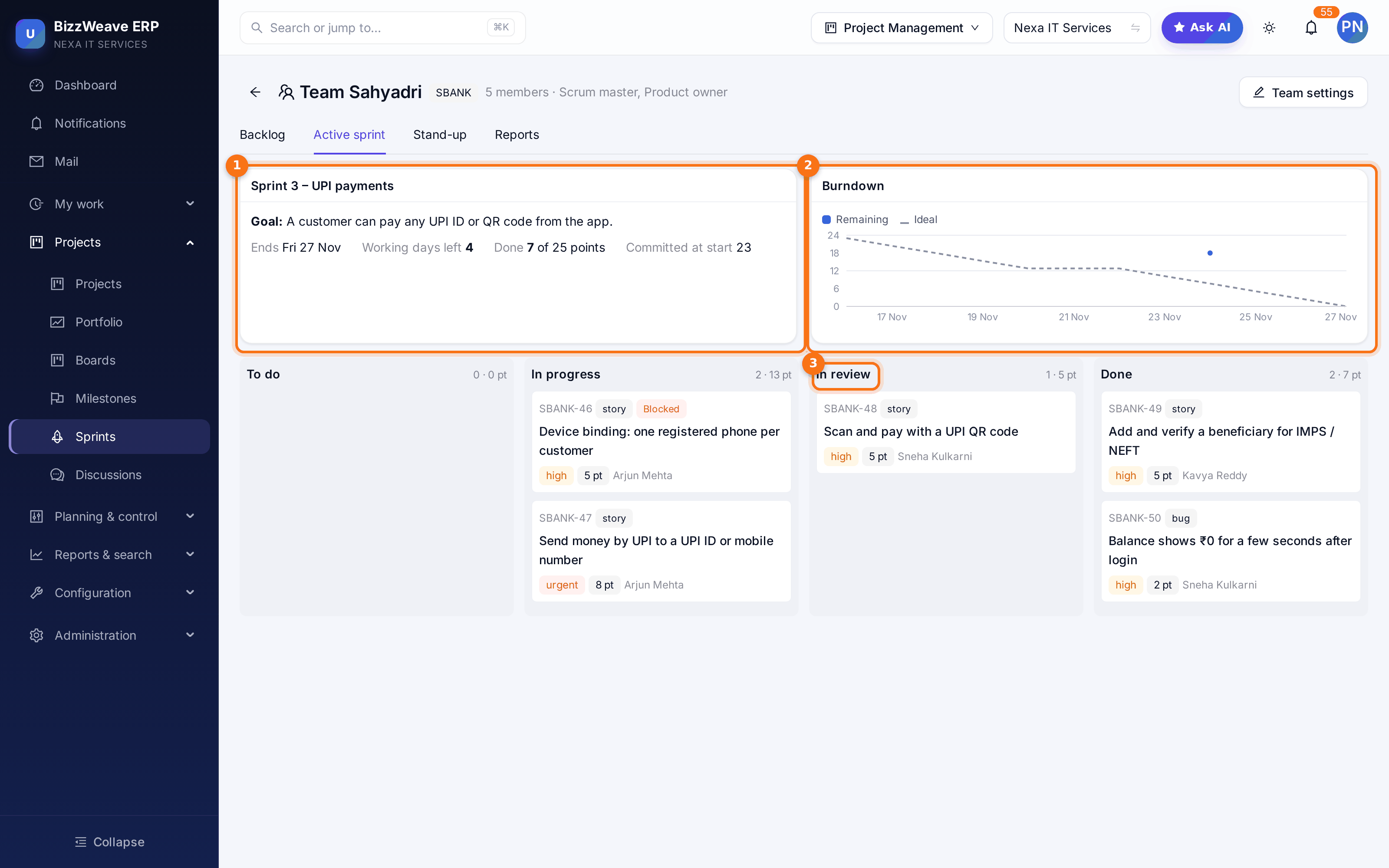
The sprint card shows:
- Goal: what the sprint should achieve.
- Ends: the last day of the sprint, and Working days left (weekends don't count).
- Done: story points of finished items out of all points in the sprint.
- Committed at start: shown when work was added or removed after the start, so you can compare the plan with today's scope.
The burndown shows the story points still open (blue dots) against the Ideal line, a straight path from the committed points to zero on the last day. The ideal line stays flat over weekends. Points under the ideal line mean the team is ahead; points above it mean the team is behind. See Sprint reports for the full charts.
Each card shows the item key, its type, a red Blocked tag if it is blocked (point at the tag to read the reason), the title, priority, story points and the person it is assigned to. Each column header shows the number of cards and their points, for example 2 · 13 pt.
Move a card
- Drag the card to the column that matches its new state, for example from To do to In progress when you start work.
- If the ERP asks “Choose the workflow step”, pick the step you mean (for example Start) and click Move. This happens when the project's workflow has more than one way into that column.
Click a card (or press Enter on it) to open the item and see its details, comments and time.
Projects with a review workflow
Projects created from the templates use the Task with review workflow. There, a card can't jump straight to Done:
- drag it to In review: this is the Submit for review step and sends an approval request to the project manager, team lead or QA;
- while the request waits, the card can't be moved (This item is waiting for an approval decision);
- when the reviewer approves in Approvals, drag the card to Done (Complete). If they reject it, the item goes back to Rework in In progress.
A blocked item can't be submitted for review until it is unblocked. See Workflows.
The daily stand-up
The stand-up is written, not spoken, so it works across offices and time zones. Each member answers three questions once a day. Choose the Stand-up tab.
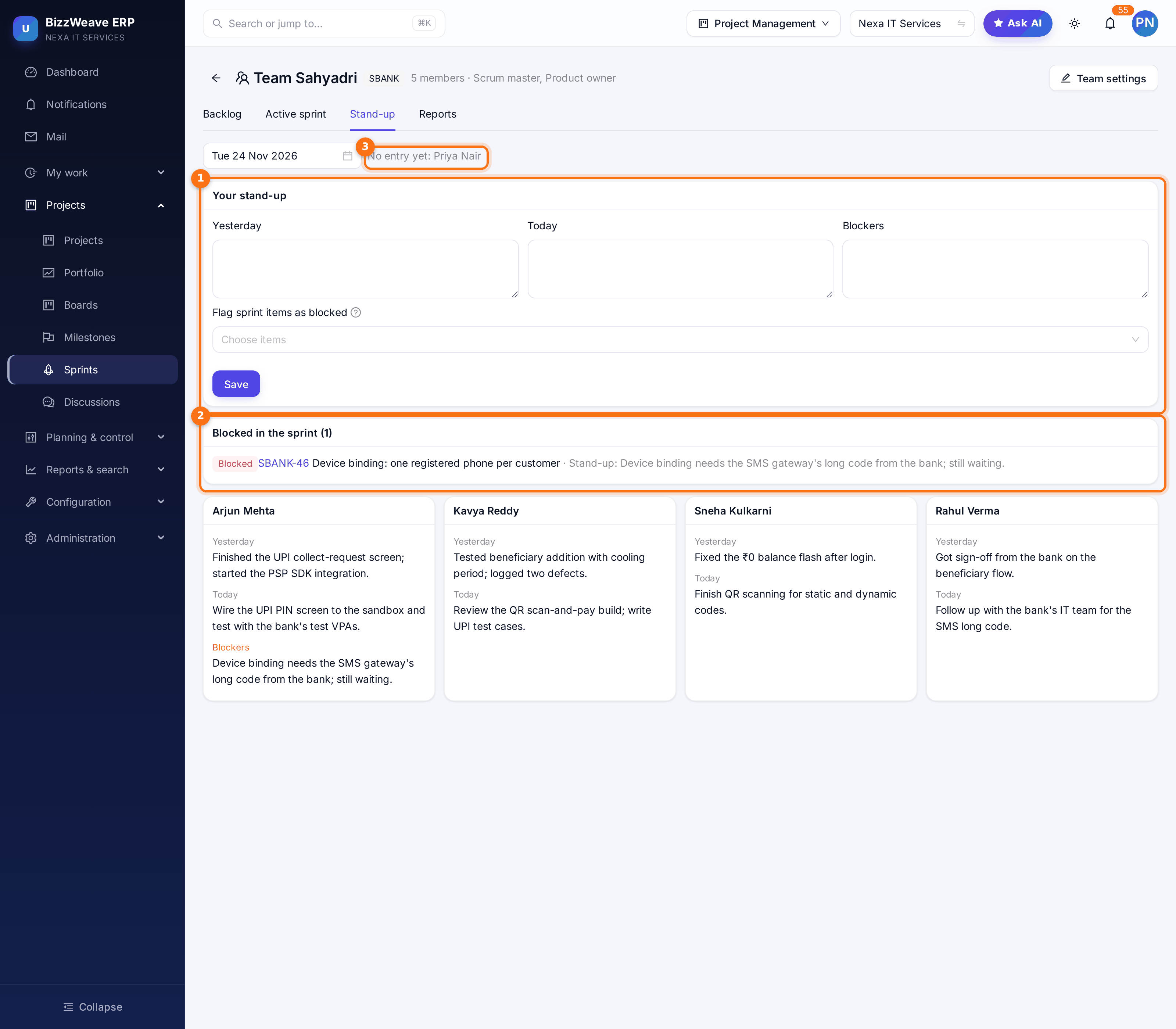
Write your stand-up
- Open the Stand-up tab. The date box shows today.
-
Fill in the three boxes under Your stand-up:
Field What to write Example Yesterday What you finished or worked on. Finished the UPI collect-request screen. Today What you plan to do today. Wire the UPI PIN screen to the sandbox. Blockers Anything that stops you. Leave empty if nothing does. Waiting for the SMS long code from the bank. -
Flag blocked items (optional). In Flag sprint items as blocked, choose the sprint items you can't move forward. They get a red Blocked tag on the board, with your blocker text as the reason (Stand-up: …).
- Click “Save”. You can change your entry again during the day.
What happens next
Your entry appears as a card with your name. The item you flagged is listed under Blocked in the sprint, so the Scrum master can follow it up. To unblock an item, open it, turn off the Blocked switch and save.
Read earlier stand-ups
Pick another day in the date box to read that day's entries. You can only write your entry for today; earlier days are read-only.
Common questions
The board says “No active sprint”
The team has no sprint running. Start one from the Backlog tab.
I can't see “Your stand-up”
Only team members write stand-ups. If you should be in the team, ask the manager to add you in Team settings. If you are a member, check that the date box shows today.
A card won't move
The project's workflow may not allow that step from the card's current state (cannot move to this column from its current state), the item may be waiting for an approval, or your project role may not allow you to change it. Open the card to see its workflow actions.
Why doesn't the burndown change straight away?
The ERP records one burndown point per day. The point for today is updated when a card is moved on this board, when work is added to or removed from the sprint, and again every night. A status change made elsewhere (for example in the task panel) shows on the chart after the next of these updates.