Review and filing: the task workflow
Every compliance task moves through the same steps: the staff member prepares it, a reviewer checks it, and once the return is filed the staff member records the ARN and marks it done. This page explains each step and who can take it.
Before you start
- To work on tasks you need the Member role or higher.
- To approve a task you must be its reviewer (or an owner or administrator), and you can't approve work you did yourself.
- Time needed: 5 minutes to read.
The steps
| Status | Meaning |
|---|---|
| To do | The task exists but nobody has started it. |
| In progress | The staff member is preparing it. |
| In review | Sent to the reviewer, who must approve it or send it back. The checklist is locked. |
| Rework | The reviewer sent it back with a note. The staff member starts it again. |
| Approved | The reviewer approved it. The return can be filed. |
| Done | Filed and finished. The task counts as done in reports and can be invoiced. |
| Invoiced | Billed on an invoice. See Billing. |
| Cancelled | Not needed any more. The reason is kept. |
Services that don't need a review (the template's Reviewer approves before done is off) skip In review and Approved: Mark done is available as soon as the task is to do or in progress.
1. Start the work
- Open the task from Work → Compliance tasks (tip: click My tasks).
-
Click Start. The status becomes In progress.

A GSTR-3B task to do. It waits for the client's GSTR-1 (Waits for: … not done yet), so Start is refused until that task is done. -
Do the work. Tick each checklist step as you finish it, attach working files and, if documents are missing, click Request documents. See Inside a task.
2. Send for review
When the return is ready, click Send for review. The ERP first checks that:
- every required checklist step is ticked (Tick the N required checklist step(s) first);
- no sub-task is still open (Finish or cancel the N open sub-task(s) first);
- a reviewer is chosen (Choose a reviewer first; set one with Edit).
The status becomes In review and the reviewer gets a notification: Review GSTR-3B-MONTHLY-0006.
3. Approve or send back
The reviewer opens the task (the In review tile on the task list or Awaiting review on the dashboard lists them all) and checks the work.
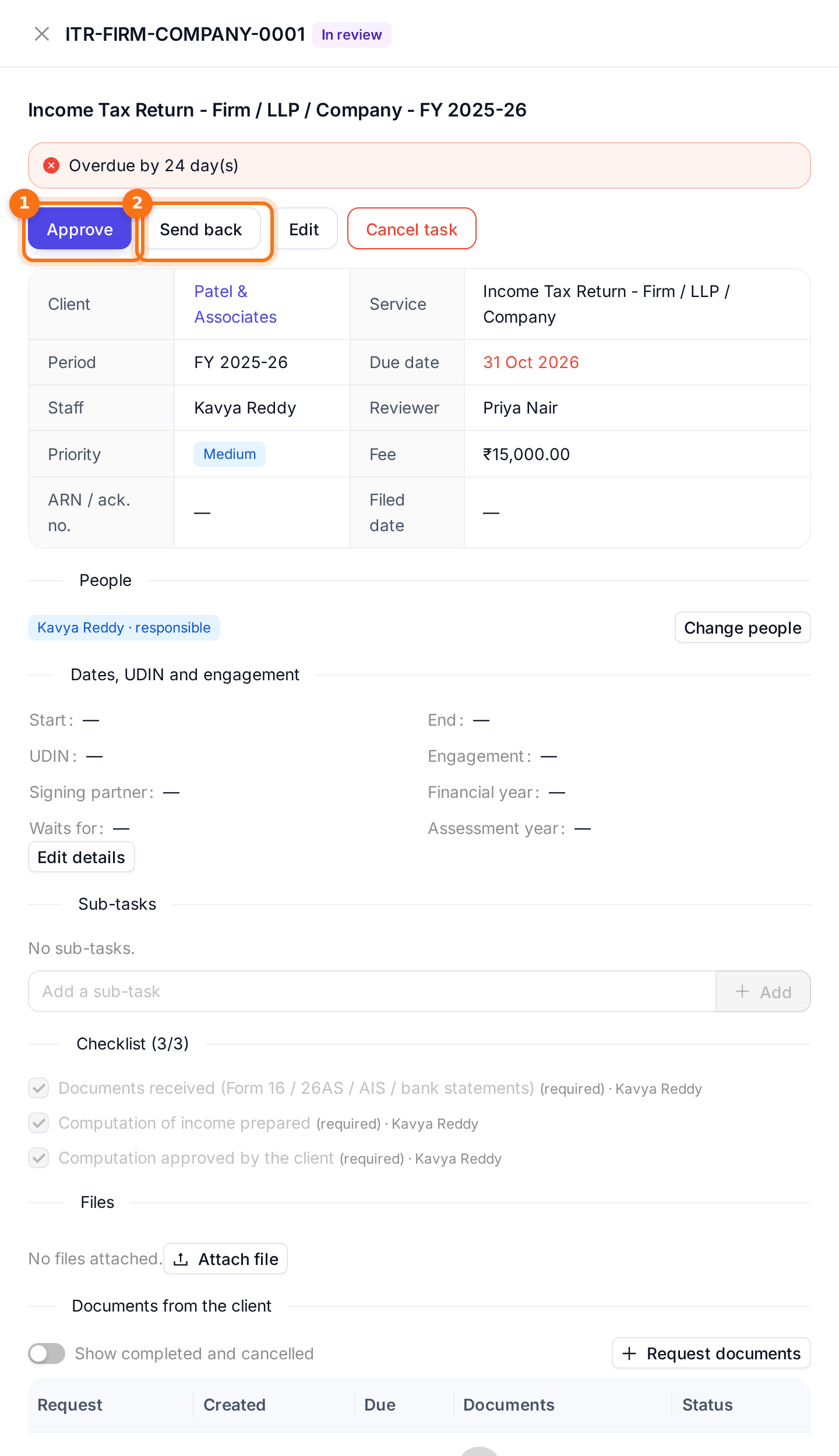
- Approve 1: the status becomes Approved. The staff member can now file the return.
-
Send back 2: write what needs to change and click Send back. The note is required.

The note tells the staff member exactly what to correct. The status becomes Rework, the staff member gets a notification, and the note is shown in yellow at the top of the task. The staff member clicks Start again, corrects the work and sends it for review again.

Rahul Verma sent the Sharma Logistics GSTR-3B back: two supplier invoices are missing in GSTR-2B.
Separation of duties
Only the task's reviewer, or an owner or administrator, sees Approve and Send back. Nobody can review a task on which they are the staff member, another assignee or the working user: the ERP answers You cannot review your own work.
4. File and mark done
After approval, file the return on the government portal (GST, income tax, TRACES or MCA). Then record it in the ERP:
-
Open the approved task and click Mark done 1.

1 Mark done on an approved task. -
Enter the filing details:
Field What to enter ARN / acknowledgement number The number the portal gives after filing, for example AA2411264021455 for a GST return. Required when the service records filings. Filed date The day you filed. Today by default; can't be in the future. Required when the service records filings. UDIN Shown when the service needs a UDIN (audits and certificates): the 18-character number from the ICAI portal. 
File the return on the government portal first, then record its acknowledgement here. -
Click Mark done.
What happens next
The task becomes Done. It leaves the open and overdue counts, appears in Done this month and in the reports, and, for clients billed per service, its fee is added to the unbilled work waiting on the client's Invoices tab. The ARN can be searched in the task list.
Cancel a task
Cancel a task that is no longer needed, for example because the client closed the business or the LLP became a company.
- Open the task and click Cancel task.
- Give the reason (required, up to 500 characters) and click Cancel task.
The task is kept with status Cancelled and the reason, appears under Cancellations in the reports, and is not created again for that period.
Reopen a task
Owners and administrators can click Reopen on a done or cancelled task, for example when a return must be revised.
- A done task goes back to In progress and needs the review again.
- A cancelled task goes back to To do.
- An invoiced task can't be reopened. Delete or void its invoice in Finance → Invoices first; the task then returns to Done.
Who is told what
| Event | Who gets a notification |
|---|---|
| A task is assigned | The staff member |
| A task is sent for review | The reviewer |
| A task is sent back | The staff member, with the reviewer's note |
| A task becomes overdue | The staff member (once per due date) |
| Someone is @mentioned in a comment | The person mentioned |
Notifications appear under the bell icon at the top right and, if your organisation set it up, by e-mail.
Common questions
I don't see an Approve button on a task in review
You are not its reviewer, or you worked on the task yourself. Ask the reviewer shown in the task, or an administrator.
Mark done says the ARN is required, but this work has no ARN
The service is set to Record ARN and filed date. Ask the person who manages services to switch it off in the service's task template if the service is never filed on a portal. See Services.
Can I record the date the return was really filed, if I update the ERP later?
Yes: the Filed date can be any past date. Note that reports measure on time by the day you click Mark done, not by the filed date, so mark tasks done promptly.