Support tickets
Record customer complaints and service requests, and internal requests from staff, assign them, reply, and resolve them within agreed times (the SLA).
Before you start
- Where: Operations → Support tickets.
- Managers and administrators work on tickets (the page is called Service desk). Members can raise their own requests (the page is called My requests) and follow them.
- Time needed: 1 minute to log a ticket.
An SLA (service level agreement) is the time you promise for the first response and for the resolution. It depends on the priority:
| Priority | First response | Resolution |
|---|---|---|
| Urgent | 1 hour | 8 hours |
| High | 4 hours | 24 hours |
| Medium | 8 hours | 72 hours |
| Low | 24 hours | 120 hours |
These are the defaults; an administrator can change them under Administration → System → Settings (SLA targets).
The service desk
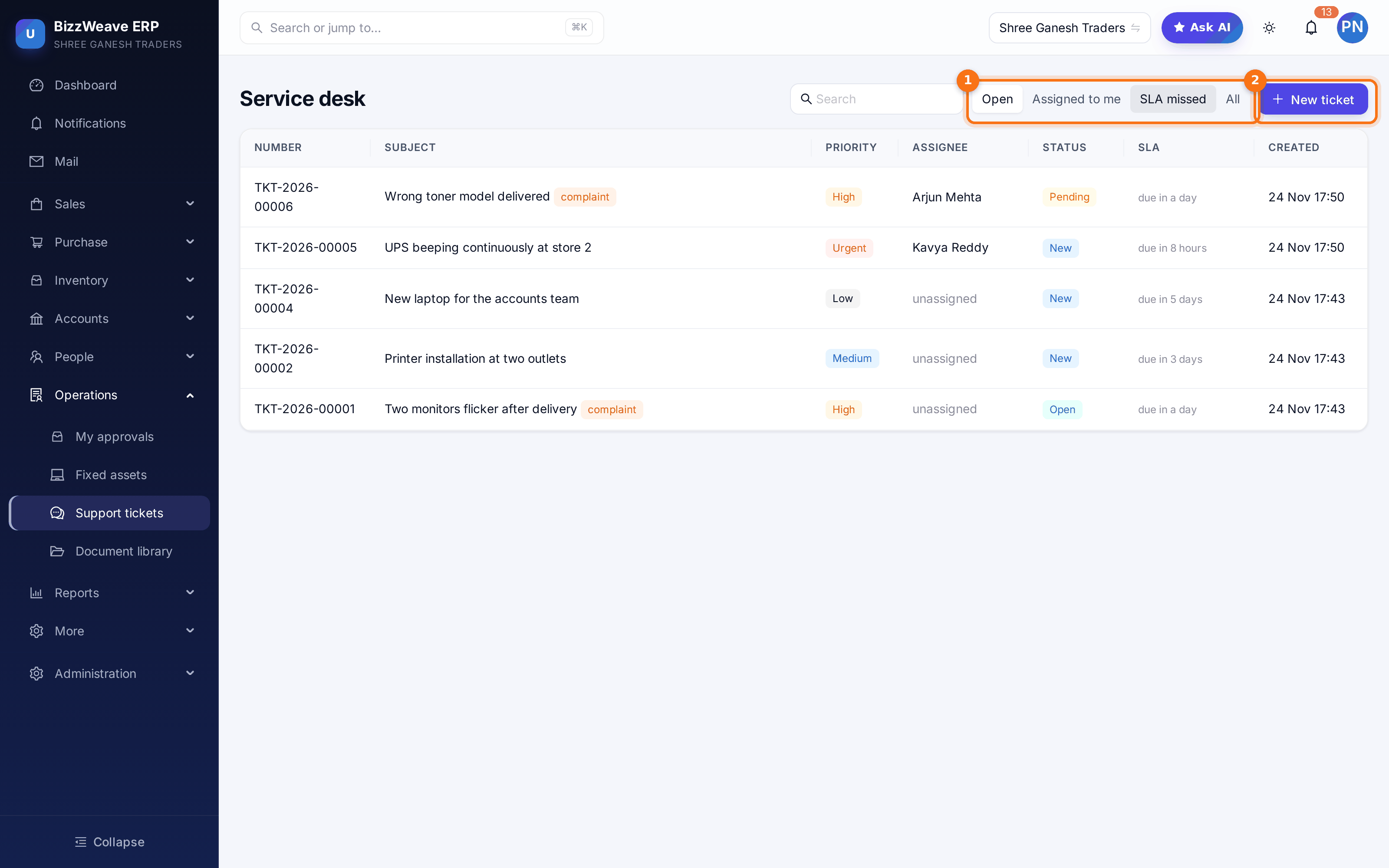
Each ticket shows its number, subject (complaints are tagged), priority, assignee, status, the SLA (due in …, or a red SLA missed tag) and when it was created.
| Status | Meaning |
|---|---|
| New | Just logged. |
| Open | Someone has replied or is working on it. |
| Pending | Waiting on the customer. |
| Resolved | Fixed; the resolution is recorded. |
| Closed | Finished. No more comments. |
Log a ticket
-
Click “New ticket” (members: Raise a request).

A networking ticket received by phone. -
Enter the Subject (required) and the Details.
- Choose the Type (Ticket, Complaint or Request), Priority and a Category such as Networking.
- Service-desk staff also choose Received by (Phone, Email, Walk in, Web, Internal), the Customer and Assign to.
- Click “OK”. The ticket gets a number such as TKT-2026-00008.
Work on a ticket
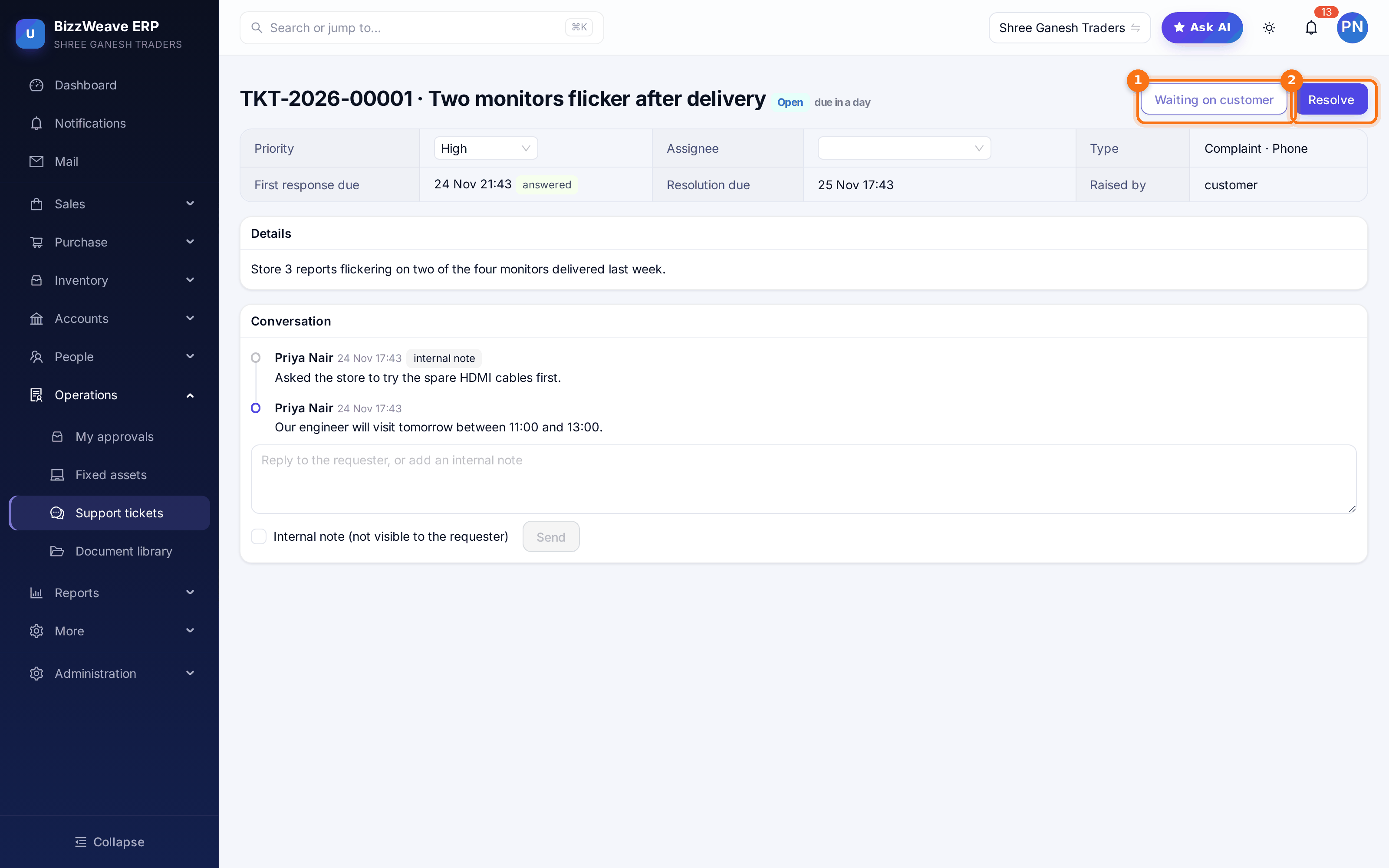
- Change the priority or assignee in the boxes at the top.
- Reply: type in the box under Conversation and click Send. Tick Internal note (not visible to the requester) for a note only your team sees.
- Waiting on customer sets the ticket to Pending; Reopen sets it back to Open.
- Resolve: describe what fixed it (required). The resolution is shown on the ticket.
- Close: on a resolved ticket, closes it for good.
The top also shows the First response due and Resolution due times, marked answered or missed.
Where do I see how many tickets missed their SLA?
On the Business overview (Tickets past their SLA) and with the SLA missed filter here.