Business overview
The home page of Business ERP. It shows the money, stock and work of the whole business at a glance, predicts sales, late payments and stock-outs, and lets a new company load a ready-made sample business to explore.
Before you start
- Choose Business ERP in the category switcher (if your organisation has more than one category), then click Dashboard at the top of the menu.
- Everyone in the organisation can open the overview, but each person sees only the tiles their role allows. For example, members don't see money figures from invoices.
- Time needed: 2 minutes to read it.
What the overview shows

The large tiles show key figures (KPIs, “key performance indicators”):
| Tile | What it means |
|---|---|
| Fixed assets (net book value) | What your equipment, furniture and vehicles are worth after depreciation. |
| Cash and bank | The balance of your cash and bank accounts in the books. |
| Sales orders booked (30 days) | The value of sales orders confirmed in the last 30 days, with the trend. |
| Weighted pipeline | Open opportunities, each counted at its probability (₹1,00,000 at 40% counts as ₹40,000). |
| Stock value | The quantity on hand times the average cost, across all warehouses. |
| Open purchase orders | The value of purchase orders still to be received. |
| Outstanding receivables | What customers still owe on issued invoices. |
| Collected (30 days) | Payments received in the last 30 days. |
The small counters are things to act on. Click one to open the list behind it:
| Counter | Opens |
|---|---|
| Leave requests waiting for you | Leave |
| People in today | Attendance |
| Open support tickets, Tickets past their SLA | Support tickets |
| Sales orders to deliver | Sales orders |
| Quotations awaiting the customer | Quotations |
| Purchase orders awaiting approval | Purchase orders |
| Items at or below reorder level | Stock |
| Stock adjustments awaiting approval | Stock adjustments |
| Overdue invoices | Invoices |
| Expenses awaiting approval | Expenses |
Predictions
Below the counters, Predictions works out three forecasts from your own data with plain statistics. You can ask the AI assistant (Ask AI at the top) to explain them.
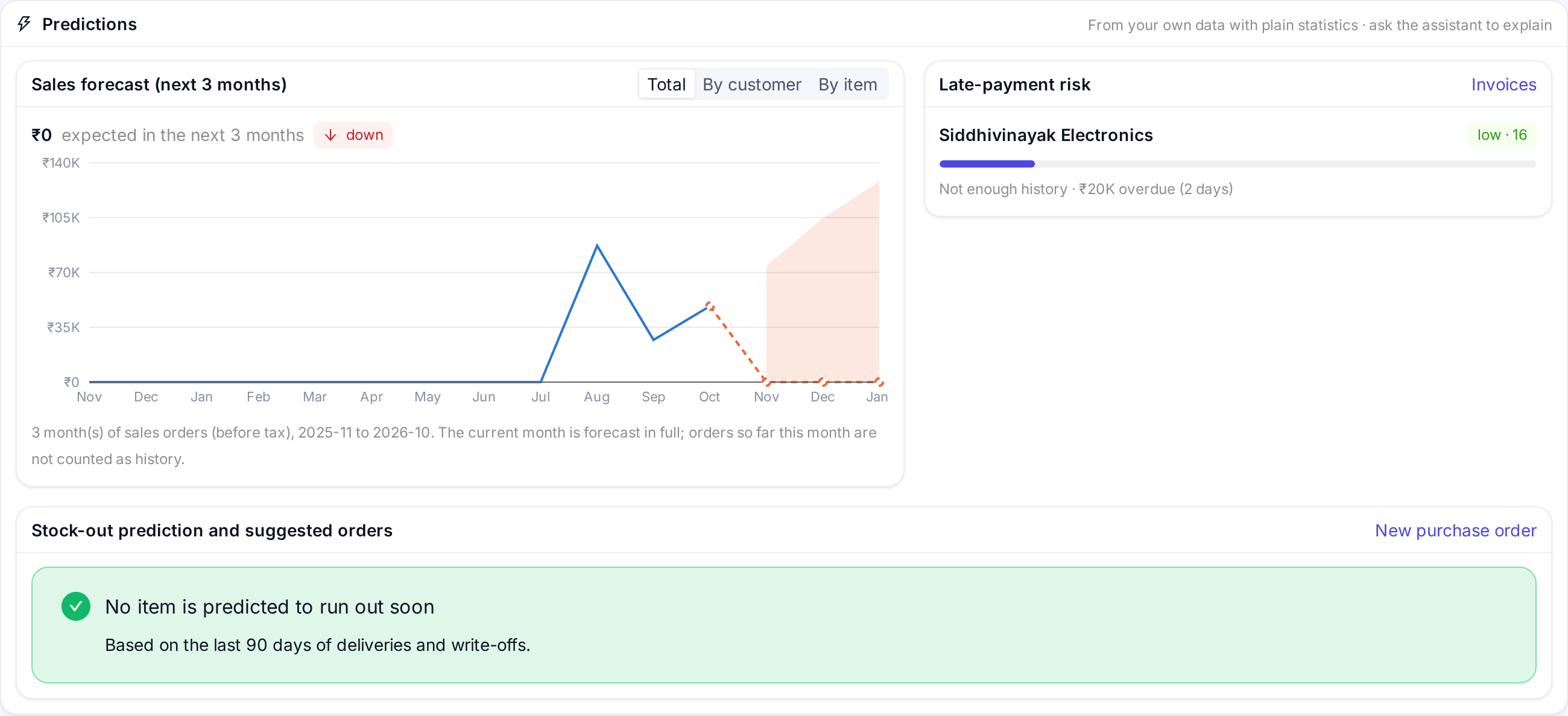
- Sales forecast (next 3 months): the solid line is your monthly sales-order value so far; the dashed line and the shaded band are the forecast and its likely range. Switch between Total, By customer and By item. It needs sales orders from earlier months; the current month is not counted as history.
- Late-payment risk: customers scored from 0 to 100 by how late they paid before and what is overdue now. Hover over a bar to see the reasons.
- Stock-out prediction and suggested orders: items expected to run out, based on the last 90 days of deliveries and write-offs, with a suggested quantity to order. New purchase order opens a new order.
The module list
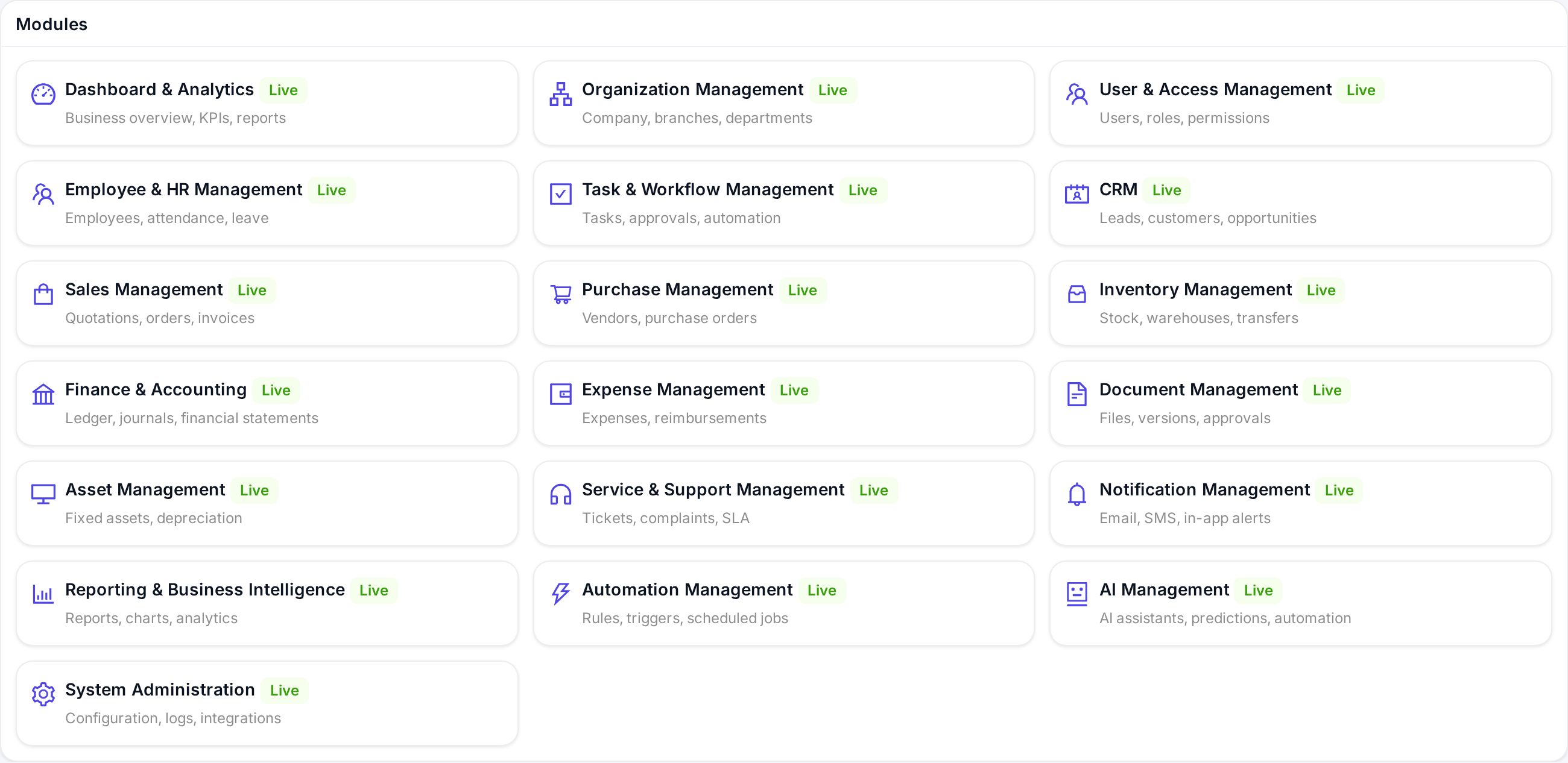
At the bottom, Modules lists the 19 parts of Generic ERP with a Live tag. Click a module to open its main page.
Try Business ERP with demo data
A new organisation with no items sees the card Try Generic ERP with demo data. It loads a small sample trading-and-services business so you can see every screen working before you enter your own data. Only administrators see the card.
-
Click “Load demo data” on the Business overview.

1 Load demo data. All tiles are still zero. -
Read the warning and confirm. The records are real entries in your organisation and are not removed automatically. Use it only in an organisation you are exploring with.

Click Load demo data to start. -
Wait for the progress bar to finish (about a minute). Each step is reported; a step that cannot run is skipped and listed.

Finished. Here the business profile was skipped because it was already set up.
What the demo data adds
GST rates, departments, customers, vendors and contacts, a second warehouse and branches, 10 products and 3 services, opening stock and a transfer, four purchase orders (received, part received, awaiting approval and draft), opportunities at every stage, quotations, sales orders, deliveries, GST invoices with payments and a credit note, expense claims, an opening-capital journal, three fixed assets with depreciation, support tickets, a document library, sample projects with timesheets, automation rules and custom reports. The business profile under Billing & GST is filled in only if you have not set it up yet.
When installing the app
When an administrator installs Generic ERP from Administration → System → ERP Store, the install window has a box Import demo data. Tick it to load the same sample business straight after installing.
The demo data card has disappeared
It shows only while the organisation has no items (or, after an older demo load, no projects; then it offers Add demo data to add the missing parts). Once you have items, it is hidden so demo data never mixes with your own records.
Can I remove the demo data afterwards?
Not automatically. Delete or cancel the records yourself, or load the demo data only in a test organisation.