Project documents and wiki
Keep every file of a project in one place, with versions, reviews and expiry dates, and write the team's shared notes, such as the project charter and checklists, in the project wiki.
Before you start
- Open the project and click the Documents or Wiki tab.
- You need to be able to change the project to upload files or edit wiki pages. Everyone who can see the project can read them.
- Time needed: about 2 minutes per document.
The Documents tab
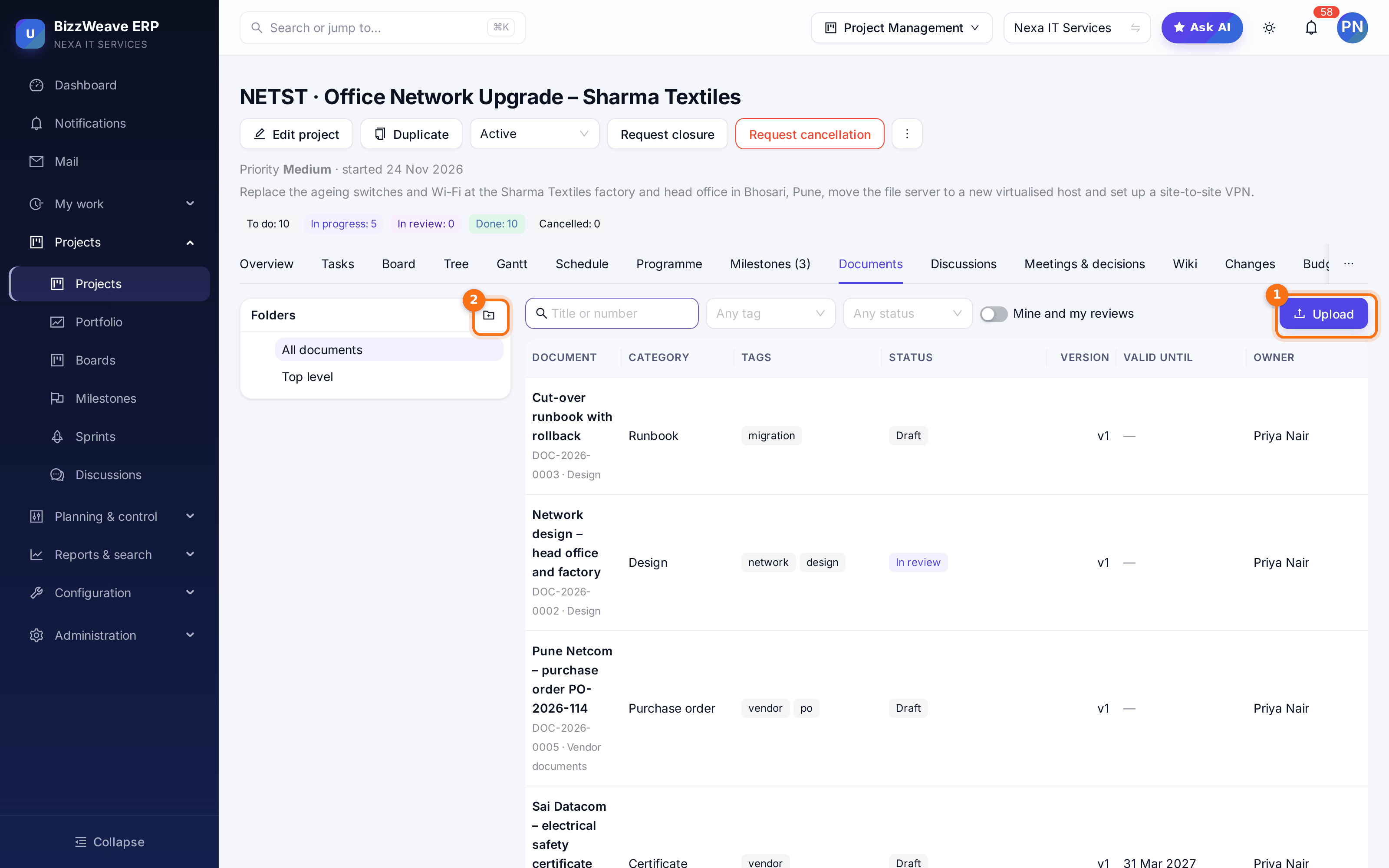
On the left are the Folders: All documents, Top level and the folders you create. On the right, the list shows each document's title and number (for example DOC-2026-0002), Category, Tags, Status, Version, Valid until and Owner.
Narrow the list with:
- the Title or number search box;
- Any tag and Any status (Draft, In review, Approved, Rejected, Archived);
- Mine and my reviews, to see only your documents and those waiting for your review.
Known issue in this version
The folders you create don't yet appear in the Folders list on the left (only All documents and Top level are shown). The folders do exist: choose them in the Folder box when you upload or edit a document, and look for the folder name under the document title in the list.
Upload a document
-
Click Upload 1.

The Upload a document window. -
Click or drop a file in the box (PDF, Office, images, text and so on). The title is filled in from the file name.
-
Fill in the details:
Field What to enter Example Title (required) A clear name. Wi-Fi heat map – warehouse Folder Where to keep it. Empty means Top level. Design Category The kind of document. Contract, Design, Permit Tags Words to find it by; type and press Enter. network Valid until For permits, insurance and certificates that expire. 31 Mar 2027 Description A short note. -
Click Upload. The document is saved as a Draft, version 1.
To create a folder, click the folder icon 2 next to Folders, type the name and click Create.
Open a document, add a version
Click a document's title to open it. The window shows the Details on the right (edit them and click Save changes) and four tabs on the left.
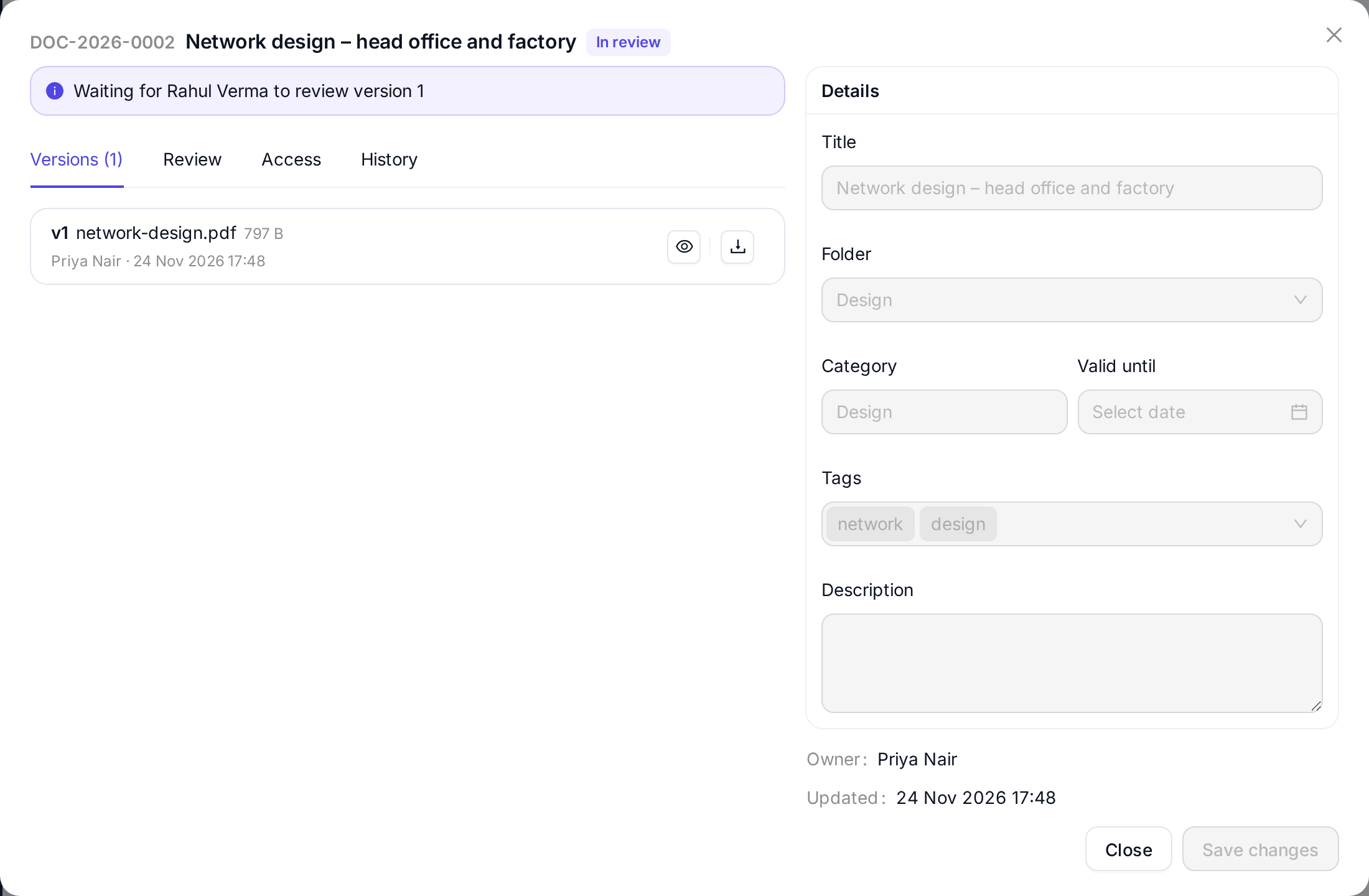
- Versions: every uploaded version. Use the eye icon to preview, the arrow to download, Restore to make an older version current again, and Upload a new version to add a new file. A new version starts a new draft.
- Review: send the document for review and record decisions (see below).
- Access: switch on Restricted to limit the document to named people. The owner, the reviewer and the project managers can always see it.
- History: who uploaded, sent for review, approved or restored what, and when.
To take a document out of the list, click Archive. Managers can bring it back with Take out of archive.
Send a document for review
- Open the document and click the Review tab.
- Choose the reviewer and click Send for review. The status changes to In review, and the details are locked until the review ends.
-
The reviewer opens the document, types a note and clicks Approve or Reject. A note is required to reject.

The reviewer's decision on version 1. Withdraw the review cancels the request.
What happens next
An approved document shows Approved. People who can only read the project see the approved version. If you upload a new version later, it is a new draft and the list shows which version is still published (for example v1 published).
The Wiki tab
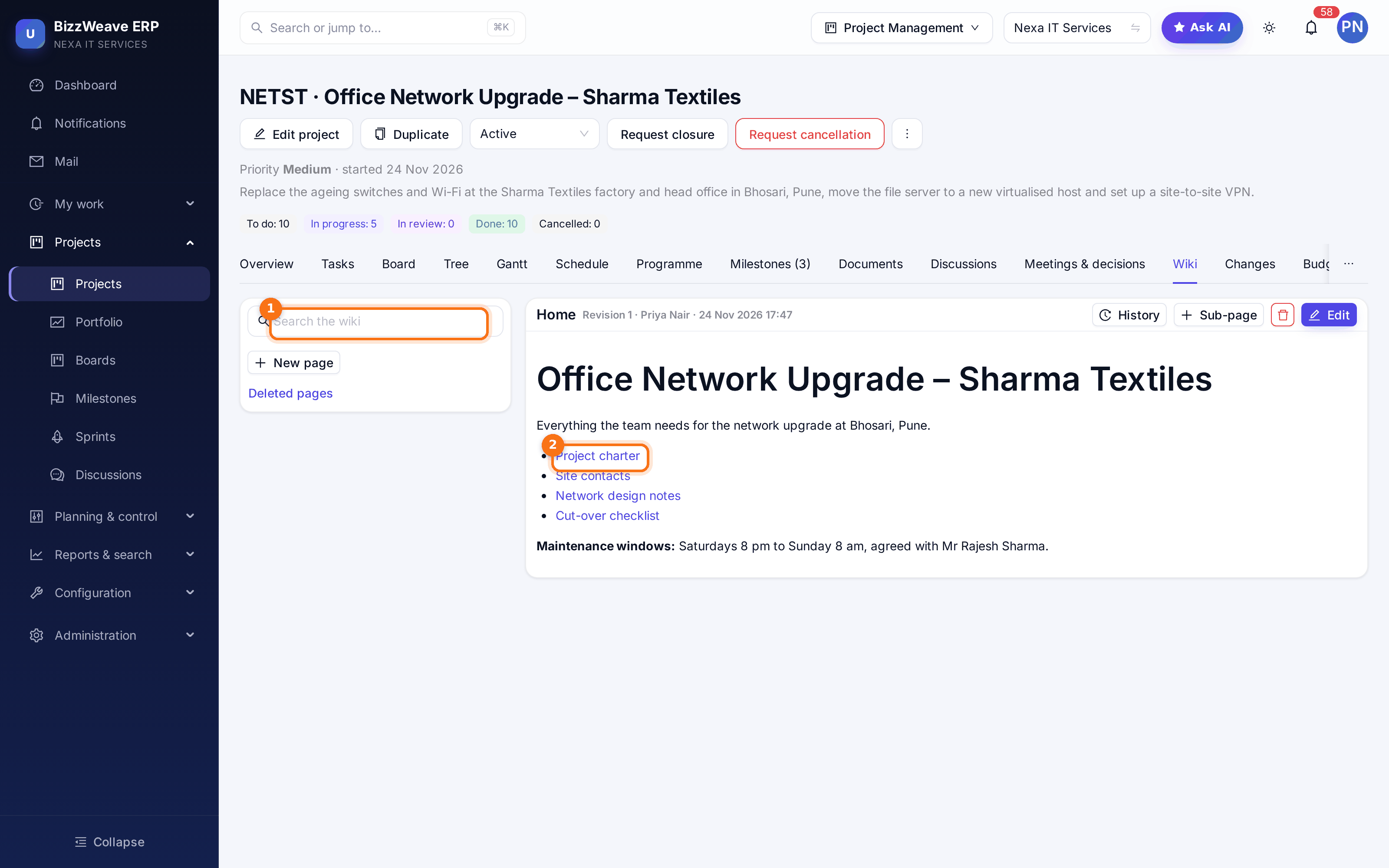
The wiki holds pages the whole team writes together: the project charter, contact lists, how-to notes and checklists. Pages can have sub-pages, link to each other and keep every revision.
Known issue in this version
The page tree on the left stays empty even when the wiki has pages. Open pages through the links on the Home page, or type at least two letters in Search the wiki and click a result.

Start the wiki
On an empty wiki, click Create the first page (a page called Home) or Project charter. The charter starts from a ready template with headings such as Purpose, Objectives, Scope and Stakeholders; replace the hints with your own text.
Add and edit pages
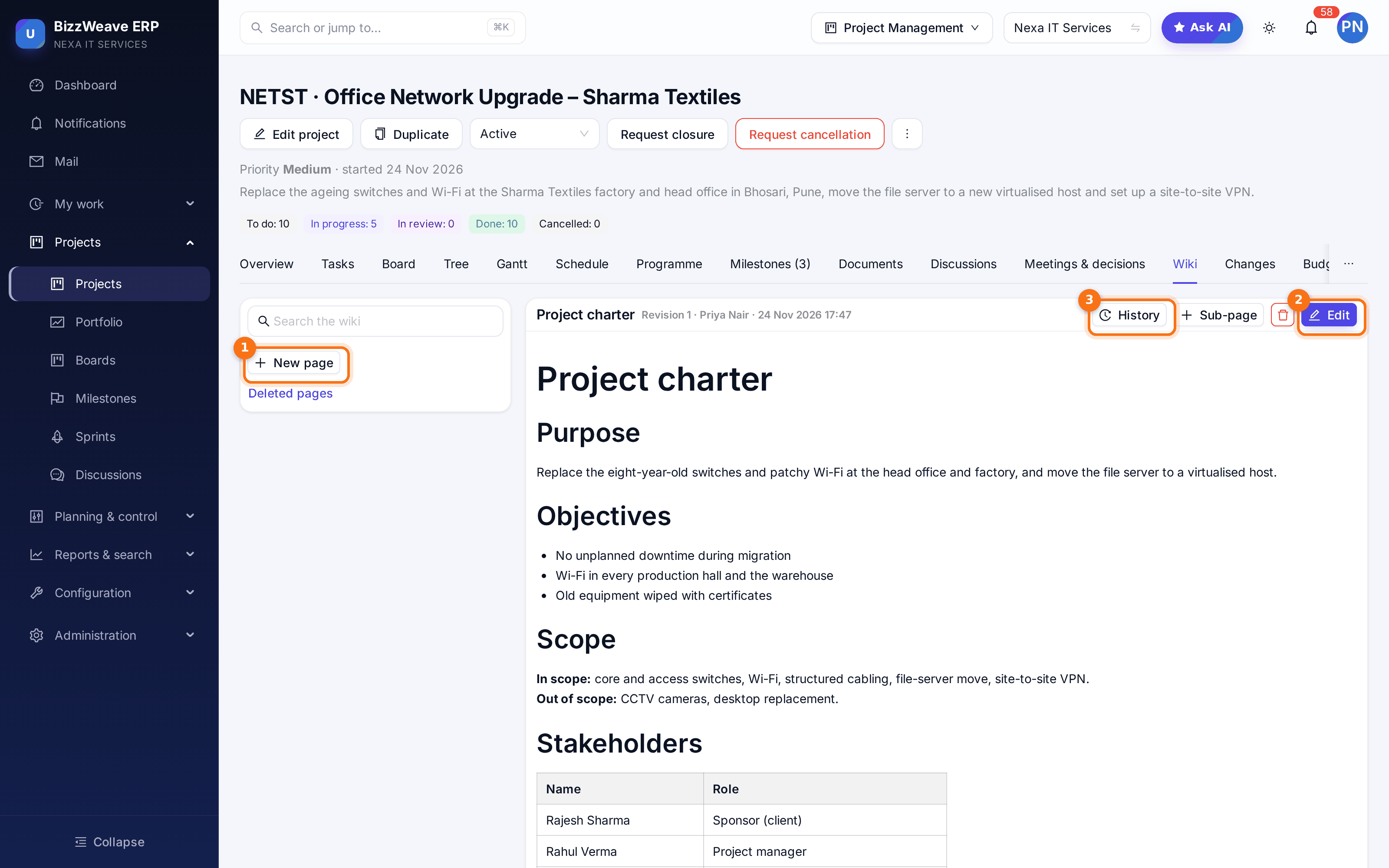
- Click New page 1, type the Page title, choose a parent page (or leave Top level) and click Create. To add a page under the one you are reading, click Sub-page.
-
Click Edit 2. Write in Markdown, a simple way to format text:
# Heading,**bold**,*italic*- itemfor a list and- [ ] taskfor a checklist| table |for tables[[Page title]]to link to another page. If that page doesn't exist yet, the ERP offers to create it.
Choose Write, Side by side or Preview at the top right to see the result while you type.

Editing the cut-over checklist with the preview beside the text. -
Type what you changed in What changed (optional) and click Save.
Two people editing at once
If someone else saved the page while you were editing, the ERP warns you and keeps your text. Copy it, click Show their version, then add your changes again.
Page history
Click History 3 to see every revision with its date, author and note. Choose two revisions under Compare to see the differences: green lines were added, red lines removed. Click Restore on an older revision to save it again as the newest.
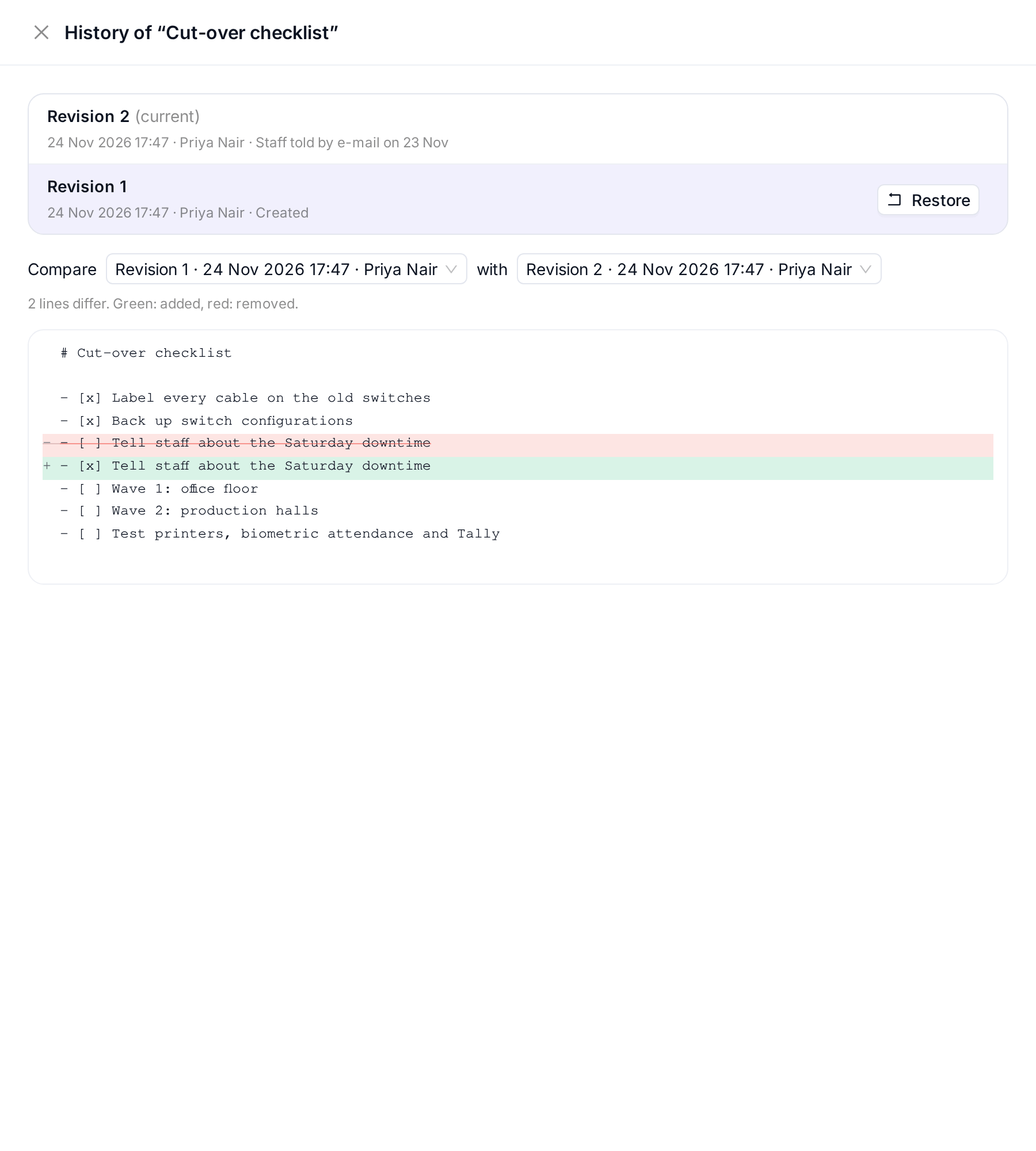
To delete a page, click the red bin icon and confirm. Deleted pages can be brought back from Deleted pages with Restore.
Common questions
What is the difference between Documents and the wiki?
Use Documents for files that need versions, a formal review or an expiry date: contracts, designs, certificates. Use the wiki for text the team writes and updates together: charters, contacts, how-to notes and checklists.
Can a client see our documents?
Not by default. When you share the project with a client, you choose which files they may download.
I can see the Approve button on a document I didn't review
The project's managers can also decide on documents in review, not only the named reviewer.