Branches
Branches are your shops, depots and offices. Each branch can have its own GSTIN and manager, warehouses can belong to a branch, and you can limit members to the branches they work in, so that they see only those branches' stock and orders.
Before you start
- Adding and changing branches needs the Administrator role. Everyone else can see the branch list.
- Have ready: each branch's address, phone, e-mail and GSTIN (if it has its own registration).
- Time needed: about 2 minutes per branch.
The branch list
Open Administration → Organisation → Branches.
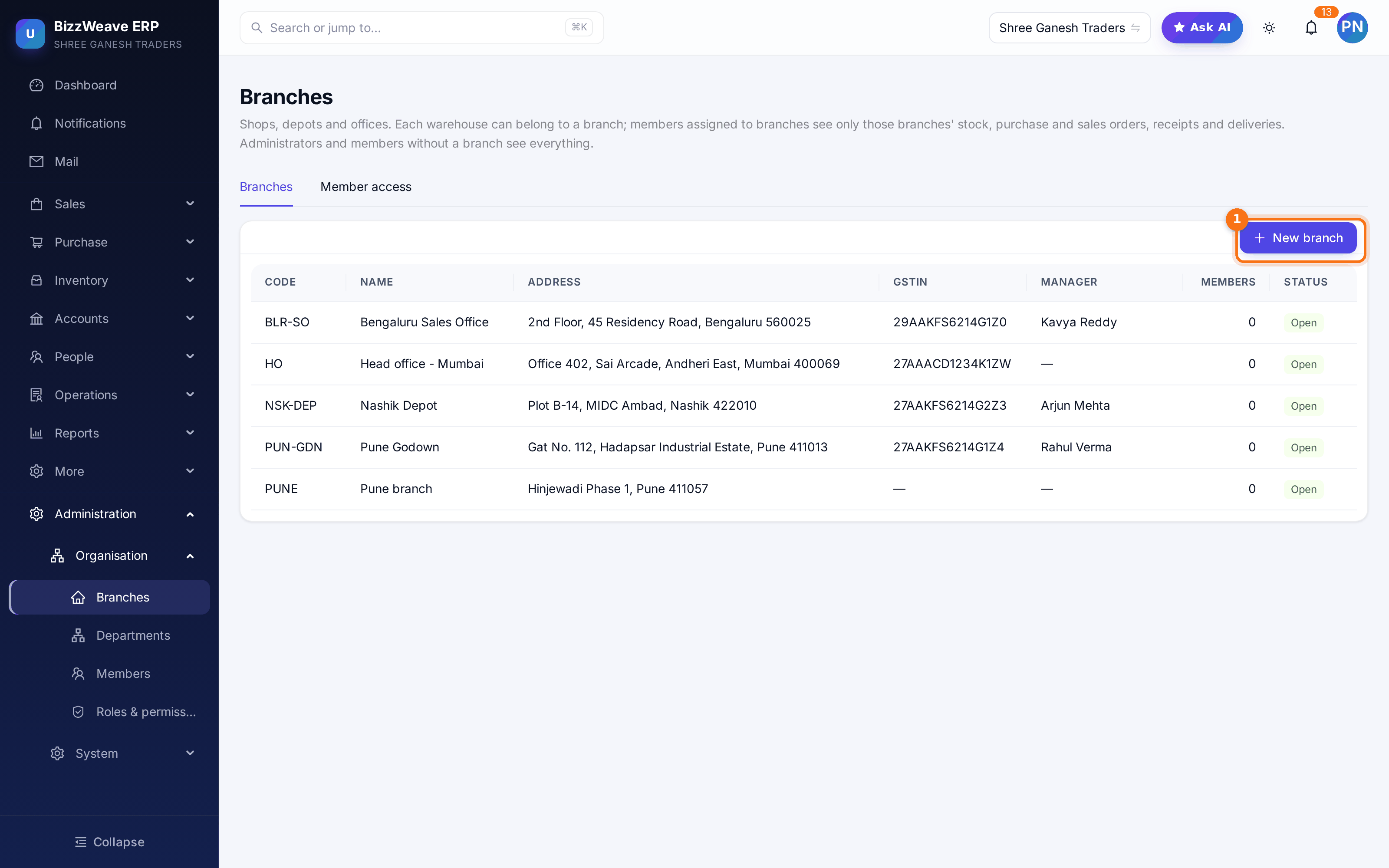
Members counts the people limited to that branch. Status is Open or Closed.
Add a branch
- Click New branch.
-
Fill in the form, then click OK.

The same form is used to add and to edit a branch. Field What to enter Example Code (required) A short code: letters, digits, -and_.NSK-DEP Name (required) The branch's name. Nashik Depot Address The full address with PIN code. Plot B-14, MIDC Ambad, Nashik 422010 Phone, Email The branch's contact details. 0253 238 4410 GSTIN The branch's GST registration, if any: 15 characters starting with the 2-digit state code. 27AAKFS6214G2Z3 Branch manager The member in charge. Arjun Mehta Open Ticked for a working branch. ✔
To change a branch, click its row in the list.
Close a branch
Open the branch, untick Open and click OK. Closing hides the branch's stock and orders from the members limited to it; nothing is deleted, and you can open it again later. Branches can't be deleted.
Limit members to branches
-
Click the Member access tab.

An empty Branches box (showing All branches) means the member works in every branch. -
In the member's Branches box, pick one or more branches. It saves straight away.
- To give someone every branch again, clear the box.
What happens next
A member limited to branches sees only those branches' stock, purchase and sales orders, receipts and deliveries. Administrators, and members without a branch, always see everything.